
How-to › Start here
How to Move to WP EasyCart from WooCommerce
Bring your WooCommerce catalogue into WP EasyCart with the built-in importer, check it, rebuild what does not come across and keep your addresses working. 11 parts.
Quick links
Where to find it:WP Admin › EasyCart › Settings › Integrations
Before you start
What moves and what does not
What you need, and what the importer does and does not carry over.
What you need
WooCommerce and WP EasyCart on the same WordPress site
no stored settingsWhat you need. Your WooCommerce store still on the WordPress site, with WooCommerce active, and the free WP EasyCart plugin installed on that same site. The importer reads the WooCommerce data on this WordPress install. It cannot import from a different site.
Free or PRO. The importer is in the free plugin. If your WooCommerce store sells downloads, selling them in WP EasyCart needs PRO or Premium, and there is a 14-day free trial.
Back up first. The importer only adds to your catalogue, and nothing already in EasyCart is deleted. But it is a big write to your database, and you should be able to go back. Run it once.
There are five steps: prepare, run the importer, check the result, rebuild what did not come across, then keep your addresses working.
⚠️ Careful: Back up before you import. Run the WooCommerce importer once. Running it again adds the categories, option sets and products a second time.
What comes across, and what does not
The importer moves the catalogue, not the whole store
no stored settingsWhat it imports. The panel lists it:
Categories: each product category is created, with a store page of its own. The parent and child structure is not carried over, so they arrive as a flat list.
Attributes: each global attribute becomes an option set, with its terms as the choices, and is attached to the products that use it.
Products: title, description, regular and sale price (the sale price becomes the price and the regular price the list price), taxable, SKU (a random model number if there is none), stock, weight and dimensions, and reviews. The importer also makes a manufacturer called Woo Products and gives it every imported product.
Images: up to five, from the gallery, or the featured image.
Downloads: the first downloadable file, with its download limit and expiry.
Cross-sells: up to four become the product’s featured products.
What it does not import. Not every extension can be carried over, and the importer says so. Plan to rebuild these yourself:
Variations, with their own prices, stock and pictures. Custom attributes that are not global. Tags. Shipping zones and classes. Tax rates and classes. Coupons. Payment settings. Subscriptions. Your WooCommerce pages and theme settings. Customers and orders are not imported either.
Do the move
Five steps
Prepare, run the importer, check the result, rebuild the rest and keep your addresses.
Step 1. Prepare
Back up, install WP EasyCart beside WooCommerce, set the basics
no stored settings1. Back up your database and your uploads folder.
2. Install and activate WP EasyCart, and leave WooCommerce active. Follow How to Build Your First Store with WP EasyCart to run the setup wizard.
3. Do not build your catalogue by hand. You are about to import it.
A new store with no orders and at most three real products gets a launch checklist item, called Import your products from WooCommerce, when WooCommerce is on the site. It opens the importer for you. If WooCommerce is not active, the item says to reactivate it so the importer can read your products.
Step 2. Run the importer
Settings, Integrations, Cart importer
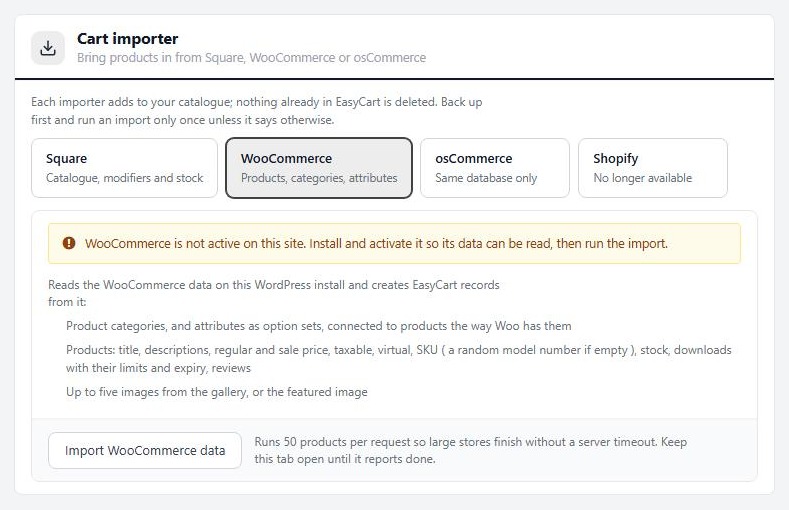
no stored settingsOpen EasyCart › Settings › Integrations and find the Cart importer card. It has a card for each source: Square, WooCommerce, osCommerce and Shopify. Choose WooCommerce. The panel reads Reads the WooCommerce data on this WordPress install and lists what it creates.
If WooCommerce is not active, the panel warns you and the button is disabled. Activate WooCommerce and reload.
Press Import WooCommerce data. A progress bar starts with copying the categories and option sets, then counts products as they import. It runs 50 products per request, so large stores finish without a server timeout. Keep this tab open until it reports done, with All products imported. and a message that your WooCommerce store has been imported.
💡 Note: The importer lives on the Integrations page. Its options are covered in Settings › Store details, and the CSV route in Product Importer.
If the import stops
Check what arrived before you run it again
no stored settingsIf the server stops answering, the panel shows an error and the button comes back. Products already imported are kept, but pressing the button again starts from the first product and adds the categories and option sets again, so you can end up with duplicates.
Open EasyCart › Products first and see how far it got. If most of it arrived, add the rest by hand or from a CSV. If very little did, restore your backup and try again, ideally after asking your host for more time or memory for PHP.
Step 3. Check the result
Count, look, and buy something
no stored settingsDo not assume it worked. Check these, in this order:
The count. Compare the number of products in EasyCart › Products with the number in WooCommerce. The panel’s progress count shows the total it tried.
Active products. Open your Store page. If products are missing, open them in Products and check the Activate switch is on.
Categories and option sets. Open Products › Categories and Products › Option Sets. Everything should be there. Rebuild any nesting.
Prices. Products on sale should show the sale price with the regular price struck through.
Stock. A product that tracked stock in WooCommerce carries its quantity. One that did not, and was in stock, is set to 9999, so tidy those.
Weight and shipping. A product with no weight, and every download, is saved as not shippable. Add weights to anything you ship.
Images. Open a few products and check the pictures.
Downloads. Open a downloadable product, and buy it once.
Finish by buying a product as a customer, as in the first store guide.
💡 Note: Products are edited in Products, option sets in Option Set Manager and categories in Categories.
Step 4. Rebuild what did not come across
Variations, shipping, tax, payment and coupons
no stored settingsVariations. Attributes came across as option sets, but variation prices, stock and pictures did not. Open each product with variations and set them in the editor under Options & Variants.
Shipping. Build your rates again. See Set Up Shipping That Does Not Lose Money.
Tax. See Set Up Sales Tax and VAT.
Payment. Connect a gateway. See How to Take Your First Payment.
Coupons. Recreate them in the Offers hub, which is a PRO feature.
Then deactivate WooCommerce, and remove its shop, cart, checkout and account pages from your menu, replacing them with your WP EasyCart Store, Cart and Account pages.
Step 5. Keep your addresses working
Redirect the old product and shop addresses
no stored settingsYour old WooCommerce addresses are in search results, in links and in customers’ bookmarks. The importer does not create redirects. Before you switch over, list your top pages, and after, send each old address to its new one.
Two things help. WP EasyCart builds product, category and manufacturer addresses under your Store page’s slug, so if your WooCommerce shop lived at /shop/, giving the Store page the same slug keeps the front of the shop in the same place. Then redirect the rest, product by product, with a redirect plugin or your server settings. Compare a few old and new addresses before you start.
Good to know
Beyond the catalogue
Customers and orders, the CSV route, and what to check when it does not work.
Customers and orders
They stay behind in WooCommerce
no stored settingsThe importer does not move customer accounts or past orders. Your customers will need to register again, or you can add them yourself in Users › User Accounts. Export your WooCommerce orders with WooCommerce’s own tools and keep the file for your records, before you remove WooCommerce.
Another way in: the Product importer
A CSV, for anything the Woo importer cannot reach
no stored settingsIf your products are on a different site, or you want to bring in variations, use the Product importer on the Products page. It takes a CSV in WP EasyCart’s own columns. Do not upload a WooCommerce export as it is: it will not match.
Export your EasyCart products, or download the sample file, easycart-products-sample.csv, and paste your data in. When you choose the file, the importer shows a preview with the number of new products and updates, and lists any problem rows before anything is written. A row with a product ID updates that product, and a row without one creates a new product. Read the counts before you confirm.
💡 Note: The CSV importer is covered in Product Importer.
If it does not work
The usual reasons the import is empty or wrong
no stored settingsThe button is disabled. WooCommerce is not active. Activate it, and reload the page.
Nothing imports. Your products may be drafts. Publish them in WooCommerce, or check what WooCommerce holds under Products.
Products are missing from the Store page. They may have come in inactive. Open them in Products and turn on the Activate switch.
Duplicates. The import was run twice. Delete the extra products, categories, option sets and the second Woo Products manufacturer, or restore your backup.
Products will not ship. They have no weight. Add one.
Still stuck? Open a ticket at wpeasycart.com/my-account.
Keep going
Related panels
Bring products in from a CSV.
Edit and check your imported products.
The option sets made from your attributes.
The categories made from your product categories.
Your Store, Cart and Account pages.
Ready to run your store on WP EasyCart?
Everything in this guide works with the free plugin. PRO and Premium add subscriptions, memberships, wholesale pricing and more. Try every PRO feature free for 14 days.
