
How-to › Wholesale and B2B
How to Sell Wholesale to Approved Customers
Give trade customers their own prices. You create a role, set its prices, put approved customers in it and choose what everyone else sees. 9 parts.
Quick links
Where to find it:WP Admin › EasyCart › Users › User Roles
Before you start
What you are building
What you need and how role pricing works.
How wholesale pricing works
What you need, and the four tools that do the job
no stored settingsWhat you need. WP EasyCart with customers who sign in. Role prices you set from Users › User Roles need nothing extra. PRO or Premium adds B2B Pricing inside the product editor, Login for Pricing and Limit Visibility to User Role. There is a free trial if you want to try them.
The idea. A role is a group a customer belongs to, such as Wholesale. You give that role its own price on the products you choose, then put approved customers in the role. When they sign in, the store simply shows them their price. There is no coupon and no discount line at checkout.
Four tools, and what each one does.
Role prices change what a customer pays.
Login for Pricing hides the price until the right customer signs in.
Limit Visibility to User Role hides a whole product from everyone else.
Who can view the store closes the whole shop to anyone outside your roles.
The steps: create the role, set its prices, put customers in it, choose what everyone else can see, then test as a wholesale customer.
Set it up
Four steps
Create the role, set its prices, put customers in it and choose what everyone else sees.
Step 1. Create the role
Users › User Roles › Add role
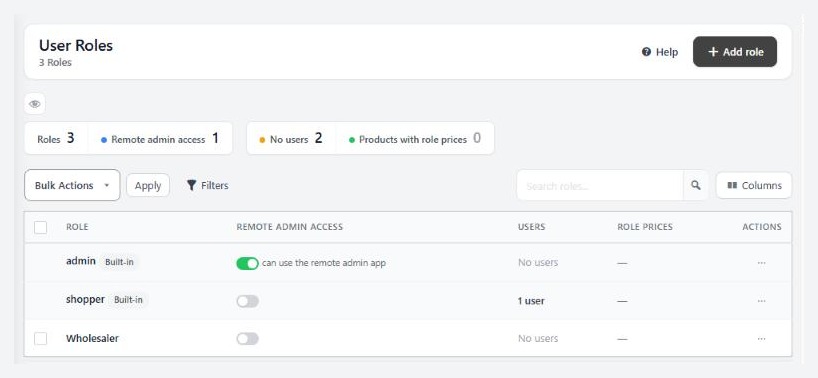
no stored settingsGo to EasyCart › Users › User Roles and press Add role. Give it a plain name, such as Wholesale. Pricing tiers get a role each, so if you sell to trade and to distributors at different prices, make Trade and Distributor.
Every customer account carries exactly one role. Your store starts with a few built-in roles, such as shopper. They cannot be renamed or deleted, because the storefront looks for them by name. Roles you make yourself can be renamed at any time. Renaming updates every customer, role price and access rule that used the old name.
Leave Remote admin access off. That switch is for staff who use the EasyCart mobile admin, and a wholesale customer should never have it.
Step 2. Set the role’s prices
One product at a time, or a percentage off the catalogue
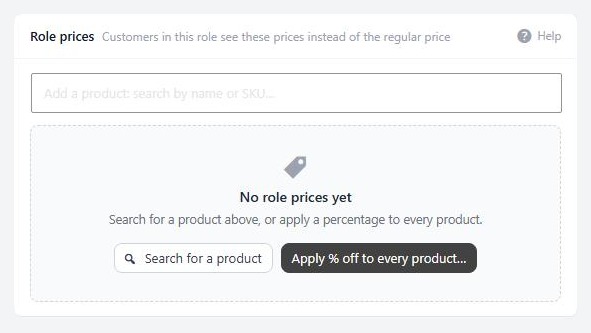
no stored settingsOpen the role you made. The Role prices card says it plainly: customers in this role see these prices instead of the regular price. There are three ways to fill it.
Add one product. Type in Add a product: search by name or SKU, pick the product and enter the price. Use this for a hand-picked list.
Apply a percentage. Press Apply % off… and enter a number from 1 to 99. It recalculates the role price on every product already in the list from that product’s current regular price. Tick some rows first and the button becomes Apply % off to selected….
Price the whole catalogue. Every active product… creates a role price for every active product and overwrites any role price it already has. You must tick a box saying you understand how many products it touches. Use it once, then remove the rows you do not want on trade terms.
The list shows the regular price beside the role price and how far off it is. Remove on a row, or Remove selected, puts those customers back on the regular price.
From the product instead. With PRO, open a product, go to the Pricing & Tax tab and find B2B Pricing in the Advanced Pricing card. It reads like a sentence: pick a role, it pays a price, press Add Role Price. That is the quickest way to price a single product for several roles. The same prices appear in the role editor.
From a spreadsheet. The product CSV has a b2b_prices column of role,price pairs. See the product import guide.
⚠️ Careful: Every active product… overwrites any role price already set for that role. Run it once on a new role. Do not run it again on a role whose prices you have tuned by hand.
Step 3. Put customers in the role
Roles are assigned by you, never by a purchase
no stored settingsNothing puts a customer in a role on its own. Buying a product does not, and neither does registering. You choose, in one of four ways.
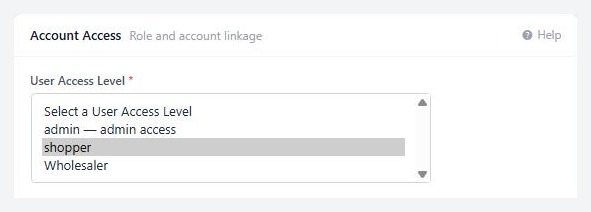
One customer. Open Users › User Accounts, edit the customer and on the General tab find Account Access. Set User Access Level to your role and save.
From the role. In the role’s Users in this role card, type a name or email in Add users.
Several at once. On the User Accounts list, tick the customers and use the bulk edit’s Role field.
A whole list. Use Import Users on the User Accounts list. A user_level column sets the role, and an unknown role name skips that row with a reason.
Wholesale customers usually should not pay tax you are not required to charge them. On the customer’s Tax & Preferences tab, Exclude from tax turns tax off for every order they place, and VAT Registration Number stores their number.
Approving applicants
What WP EasyCart does for you, and what you do by hand
no stored settingsWP EasyCart has no wholesale application form and no approval queue. A new customer who registers becomes a plain shopper and sees regular prices. You approve them by moving them into your role, as in step 3. Here is a routine that works.
1. Turn on Notes field on registration in Settings › Accounts, under Advanced settings. Applicants can then write their company and resale number when they register, and you see it on the customer record.
2. Check the User Accounts list for new accounts, open the record and read the notes.
3. Approved? Set their User Access Level to your role. Not approved? Leave them as a shopper.
About the Pending status. If you turn on Require email confirmation in Settings › Accounts, new accounts stay Pending until the customer clicks the link in their activation email. That is email confirmation, not vetting. An Approve Account button on a pending customer’s page activates them as a shopper, nothing more. You still set the wholesale role yourself.
💡 Note: Approve Account does not make a customer wholesale. Only User Access Level does. Make sure your team knows the difference.
Step 4. Choose what everyone else sees
Hide prices, hide products, or close the shop
no stored settingsRole prices alone leave retail prices visible to the world. Most wholesale stores want more control. Pick the level that fits.
Show retail prices, wholesale prices when signed in. Do nothing more. Signed-out visitors and shoppers see the regular price. Wholesale customers see their own.
Hide the price until they sign in (PRO). On the product, Pricing & Tax tab, tick Login for Pricing. Then choose Restrict to User Role: leave Show to All User Levels for any signed-in customer, or pick your roles. Login Label changes the button wording. A visitor who is signed out sees no price, no Add to cart and a button that says Login for Pricing, which goes to your account page. A customer who is signed in but not in a chosen role sees No Pricing Available.
Hide a product completely (PRO). On the Organization tab, in Visibility & Sorting, set Limit Visibility to User Role. Everyone else, guests included, cannot see it anywhere in the store. It takes one role. Products limited this way show a restricted badge in the editor header.
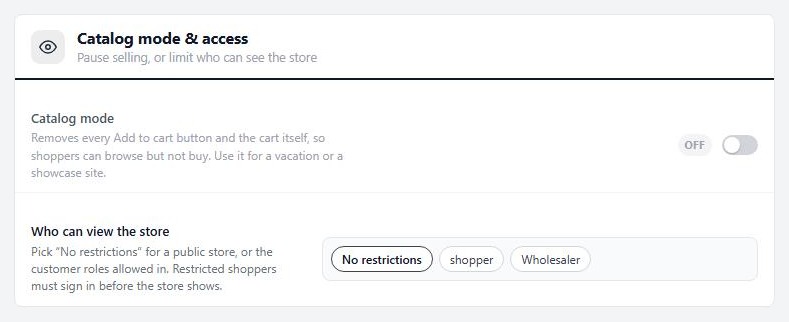
Close the whole shop. Open Settings › Products, find Who can view the store in Catalog mode & access, and choose your roles instead of No restrictions. Anyone outside them sees a notice that open access is not allowed, with a link to sign in or register. Administrators are never blocked.
⚠️ Careful: Hiding a price, or a product, does not hide its page from search engines or from anyone who already has the link, unless you use Who can view the store. Use that setting when the whole catalogue is trade only.
Check it and keep it running
Good to know
What a wholesale customer sees, how to test it and what to check when it does not work.
What a wholesale customer sees
How the role price meets everything else on the product
no stored settingsThe price. The role price replaces the regular price. The regular price shows as the crossed-out previous price beside it, when the product has none of its own. The customer sees the same in lists and on the product page, and in the cart.
Volume pricing. A role price wins over volume tiers. For a customer who has a role price on that product, the tier list is hidden and the cart charges the role price at any quantity. Do you want wholesale customers to earn further breaks? See the volume pricing guide for how to build that.
Options. Option prices still add on top of the role price. An extra-large that costs 2.00 more costs 2.00 more for wholesale customers too.
Offers. Promotions are worked out after the role price, so a promotion can still take something off it.
Payment. Trade customers often want to pay later, with a PO number. See the Net 30 guide.
Test it as a wholesale customer
Log in as them, and look from a private window too
no stored settingsOn the User Accounts list, open a wholesale customer’s row menu and choose Login as Customer. You see the store exactly as they do.
1. Open a product with a role price. The role price should show, with the regular price crossed out.
2. Add it to the cart and change the quantity. The line price should stay at the role price.
3. Open a product with no role price for this role. It should show the regular price.
4. In a private window, signed out, open the same product. Check it shows the regular price, or the login button if you used Login for Pricing.
Then check with a plain shopper account, so you know the role is doing the work.
If it does not work
Why a wholesale customer still sees the regular price
no stored settingsThey see the regular price. Check three things in order. Is the customer signed in? Is their User Access Level your role, spelled the way the role is? Does that product have a role price for that role? A role price belongs to one product and one role, and a product with none charges the regular price.
A price looks wrong after a change. Prices depend on who is signed in, so a page cache can hand one visitor another’s page. Exclude your store, product and cart pages from page caching. WP EasyCart tells caches to skip store pages on a store that restricts who can view it, but not every host obeys.
The volume tiers disappeared. That is the role price at work. See What a wholesale customer sees.
A customer cannot buy and sees No Pricing Available. The product uses Login for Pricing with a role list and the customer is not in it. Add their role to Restrict to User Role, or move the customer.
The store still opens for guests. Who can view the store must have roles chosen and be saved. Check it in a private window.
You deleted a role. Its role prices are removed and its customers move to the role you choose. The screen offers Undo for 15 minutes.
Still stuck? Open a ticket at wpeasycart.com/my-account.
Keep going
Related panels
Every panel in Users › User Roles.
Customer accounts, roles and tax exemptions.
The product Pricing & Tax tab.
Who can view the store, and the other product settings.
Registration, the notes field and email confirmation.
Ready to run your store on WP EasyCart?
Everything in this guide works with the free plugin. PRO and Premium add subscriptions, memberships, wholesale pricing and more. Try every PRO feature free for 14 days.



