
How-to › Selling special products
How to Sell Subscriptions on WordPress
Bill customers on a schedule with Stripe: a monthly box, a service plan, a members club. You connect Stripe, create the product, decide what customers can manage and test. 10 parts.
Quick links
Where to find it:WP Admin › EasyCart › Products › Add New
Before you start
What you are building
What you need, how a customer signs up and what you can control.
How subscriptions work
What you need and how a customer signs up
no stored settingsWhat you need. WP EasyCart PRO or Premium, and Stripe. Subscriptions bill through Stripe, which charges the customer on your schedule. If Stripe is not connected, shoppers see a message that the subscription cannot be bought online right now.
How a customer signs up. A subscription is bought on its own checkout page, not in the cart. The customer presses Sign Up Now on the product, logs in or creates an account, and enters their card. Nothing else can be in the same order, so subscriptions and other products are bought separately.
What you control. How often to bill, how long it lasts, a free trial, a sign-up fee, whether shipping repeats, whether customers can move between levels and which emails go out.
The steps: connect Stripe, create the product, set up levels if you want them, decide what customers can manage, review the emails, then test.
💡 Note: Older PayPal subscriptions still appear in Orders › Subscriptions, but new subscriptions are sold through Stripe only. A PayPal subscription cancelled in your admin must also be cancelled at PayPal.
Set it up
Six steps
Connect Stripe, create the product, add levels, choose what customers manage, review the emails and test.
Step 1. Connect Stripe and add the webhook
Settings › Payment, then the Stripe dashboard
no stored settingsOpen EasyCart › Settings › Payment and connect Stripe. If you already have subscription products but Stripe is not ready, a row called Subscriptions need Stripe appears there with a link straight to the fix.
Then add the webhook. Renewals, failed payments and cancellations all reach your store through it. Without it, your store never learns about them. In your Stripe dashboard add an endpoint at https://yourdomain.com/?wpeasycarthook=stripe-webhook and enable invoice.payment_succeeded, invoice.payment_failed, customer.subscription.updated, customer.subscription.deleted and customer.subscription.trial_will_end. Add invoice.upcoming if you want the renewal reminder email. The Stripe card in Settings › Payment has a button that copies the address, and warns you until the first event arrives.
You can also paste the webhook’s signing secret into Secure Your Webhook in the same card. With a secret, your store rejects events that do not verify.
To send the reminder before each renewal, turn on Enable Upcoming Payment Emails under Subscription Notices in the Stripe card.
Step 2. Create the subscription product
A product of type Subscription
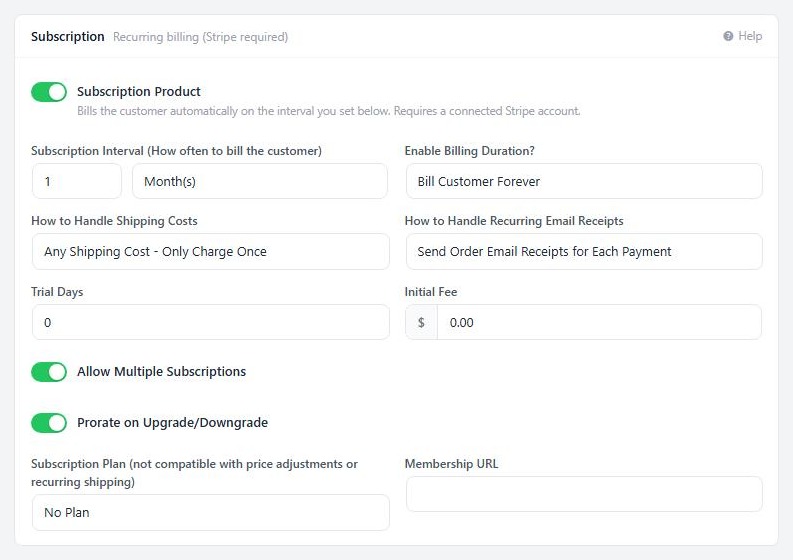
no stored settingsGo to EasyCart › Products › Products and press Add New. Enter a title and the price for each billing period, choose Subscription as the Product type and press Create & open editor. Then open Type & Behavior and fill in the Subscription section:
Subscription Interval: how often to bill, in days, weeks, months or years.
Enable Billing Duration?: Bill Customer Forever, or Set Max Number of Payments for a fixed term such as a 12 month plan.
Trial Days: days before the first charge.
Initial Fee: a one-time sign-up fee, charged with the first payment.
How to Handle Shipping Costs: charge shipping once, or every period.
How to Handle Recurring Email Receipts: email a receipt only for the first payment, or for every payment.
Allow Multiple Subscriptions: whether one customer can hold this product more than once at the same time.
Prorate on Upgrade/Downgrade: whether Stripe prorates when a customer changes level.
Membership URL: the members page, if this subscription unlocks content.
Press Save. The product page now shows a Sign Up Now button.
Step 3 (optional). Sell levels customers can move between
Products › Subscription Plans
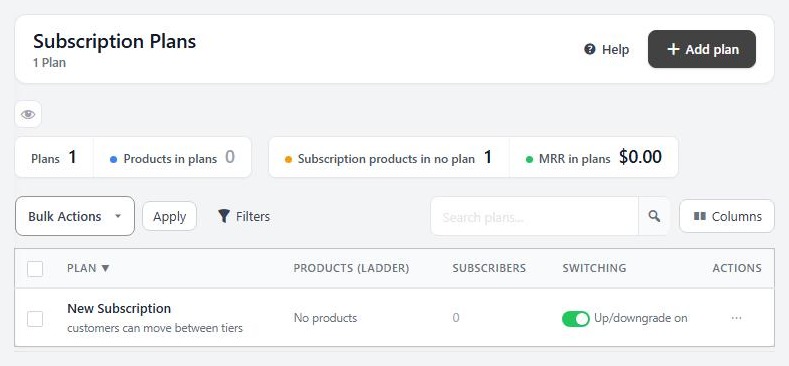
no stored settingsA plan groups subscription products into levels, such as Basic, Plus and Pro, so a customer can upgrade or downgrade. It is only a grouping. It does not bill anything. A single subscription needs no plan.
Go to EasyCart › Products › Subscription Plans and press Add plan. Give it a name, which only you see. Choose whether customers can upgrade and downgrade between products in it. With that off, they can only move to the same or a higher price. Then add your subscription products with the search box. A product can belong to only one plan, and adding it here moves it out of any other.
You can also pick the plan from the product itself, in the Subscription Plan list. A plan does not work with price adjustments or with repeating shipping.
Step 4. Decide what customers can manage
Settings › Accounts and Settings › Products
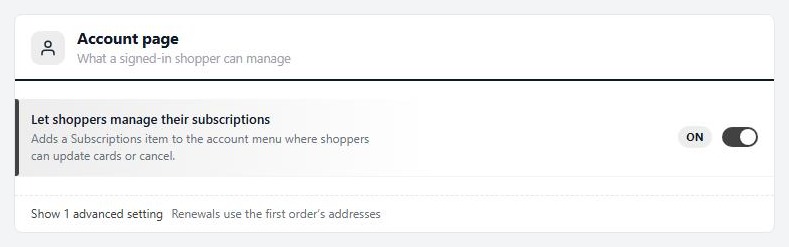
no stored settingsUnder Settings › Accounts, switch on Let shoppers manage their subscriptions. It adds a Subscriptions item to My Account, where a customer can update their card, change plan and cancel.
What a customer can do. Update the card on a subscription that is active, in a trial, past due or paused. Cancel a subscription that is active, in a trial, past due or paused. A customer’s cancellation takes effect at once in Stripe. Change plan or quantity on an active or trialing subscription, when the plan offers other levels. Only you can pause a subscription, or cancel it at the end of the period or on a date you choose.
Under Settings › Products, One subscription per purchase is on by default. It removes the quantity box from subscription products. Turn it off to let customers buy or change a quantity.
If your subscription needs a shipping address, turn on Charge shipping on subscriptions under Settings › Shipping settings, in the additional options. It is off by default, and the subscription checkout collects no address without it.
⚠️ Careful: A customer who cancels from My Account is cancelled immediately, with no grace period to the end of what they paid for. Tell them plainly, or ask them to contact you if you would rather end it at the period’s end.
Step 5. Review the subscription emails
Settings › Email › Subscription emails
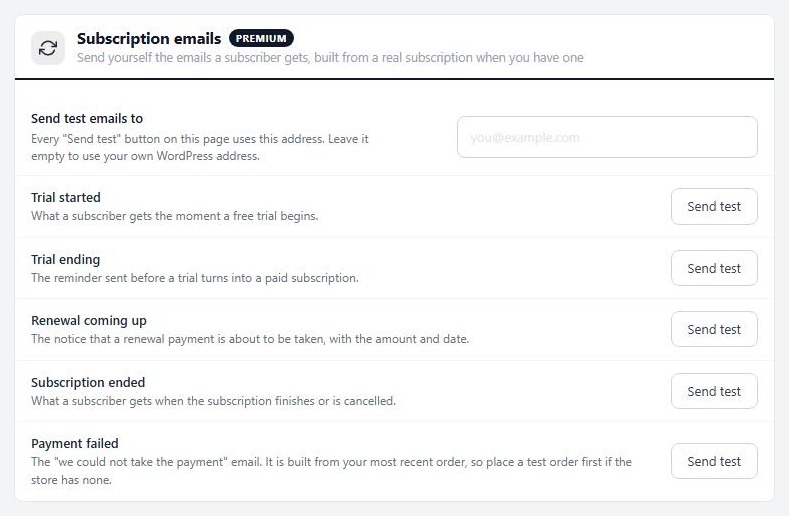
no stored settingsFive emails go out automatically:
Trial started when the customer signs up for a trial.
Trial ending about three days before a trial turns into a paid subscription.
Renewal coming up before each renewal. It needs Enable Upcoming Payment Emails from step 1.
Payment failed when Stripe cannot take a payment.
Subscription ended when a subscription finishes or is cancelled.
This screen does not switch them on or off. Its buttons send you a test of each, to the address in Send test emails to or, if empty, to your WordPress address. The Payment failed test is built from your latest order, so place a test order first. The wording of the confirmation is under Receipt wording on the same page.
Step 6. Test it with a real sign-up
Stripe test mode and a second browser
no stored settingsSwitch Stripe to sandbox in Settings › Payment and add the same webhook in your Stripe test dashboard. Then, in a private window that is not logged in as an admin:
1. Open the product and press Sign Up Now.
2. Create an account and pay with Stripe’s test card 4242 4242 4242 4242, any future date and any code.
3. Open My Account, then Subscriptions. The new subscription should be there, with your update and cancel options.
4. In your admin, open Orders › Subscriptions. It should read Active, or Trialing if you set trial days.
5. To test a failed renewal, use Stripe’s test card 4000 0000 0000 0341. It saves, then declines when it renews. The subscription should turn to Payment failed and the Payment failed email should go out.
Stripe’s test clocks in your Stripe dashboard let you jump forward in time to see renewals without waiting. When everything works, turn test mode off.
Keep it running
After the sale
Managing subscriptions, failed payments and the usual problems.
Managing subscriptions after the sale
Orders › Subscriptions
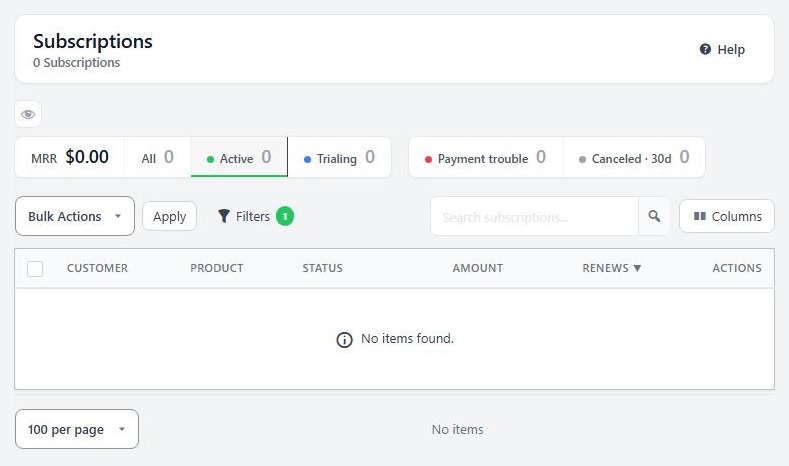
no stored settingsEvery subscription is listed in EasyCart › Orders › Subscriptions, with its customer, product, status, amount and next renewal. The tiles show your monthly recurring revenue, how many are active or in a trial, how many have payment trouble and how many cancelled in the last 30 days.
Open a subscription to change its product, pause it, cancel it, resume one set to cancel, or view it in Stripe. When you cancel, choose to end it now, at the end of the current period or on a date, and optionally refund the last payment. Statuses are Active, Trialing, Past due, Payment failed, Unpaid, Incomplete, Expired, Paused, Canceling and Canceled.
The Reports screen has a Subscriptions tab with monthly recurring revenue, new and cancelled subscriptions and churn.
When a payment fails
What Stripe and your store do
no stored settingsStripe retries failed payments for you. Set how many times and how far apart in your Stripe billing settings, because your store has no retry setting of its own.
When a payment fails, your store marks the subscription Payment failed, records the failed order and sends the Payment failed email. If the customer updates their card, or a retry works, Stripe collects the payment and your store returns the subscription to Active. If Stripe gives up and cancels, the Subscription ended email goes out.
If it does not work
The usual reasons a subscription cannot be bought or drifts out of date
no stored settingsThe customer sees a message that the subscription cannot be bought. Stripe is not connected, or your card gateway is not Stripe. Check Settings › Payment.
Statuses do not change. Renewals, failures and cancellations all arrive by webhook. Check that Stripe lists a recent successful delivery to your store address.
A coupon does not apply. Codes from the Offers screen discount subscriptions only if you turned on the option to discount subscription products. Choose whether it applies to the first payment, a number of months or every payment.
Tax stops checkout. If an automated tax service cannot work out a rate, the subscription checkout stops. Check your tax settings.
Changed your card gateway. Switching away from Stripe stops new sign-ups and stops customers managing existing Stripe subscriptions from their account.
Keep going
Related panels
Every option on the Type & Behavior tab.
Every panel and action in Orders › Subscriptions.
Subscription Plans in full.
Connecting Stripe and the other gateways.
Try the PRO features free for 14 days
Anything marked PRO comes with WP EasyCart PRO or Premium. Take the whole thing for a run on your own store before you decide.


