
How-to › Checkout, orders and customers
How to Let Customers Manage Their Account
Let customers register, sign in, see their orders, change their details and get back in when they forget a password. You set the registration options, protect the forms and check what customers see. 11 parts.
Quick links
Where to find it:WP Admin › EasyCart › Settings › Accounts
Before you start
What customers can do
What you need and what My Account offers.
How customer accounts work
What you need and what a customer can do
no stored settingsWhat you need. Everything here is in the free plugin. Your Account page, which holds the [ec_account] shortcode, is created for you. Customers sign in and register on it. WP EasyCart sends its own account emails, so set up email delivery first.
What a customer can do in My Account. See their recent orders and every past order, open an order for its items, tracking, downloads and totals, print a receipt, change their billing and shipping addresses and personal details, change their password and, if you sell subscriptions, manage them.
What you control. Who can register and what they are asked, whether email confirmation is needed, spam protection, and what shows on the account order page.
The steps: set the registration options, decide on email confirmation, protect the forms, check what customers see, then know how to help one who is locked out.
Set it up
Four steps
Registration, email confirmation, spam protection and what customers see.
Step 1. Set the registration options
Settings › Accounts › Registration
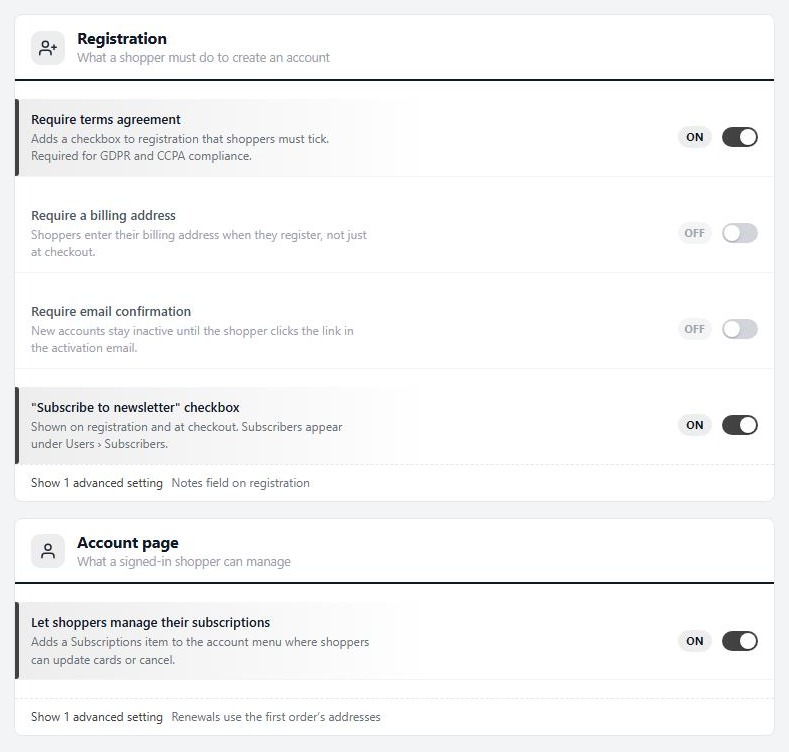
no stored settingsOpen EasyCart › Settings › Accounts. The Registration card holds what a shopper does to create an account:
Require terms agreement: adds a checkbox they must tick. This is what GDPR and CCPA compliance needs.
Require a billing address: asks for the billing address at registration, not just at checkout. Most retail stores leave it off, because it costs sign-ups.
Require email confirmation: the account stays inactive until they click a link. Step 2 covers it.
Notes field on registration (advanced): a free-text box that staff read on the customer record. It suits trade stores.
"Subscribe to newsletter" checkbox: shown on registration and at checkout. Subscribers appear under Users › Subscribers.
The links behind the terms checkbox are the Terms and conditions page and Privacy policy page you set in Settings › Checkout. Point them at real pages before you require agreement.
Guest checkout is a separate choice, on the Checkout flow card in Settings › Checkout. Leave it on. Downloads, subscriptions and gift cards need an account either way.
💡 Note: Registration asks for as little as possible by default. Every extra field costs you some sign-ups, so add only what you will really use.
Step 2. Decide on email confirmation
Stops junk sign-ups, and adds a step
no stored settingsWith Require email confirmation on, a new account is created as pending. The shopper is sent to the sign-in page with a message that they need to confirm, and they get an activation email. They cannot sign in until they click its link.
It proves that the address works before you send order emails to it, but some real shoppers drop out, especially if the email goes to spam. It works best when your delivery checks pass.
If someone does not get the email, they can ask for another from the sign-in page. It shows a form headed Resend Activation Email with an email box. You can do it for them too: open the account in Users › User Accounts and press Resend Activation Email, or press Approve Account to activate the account yourself.
Step 3. Keep bots out
Settings › Accounts › Spam protection
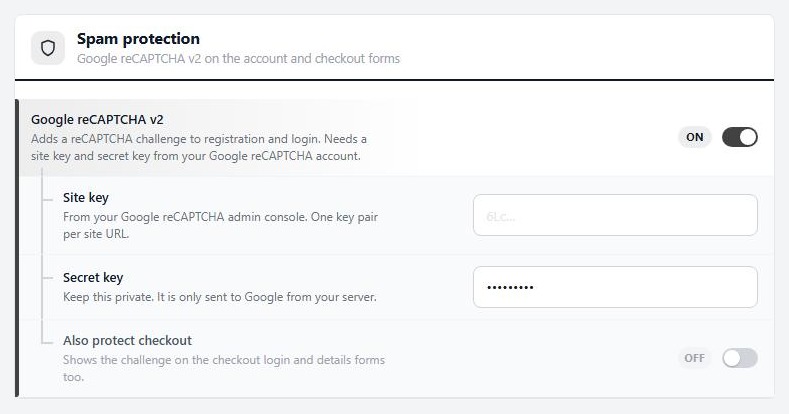
no stored settingsIf bots register fake accounts, turn on Google reCAPTCHA v2 in the Spam protection card. It adds a challenge to registration and login. Two fields appear: Site key and Secret key, both from your Google reCAPTCHA account. Keys are made for one site address, so a key pair for your live domain will not work on a staging copy.
Also protect checkout shows the challenge on the checkout login and details forms too. Think first. The last step before payment is the most expensive place for a puzzle.
Ask yourself whether you need it. Email confirmation stops many junk accounts without a puzzle in front of real customers.
What customers see in My Account
The dashboard, orders, addresses and downloads
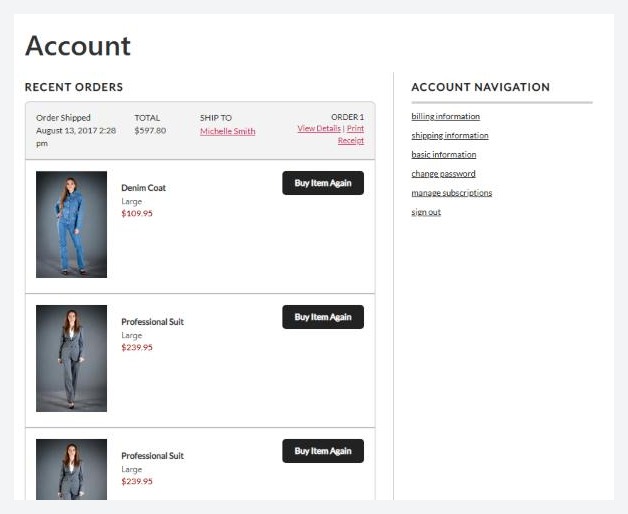
no stored settingsA signed-in customer lands on the account dashboard. The account navigation lists billing information, shipping information (when your store ships), basic information, change password, manage subscriptions (when you use Stripe and have turned that on) and sign out.
Recent Orders lists the last five, each with its status, date, total, who it ships to, a View Details link and, if you allow it, a print receipt link. View all orders opens the full Your Order History.
Opening an order shows the order number, date, status, tracking number, shipping method, coupon, payment method, items with options, totals and any refund. Paid downloads appear here with a Download link, how many downloads are used and when they expire. Gift cards show their code. An unpaid order that can be paid online shows a pay button.
Two switches in Settings › Documents under Customer downloads decide the print links: Print receipt link on the account order page and Print receipt link on the order confirmation page. Both start on. With PRO, that section also offers receipt, invoice, packing slip and gift receipt downloads.
Let customers manage subscriptions
One switch, and what it allows
no stored settingsIn the Account page card, turn on Let shoppers manage their subscriptions. It adds a Subscriptions item to the account menu, where a customer can update their card, change plan or quantity, and cancel. Only you can pause a subscription. A customer’s cancellation takes effect at once. The full set of options is in How to Sell Subscriptions on WordPress.
The advanced switch Renewals use the first order’s addresses makes renewals copy the billing and shipping addresses from the original order instead of the current account.
Keep it running
Managing accounts
Accounts in the admin, password resets, guest orders and the usual problems.
Step 4. Manage accounts from the admin
Users › User Accounts
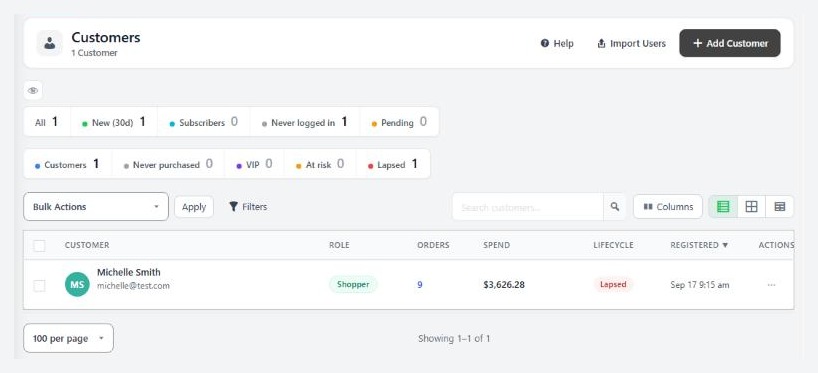
no stored settingsOpen EasyCart › Users › User Accounts. You can filter and search the list, edit any account, and act on a selection. Open a customer to see:
User Access Level and Activation, which reads Activated or Pending — activation email sent.
Password with Send Password Reset Email, Generate Strong Password and a Show password toggle.
Login as Customer: signs you in as them, the fastest way to see what they see.
View Orders, Export Customer CSV and Delete Account. Deleting removes the profile and addresses. Orders are kept for your records.
The list also has bulk actions: change role, resend activation and Send Password Reset. Roles are set under Users › User Roles.
Resetting a password
What the customer does, and what you can do
no stored settingsWhat the customer does. On the sign-in page they press Forgot Your Password?, enter their email under Retrieve Your Password and press RETRIEVE PASSWORD. They get an email with a reset link that works for one hour. They choose a new password, at least six characters, and type it twice.
The page says the email was sent whether or not the address has an account, so the form does not reveal who your customers are.
What you can do. Open the customer and press Send Password Reset Email. It invalidates the current password at once and emails them a reset link. That is safer than choosing a password for them, because you never know it. For a suspected breach, select the affected customers in the list and use the bulk Send Password Reset.
If the reset email never arrives, look at Deliverability under Settings › Email. Account emails use their own sender and SMTP settings.
⚠️ Careful: Never ask a customer to email you their password, and avoid setting one for them. Use the reset email, which keeps the password private to the customer.
Guests and their orders
No account, but still a way back to the order
no stored settingsThere is no look-up form where a guest types an order number and an email. A guest reaches their order through a private link with a key that belongs to that order. The link is on the order confirmation page and in the receipt email.
A shopper who wants an account after a guest order registers on the Account page. If they want that earlier guest order on the account, an Elementor account page with the WP EasyCart account form can offer Connect Order. It emails a link to the order’s own address, and the link works for one day. The customer has to be signed in when they open it.
Test it
Be a customer for five minutes
no stored settingsIn a private window that is not logged in as an admin:
1. Open your Account page and press Create Account. Register with an email you can read.
2. If you turned on email confirmation, check the activation email and click its link.
3. Sign in. Look at the dashboard, then place a small test order and open it from Recent Orders.
4. Change your password, sign out, then try Forgot Your Password? and follow the link.
5. Back in the admin, open the account in User Accounts and check it looks right.
Delete the test account when you are done.
If it does not work
The usual reasons a customer cannot sign in
no stored settingsThe account has not been activated. Email confirmation is on and they have not clicked the link. Resend it from the sign-in page or User Accounts, or press Approve Account.
The username or password you entered is incorrect. The plainest cause is a typo. Send a password reset and let them choose their own.
The reset link is invalid or has expired. The link works for one hour, and only for the newest request. They ask again.
The email you have entered already has an account. Someone registered with an address that is in use. Point them at Forgot Your Password?
Registration stopped working after a site move. reCAPTCHA keys belong to a site address. Make a new key pair for the new address and enter it again.
The customer sees no Subscriptions item. Let shoppers manage their subscriptions is off, or Stripe is not your card gateway.
A guest cannot find their order. Send them the receipt email again from the order with Send Email. The order link is in it.
Keep going
Related panels
Every setting on the Accounts page.
The customer list and every record screen.
Roles for customers and staff.
Account emails, senders and deliverability.
Ready to run your store on WP EasyCart?
Everything in this guide works with the free plugin. PRO and Premium add subscriptions, memberships, wholesale pricing and more. Try every PRO feature free for 14 days.



