
Step 1. Create the offer
Pick a starting point, name it, set the basics
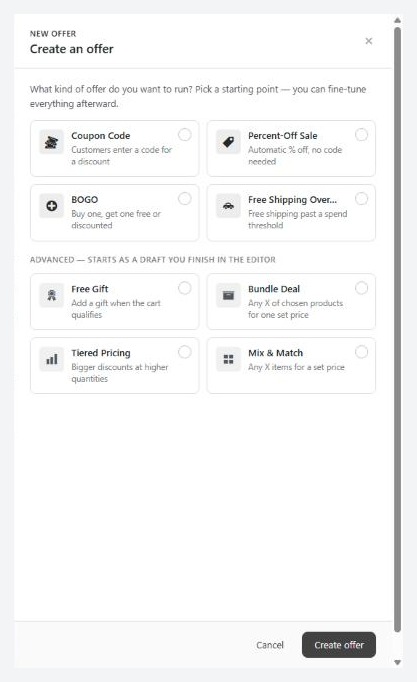
no stored settingsOpen EasyCart › Marketing › Offers and press Create Offer. A panel asks what kind of offer you want. Pick the closest one. Everything can be changed afterwards in the editor.
Coupon Code: customers enter a code. You set the code, whether it takes a percent or an amount off the order, the value and an optional minimum order.
Percent-Off Sale: an automatic percent off, storewide.
BOGO: buy one, get one free or a percent off. The cheapest matching item gets the discount.
Free Shipping Over…: free shipping once the cart passes an amount you set.
Under Advanced are Free Gift, Bundle Deal, Tiered Pricing and Mix & Match. These always start as a draft, because they need products chosen in the editor before they mean anything.
Give the offer a name. Customers can see it on badges and at checkout, so use something they would recognise, such as Summer Sale. Add Starts and Ends dates if you know them. The panel takes whole days: a start date begins at midnight and an end date finishes at 11:59 pm. Leave Activate immediately ticked to go live now, or untick it to keep the offer as a draft. Press Create offer and the editor opens.
Step 2. Set the discount
The deal section, and the settings that decide your margin
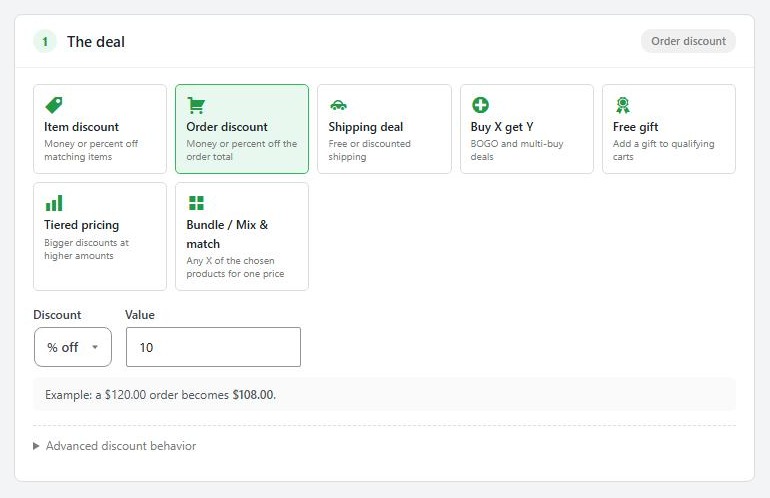
no stored settingsThe editor has six numbered sections and a preview on the right. Section 1. The deal has seven cards:
Item discount: a percent or amount off each matching item.
Order discount: a percent or amount off the order total.
Shipping deal: free or cheaper shipping.
Buy X get Y: BOGO and multi-buy.
Free gift: add a product to a qualifying cart.
Tiered pricing: bigger discounts at higher quantities or spend.
Bundle / Mix & match: any set number of chosen products for one price.
A worked example under the cards shows what a sample cart would pay. Check it before you go on. To offer free shipping over a spend, use a Shipping deal with a minimum spend, which is what the Free Shipping Over… starting point builds.
Open Advanced discount behavior to protect your margin. Discount is based on chooses Regular price (before sales) or Current price (after sales). Also apply to items already on sale decides whether sale items are included. Cap the total discount at limits what one order can receive, and 0 means no cap.
Section 2. What it applies to starts storewide. Search for products, categories or manufacturers and add them to Include to narrow it. Exclude always wins.
Step 4. Automatic or with a code
How customers get it
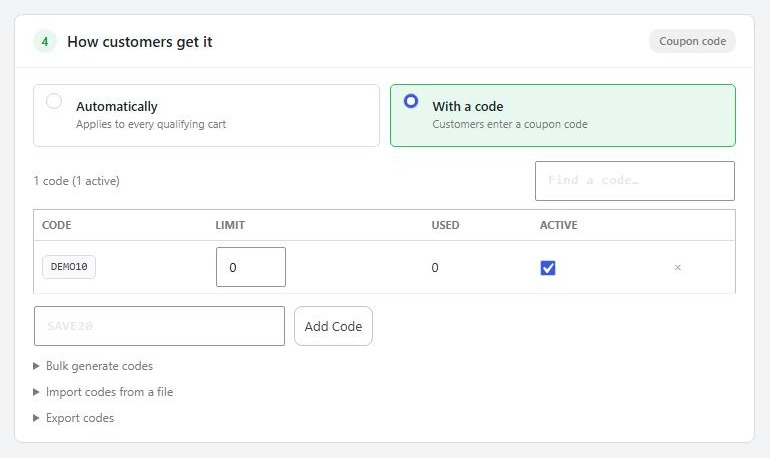
no stored settingsSection 4. How customers get it has two choices: Automatically and With a code. Choose With a code and a code table appears with Code, Limit, Used and Active columns.
Type a code and press Add Code. One offer can hold one shared code or many. Each code has its own limit, and you can switch a code off without deleting it. Use Find a code to search once the list grows.
A code can belong to only one offer. The editor refuses a code that is already in use on another one.
Which to use. Use a shared code for something public, like a code on a poster. Use single-use codes for anything you email, because a shared code gets posted to coupon sites and a single-use code cannot be shared.
Bulk codes: generate, import and export
Thousands of single-use codes for a campaign
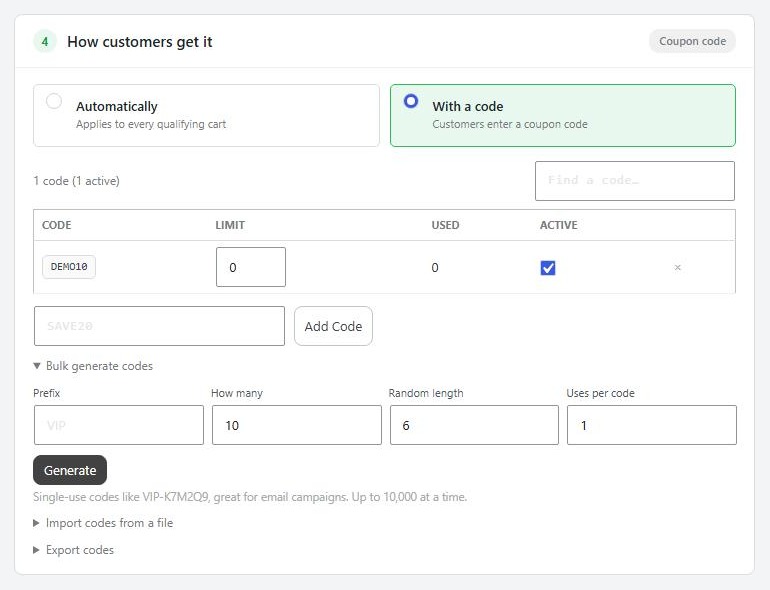
no stored settingsGenerate. Open Bulk generate codes and set a Prefix, How many, a Random length from 4 to 12 and Uses per code. Press Generate. You get single-use codes like VIP-K7M2Q9, up to 10,000 at a time. Uses per code starts at 1.
Import. Open Import codes from a file to bring in codes you made elsewhere, such as a list from a partner. Choose a CSV or TXT file, or paste codes one per line. If the file has columns, pick which one holds the codes with Codes are in, and tick First row is a header if it has one. Set Uses per code and press Import codes. The file is read in your browser and sent in batches, not stored on your server. Codes already in the offer keep their use counts, and codes that belong to another offer are skipped and listed for you.
The same panel can Switch them off instead. Paste in refunded or leaked codes and choose Switch them off.
Export. Open Export codes, choose which codes, and press Download CSV. You get one row per code, with how often it was used and the orders that used it. Load the file into your email service to send each customer a code of their own.
Step 5. Set limits and stacking
How often it can be used, and what it combines with
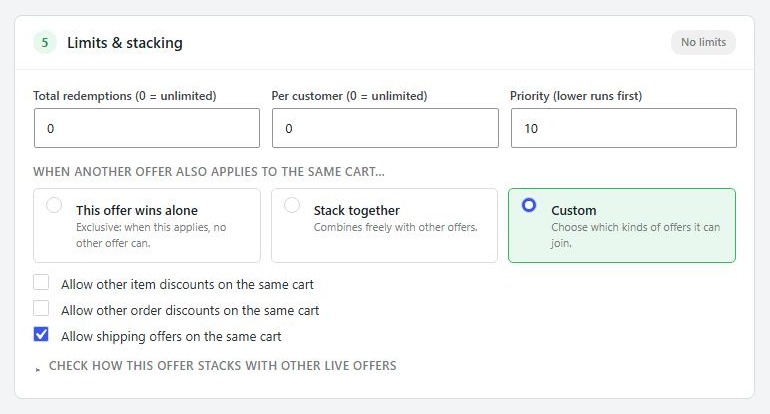
no stored settingsSection 5. Limits & stacking starts with three numbers: Total redemptions for the whole offer, Per customer, and Priority, where a lower number runs first when several offers apply. Zero means unlimited for the first two.
Then choose what happens when another offer also applies to the same cart:
This offer wins alone: when it applies, no other offer can.
Stack together: combines freely with other offers.
Custom: choose which kinds it can join, with separate switches for other item discounts, other order discounts and shipping offers.
Open Check how this offer stacks with other live offers to see a verdict for each live offer. It reads saved settings, so save first.
Step 6. Show it in your store
Label, badge, callout, countdown, and the cart code box
no stored settingsSection 6. How it looks in the store controls promotion. Set a Customer-facing label, which shows on cart lines and receipts. Tick Show a badge on product images and choose its text, colour and shape. Add a Product page callout such as Buy 2, get 1 free this week!. Tick Show a countdown when the offer is ending soon and Show progress messaging in the cart, which tells a shopper how far they are from a threshold.
Badges and callouts show for automatic offers. A coupon code offer is promoted wherever you share the code, and appears in the cart once the code is applied.
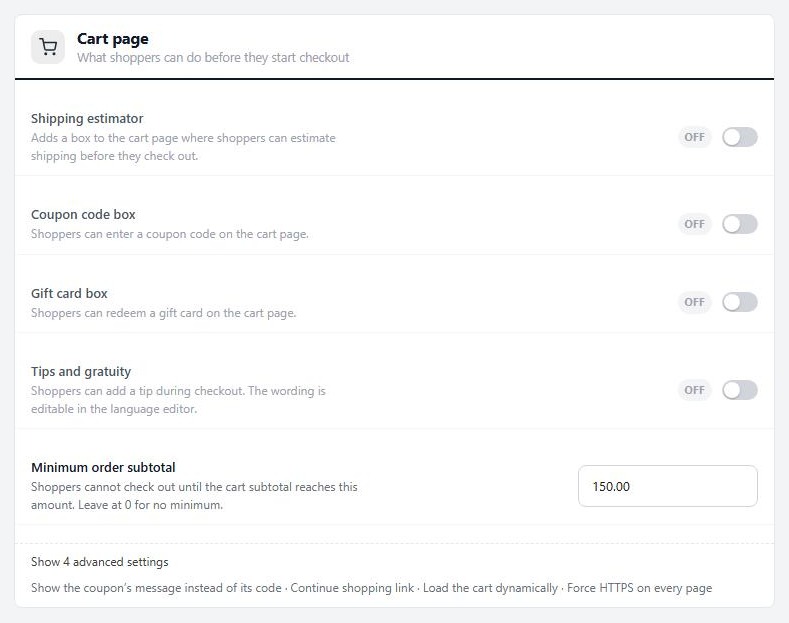
The cart code box. Customers type codes in the box on the cart page. It is controlled by Coupon code box in Settings › Checkout under Cart page, which is on by default. Turn it off and the box is hidden.
Codes in a link. Add ?ec_coupon=YOURCODE to a store link and the code is applied when the page opens. A cart link can carry codes too. See the cart links guide.
Step 7. Test it before you share it
The cart simulator, the code tester and a real order
no stored settingsTry it on a cart. The panel on the right has a simulator. Add products, tick Customer entered a code if it is a code offer, and it shows the cart line by line with the offer applied. It runs on unsaved changes, so use it to try a setting.
This offer, in plain English. The card at the top of the panel restates the offer as a sentence. If it does not say what you meant, the offer will not do what you meant.
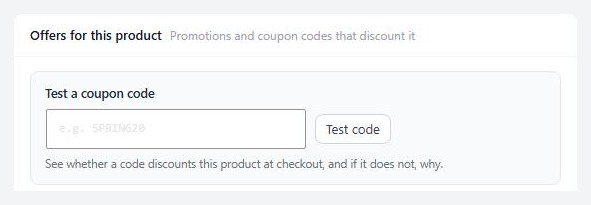
Test a coupon code. Open any product, then its Offers tab. Type the code in Test a coupon code and press Test code. It says whether the code discounts that product, and if not, why: the product is excluded, it is a sale item, a condition rules it out, or the offer is archived. It tests the product as one item at its price in a guest’s cart.
A real order. Last, put a product in a cart in a private window, enter the code and check the total. Set the offer to Live with the status control in the header and press Save Changes. Nothing takes effect until you save.
Ready to run your store on WP EasyCart?
Everything in this guide works with the free plugin. PRO and Premium add subscriptions, memberships, wholesale pricing and more. Try every PRO feature free for 14 days.
