
How-to › Selling special products
How to Make a Members-Only Store
Run a wholesale, trade or private store. You create roles, close the store or hide products from everyone else, hide prices until login and give each role its own price. 11 parts.
Quick links
Where to find it:WP Admin › EasyCart › Users › User Roles
Before you start
What you are building
The four tools and which one fits the job.
How a members-only store works
Four tools, and which one to use
no stored settingsWhat you need. The free plugin covers most of this: roles, role prices, Login for Pricing and closing the whole store. Hiding a single product from other customers, Limit Visibility to User Role, is a PRO setting.
The idea. Every customer account has a role. You create the roles, such as Wholesale, and you put customers in them. Your store then treats each role differently.
Close the whole store. Only signed-in customers in the roles you choose see the store. Everyone else gets a login form. Best for a private or wholesale-only shop.
Hide single products. Keep some products for one role and hide them from everyone else. Best for a public store with a members-only range.
Hide the price. Show the product to everyone, but ask visitors to log in to see the price and buy. Best for trade pricing.
Give a role its own price. Customers in the role pay the price you set for them.
You can combine them. None of them protect ordinary WordPress pages. To lock a page, or part of one, use the Limit Access box or a membership shortcode, as in the membership guide.
💡 Note: Roles are yours to assign. Buying a product never puts a customer in a role, and a customer who cancels keeps theirs until you change it.
Set it up
Five steps
Create roles, put customers in them, restrict the store, products or prices, set role prices and test.
Step 1. Create the roles
Users › User Roles › Add role
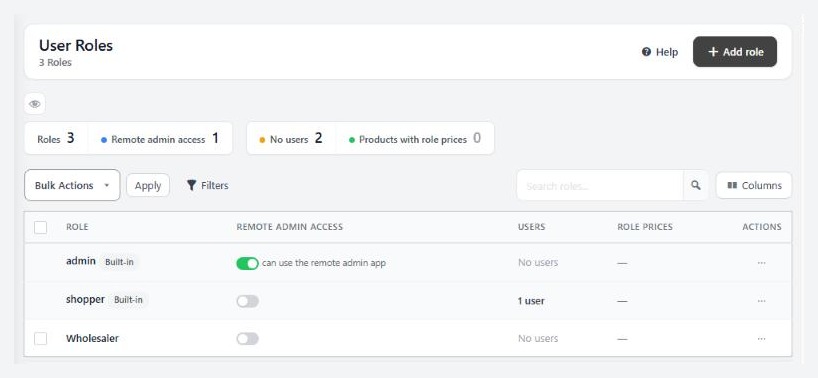
no stored settingsGo to EasyCart › Users › User Roles and press Add role. Give the role a name, such as Wholesale. The name is what you will pick in every other setting, so keep it short and clear. Role names must be unique.
Built-in roles cannot be renamed or deleted. Your own roles can be renamed at any time, and renaming updates every user, role price and access rule that uses the role.
Leave Remote admin access off. It lets members sign in to the EasyCart mobile admin apps and is for staff roles. Roles that have it are left out of the store list in Step 3.
Step 2. Put customers in a role
You decide who gets a role. Buying does not.
no stored settingsTwo ways. Open Users › User Accounts, edit the customer and, under Account Access, choose the role in User Access Level. Or open the role under User Roles and use the Users in this role card, where you search customers by name or email and add them. That card also moves people between roles in bulk, which is what you do when you retire a pricing tier.
New accounts start as an ordinary shopper. A role is assigned by you, by hand. Buying a product never changes it, and neither does cancelling. A customer must be signed in for any role rule to apply.
Step 3, option A. Close the whole store
Settings › Products › Who can view the store
no stored settingsGo to EasyCart › Settings › Products and open the Catalog mode & access card. In Who can view the store, choose the roles that are allowed in. The default is No restrictions, a public store.
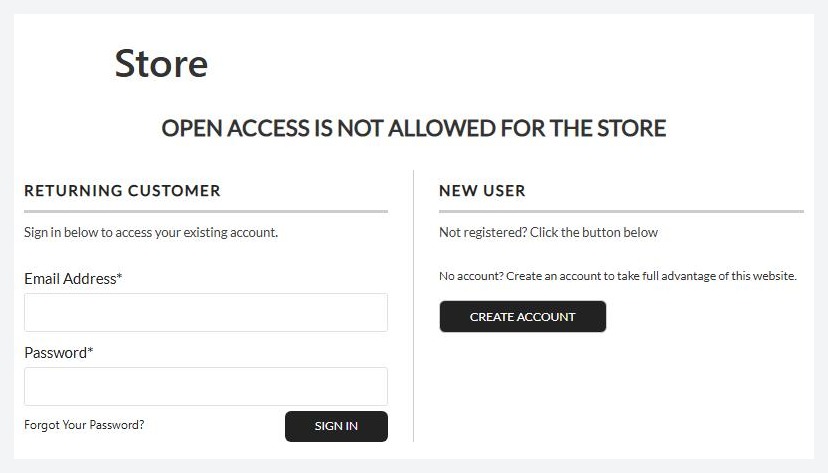
What a guest sees. The store page shows a notice and a sign-in form with a link to register. The default notice reads OPEN ACCESS IS NOT ALLOWED FOR THE STORE. Change it in Settings › Language, in the entry called Restricted Product Line 1. After a customer signs in, they go on to the store, and only customers in the roles you chose see it. Anyone else who signs in sees the notice again.
What else it covers. Product grids, sliders and product shortcodes on any page show nothing to a visitor outside the chosen roles. Store managers always see the store, so you can build and check it. Because what appears depends on who is signed in, the store asks caches not to keep those pages.
To admit a customer, put them in one of the chosen roles, as in Step 2. Customers who register themselves stay out until you do, unless you chose their role too.
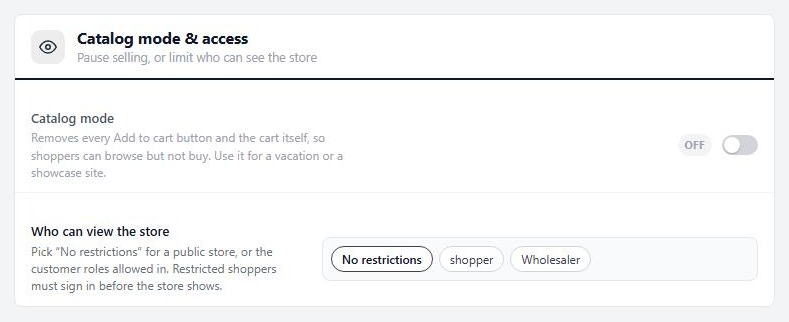
⚠️ Careful: Closing the store hides products, not your WordPress pages. A page with a product shortcode shows nothing to outsiders, but an ordinary page with text and images stays public.
What a signed-out visitor sees
The store page with the store closed
no stored settingsOpen your store in a private window while Who can view the store is limited to a role. You should see your notice above a sign-in form, and a new-customer panel with a register button. Nothing from your catalog shows. If you can see products, you are signed in as an administrator, or the role list still says No restrictions.
Step 3, option B. Hide single products (PRO)
Organization › Visibility & Sorting
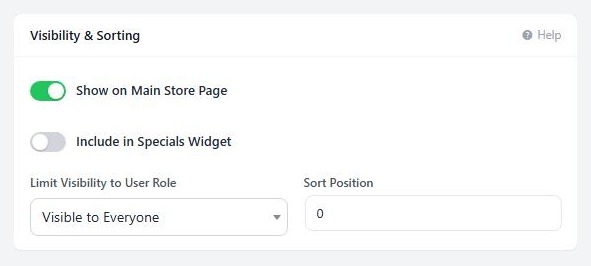
no stored settingsUse this to keep part of the range for one role while the rest of the store stays public. Open the product, go to the Organization tab and find Visibility & Sorting. Under Limit Visibility to User Role choose the role. The default is Visible to Everyone.
The field says it plainly: when a role is selected, the product is completely hidden from everyone else, guests and all other roles. It does not appear in the store, in lists or in search. The product header shows a Role restricted tag while a role is set.
You can also pick Logged Out Users Only to show a product just to visitors who are not signed in, such as a sign-up offer.
Without PRO the field is locked and shows the plan that includes it.
Step 3, option C. Show the product, hide the price
Login for Pricing, on Pricing & Tax
no stored settingsOpen the product, go to Pricing & Tax and find the Pricing card. Tick Login for Pricing. Two fields appear:
Restrict to User Role: pick one or more roles. Only shoppers signed in with a selected role can see the price and buy. Leave it on Show to All User Levels and any signed-in customer can.
Login Label: the words on the button. Leave it empty for the default, Login for Pricing.
What shoppers see. A visitor who is not signed in sees no price. In its place the product shows the login button, which takes them to your account page. A signed-in customer whose role is not allowed sees No Pricing Available. Edit that wording in Settings › Language.
Step 4. Give each role its own price
Users › User Roles › the role › Role prices
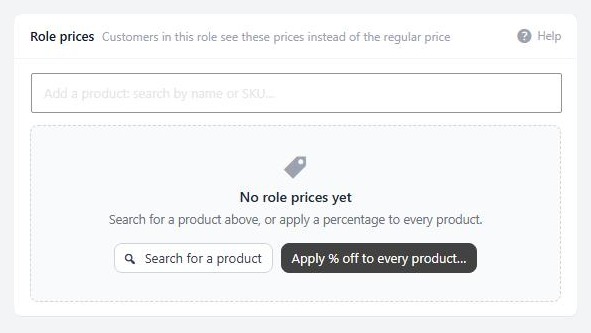
no stored settingsOpen the role under EasyCart › Users › User Roles. In the Role prices card, search for a product by name or SKU and set its price for this role. Each row shows the regular price, the role price and how far apart they are.
For many products at once, use Apply % off… on the listed prices, or Apply % off to selected… for the ones you tick. The percentage is worked out from each product’s current regular price, and existing role prices are overwritten. The Every active product action creates or overwrites a role price for the whole catalog, and makes you tick I understand this affects all the products before it runs.
A customer in the role sees their price on product pages and pays it in the cart. It replaces the regular price and volume tiers. Remove a role price and that customer sees the regular price again. You can also set role prices from a product’s own B2B Pricing block, which is PRO.
Role prices apply to customers who are signed in. Pages that show prices depend on who is looking, so keep them out of page caches.
Step 5. Test it with three visitors
A guest, an ordinary customer and a member
no stored settingsUse private windows and never test as an administrator.
1. A guest. Open the store. Store closed: you see the notice and the sign-in form. Login for Pricing: you see the product with a login button and no price. Limit Visibility: the hidden product is not there.
2. An ordinary customer. Create an account with no role. You should see the same as the guest, and No Pricing Available where a role is required.
3. A member. Put a test customer in your role, sign in and reload. You should see the store, the hidden products and your role prices in the cart.
Remove the test customer from the role when you finish, if it was a real address.
⚠️ Careful: Testing as an administrator hides problems. Managers see the store even when it is closed to everyone else.
Good to know
Related and problems
A different tool that looks similar, and the usual reasons a member still cannot see it.
Related: stop buying for everyone
Catalog mode is a different tool
no stored settingsThe same Catalog mode & access card has Catalog mode. It removes every Add to cart button and the cart itself, for everyone, so shoppers can browse but not buy. Use it for a holiday closure or a showcase site, with Text shown where the Add to cart button was and Banner above products and the cart. It does not depend on who is signed in. For a single product that cannot be bought yet, use Seasonal Mode instead. That is covered in the quote, preorder and coming soon guide.
If it does not work
The usual reasons a member still cannot see it
no stored settingsA member sees the closed-store notice. Their User Access Level is not one of the roles chosen in Who can view the store, or they are not signed in. Open their account and check.
A restricted product is missing for a member. Check the role on the product and the customer’s User Access Level. Also make sure a page cache is not serving a signed-out copy of the page.
I cannot see a hidden product as the owner. The store decides by the signed-in customer’s role. Test as a customer in that role, in a private window.
A member does not get their role price. They must be signed in, in the role that has the price, and the role name is matched exactly. A product that has no role price shows the regular price.
Role choices are missing on a product. Limit Visibility to User Role is a PRO field. Without PRO it shows as locked.
Keep going
Related panels
Roles, role prices and panel access in full.
The customer accounts you put in roles.
Every option in Settings › Products, including Who can view the store.
The Organization tab, where Limit Visibility lives.
Ready to run your store on WP EasyCart?
Everything in this guide works with the free plugin. PRO and Premium add subscriptions, memberships, wholesale pricing and more. Try every PRO feature free for 14 days.



