
How-to › Start here
Set Up Sales Tax and VAT
Charge the right tax in the right places. You choose sales tax, VAT, Canadian tax or an automatic service, mark products taxable and test. 10 parts.
Quick links
Where to find it:WP Admin › EasyCart › Settings › Taxes
Before you start
What you need
What the plugin can and cannot decide for you, and which system fits where you sell.
What you need
Know where you owe tax before you touch a setting
no stored settingsWhat you need. The places you have to collect tax, and the rates. WP EasyCart charges what you tell it to. It does not know your tax obligations, so check them with your accountant or your tax authority first.
Free or PRO. A flat rate, rates by state and country, VAT, Canada GST/PST/HST and duty are all in the free plugin. Automatic rates from TaxCloud or TaxJar are PRO or Premium features. Avalara AvaTax is an extension included with Premium. There is a 14-day free trial if you want to try the automatic services.
Which system. Pick the one that matches where you sell:
United States. Rates by state, or an automatic service.
European Union, UK and other VAT countries. VAT.
Canada. The GST, PST and HST grid.
One rate everywhere. The flat rate.
The steps are: pick your system, set it up, mark each product taxable, then test.
⚠️ Careful: WP EasyCart charges the tax you set. It cannot tell you what you owe. Confirm your obligations with your accountant or tax authority before you sell.
Set it up
Five steps to charging the right tax
Base rules, rates by place, VAT, Canada, duty, automatic services, products and a test.
Step 1. Start with where you collect
One flat rate, and whether shipping is taxed
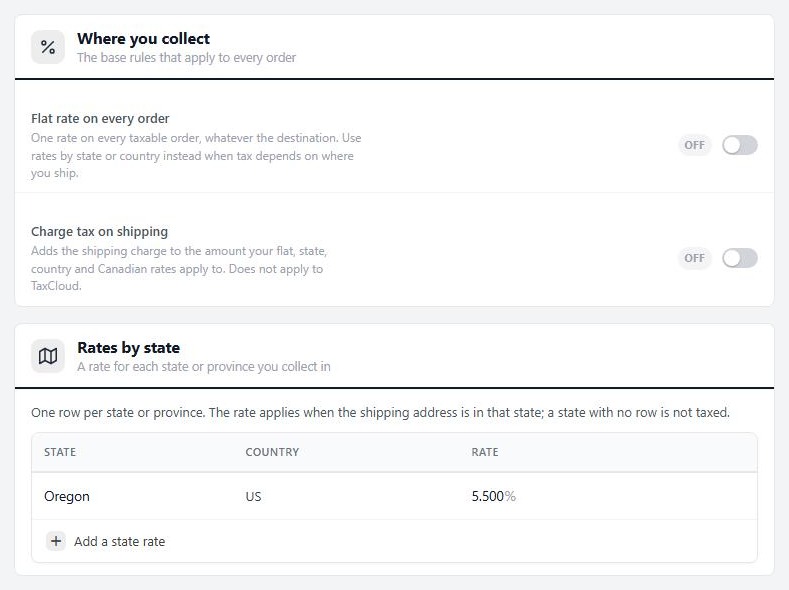
no stored settingsOpen EasyCart › Settings › Taxes. The Where you collect card holds the base rules for every order:
Flat rate on every order: one rate on every taxable order, whatever the destination. Use rates by state or country instead when tax depends on where you ship.
Flat tax rate: the percentage charged on the taxable subtotal.
Charge tax on shipping: adds the shipping charge to the amount your flat, state, country and Canadian rates apply to. It does not apply to TaxCloud.
The setup wizard may already have added a starting rate for your state, if you told it you charge sales tax. Check it here.
💡 Note: Every field on the tax page is explained in Settings › Taxes.
Step 2. Rates by state and country
One row per place you collect
no stored settingsUse these when tax depends on where the order ships.
Rates by state: one row per state or province. The rate applies when the shipping address is in that state, and a state with no row is not taxed. Press Add a state rate, pick the State, enter the Rate and press Add rate.
Rates by country: one row per country. The rate applies when the shipping address is in that country and no state rate matched first.
A rate must be between 0 and 100. Add a row for every state or country where you have to collect tax, and only those. Deleting a rate does not change orders already placed, which keep the tax they were charged.
Step 3. Set up VAT
One rate or a rate per country, with a business rate
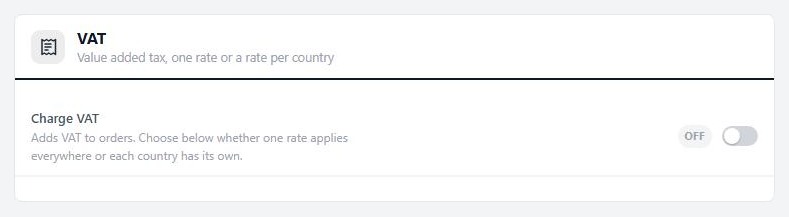
no stored settingsOn the VAT card, turn on Charge VAT. Then:
Rate varies by country: uses the country rates in the table once the shopper enters their address. Off charges the Default VAT rate everywhere. The default is also charged before the shopper’s country is known.
Prices include VAT: product prices are shown VAT-inclusive, and the VAT part is broken out at checkout. Off adds VAT on top at checkout.
Exempt shipping from VAT: leaves the shipping charge out of the VAT total. Off charges VAT on shipping too.
Rounding increment: VAT totals round to this amount. Most countries use 0.01; some require 0.05.
In the country table, add a rate for each country. Countries not listed are not charged VAT. Apply to business charges that country’s rate to VAT-registered businesses too, instead of the business rate.
VAT numbers. To let business customers enter a VAT number, turn on the VAT registration number field in Settings › Checkout. Then set Rate for VAT-registered businesses on the VAT card. It is charged instead of the country rate when a shopper enters a number and their country is not marked Apply to business. Turn on Verify VAT numbers with Vatlayer and enter your Vatlayer API key to check each number before the business rate applies.
Canada GST, PST and HST
A grid of provinces and customer roles
no stored settingsOn the Canada GST/PST/HST card, turn on Canadian provincial tax. It charges GST, PST or HST by province on orders shipped to Canada. Turning it on ticks every province.
A grid then lists each province. Under Collect, tick the provinces you collect in, and enter the GST, PST and HST rates in percent. Rates are set per Customer role, so different customers can pay different rates. Ticks save straight away. Rate changes save with the tick button or Enter.
For Quebec, enter the QST (9.975%) in the PST column. Shoppers, emails and orders see it named QST, or TVQ in French, and it is charged on the price before GST.
Duty on international orders
A percentage on orders shipped abroad
no stored settingsThe Duty card is for stores that charge a duty percentage on orders shipped to other countries. Turn on Charge duty on international orders, pick your Duty-exempt country (usually your own, where orders pay no duty) and set the Duty rate. It is charged on the taxable subtotal of orders that owe duty.
Automatic tax with TaxCloud, TaxJar or Avalara
Live rates by address instead of your own tables
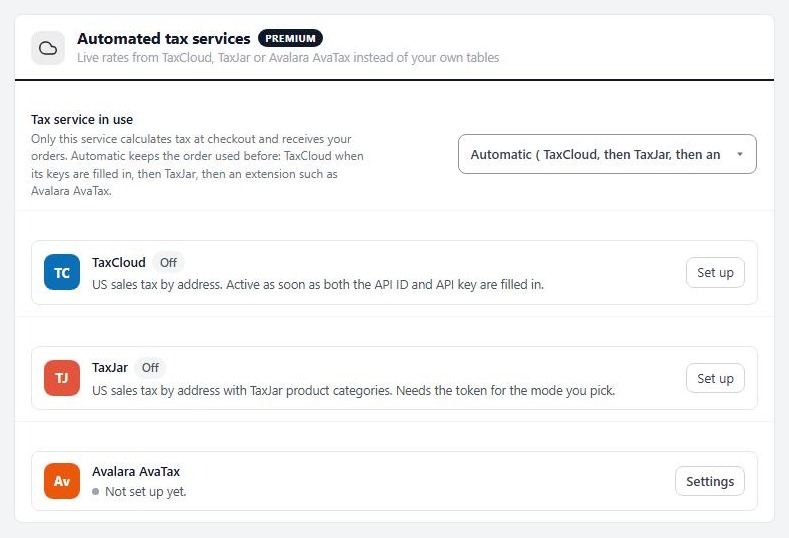
no stored settingsIn the US the right rate can depend on the street, and it changes. An automatic service works it out for each order. Open the Automated tax services card. It is a PRO and Premium feature.
TaxCloud: US sales tax by address. Enter your TaxCloud API ID and TaxCloud API key, plus the origin address you ship from. It becomes active as soon as both the ID and key are filled in. TaxCloud product codes go in the TIC (Tax Cloud) field on the product.
TaxJar: US sales tax by address, with TaxJar product categories. Enter the TaxJar live token and your origin address. Turn on Sandbox mode to test with the TaxJar sandbox token, and turn it off before you sell. Verify US addresses with TaxJar needs a TaxJar Professional plan.
Avalara AvaTax: an extension that comes with Premium. Its row on this card says when AvaTax is calculating tax at checkout, and its settings are in the extension.
Only one service calculates tax at a time. Set Tax service in use to choose which. Automatic keeps the older order of TaxCloud when its keys are filled in, then TaxJar, then an extension such as Avalara AvaTax.
💡 Note: The Avalara AvaTax settings are covered in Avalara AvaTax.
Step 4. Mark your products taxable
Rates only apply to products that are taxable
no stored settingsA rate does nothing to a product that is not taxable. Open a product and go to its Pricing & Tax tab. In the Tax section, Product is Taxable turns sales tax on for that product, and VAT Enabled turns VAT on. In the quick Add New panel the same choice is the Tax select: Not taxable, Sales tax, VAT, or Sales tax + VAT.
Showing prices with tax. With VAT on and Prices include VAT on, prices show VAT-inclusive. To show both figures, turn on Show prices both with and without VAT in Settings › Products. It needs VAT enabled, with prices entered inclusive of VAT, or both figures come out the same.
💡 Note: The Tax section on a product is covered in Pricing & Tax.
Step 5. Test it
Buy from your store and check the tax line
no stored settingsTest each place you charge, as a customer:
1. In a private window, add a taxable product to the cart and go to checkout.
2. Enter an address in a state you collect in. The tax line should match the rate you set.
3. Try an address in a state you do not collect in. There should be no tax.
4. Try each country, and a Canadian province if you use the grid.
5. If you use VAT, try a business VAT number and a normal customer.
Place the order with Bill later or a gateway in test mode. Then open Orders and check the tax on the order. Finally, check EasyCart › Store Status. Its Taxes check fails when no tax or VAT is set up at all, which is right for some stores and a mistake for others.
When it goes wrong
Troubleshooting
Why tax is missing or wrong.
If it does not work
Why tax is missing, or wrong
no stored settingsNo tax on an order. The product is not taxable, or the address is in a state or country with no rate row. A state with no row is not taxed.
The wrong tax on an order. Check the shipping address, not the billing address. Rates apply by shipping address. Also check whether Charge tax on shipping is on.
VAT is added on top when it should be included. Check Prices include VAT.
The business rate never applies. The VAT number field must be on in Settings › Checkout, the Rate for VAT-registered businesses must be set, and if you verify with Vatlayer, the API key must be filled in.
An automatic service seems ignored. Only one service calculates tax. Check Tax service in use, and that its keys are filled in. For TaxJar, check Sandbox mode is off for live sales.
Still stuck? Open a ticket at wpeasycart.com/my-account.
Keep going
Related panels
Every option on the Taxes page.
Set up Avalara AvaTax.
Tax settings on a product.
The VAT registration number field.
Countries and regions you sell to.
Ready to run your store on WP EasyCart?
Everything in this guide works with the free plugin. PRO and Premium add subscriptions, memberships, wholesale pricing and more. Try every PRO feature free for 14 days.



