
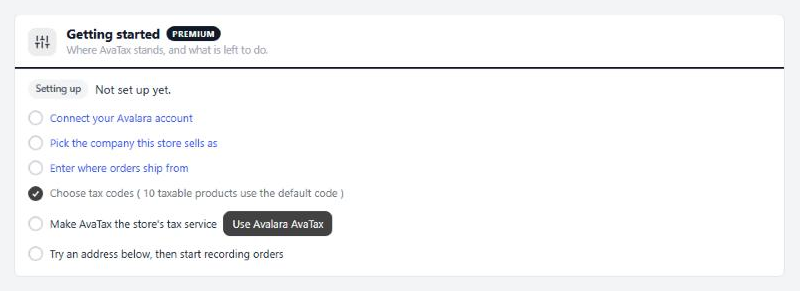
Getting started
Where AvaTax stands, and what is left to do.
no stored settings
What you need. A WP EasyCart Premium license, with AvaTax installed from EasyCart › Extensions, which also installs WP EasyCart Premium. WP EasyCart 6.0.2 or newer and WP EasyCart Premium 1.1.0 or newer. WP EasyCart PRO 6.0.2 adds the Avalara tax code field in the product editor and Avalara tax on orders you create in the admin. And an Avalara account; the Status line links to Avalara’s free trial if you have none. Exemption certificates ( below ) also need Avalara’s certificate storage, which comes with AvaTax Pro and Avalara’s exemption certificate plans.
The checklist. The top of the page walks you through it, ticking each step as it is done: connect your Avalara account, pick the company, enter where orders ship from, choose tax codes, and make AvaTax the store’s tax service. Use Avalara AvaTax does that last step here; Use AvaTax on Settings › Taxes does the same.
Try an address. Once connected, enter any address, an item price, shipping and a tax code, and press Ask Avalara. You see the tax, the tax on shipping, the combined rate and every jurisdiction. Nothing is recorded.
Go live. When the answers look right, press Start recording. Orders are recorded in Avalara from that moment. Orders placed before are never sent on their own; the Send orders tool can add them. Test before you go live walks through a first order end to end.
A status line above the checklist reads Live, Test mode, Setting up, Paused or Not answering, and warns when calls to Avalara failed in the last day.
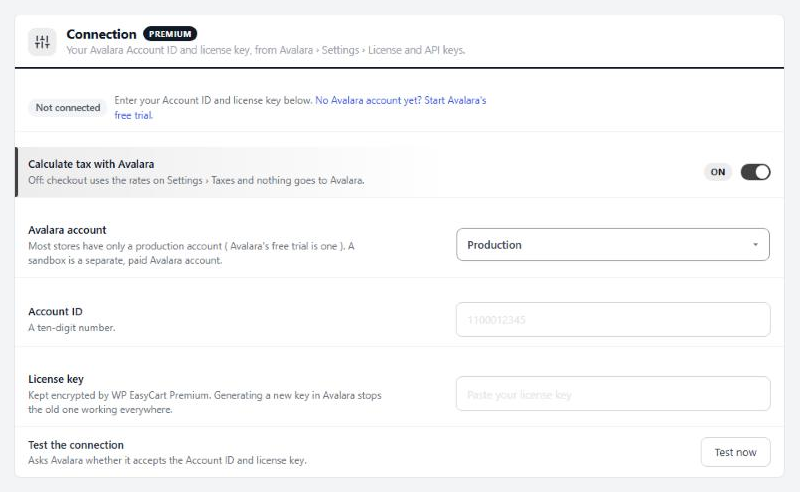
Connection
Your Avalara Account ID and license key, from Avalara › Settings › License and API keys.
5 settingsCalculate tax with Avalara
Asks Avalara for the tax at checkout. Off, checkout uses the rates on Settings › Taxes and nothing goes to Avalara.
Avalara account
Which Avalara account the ID and key belong to. Most stores only have Production, and Avalara’s free trial is one too. A Sandbox is a separate, paid Avalara account. Changing it forgets the companies read from the old one.
Account ID
The ten-digit number from Avalara › Settings › License and API keys. Anything that is not a digit is removed. Saving checks it with Avalara and warns you if Avalara turns it down.
License key
Generate it on the same Avalara page and paste it here. WP EasyCart Premium keeps it encrypted, so after saving the box shows dots and the last four characters. Generating a new key in Avalara stops the old one working everywhere, so update it here straight away.
Test the connection
Test now asks Avalara whether it accepts the Account ID and license key, and reads the account’s companies. The Status line then reads Connected, or Not accepted with Avalara’s reason. An account with one company has it picked for you.
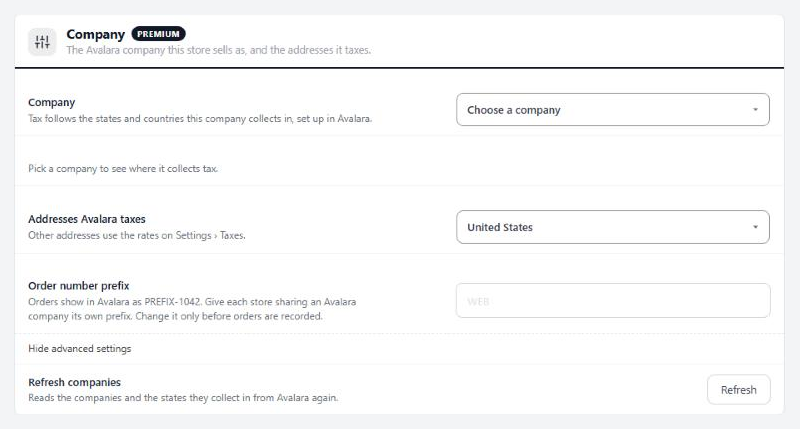
Company
The Avalara company this store sells as, and the addresses it taxes.
5 settingsCompany
The Avalara company this store sells as. Tax follows the states and countries this company collects in, which you set up in Avalara. Below it, Collects tax in lists them, or reads Nowhere yet.
Addresses Avalara taxes
Which shipping addresses Avalara taxes. United States only; United States and Canada, with GST, HST and PST from Avalara; or Every country, with VAT from Avalara too. Other addresses use the rates on Settings › Taxes. If your prices already include VAT, VAT countries stay on your own VAT settings so they are not taxed twice.
Order number prefix
Orders show in Avalara as PREFIX-1042 ( without a prefix, just 1042 ). Give each store that shares an Avalara company its own prefix. Letters, digits, dashes and underscores, up to 20. Change it only before orders are recorded.
Location code for online orders
Sent as the reporting location of orders that ship. Fill it in only when your Avalara company files by location, with the location code you set up in Avalara. Pickup orders report their store location ( LOC and its number ).
Refresh companies
Refresh reads the companies and the places they collect in from Avalara again. Use it after adding a company or a state in Avalara.
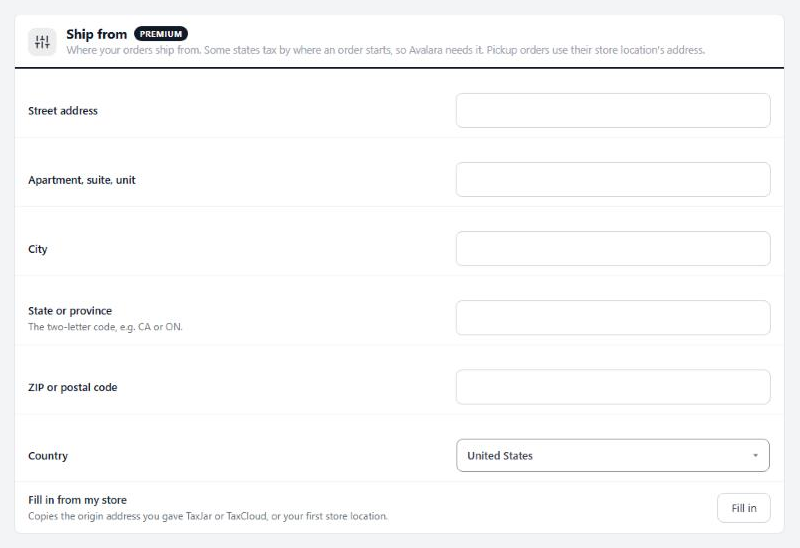
Ship from
Where your orders ship from. Some states tax by where an order starts, so Avalara needs it. Pickup orders use their store location’s address.
7 settingsStreet address
The street address your orders ship from.
Apartment, suite, unit
Optional second address line.
City
Your city.
State or province
The two-letter code, such as CA or ON.
ZIP or postal code
Your ZIP or postal code.
Country
The country you ship from.
Fill in from my store
Fill in copies the origin address you gave TaxJar or TaxCloud, or your first store location, into the fields above.
What shoppers see
How Avalara’s tax shows up in the cart and at checkout.
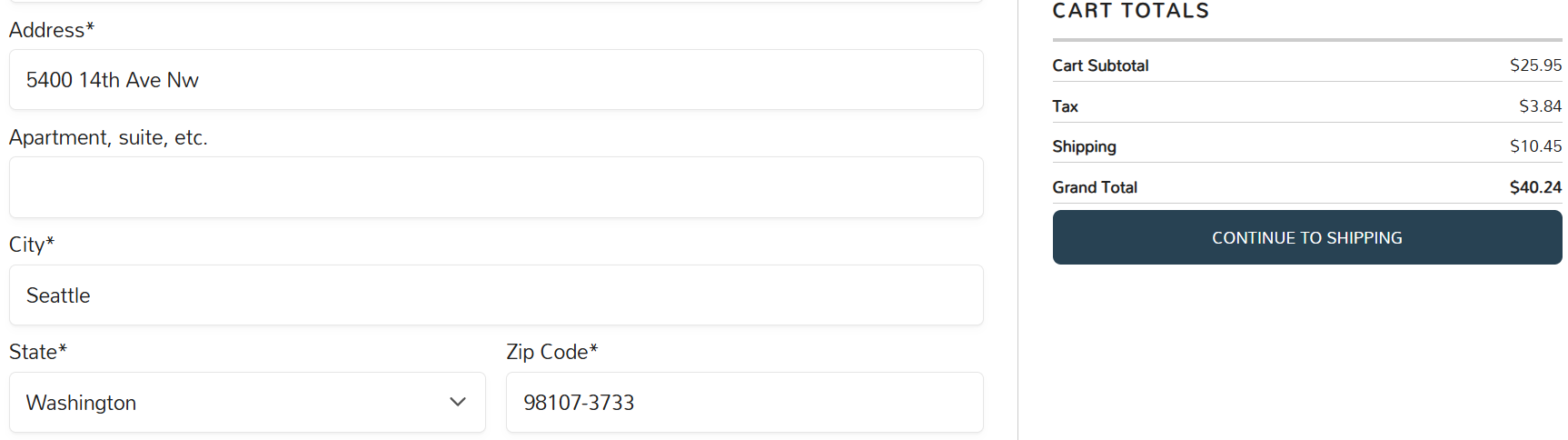
no stored settingsThe tax line. Once the address has a state and a postal code, checkout asks Avalara for the tax on every line, the shipping and the handling, and shows it in the totals like any other tax. It works the same on the classic checkout, the one-page checkout and the subscription checkout. The answer is reused for 30 minutes while the cart and address stay the same, so moving between steps is quick.
Where the tax comes from. Orders that ship are taxed from your Ship from address to the shipping address. Pickup orders are taxed at the store location they are picked up from. Products not marked taxable go as not taxable ( NT ), and gift cards used as payment never lower the tax.
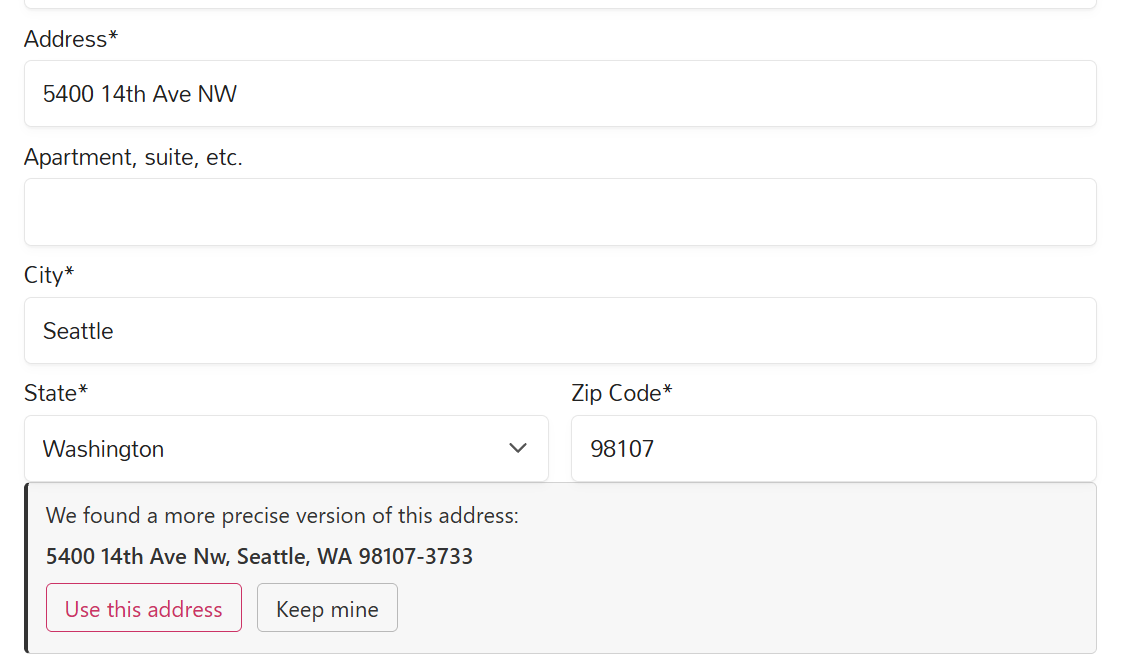
Address suggestions. With Suggest address corrections on, a US or Canadian shopper whose address Avalara knows more precisely sees We found a more precise version of this address, with Use this address and Keep mine. Use this address fills in Avalara’s version, often a corrected street or a ZIP+4. Nothing changes without the shopper’s click, and the tax is right either way.
Tax-exempt customers. Customers whose exemption is on file pay no tax and see a note saying so, and customers can claim exemption as they check out. Tax-exempt customers covers every way to set them up.
When Avalara is slow. Checkout waits up to eight seconds for Avalara. After that it follows When Avalara can’t be reached ( below ), and the order is recorded in Avalara later with the tax it charged.
Tax codes
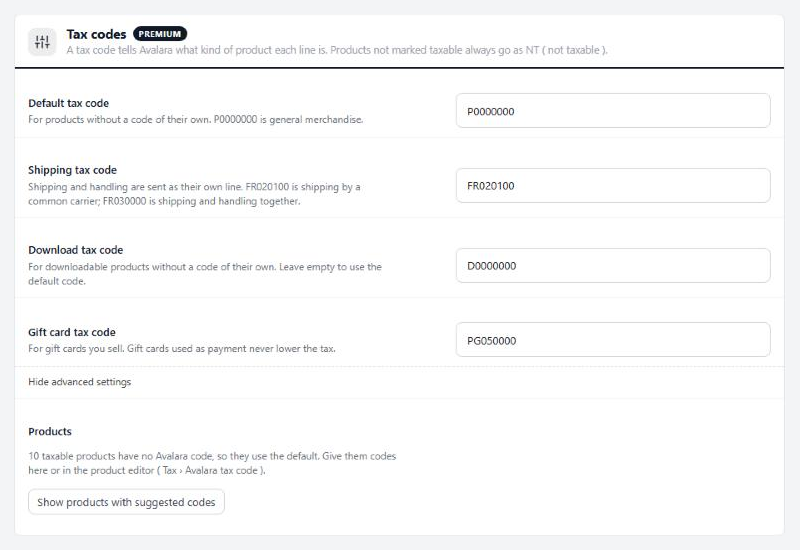
A tax code tells Avalara what kind of product each line is. Products not marked taxable always go as NT ( not taxable ).
4 settingsDefault tax code
For products without a code of their own. P0000000 is general merchandise. A code Avalara’s list does not have saves with a warning, so check it before orders use it. Below the codes, the section counts taxable products still on the default. Review products groups them by suggested code or by category, so you can give a whole group its code at once. For one product, use the Avalara tax code field in the Tax card of its Pricing section. A numeric TaxCloud or TaxJar code in that field is not an Avalara code, so the default is used.
Shipping tax code
Shipping and handling go to Avalara as their own line with this code. FR020100 is shipping by a common carrier, FR030000 is shipping and handling together, FR010000 is delivery in your own vehicle, and NT is not taxable.
Download tax code
For downloadable products without a code of their own. D0000000 is digital products in general; DC010500 is software downloads. Leave it empty to use the default code.
Gift card tax code
For gift cards you sell. Gift cards used as payment never lower the tax.
Checkout
What shoppers see, and what happens when Avalara can’t be reached.
4 settingsSuggest address corrections
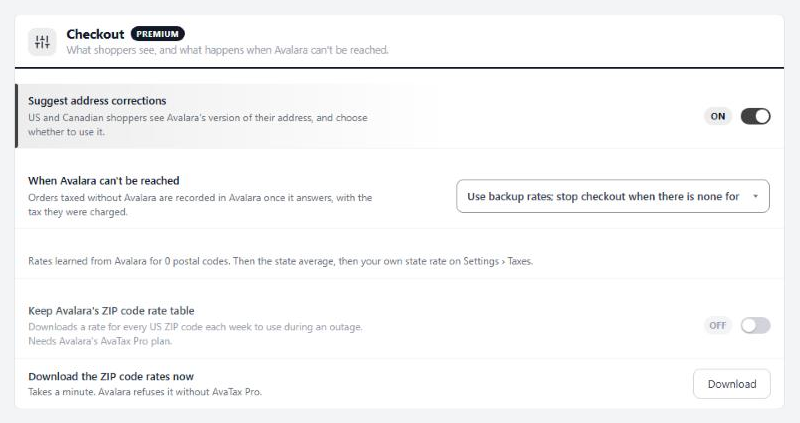
US and Canadian shoppers see Avalara’s version of their address when it differs, such as a corrected street or ZIP+4. Use this address fills it in; Keep mine leaves theirs. Nothing changes without the shopper’s click, and tax works either way.
When Avalara can’t be reached
What checkout does when Avalara does not answer within eight seconds. Use backup rates; stop checkout when there is none is the default. Use backup rates; take the order without tax never stops a sale. Stop checkout until Avalara answers never guesses. Orders taxed without Avalara are recorded in Avalara once it answers, with the tax they were charged. The Backup rates line below shows what you have to fall back on.
Keep Avalara’s ZIP code rate table
Downloads Avalara’s rate for every US ZIP code each week, to use during an outage. Needs Avalara’s AvaTax Pro plan. Without it Avalara refuses the download and this switches itself off.
Download the ZIP code rates now
Download fetches the ZIP code table now instead of waiting for the weekly run. It takes a minute.
The customer’s Avalara card
EasyCart › Customers › a customer › Tax & Preferences, under Tax & Shipping Preferences.
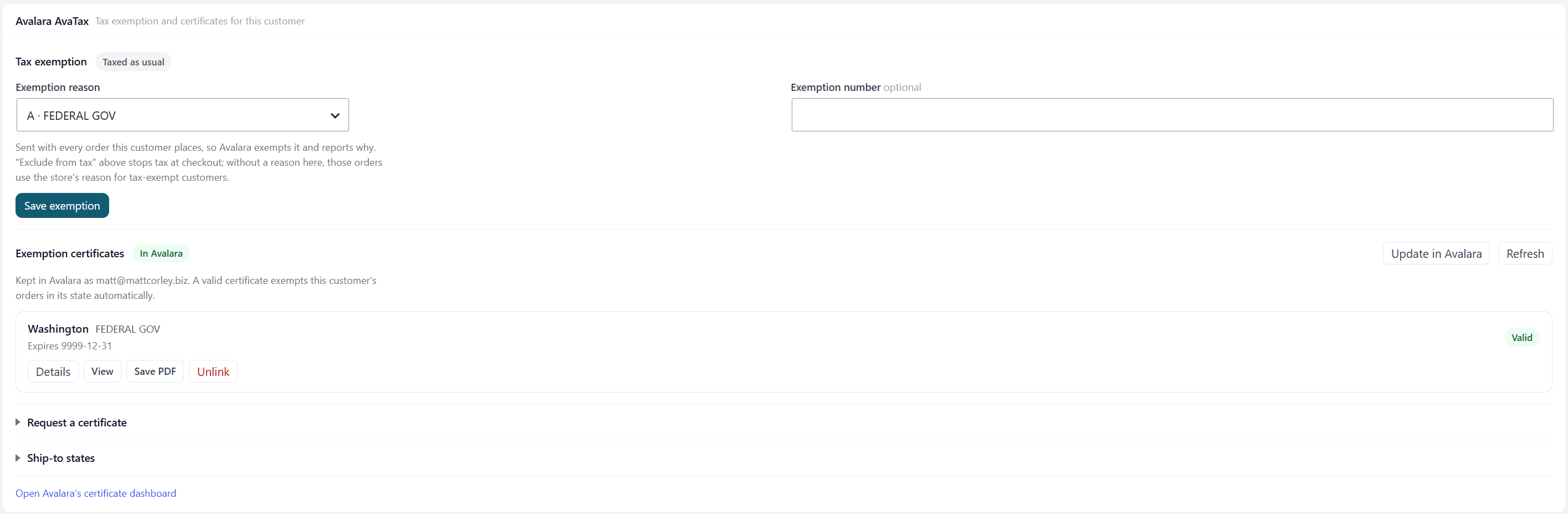
no stored settingsTax exemption. Pick an Exemption reason ( Avalara’s list, such as Resale, Charitable organization or Federal government, or Another code… for a code your Avalara account added ), add the Exemption number if there is one, and press Save exemption. Every order the customer places from then on goes to Avalara with that reason and number, and Avalara exempts it by its own rules for the state. The chip reads Exempt · G Resale or Taxed as usual.
Exclude from tax, WP EasyCart’s own switch just above, stops tax at checkout. Those orders go to Avalara with the reason here, or with the store’s Reason for tax-exempt customers ( Orders in Avalara ) when the card has none.
Exemption certificates. With certificates on, the card also shows whether the customer is In Avalara, with Send to Avalara or Update in Avalara and Refresh. Each certificate lists its state, its reason, Valid, Expiring soon or why it is not valid, and its expiry date, with Details, View, Save PDF, Request a new one and Unlink. Unlinking takes the certificate off this customer only; past orders are unchanged.
Request a certificate. Pick the states ( none lets the customer choose ), a reason to fill in, and Email from Avalara or A link I send. Avalara emails the customer a form to fill in and sign; the certificate shows on the card once they send it. Ship-to states lists where the customer receives goods besides their own address, so Avalara asks for the right certificates.
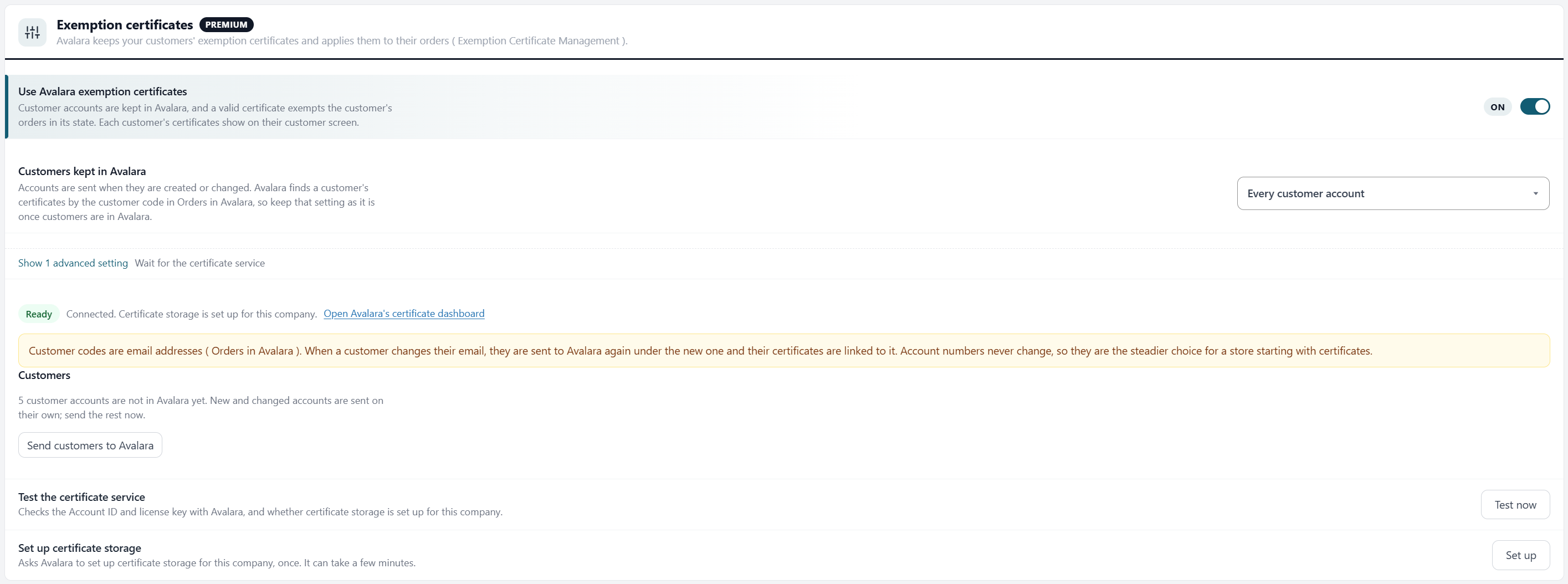
Exemption certificates
Avalara keeps your customers’ exemption certificates and applies them to their orders ( Exemption Certificate Management ).
5 settingsUse Avalara exemption certificates
Keeps customer accounts in Avalara. When a customer has a valid certificate for the state an order ships to, Avalara exempts the order on its own, with nothing to set on the order. Each customer’s certificates show on their customer card. Below the switch, a chip reads Ready, Being set up or Not set up, with a link to Avalara’s certificate dashboard.
Customers kept in Avalara
Every customer account, or Only tax-exempt customers and customers asked for a certificate. Accounts are sent when they are created or changed. Send customers to Avalara, under the settings, sends the accounts already in your store, 25 at a time with a running count.
Wait for the certificate service
Seconds the admin waits for Avalara’s certificate calls, from 5 to 120.
Test the certificate service
Test now checks the Account ID and license key, and whether certificate storage is set up for this company.
Set up certificate storage
Set up asks Avalara to set up certificate storage for this company. You only do it once, and it can take a few minutes.
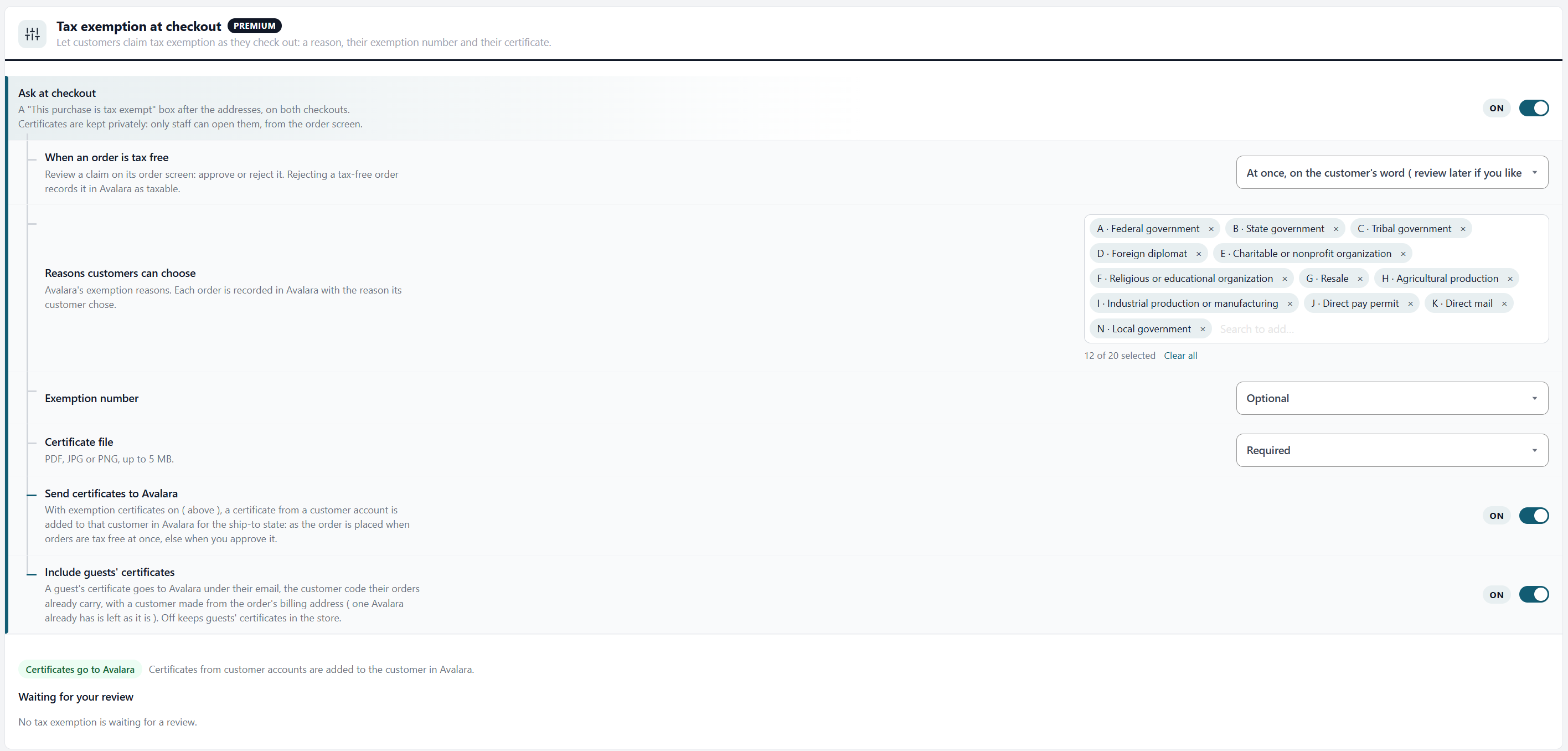
Tax exemption at checkout
Let customers claim tax exemption as they check out: a reason, their exemption number and their certificate.
7 settingsAsk at checkout
Adds a This purchase is tax exempt box after the addresses, on the classic and one-page checkouts, whenever the cart has a taxable product. Certificates are kept privately: only staff can open them, from the order screen.
When an order is tax free
At once, on the customer’s word: tax comes off as soon as the claim is complete, and you can review it later. At once, but the order waits for my review: tax comes off, but the order only goes to Avalara once you approve or reject it. Only after I approve: tax is charged on this order, and approving makes the customer’s next orders exempt.
Reasons customers can choose
Avalara’s exemption reasons. Each order goes to Avalara with the reason its customer chose. Twelve are offered at first: federal, state, tribal and local government, foreign diplomat, charitable, religious or educational organization, resale, agricultural production, industrial production, direct pay permit and direct mail.
Exemption number
Required, Optional or Don’t ask.
Certificate file
Required or Optional. A PDF, JPG or PNG, up to 5 MB.
Send certificates to Avalara
With exemption certificates on, a customer’s certificate is added to them in Avalara for the state the order ships to: as the order is placed when orders are tax free on the customer’s word, otherwise when you approve it.
Include guests’ certificates
A guest’s certificate goes to Avalara under their email, the customer code their orders already carry, with a customer made from the order’s billing address. A customer Avalara already has is left as it is. Off keeps guests’ certificates in the store.
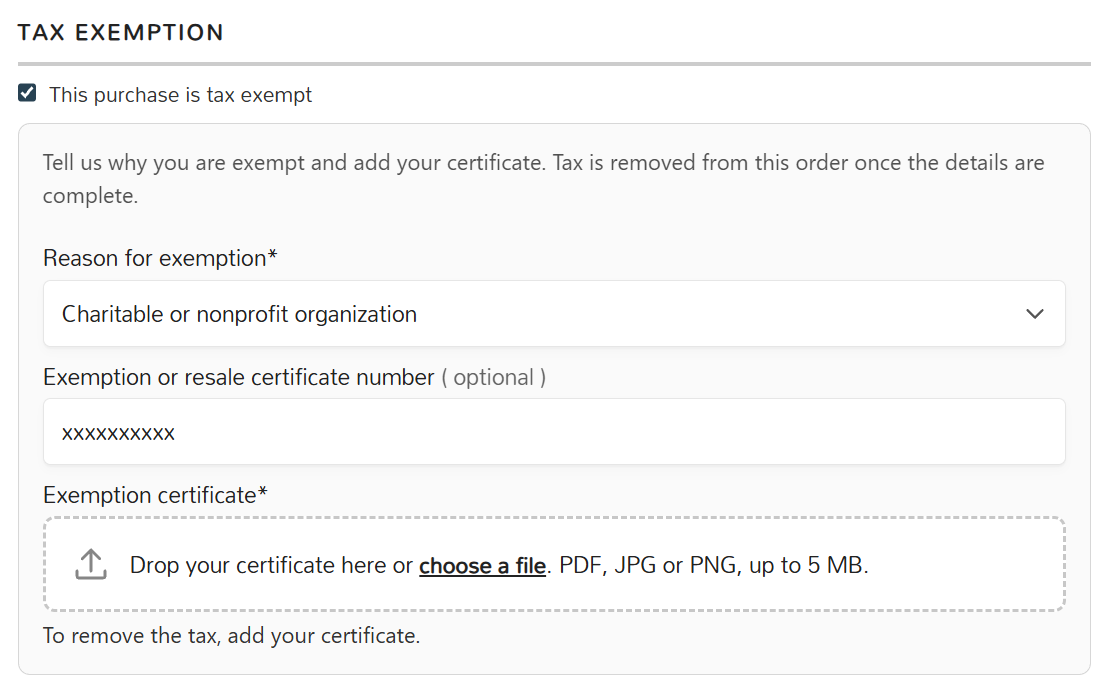
Claiming exemption at checkout
What a customer sees, step by step.
no stored settingsStep 1. Tick the box. After the addresses, the customer ticks This purchase is tax exempt. A short line says what happens next: tax comes off once the details are complete, or, when you approve claims first, that tax is charged on this order and their future orders are tax free once you approve.
Step 2. Fill it in. They choose a Reason for exemption, enter their Exemption or resale certificate number, and drop their certificate on the box or choose a file. A line under the fields says what is still missing, such as To remove the tax, choose a reason and add your certificate. A returning customer is offered Use your exemption from your last order? with Use it.
Step 3. Tax comes off. On the one-page checkout the totals update as soon as the claim is complete. On the classic checkout the review step shows Tax exempt: Resale. Change above Place order. Place order reminds the customer to finish the details or untick the box if they stopped halfway.
After the order. The order confirmation page, the receipt email and the order in My Account show the claim: Tax exempt: Resale., or, when you approve claims first, that you will review the certificate for future orders, then that it was approved or not accepted.
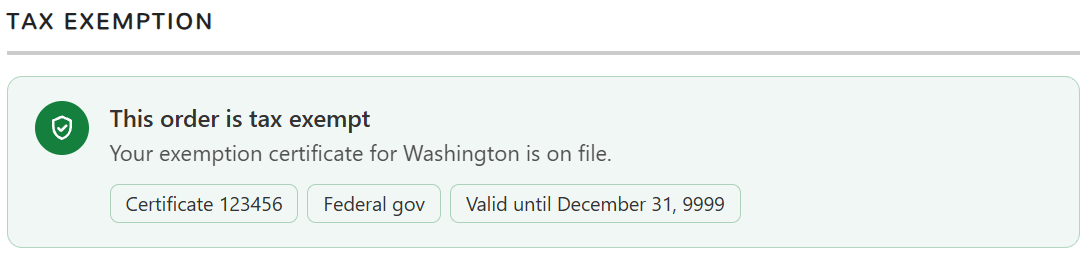
Already on file. A customer whose account is marked exempt sees Your tax exemption is on file, so this order is not taxed and nothing to fill in. A customer with a valid Avalara certificate for the ship-to state sees Your exemption certificate for Texas is on file, so this order is not taxed, and can still tick Claim a different exemption for this order.
Reviewing a claim
The Tax exemption card on the order screen, and what each choice does.
no stored settings| On the customer’s word | After my review | Only after I approve | |
|---|---|---|---|
| Tax on this order | Removed at checkout | Removed at checkout | Charged |
| The order in Avalara | Recorded as exempt right away | Held until you approve ( exempt ) or reject ( taxable ) | Recorded with its tax right away |
| Certificate to Avalara | As the order is placed | When you approve | When you approve |
| Their next orders | Exempt if you approve and save it to their account | Exempt if you approve and save it to their account | Exempt once you approve ( saved to their account ) |
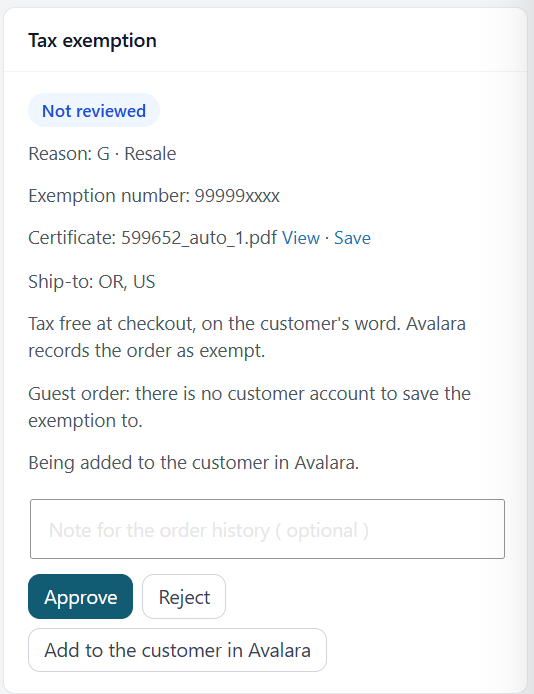
The Tax exemption card. Every order with a claim has a Tax exemption card showing the reason, the exemption number, the certificate with View, and the ship-to state. Its chip reads Not reviewed, Waiting for review, Waiting for approval, Approved or Rejected, and who decided and when.
Approve accepts the claim. Tick On approval, save it to the customer’s account to make their next orders exempt ( it starts ticked when you approve claims first ), and add a note for the order history if you like. With certificates going to Avalara, approving also adds the certificate to the customer there; Add to the customer in Avalara does it on its own, and Try Avalara again shows after a failed try.
Reject turns it down. If the order was tax free, Avalara then records it as taxable, and the tax was never collected: the Avalara card offers to add Avalara’s tax to the order or to keep it as it is. If tax was charged, the order keeps it.
Guests. A guest’s claim works the same way at checkout, but there is no account to save it to. Their certificate still reaches Avalara under their email while Include guests’ certificates is on.
Orders in Avalara
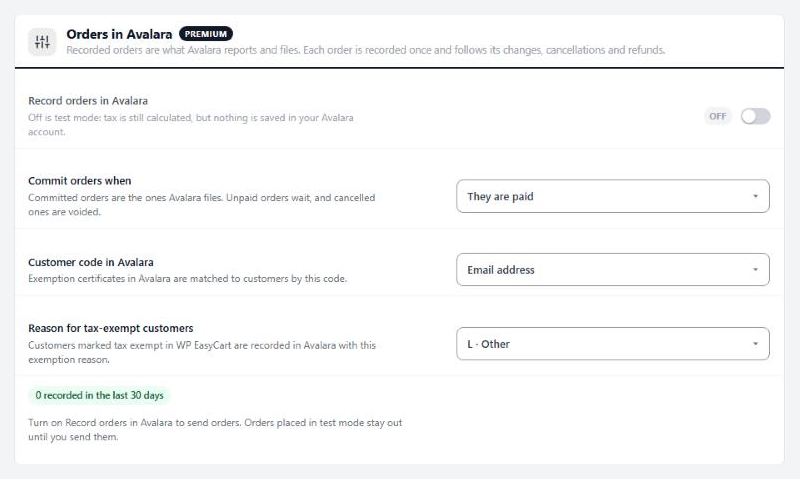
Recorded orders are what Avalara reports and files. Each order is recorded once and follows its changes, cancellations and refunds.
4 settingsRecord orders in Avalara
Off is test mode: tax is still calculated at checkout, but nothing is saved in your Avalara account. On, every order to an address Avalara taxes is recorded under its order number and follows its changes. It starts off, so you can try things first.
Commit orders when
Committed orders are the ones Avalara files. They are paid, They are shipped or picked up, or Never, when you commit them in Avalara yourself. Unpaid orders wait, and cancelled ones are voided.
Customer code in Avalara
The code each sale is filed under in Avalara: the customer’s Email address, or their Customer account number with the email for guests. Exemption certificates in Avalara are matched to customers by this code.
Reason for tax-exempt customers
Customers marked tax exempt in WP EasyCart without a reason of their own, and other orders placed tax free without one, go to Avalara with this exemption reason, from A · Federal government to R · Non-resident. Pick None to have Avalara tax them as usual.
The order screen
Where an order stands in Avalara, at a glance in the totals and in full on its card.
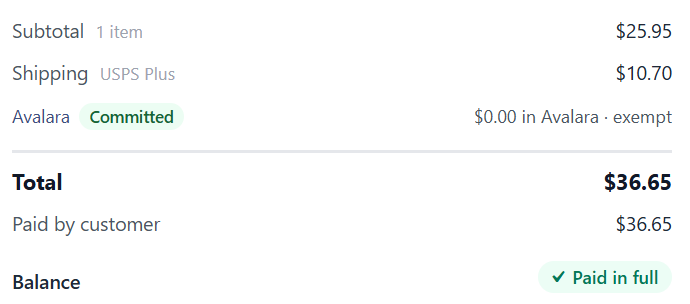
no stored settingsThe totals line. Under the order’s Tax, an Avalara line shows the order’s state in Avalara and the tax Avalara has for it, such as Committed · $8.25 in Avalara, or exempt for a tax-free order. Click it to jump to the card.
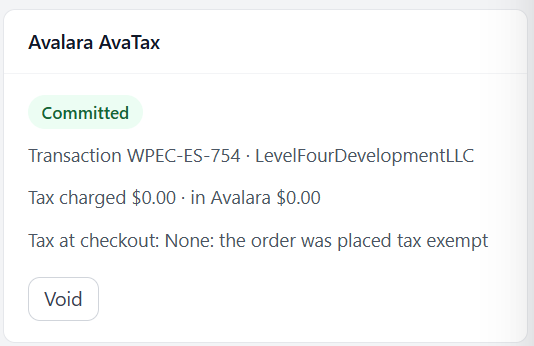
The Avalara AvaTax card shows the transaction code and company, the tax charged and the tax in Avalara, where the tax came from at checkout ( Avalara, backup rates, none while Avalara was down, the order’s own tax, or none because the order was placed tax exempt ), and any refunds recorded. Its state sets the buttons:
Not in Avalara: placed before AvaTax recorded orders, or while it was off. Send to Avalara.
Test mode: placed with recording off. Send to Avalara.
Waiting to send: goes to Avalara in the background, and the card says roughly when. Send now.
Waiting for the exemption review: goes once the claim is approved or rejected.
Recorded: in Avalara, not committed yet. Commit now, or Void.
Committed: filed with your returns. Void.
Voided: Send again.
Could not send: Try again, with the last error shown.
Tax differs means Avalara worked out a different tax than the order charged, usually after an edit. Use Avalara’s tax on the order changes the order’s tax and total; Record the tax charged tells Avalara to keep what the customer paid. Filed means Avalara has already reported the sale, so make the change in Avalara.
The order history notes each step: Recorded in Avalara, Committed in Avalara, Changed in Avalara, Refund recorded in Avalara, Voided in Avalara, Avalara could not take the order, and each tax exemption claimed, approved, rejected or added in Avalara.
Find it in Avalara
Where each order, refund, exemption and certificate shows in your Avalara account.
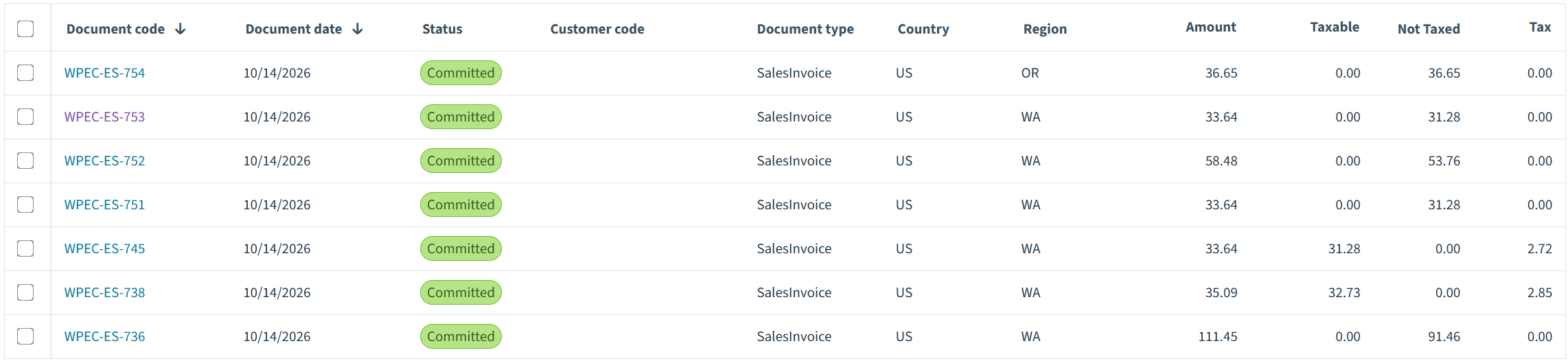
no stored settingsStep 1. Find the order. Sign in to Avalara, open Transactions and search for the order number, with your prefix if you set one. The transaction carries the customer code ( the email, or the account number ), the ship-from and ship-to addresses, each line with its tax code, and the tax.
Step 2. Read its status. A recorded order is uncommitted until it is paid or shipped, as you chose, and Avalara does not file it yet. A committed order goes on your returns. A cancelled order is voided. Refunds are their own return transactions, 1042-R1, 1042-R2.
Step 3. Check an exempt order. Its tax is zero and Avalara shows why: the exemption reason ( entity use code ) and number, or the certificate that applied. Avalara reports the sale as exempt.
Step 4. Check a customer’s certificates. Open Avalara’s certificate dashboard ( the link is on Exemption certificates and on each customer’s card ), search for the customer code, and open the certificate: its states, reason, dates and file. Certificates sent from checkout are there, guests’ under their email.


Logs and data
What is written to Settings › Logs, and what happens when the extension is deleted.
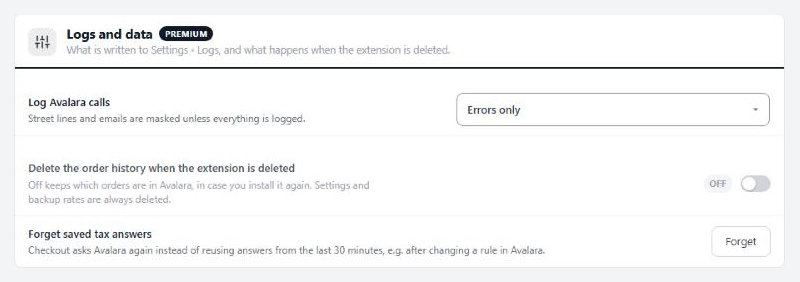
3 settingsLog Avalara calls
What goes to Settings › Logs under AvaTax: Errors only, Everything while you troubleshoot, or Nothing. Each entry has what was sent, Avalara’s answer and how long it took. Street lines and emails are masked unless everything is logged.
Delete the order history when the extension is deleted
On, deleting the extension also deletes its record of which orders are in Avalara, your customers’ exemption reasons, and the exemptions and certificates claimed at checkout. Off keeps them in case you install it again. Settings and backup rates are always deleted.
Forget saved tax answers
Checkout reuses Avalara’s answer for the same cart and address for 30 minutes. Forget makes it ask again, such as after changing a rule in Avalara.
AvaTax comes with WP EasyCart Premium
A Premium license includes AvaTax and every other WP EasyCart extension, with updates and support. You still need your own Avalara account; Avalara offers a free trial.
