
How-to › Checkout, orders and customers

How to Handle Refunds, Order Edits and Credit Notes

Refund a whole order or part of one, edit an order after it was paid and issue a credit note. You choose what goes back, where the money goes and whether the customer is told. 11 parts.

Quick links

Where to find it:WP Admin › EasyCart › Orders › Orders › Refund

Before you start

What a refund does

What you need and what a refund changes on the order.

How refunds work

What you need and what a refund changes

no stored settings

What you need. The refund drawer, editing an order’s lines and totals, and credit notes are PRO features, and credit notes need an up to date WP EasyCart PRO. The free plugin can change an order’s status to Refunded Order, Partial Refund or Order Cancelled, but that changes the status only. No money goes back to the customer.

What a refund changes. It sends the money back through the payment gateway when the gateway supports it, records the refund on the order, moves the order to Refunded Order when everything paid is refunded or Partial Refund when only part is, and can put stock back and email the customer.

The steps: refund an order, choose what goes back, choose where the money goes, then handle edits to an order after it was paid, and credit notes.

⚠️ Careful: Changing an order’s status to Refunded Order, without the refund drawer, sends no money back. Refund the payment first, then check the status.

Do it

Refund an order

Open the drawer, choose what goes back and where, and tell the customer.

Step 1. Open the refund drawer

Orders › Orders, open the order

no stored settings

Open the order and press Refund in the Payment area. You can also press Refund the difference when the Next step panel shows it, or change the status to Refunded Order or Partial Refund and choose Refund the payment instead in the confirmation.

The drawer is headed Refund Order when the order’s gateway can refund automatically, and Record a Refund when it cannot. In that case the drawer says the gateway does not support automatic refunds, so the order records the refund and you return the money in your gateway or another way.

These gateways refund from the drawer: Affirm, Amazon Pay, Stripe, Stripe Connect, Authorize.net, Beanstream, Braintree, NMI, Intuit, Square, PayPal and PayTrace.
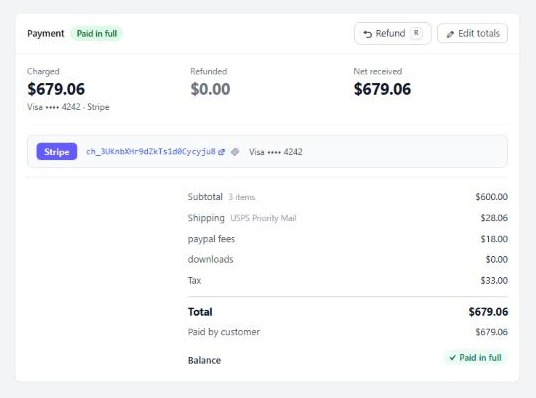
The Payment area of an order, with the Refund button.

Step 2. Choose what to refund

Items, shipping, tax, fees and a custom amount

no stored settings

Items to refund lists each line with a tick, a quantity and its price. Untick lines you are keeping. Lower the quantity to refund some of the units. A line already partly refunded shows a chip such as 1 of 3 refunded, and only the rest can go back.

Under a shippable line, Restock item puts the units back into stock. It is ticked by default, unless the order has already been fulfilled, and then it is off. Tick it only if the goods are really coming back. Under a download, Revoke download access is ticked by default.

Refund shipping has its own amount, and Refund tax (prorated to selected items) works its share out for you. Each order fee, such as a card processing fee, has a Refund line of its own. A percentage fee is refunded in proportion to what you refund. A fixed fee is all or nothing.

The Total refund box adds it all up. Type a different amount there for a custom refund, such as a goodwill amount. Available to refund shows the ceiling: what the customer paid, less what has already gone back.
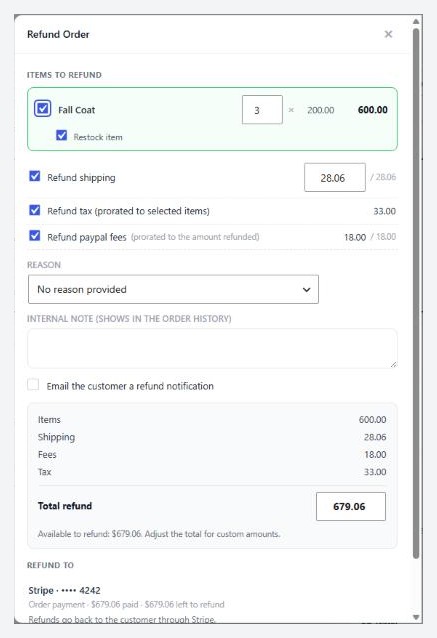
The refund drawer on an order, with items, shipping, tax and the total. Dev3 needs a paid order to open it.

Step 3. Choose where the money goes

Refund to each payment

no stored settings

When an order has one payment, a Refund to row names it, with what was paid and what is left to refund. When it has two or more, for example a deposit and a later payment on a pay link, the section is Refund from and each payment has an amount box. The refund is split for you, newest payment first, and you can change the split.

A payment taken outside the store, such as cash, a cheque, a bank transfer or one recorded by an accounting app, carries a Recorded only chip. The refund is written on the order, and you return that money yourself.

If two payments are refunded and the second is declined, the order records only what really went back, and says so, so it never claims a refund that did not happen. A refund you make in the Stripe dashboard is noticed through the webhook and counted against the right payment.

Step 4. Give a reason and tell the customer

The reason, a note and the email

no stored settings

Reason is a list: No reason provided, Customer request, Damaged or defective, Wrong item / size, Not delivered, Fraudulent order and Other. Internal note (shows in the order history) is for your team and is never shown to the customer.

Tick Email the customer a refund notification to send the refund email. To have it ticked for every refund, turn on Email the customer after a refund in Settings › Admin, in the Orders card. It is off by default. A refund the customer was not told about often turns into a support message.

Press Refund with the amount on it, or Record Refund for a manual one. The refund email’s subject and message are set under Receipt wording in Settings › Email.

What happens after a refund

Status, stock, downloads and the timeline

no stored settings

Status. When the total refunded reaches everything the customer paid, the order goes to Refunded Order. Until then it is Partial Refund. You can refund an order as many times as you like, in parts, until it reaches the full amount. Refunded Order does not count as paid, so it drops out of revenue. Partial Refund still counts as paid, because the customer kept part of the order.

Stock. Only lines with Restock item ticked go back into stock. Changing an order’s status by hand, without the drawer, never puts stock back.

Downloads and gift cards. Ticked downloads lose their access. A full refund deletes any gift card on the order, and its unused balance.

Timeline. The order’s activity log records a full or partial refund, the stock change, the reason and your note. The order list shows a Refunded badge, and the order screen shows Refunded and Net received in the Payment area.

💡 Note: A refund does not delete the order. Your sales records stay, and the order carries its refund on its timeline.

Good to know

Edits, credit notes and the free plugin

Changing an order after payment, credit notes and what free can do.

Editing a paid order

Lines, totals, tax and the balance

no stored settings

With PRO you can change an order after it was placed. Address and contact changes are free. Lines, totals and the order date are PRO.

Change a line. Use Edit line to change the Product Title, options, SKU, Quantity Purchased, Unit Price and Total Price, then SAVE CHANGES.
Add a line. Press Add line item, choose a product, set the Quantity and Unit price, and press Add line. The sub total and grand total follow it.
Edit the totals. Edit Totals opens Sub Total, Shipping, Discount, Tax, Duty, VAT and Grand Total, plus a Refund adjustment. Press Save Totals to keep your changes.

Recalculate tax. After a change, press Recalculate tax. It works tax, VAT, duty and GST, PST and HST out again from the order’s lines and address with your store’s tax rules, the way checkout does. It saves nothing by itself. The new figures fill the fields for you to check, and Save Totals keeps them. When you add, change or remove a line, or change the address, shipping or discount, the order offers to do it for you.

The balance. The order remembers what the customer paid. Raise the total and the order shows Balance due. Send the invoice with a Pay button to collect it, or press Record payment for money you took another way. Lower the total and it shows Refund due, and the Next step panel offers Refund the difference.

Credit notes

Settings › Documents › Invoice numbers

no stored settings

A credit note is a numbered document that reverses part or all of an invoice. It is PRO, and it needs invoice numbers.

Open EasyCart › Settings › Documents and go to Invoice numbers. Turn on Give invoices their own numbers. Then turn on Issue a credit note for refunds. Set the Credit note number format, which starts as CN-{year}-{number}, and the Next credit note number. Credit notes have their own sequence.

After that, a refund on an order that has an invoice issues a credit note for what was refunded since the last one. The invoice is never changed. The order screen’s Invoice & PO card lists the credit note with its number, date and amount, and a PDF button. The PDF you get is the newest credit note. Its look is set on the Credit note section of Settings › Documents.
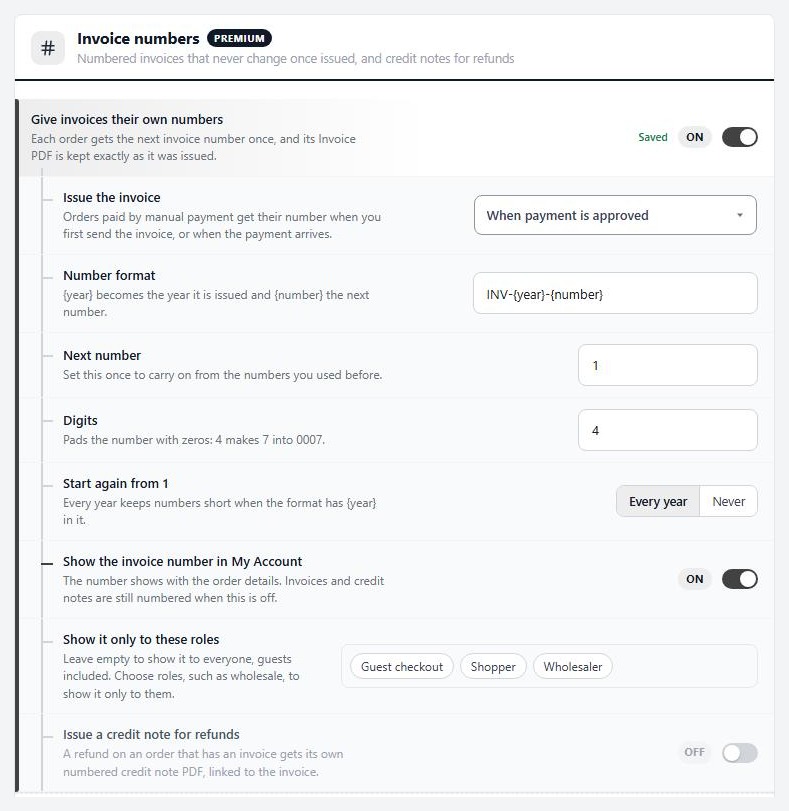
Settings › Documents › Invoice numbers, with credit notes switched on.

What the free plugin can do

Status changes, and refunding in your gateway

no stored settings

Without PRO, the Refund and Edit totals buttons show locked, and the refund calculator is part of PRO. You can still refund a customer: do it in your payment gateway, then set the order to Refunded Order or Partial Refund. The screen asks you to confirm, and tells you that this changes the status only. To cancel an order, set Order Cancelled and refund the payment if the customer paid.

Address and contact changes on an order are free. Free does not put stock back for you, so adjust inventory by hand under Products › Inventory.

Test it

Refund a test order before a real one

no stored settings

Put your gateway in test mode and place a small order.

1. Open the order, press Refund, tick one item and refund part of it. Tick the email box and send it to yourself.
2. Check the status is Partial Refund and the timeline shows the refund.
3. Look in the gateway’s test dashboard for the refund.
4. Refund the rest. The status should be Refunded Order and the stock should be back if you ticked Restock item.
5. If you use credit notes, check the Invoice & PO card for the credit note.

Then turn test mode off.

If it does not work

The usual reasons a refund fails or looks wrong

no stored settings

The drawer says Record a Refund. The order’s gateway is not in the list that refunds automatically. Refund in your gateway, then record it here.

The gateway declined the refund. The message names the payment. The gateway may have refused because the charge is too old, was already refunded, or has too little left. Check it in the gateway’s dashboard.

You cannot refund more than was paid. The box stops at Available to refund. If you edited the order after it was paid, the ceiling is what was really paid.

Stock did not come back. Restock item was unticked, which is the default for a fulfilled order, or the status was changed by hand.

The customer was not emailed. The notification box was unticked. Turn on Email the customer after a refund in Settings › Admin, or resend from the order.

No credit note. The order has no invoice number, invoice numbers or Issue a credit note for refunds is off, or WP EasyCart PRO is out of date.

A refund you made in Stripe does not show. The Stripe webhook is not reaching your store. Check the webhook in Settings › Payment.

Keep going

Related panels

Order Management

The order screen in full.

Documents

Invoice numbers, credit notes and the invoice email.

Admin

The automatic refund email.

Payment

Which gateways you have connected.

Ready to run your store on WP EasyCart?

Everything in this guide works with the free plugin. PRO and Premium add subscriptions, memberships, wholesale pricing and more. Try every PRO feature free for 14 days.

The WP EasyCart admin: orders and offers
Updated on September 30, 2026