
How-to › Design your store › Divi
How to Use WP EasyCart with Divi
Use WP EasyCart on a Divi site with shortcodes. You check your pages, add shortcodes in a module, and fix a sidebar. 7 parts.
Quick links
Where to find it:WP Admin › EasyCart › Settings › Store details
Before you start
What works with Divi
What you need and what to expect.
What works with Divi
No EasyCart modules, so it is a shortcode job
no stored settingsWhat you need. WP EasyCart, free, and the Divi theme or builder. Shortcodes are in the free plugin.
The honest picture. WP EasyCart has no Divi modules. We checked the plugin code. What you can do is put EasyCart shortcodes into Divi, and that covers the store, cart and account pages, product lists, buttons and tables. The single product page is drawn by EasyCart’s own layout, not by Divi.
If you want to design the product page with drag and drop, that is what the Elementor widgets are for. Which Design Method Should I Use? compares the options.
The steps: check your three pages, add shortcodes to them, list products, set how product pages take your theme’s layout, and fix the sidebar if Divi adds one.
💡 Note: Divi is a third-party product, and this guide covers only what WP EasyCart does. We have not tested every Divi version.
Build it
Five steps
Check your pages, add shortcodes, list products, set the product page layout and fix the sidebar.
Step 1. Check your store pages
Settings › Store details › Store pages
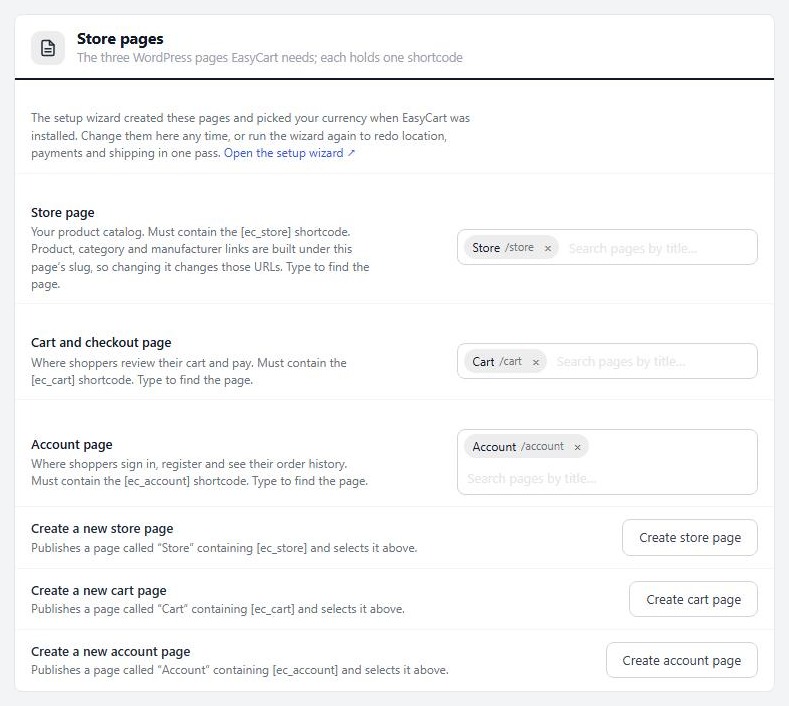
no stored settingsWP EasyCart makes a Store, a Cart and an Account page when you install it, each holding one shortcode. Open EasyCart › Settings › Store details to see them. The Store page must hold [ec_store], the cart page [ec_cart] and the account page [ec_account].
If you rebuild one of these pages in Divi, keep the shortcode on it and keep the page chosen in that setting. The Create store page, Create cart page and Create account page buttons make a fresh page with the right shortcode if you lose one.
Step 2. Add a shortcode in Divi
A text or code module
no stored settingsOpen the page in Divi and add a module that shows shortcodes. A text module or a code module is the usual choice. Paste the shortcode, such as [ec_store], and save.
Type the shortcode with straight quotes. Then open the live page. Do not judge the result from the builder view, because the store is drawn for real visitors and needs the live page.
If the shortcode appears as plain text, that module does not run shortcodes. Try another module.
Step 3. Product lists and buttons
Shortcodes for any section of any page
no stored settingsOnce you can place a shortcode, use them anywhere. Some that suit Divi sections:[ec_store groupid="5" cols_desktop="4"] a store limited to one category.[ec_product category="5" status="on_sale" per_page="4"] four sale tiles.[ec_addtocart productid="12"] a buy button.[ec_cart_icon cart_link_url="https://example.com/cart/"] a cart icon with a count.
The full list, with every attribute, is in Design Your Store with Shortcodes.
Step 4. Product pages and your theme layout
They follow the Store page’s template
no stored settingsA product page is drawn as a page. By default it takes the page template chosen on your Store page, as long as that template is a file in your theme. So the way to give products a full-width layout is to choose that layout on the Store page, and the product pages follow.
The other route is the switch Use the theme’s post template for products in Settings › Design › Theme integration. Turn on Show advanced settings to see it. With it on, product pages use your theme’s single-post template, or a file called single-ec_store.php if you make one. It is off by default.
Colors, fonts, the gallery beside or above the details, and other product-page choices are Design and Products settings. See How to Customize Your Store’s Look.
Step 5. Fix a sidebar on store pages
When your normal pages have none but the store does
no stored settingsThe earlier Divi guide covered one problem: a site that normally shows no sidebar, where the store and product pages show one. Its fix has three parts.
1. In Settings › Design › Theme integration, turn on Use the theme’s post template for products.
2. In Settings › Design › Custom CSS, add these rules. That box applies to all EasyCart pages..ec_store-template-default #left-area { width:100% !important; padding-right:0 !important; }.ec_store-template-default #sidebar { display:none !important; }.ec_store-template-default #main-content > .container:before { display:none !important; }
3. Clear every cache, and edit your main Store page in Divi to set its width the way you want.
Divi’s element names can change between versions. If the sidebar stays, ask your Divi support which selectors it uses now, or contact us at wpeasycart.com/my-account.
⚠️ Careful: Turning on the theme post template changes every product page. Check a product, a category and the cart after you save.
Good to know
If something goes wrong
The usual snags.
If it does not work
The usual snags
no stored settingsThe shortcode shows as text. Use a module that runs shortcodes, and straight quotes.
The store is empty in the builder. Look at the live page instead.
Two carts, or a blank cart page. The cart page must hold exactly one [ec_cart] and be the page chosen in Settings › Store details.
Old content on the store page. A cache plugin can serve an old copy. Clear it after any change.
Keep going
Related panels
Where the store, cart and account pages are chosen.
Custom CSS and the theme integration switches.
Settings that change how store pages behave.
Ready to run your store on WP EasyCart?
Everything in this guide works with the free plugin. PRO and Premium add subscriptions, memberships, wholesale pricing and more. Try every PRO feature free for 14 days.

