
How-to › Selling special products

How to Sell Gift Cards

Sell gift cards customers can send and spend. You create the product, set how cards redeem at checkout, issue cards by hand when you need to, and keep track of balances. 10 parts.

Quick links

Where to find it:WP Admin › EasyCart › Marketing › Gift Cards

Before you start

What you are building

What you need and the life of a gift card, from purchase to redemption.

How gift cards work

What you need, and the life of a card

no stored settings

What you need. WP EasyCart PRO or Premium. The Gift Card product type and Marketing › Gift Cards are PRO features. Customers need an account on your store. Guest checkout cannot be used for a cart with a gift card.

The life of a card. You sell a gift card product. The buyer types in who it is for and a message. When the order is placed, the store creates a unique code and emails it to the recipient. The recipient types the code into the gift card box at your checkout. Whatever they spend comes off the balance, and any leftover stays on the card for next time.

A gift card is stored value, not a discount. The customer has already paid you, and spending it is you delivering something you were paid for.

The steps: create the product, check the checkout settings, test a purchase and a redemption, then learn where to look after the sale.

Set it up

Four steps

Create the product, check the checkout settings, issue a card by hand and test.

Step 1. Create the gift card product

Product type Gift card, or the Gift Card Product switch

no stored settings

Go to EasyCart › Products › Products and press Add New. Enter a title such as Gift Card, choose Gift card as the Product type and press Create & open editor. For a product you already have, open Type & Behavior and switch on Gift Card Product in the Product Behaviors section.

What the card is worth. The price of the line, options included. A product priced at 25.00 in your currency creates a card with a balance of 25.00. Sell several amounts as separate products, or as one product with an option set whose choices add to the price. Give the product an image, because it appears in the delivery email.

A gift card is not shipped. Leave Shippable off on the Inventory & Shipping tab. Set tax on Pricing & Tax the way your own tax rules require.

Quantity works. Buy three, and the store creates three separate cards, each with its own code and its own email.
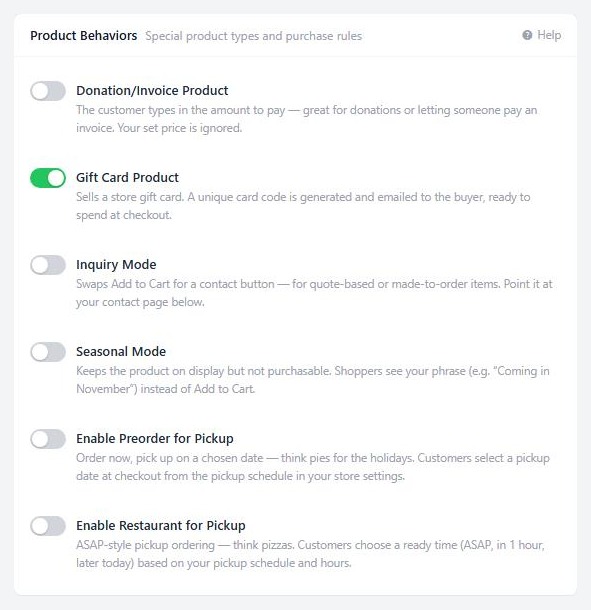
Type & Behavior › Product Behaviors, with the Gift Card Product switch.

💡 Note: The card is worth what the line costs, options included. An option that adds to the price adds to the value of the card, so check any option pricing on a gift card product.

What the buyer fills in

Four required fields on the product page

no stored settings

The product page shows four fields: Recipient’s Name, Recipient’s Email, Sender’s Name and Include a Message. All four are required. If one is empty the page shows Missing Gift Card Options and will not add the product to the cart. In lists and grids a gift card shows a select options link instead of Add to Cart, so the buyer always reaches this form.

The recipient’s email is where the code goes. A buyer who mistypes it sends the card to the wrong person, so it is worth a line in your product description asking them to check it.

You can change the field labels and messages in Settings › Language.

Step 2. Check the checkout settings

Settings › Checkout › Cart page

no stored settings

Open EasyCart › Settings › Checkout and find the Cart page card. Two settings decide how cards behave.

Gift card box is on by default. It puts a Gift Card entry on the cart page and on the checkout steps, with a box that says Enter Gift Card and a redeem button. A code that does not exist shows Not a valid gift card number.
Gift cards cover the grand total is on by default. With it on, the balance can pay for shipping and tax as well as products. With it off, it covers only the product subtotal, and the recipient pays shipping on a present someone else bought them. Most stores leave it on.

Two more rules are built in. A card cannot pay for a gift card in the same cart. And when a card holds more than the order costs, the order takes only what it needs and the rest stays on the card.
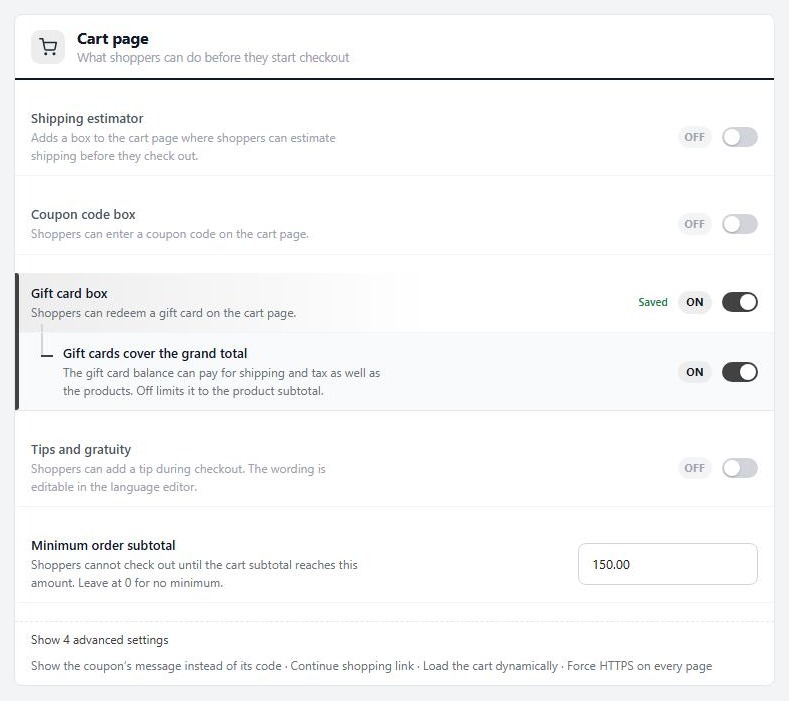
Settings › Checkout › Cart page, with Gift card box and Gift cards cover the grand total.

What the recipient gets

The gift card email

no stored settings

The recipient gets an email with the subject Gift Card Delivery. It says Your Gift Card, shows who it is to and from, the message, the amount and the code in a box, and tells them to redeem it at your store. The store notification address, set in Settings › Email as Store notification addresses, gets a copy. The email uses your email logo and the shared email design.

The buyer’s receipt email, and the order in their My Account, also link to a printable version of the card once the order is approved, so a buyer can print it for a birthday card. The wording is editable in Settings › Language.

For a card payment the email goes out as the order is placed. A payment that finishes later, such as a bank deposit or a third-party payment page, may send it when the payment is confirmed. If a recipient says it never came, open the order and use Resend Gift Card Email, described below.

Step 3. Issue a card by hand

Marketing › Gift Cards › Add gift card

no stored settings

For a goodwill gesture or a prize, go to EasyCart › Marketing › Gift Cards and press Add gift card. Fill in:

Code: 12 to 20 letters and digits. Press Generate for a random one. Codes are saved in capitals.
Balance: what is left to spend.
Message: optional, a note that travels with the card.

Save it. Nothing is emailed for a card you create here. Use the Copy code action in the list and send it yourself. The Source column marks it as created by an admin, so you can tell issued value from sold value.

The New order screen cannot sell gift cards. Gift cards, downloads and subscriptions are only sold through your store’s checkout.
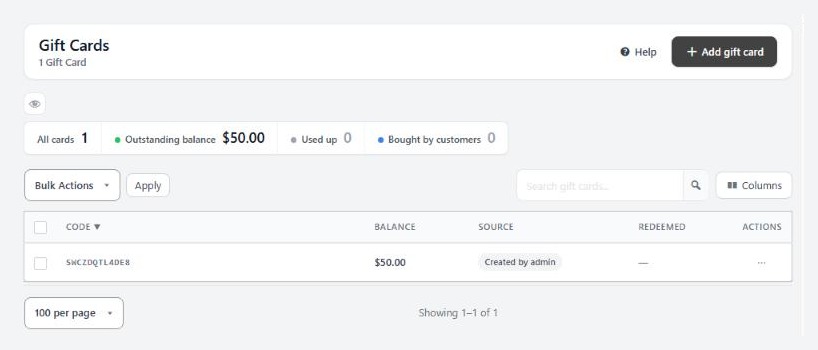
Marketing › Gift Cards, the list with its Add gift card button.

⚠️ Careful: A card you create by hand carries real value and nothing tracks who received the code. Copy it to the right person only, and add a message that says why you made it.

Step 4. Test a purchase and a redemption

Test card, a second address and a second cart

no stored settings

Switch your card gateway to test mode. In a private window that is not logged in as an admin:

1. Add the gift card to the cart and check out. You should be asked to sign in or create an account, with no guest option. Use an email address you can read as the recipient.
2. Pay with your gateway’s test card.
3. Check the recipient’s inbox for the Gift Card Delivery email and copy the code.
4. In your admin, open Marketing › Gift Cards. The card should be there with its full balance, and its source should be the order.
5. In a new cart with an ordinary product, enter the code in the gift card box. The order total should drop.
6. Finish the order. The card’s balance should go down by what it paid, and its History should show a redemption.

Turn test mode off when everything works.

Keep it running

After the sale

Balances, the order screen, refunds and the usual problems.

Balances and history

Every card, what is left and where it went

no stored settings

The Gift Cards list has one row per card, with Code, Balance, Source, Redeemed and Message. Search by code or message. The tiles across the top show All cards, Outstanding balance, Used up and Bought by customers. Outstanding balance is the value you still owe customers.

Open a card to change its balance, message or code. If you change the code, its history moves with it. The History card lists Bought with the order it came from, and every Redeemed with the order it was spent on. When a customer says their balance is wrong, this is your answer.

Deleting a card is in the Danger zone. The holder can no longer use it, and you have 15 minutes to undo.

On the order, and refunds

Resend the email, see the card that paid, and what a refund does

no stored settings

On the order for a card purchase, the line shows the recipient, sender and message, and a Resend Gift Card Email link. It asks to confirm before it sends. On an order that was paid with a card, the discounts row shows the gift card code and how much it paid.

Refunds. A full refund of an order that contains a gift card deletes that card and any balance left on it, and the refund window warns you first. Refund the order only when you mean to cancel the card. A card that has already been spent cannot be un-spent.

Reports. In Reports, the Discounts tile leaves gift cards out. When cards paid part of an order, it adds a note such as Gift cards paid with the amount, so a redemption is not counted as a discount.

⚠️ Careful: A full order refund deletes the gift card and its unused balance. Check the balance first if the customer might already have shared the code.

If it does not work

The usual problems

no stored settings

The recipient never got the email. Check the address the buyer typed. Then use Resend Gift Card Email on the order, and check your email settings and your host’s mail delivery. The store copy goes to Store notification addresses, so look there first.

There is no gift card box at checkout. Gift card box is off in Settings › Checkout, or the cart is empty.

The balance does not cover shipping. Gift cards cover the grand total is off, so the card pays for products only.

A buyer cannot check out as a guest. Gift cards need an account on your store. Guest checkout is not allowed for them.

The product does not offer Gift Card Product. The switch is locked without WP EasyCart PRO or Premium.

A customer says their card vanished. Check whether the order was refunded in full. That deletes the card.

Keep going

Related panels

Gift Cards

Marketing › Gift Cards in full.

Checkout

The Gift card box and the other checkout settings.

Type & Behavior

Every option on the Type & Behavior tab.

Order Management

Order statuses and what each order screen action does.

Ready to run your store on WP EasyCart?

Everything in this guide works with the free plugin. PRO and Premium add subscriptions, memberships, wholesale pricing and more. Try every PRO feature free for 14 days.

The WP EasyCart admin: orders and offers
Updated on September 30, 2026