
How-to › Design your store › Elementor

Elementor: Build a Product Page Template

Design every product page in Elementor with drag-and-drop EasyCart widgets. You create a template, preview a product, add widgets and publish. 9 parts.

Quick links

Where to find it:WP Admin › EasyCart › Settings › Elementor

Before you start

What you are building

What a product template is and what you need.

How product templates work

One layout for every product, or one for a single product

no stored settings

What you need. WP EasyCart and Elementor. The free version of Elementor is enough. You do not need Elementor Pro, because WP EasyCart assigns its own product and category templates. Settings › Elementor shows which versions you are running and whether Elementor is ready for your store pages.

What a template is. A product template is an Elementor page that every product uses instead of the standard product layout. You arrange EasyCart widgets on it, such as the gallery, title, price and Add to Cart, and every product page follows that arrangement. Search results, sharing, analytics and hidden products all keep working as before.

Different layouts for some products. With PRO, one product or one category can use its own template instead. That is step 5.

The steps: create the template, choose a product to preview, add your widgets, publish and assign it, then optionally give one product a layout of its own.

Build it

Five steps

Create the template, choose a preview product, add widgets, publish it and assign layouts.

Step 1. Create the template

Settings › Elementor › Product pages

no stored settings

Go to EasyCart › Settings › Elementor and find Product pages, which says One Elementor layout for every product page. Press Create a product template.

Elementor opens with a new draft called Product page, already filled with a starter layout showing one of your products. From top to bottom it holds Product Gallery, Breadcrumbs, Product Title, Product Rating, Product Price, Product Badges, Product Short Description, Add to Cart, Product Meta, Share Buttons, Product Tabs and Related Products. It is a working product page before you change anything.

If you have not chosen a product layout yet, the new template is chosen for you, but product pages ignore it while it is a draft. You publish it in step 4.
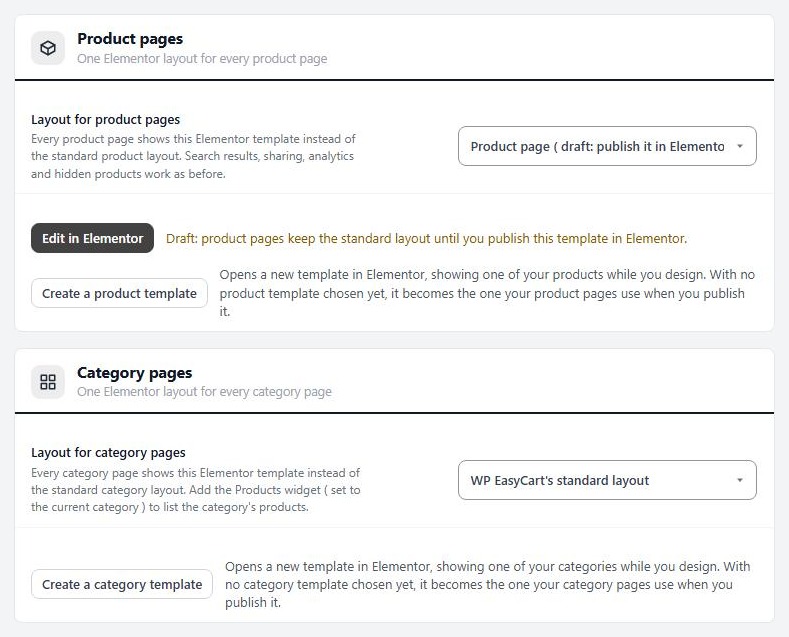
Settings › Elementor, with the product and category page layouts and the buttons that create a template.

💡 Note: The widgets need Elementor to be active. If it is not, Settings › Elementor says so and offers a Get Elementor button.

Step 2. Choose a product to preview

So you design against real data

no stored settings

While you design, Elementor shows one product so the widgets have something to display. By default it is your first product. To pick another, press the gear at the bottom of the Elementor panel to open the page settings, open WP EasyCart preview, choose a Preview product and press Save and show in preview. Pick a product with a long description, several photos and options, because that is the layout most likely to break.

Visitors always see the product they opened. The preview product is only for you.
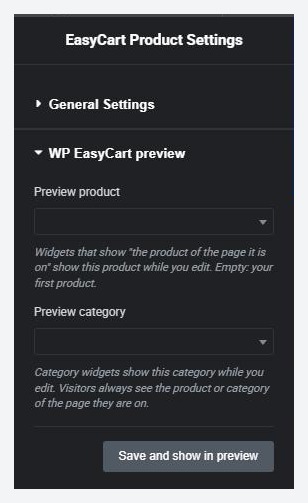
Elementor page settings › WP EasyCart preview.

Step 3. Add and arrange widgets

The WP EasyCart panel groups in Elementor

no stored settings

The Elementor panel lists WP EasyCart widgets in groups. Search for a widget by name, or scroll to the group. On a product template you use WP EasyCart · Product:

Buying: Add to Cart, Product Price, Product Stock, Product SKU, Product Gallery and Product Badges.
Information: Product Title, Product Rating, Product Description, Product Short Description, Product Specifications, Product Tabs, Product Reviews, Breadcrumbs, Product Meta, Share Buttons and Related Products.

Drag a widget onto the page, then use its controls on the left to style it. Change the layout with normal Elementor containers, so the gallery can sit beside the details, or above them. The other groups are Shop (category and manufacturer pieces and product lists), Cart & Checkout, Account and WP EasyCart (older widgets that still work).

Store data anywhere. Any Elementor control that takes dynamic content can pull a product’s title, price, sale price, image, gallery, category, manufacturer, stock, rating and more, under the WP EasyCart group of dynamic tags. Use them to put a price in a heading or a product photo in a background.
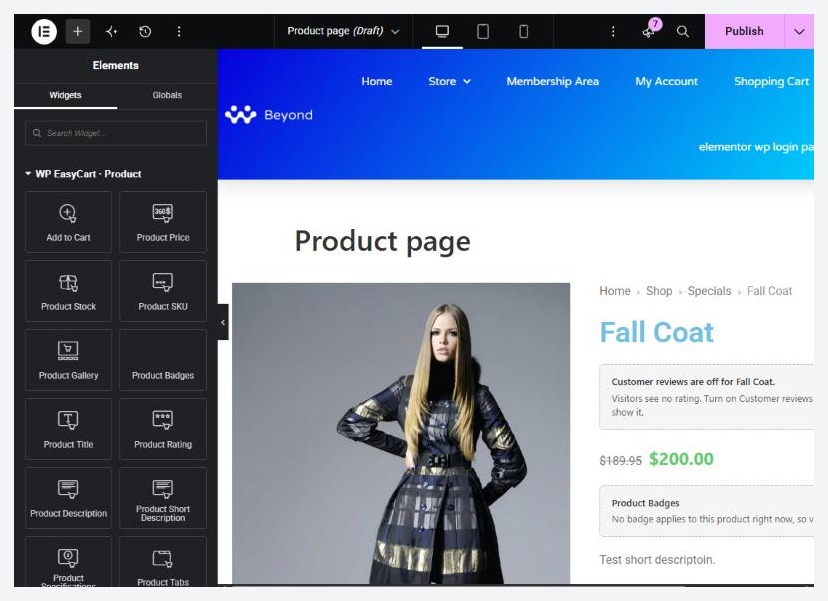
The starter product template in Elementor, with the WP EasyCart · Product widgets on the left.

Step 4. Publish and assign it

A draft is ignored

no stored settings

Press Publish in Elementor. Then go back to EasyCart › Settings › Elementor and check Layout for product pages. The list holds WP EasyCart’s standard layout and every product template you have made. Choose yours. A template that is still a draft is labelled so in the list, and under it the page says Draft: product pages keep the standard layout until you publish this template in Elementor and gives you an Edit in Elementor button to go back and publish it.

Open a product on your site and check it. To go back, choose the standard layout again.

⚠️ Careful: Test a product with a long description, many photos and options on a phone before you call the template finished. Check mobile from Elementor’s responsive icons at the top.

Step 5 (PRO). A different layout for one product or category

The Page layout card on the product and category

no stored settings

On a product, open Type & Behavior. The Page layout card at the bottom lists templates. Choose one and that product uses it instead of the store layout. Categories have the same card in the category editor.

Per-product and per-category layouts need PRO with an active license. If the license lapses, every product falls back to the store-wide template.

Good to know

Other routes and fixes

The Theme Builder route, what changed since the old guide, and the usual problems.

If you already use the Elementor Theme Builder

An alternative route with Elementor Pro

no stored settings

If you have Elementor Pro, the Theme Builder offers a template type called Single Product (WP EasyCart). Its display conditions include a WP EasyCart group: Entire store, Product, Products in category, Category page, Manufacturer page, Store page, Cart page and Account page. It is useful when you want conditions the store-wide setting cannot express.

If a Theme Builder template and the store-wide template both cover the same page, the Theme Builder one wins. The store-wide template then only shows if the Theme Builder template contains a Post Content widget. Settings › Elementor warns you when this happens.

If you followed the old guide

What changed since WP EasyCart 5

no stored settings

Earlier guides told you to build a Single Post template in the Theme Builder, set display conditions such as Store Items and In Tag, and switch on Enable Custom Post Template in Design settings. None of that is needed now. The setting has been renamed Use the theme’s post template for products, is off by default and only matters for the Theme Builder route. Widgets no longer have a Use In Template option. They read the Preview product from the page settings while you design.

If it does not work

The usual reasons a template does not show

no stored settings

Products still use the old layout. The template is still a draft, or is not chosen in Layout for product pages. Publish it and choose it.

The editor shows the wrong product. Change Preview product in the page settings and press Save and show in preview.

A widget shows a notice instead of content. Widgets that need a product show a notice such as Product Badges: no badge applies to this when the preview product has none. Preview a product that has one.

A widget says it was replaced. Older widgets that WP EasyCart replaced no longer appear in the panel. Pages that already use one keep working and offer a Replace button.

Keep going

Related panels

Design

The store design settings.

Type & Behavior

Where a single product picks its own layout.

Products

Settings that change how product pages behave.

Categories

Where a category picks its own layout.

Try the PRO features free for 14 days

Anything marked PRO comes with WP EasyCart PRO or Premium. Take the whole thing for a run on your own store before you decide.

Updated on September 29, 2026