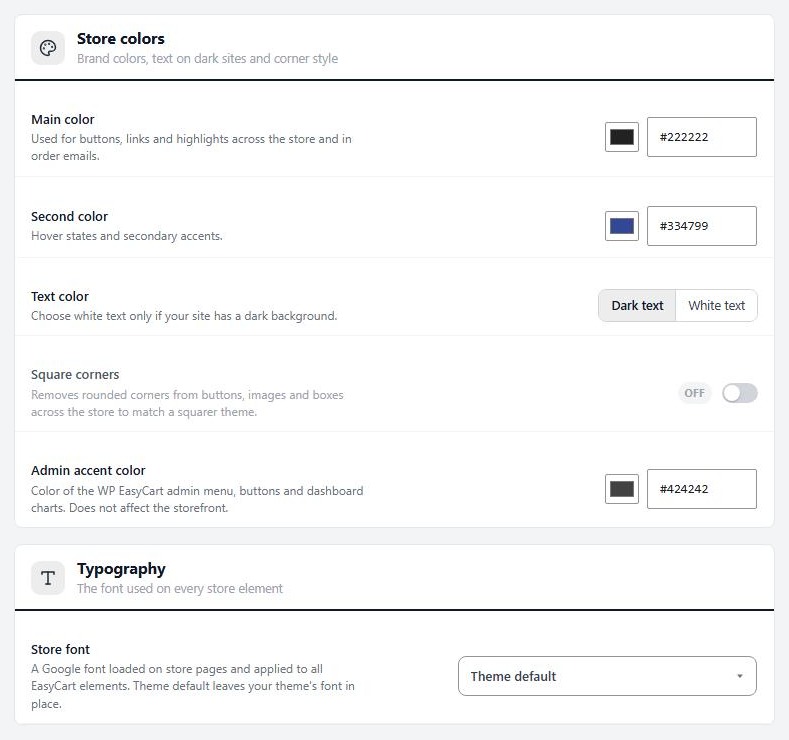
Step 1. Colors and fonts
Design › Store colors and Typography
no stored settingsOpen Settings › Design. Under Store colors:
Main color: buttons, links and highlights across the store and in order emails.
Second color: hover states and secondary accents.
Text color: Dark text or White text. Choose white only for a dark site.
Square corners: removes rounded corners from buttons, images and boxes.
Admin accent color: colors the WP EasyCart admin, not your storefront.
Under Typography, Store font loads a Google font on store pages and applies it to all EasyCart elements. Theme default keeps your theme’s font. Choose Custom font and enter a name in Custom font family to use a font your theme already loads. WP EasyCart does not load that font for you.
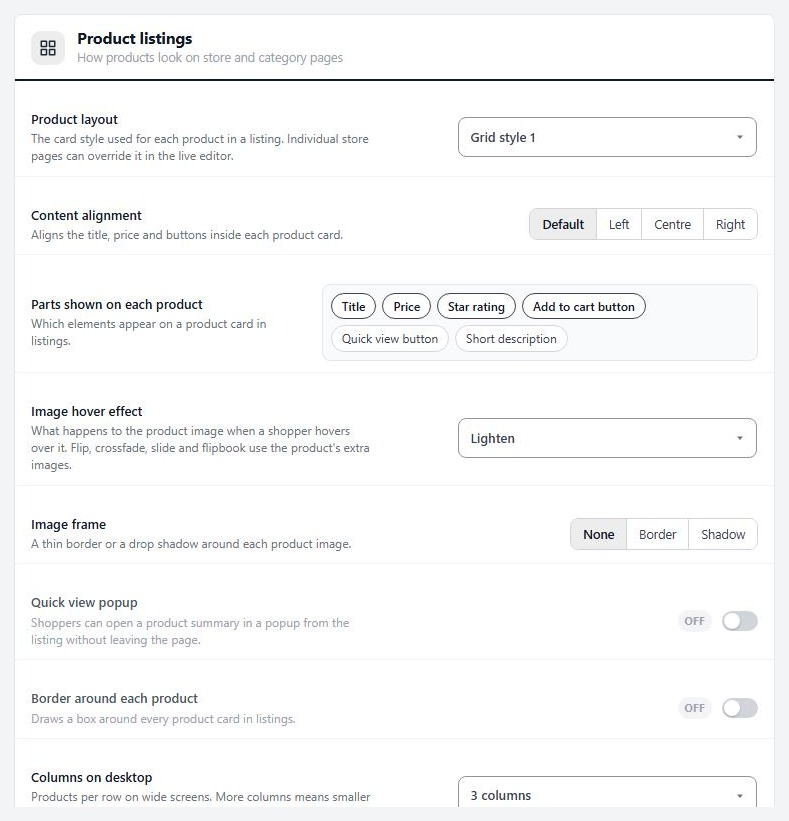
Step 2. Product cards and columns
Design › Product listings
no stored settingsUnder Product listings choose how each product looks in a list:
Product layout: Grid style 1 to 5, or List.
Content alignment: Default, Left, Centre or Right.
Parts shown on each product: title, price, star rating, add to cart button, quick view button and short description.
Image hover effect: flip or crossfade to the second image, lighten, grow, shrink, grey to color, brighten, slide, flipbook or no effect.
Image frame: None, Border or Shadow.
Quick view popup, Border around each product and Round the border corners, with a switch for each corner.
Then set columns for desktop, both tablet sizes and both phone sizes. More columns means smaller images. Automatic image height keeps natural proportions. Turn it off to crop images to a fixed height per screen size.
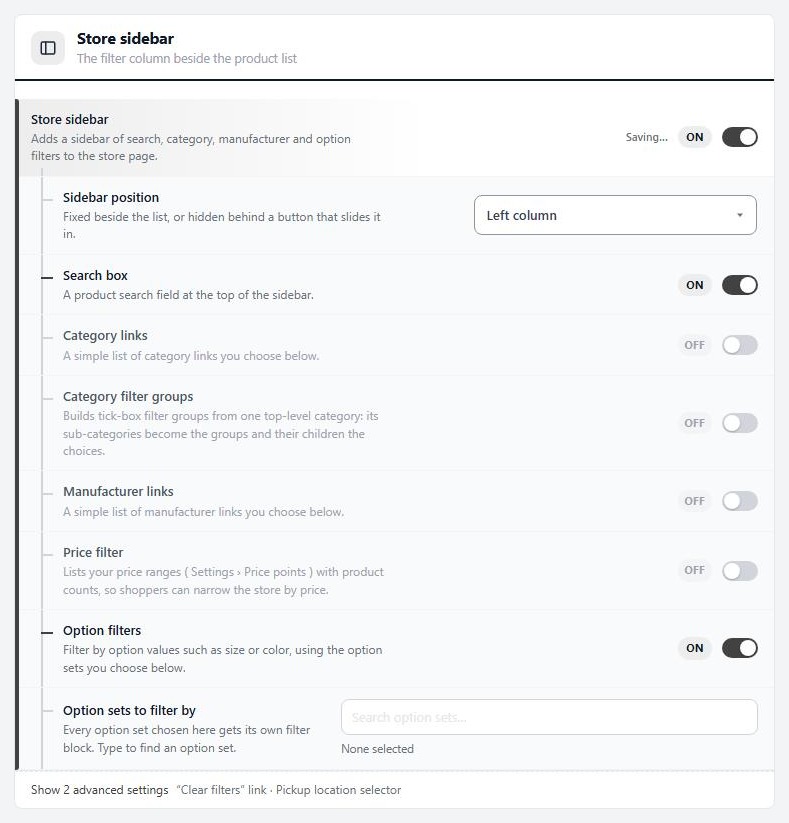
Step 4. How lists and adding to cart behave
Products › Product lists, Add to cart flow, Store sidebar
no stored settingsProduct lists. Sort menu, Default sort order, Short description on grid tiles, Featured categories first on the store page, Split products into pages and Let shoppers pick a page size.
Add to cart flow. Stay on the product page after adding to cart (off sends the shopper to the cart), Go straight to checkout when adding from a list, Keep the Add to cart button after adding (advanced), One subscription per purchase and, with PRO, Quantity box beside list Add to cart buttons.
Store sidebar. This is EasyCart’s own filter column beside the product list, not your theme’s sidebar. Turn on Store sidebar and choose the Sidebar position: Left column, Right column, Slide in from the left or Slide in from the right. Then switch on the filters you want: Search box, Category links, Manufacturer links, Price filter and Option filters. The Pickup location selector is PRO.
Step 5. Page sizes and price ranges
Settings › Per page options and Price points
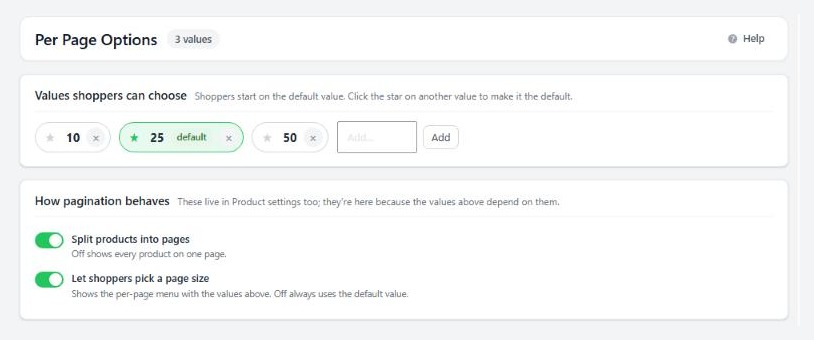
no stored settingsPer page options lists the page sizes shoppers can choose. Add a number, click a chip to remove it, and click the star on one to make it the size shoppers start on. With no star, the middle value is used. Sizes above 500 are refused. These matter only when Split products into pages is on.
Price points defines the ranges in the price filter: Under, Between and Over rows, in the order you drag them. Each row shows how many products it holds, and the page warns about gaps and overlaps. The filter appears only after you switch on Price filter in the Store sidebar.
Step 6. Change the wording
Settings › Language
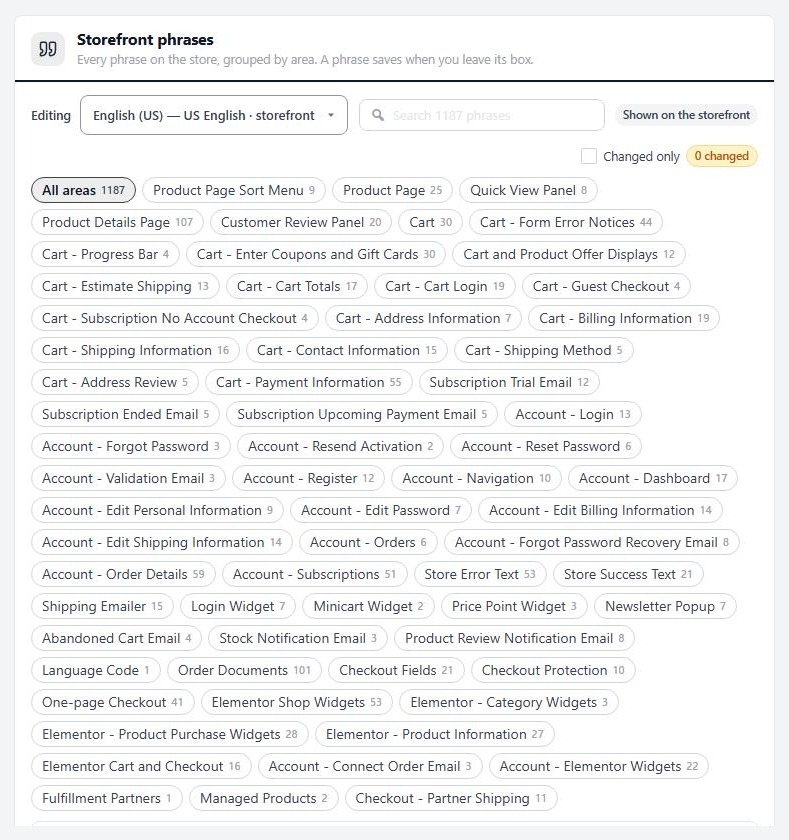
no stored settingsSet the Storefront language shoppers read, and add or remove installed translations. Under Storefront phrases, every phrase the store says is listed by area. Search them, tick Changed only to see your edits, edit a phrase and it saves when you leave the box. Reset one phrase, or press Reset area to return an area to the shipped wording.
The order receipt wording is edited under Settings › Email, and the phrase editor links there.
Ready to run your store on WP EasyCart?
Everything in this guide works with the free plugin. PRO and Premium add subscriptions, memberships, wholesale pricing and more. Try every PRO feature free for 14 days.