
Customization
Basic Design
EasyCart’s admin sidebars let you customize your store’s appearance without writing a single line of code. Adjust colors, column layouts, image effects, and product display types — all from a live editor on your store page.
Overview
Three levels of customization
Basic
Change button colors, product column counts, layout designs, and rollover effects — all from the admin sidebar. No code needed.
Intermediate
Add custom CSS to adjust any EasyCart element. Paste it into the built-in custom CSS panel for quick, targeted changes.
Advanced
Create child layout and theme files to fully override EasyCart templates — just like WordPress child themes. Your changes survive plugin updates.
Watch the Customization Walkthrough
See how to change fonts, colors, and product layouts using the EasyCart admin sidebars.
Customizing EasyCart
Change basic design with fonts, colors, and layout options easily with WP EasyCart.
Live Editor
Store admin sidebar
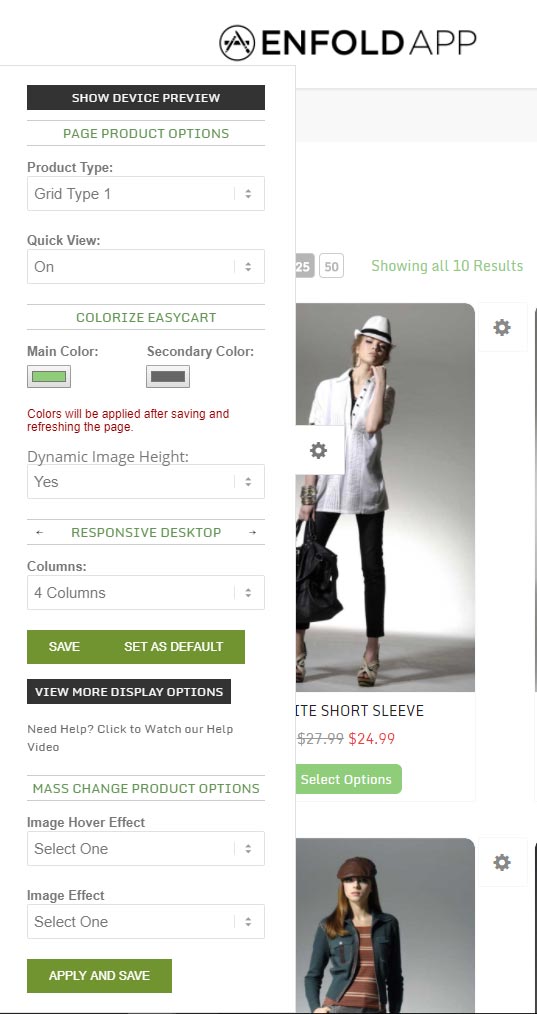
The store admin sidebar gives quick access to many design changes. Log into your WordPress admin, visit your store page, and click the white gear icon on the left side to open the live editor.
- Product Type: Choose from several prebuilt layouts for your product grid. These can be further customized with CSS.
- QuickView: When enabled, customers see a rollover button that opens a product overlay without leaving the current page.
- Main Color / Secondary Color: Adjust all button colors across EasyCart in one place. The secondary color is typically the hover state. Refresh your browser after saving to see the changes.
- Dynamic Image Height: Automatically adjusts image containers to match your product image heights. Works best when all product images are a similar size.
- Columns: Choose between 1, 2, 3, 4, or 5 columns for your product grid layout.
- Set as Default: Locks in your current design choices so all new category pages and product grids use the same style.
- Image Hover Effect: Set the rollover effect for product images — crossfade, flipbook, lighten, darken, and more. Some effects require multiple images per product.
- Image Effect: Adjust the default visual effect applied to product images.
EasyCart — Store admin sidebar
Cart & Account
Cart side sidebar
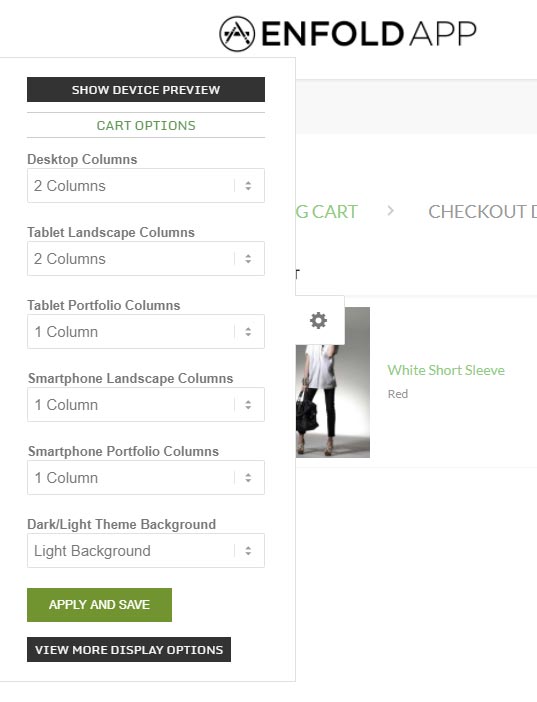
The cart area has its own admin sidebar for adjusting columns. We recommend a full-width, no-sidebar layout for cart and account pages — a two-column layout works best in most themes.
EasyCart — Cart sidebar
Responsive
Device preview
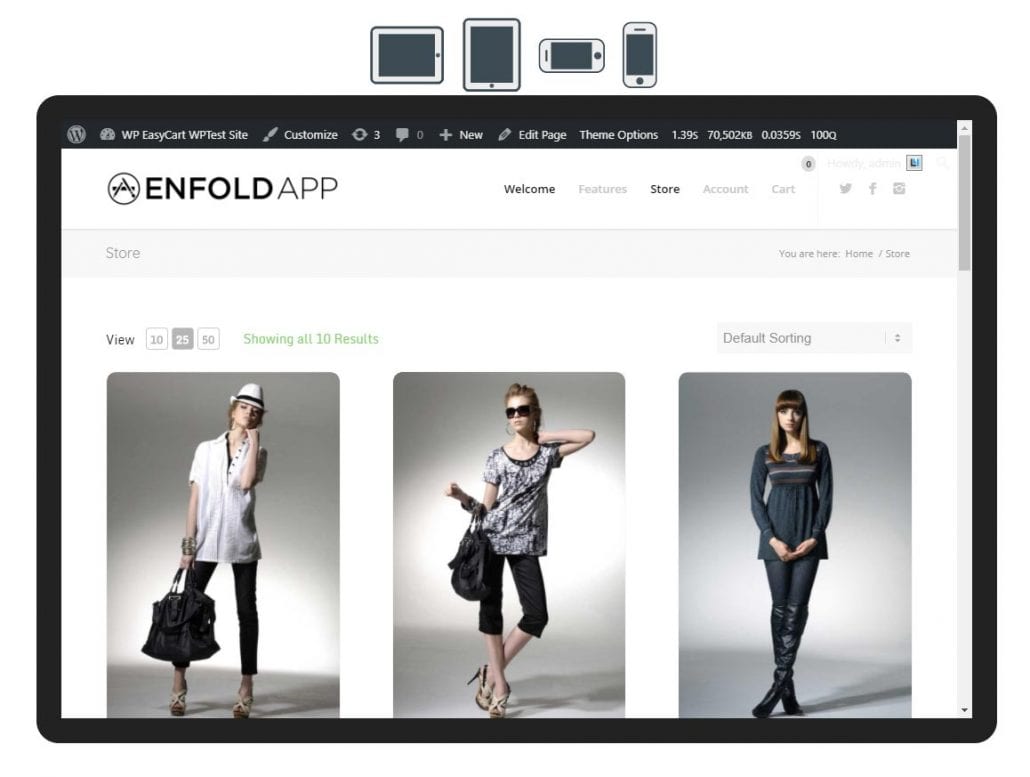
The device preview sits at the top of the admin sidebars and lets you preview your store in tablet and phone layouts. Use it to see how your column choices look on different screen sizes before publishing.
EasyCart — Device preview
Start customizing your store
No code required. Open the admin sidebar on any store page and start adjusting colors, columns, and layouts in real time.