
Tabs in the product editor
Each product’s own tabs, in the Product tabs card
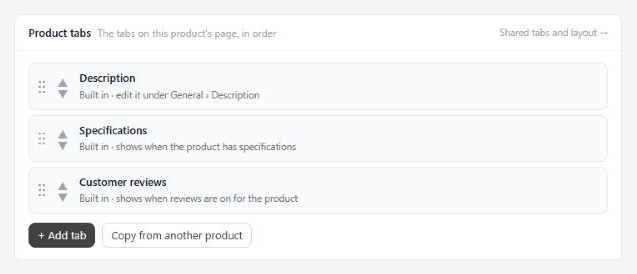
no stored settingsOpen a product. The Product tabs card sits in the General panel, after Specifications. A new product gets it once it has been saved. The card lists every tab on the product’s page in order: WP EasyCart’s Description, Specifications and Reviews, this product’s own tabs and the shared tabs that reach it.
Add tab starts a blank tab or one of five templates: Shipping & returns, Size guide, Warranty, Care instructions and FAQ. Each is a first draft to edit before you save. The drawer asks for the tab name, the type, the content and a link name.
Order. Drag a row, or use its arrows. Description, Specifications and Reviews move too, so a tab can come before Description. That tab then opens first on the page.
Shared tabs on this product. Hide here keeps a shared tab off this product only. Use own text gives it different words on this product while every other product keeps the shared text; Use shared text goes back. Dragging a shared tab moves it on this product only.
Copy from another product finds a product by name or SKU and brings its tabs over. On a product with no tabs of its own, you get the whole list in the same order, with the same shared tabs hidden or reworded. Otherwise the copied tabs are added after the ones already there. Duplicating a product keeps its tabs too.
Shared tabs
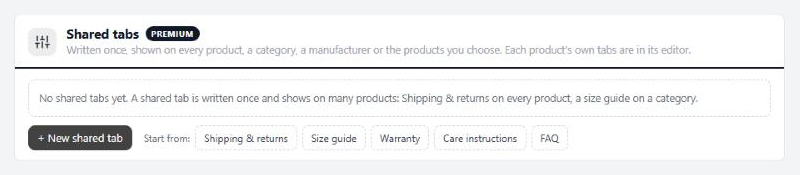
Written once, shown on every product, a category, a manufacturer or the products you choose. Each product’s own tabs are in its editor.
no stored settingsNew shared tab opens the same drawer as the product editor, or start from a template with the buttons beside it. A shared tab also asks:
Shows on: All products, chosen Categories, chosen Manufacturers, or Chosen products found by name or SKU.
Where it goes: Before Description, After Description, After Specifications or At the end. Each product can still move it, hide it or give it its own text.
Show this tab: untick to take it off every product without deleting it.
The list shows where each tab shows, its position and how many products hide it. Drag rows to set the order when two shared tabs share a position. Edit the text here and every product using the shared text changes with it.
Layout
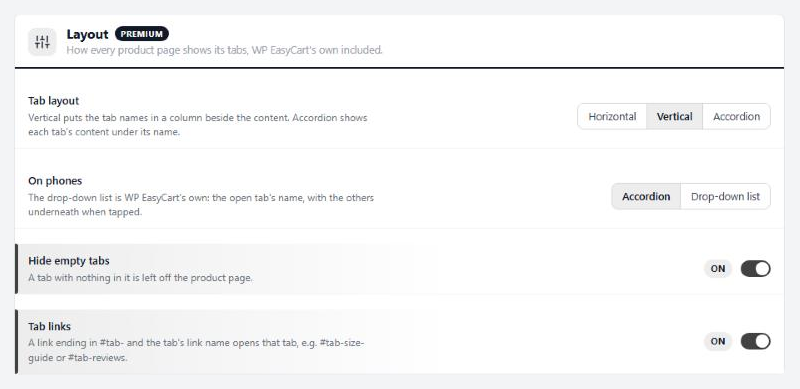
How every product page shows its tabs, WP EasyCart’s own included.
4 settingsTab layout
How every product page lays out its tabs, Description, Specifications and Reviews included. Horizontal puts the tab names in a row above the content. Vertical puts them in a column beside it. Accordion shows each tab’s content under its name, one below the other.
On phones
How tabs show on a phone-sized screen. Accordion stacks them, each opening under its name. Drop-down list is WP EasyCart’s own: the open tab’s name, with the others underneath when tapped. Stores that used Tabs before this version keep the drop-down list until you pick.
Hide empty tabs
A tab with nothing in it stays off the product page: a text tab with no words, an FAQ with no questions, a Downloads tab with no files. Pictures, videos, tables and shortcodes count as content. The product editor marks these tabs empty, so hidden.
Tab links
A link ending in #tab- and a tab’s link name opens that tab, such as #tab-size-guide or #tab-reviews. Use it for a “See the size guide” line in your description or in an email.
Your tab content
Tabs are kept when the plugin is deactivated or updated.
1 settingRemove tab content when Tabs is deleted
Off, deleting the plugin keeps every tab, so installing it again brings them back. On, deleting the plugin from the Plugins screen removes every product’s tabs, your shared tabs and these settings for good. Deactivating or updating never removes anything.
