
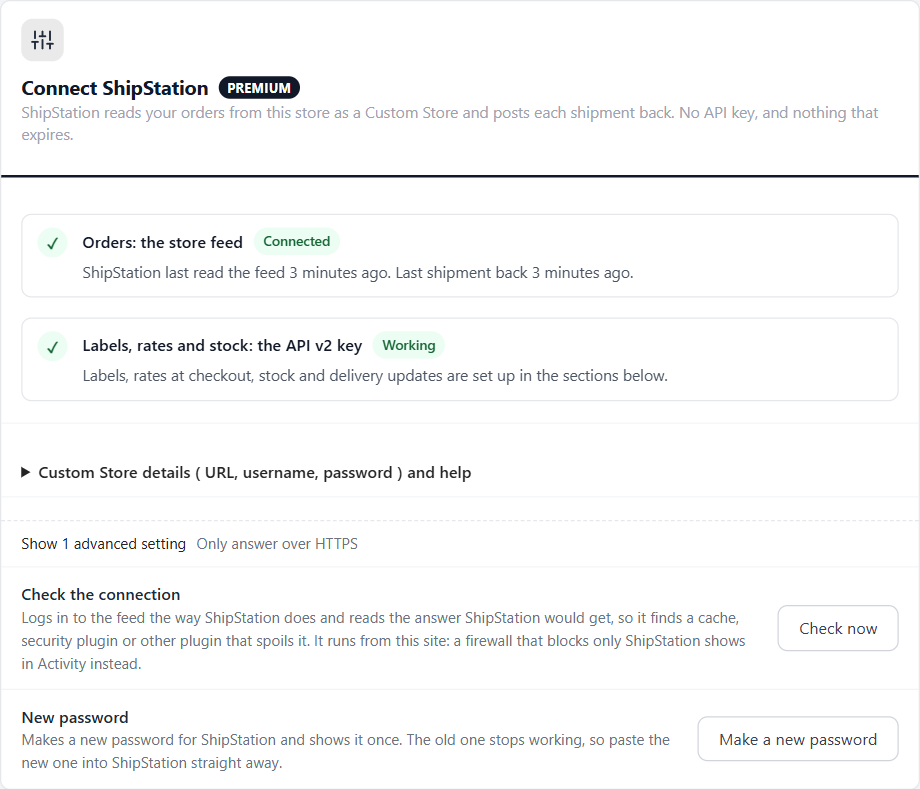
Connect ShipStation
ShipStation reads your orders from this store as a Custom Store and posts each shipment back. No API key, and nothing that expires.
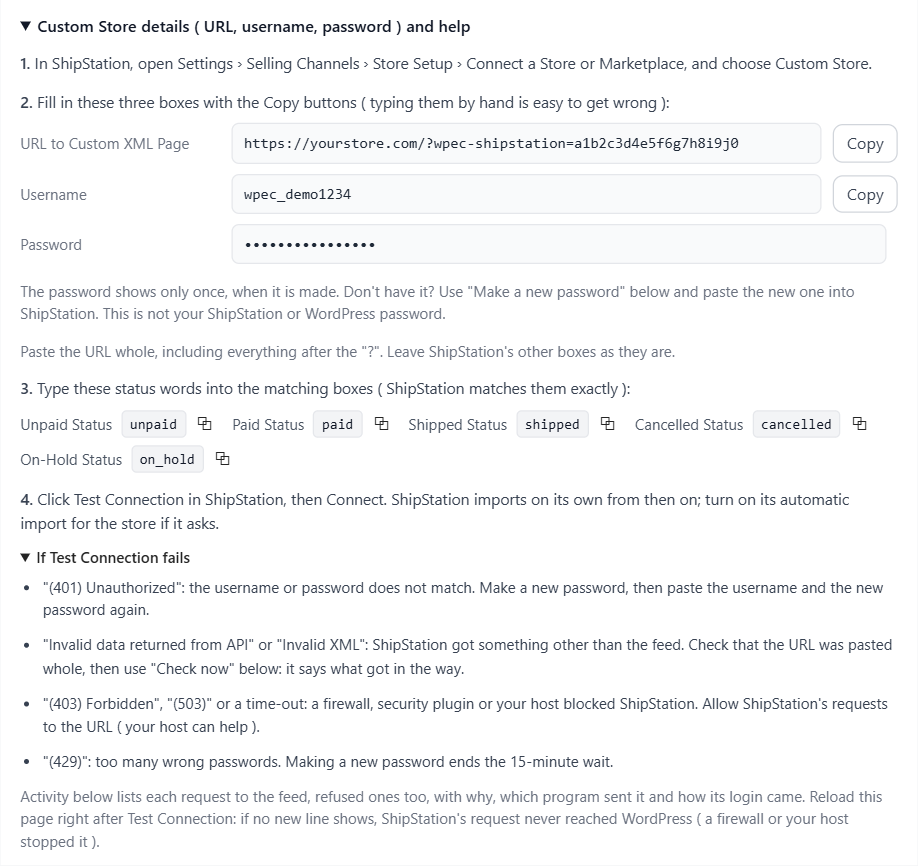
4 settingsAdd your store to ShipStation. Open Custom Store details ( URL, username, password ) and help at the top of the ShipStation page, then:
- Press Make a new password. The password shows once, in the details. It is the store feed’s own password, not your ShipStation or WordPress password.
- In ShipStation, open Settings › Selling Channels › Store Setup, press Connect a Store or Marketplace and choose Custom Store.
- Fill in ShipStation’s URL to Custom XML Page, Username and Password with the Copy buttons. Paste the URL whole, including everything after the “?”. Leave ShipStation’s other boxes as they are.
- Type the five status words into ShipStation’s matching boxes, exactly as shown below.
- Press Test Connection, then Connect. Turn on automatic import for the store if ShipStation asks.
- Back on the ShipStation page, the store feed turns Connected once ShipStation has read it, and Activity lists the import.
The status words. ShipStation matches them exactly, so type them as shown.
| ShipStation box | Type |
|---|---|
| Unpaid Status | unpaid |
| Paid Status | paid |
| Shipped Status | shipped |
| Cancelled Status | cancelled |
| On-Hold Status | on_hold |
Status
The checklist shows Orders: the store feed as Not set up, Waiting for ShipStation ( saved, not read yet ), Connected ( with when ShipStation last read the feed and the last shipment back ) or Quiet ( ShipStation has not read the feed for six hours ). Below it, Labels, rates and stock: the API v2 key shows Recommended until a key is added, then Working.
Only answer over HTTPS
The feed sends customer names and addresses, so it refuses plain http:// requests. Turn it off only on a site without HTTPS.
Check the connection
Check now logs in to the feed the way ShipStation does and reads the answer ShipStation would get, so it finds a page cache, a security plugin, a redirect or another plugin that spoils the answer. It runs from your own site, so a firewall that blocks only ShipStation does not show here: look in Activity right after a Test Connection instead.
New password
Make a new password makes the password ShipStation logs in with and shows it once. Only a scrambled copy is kept, so a lost password means making a new one. The old password stops working at once, so paste the new one into ShipStation straight away. It also ends the 15-minute wait after too many wrong passwords.
Switch to the store feed now
Only on a store upgraded from version 1. Switch now stops sending orders the classic way; see Moving from the classic connection below.
Orders
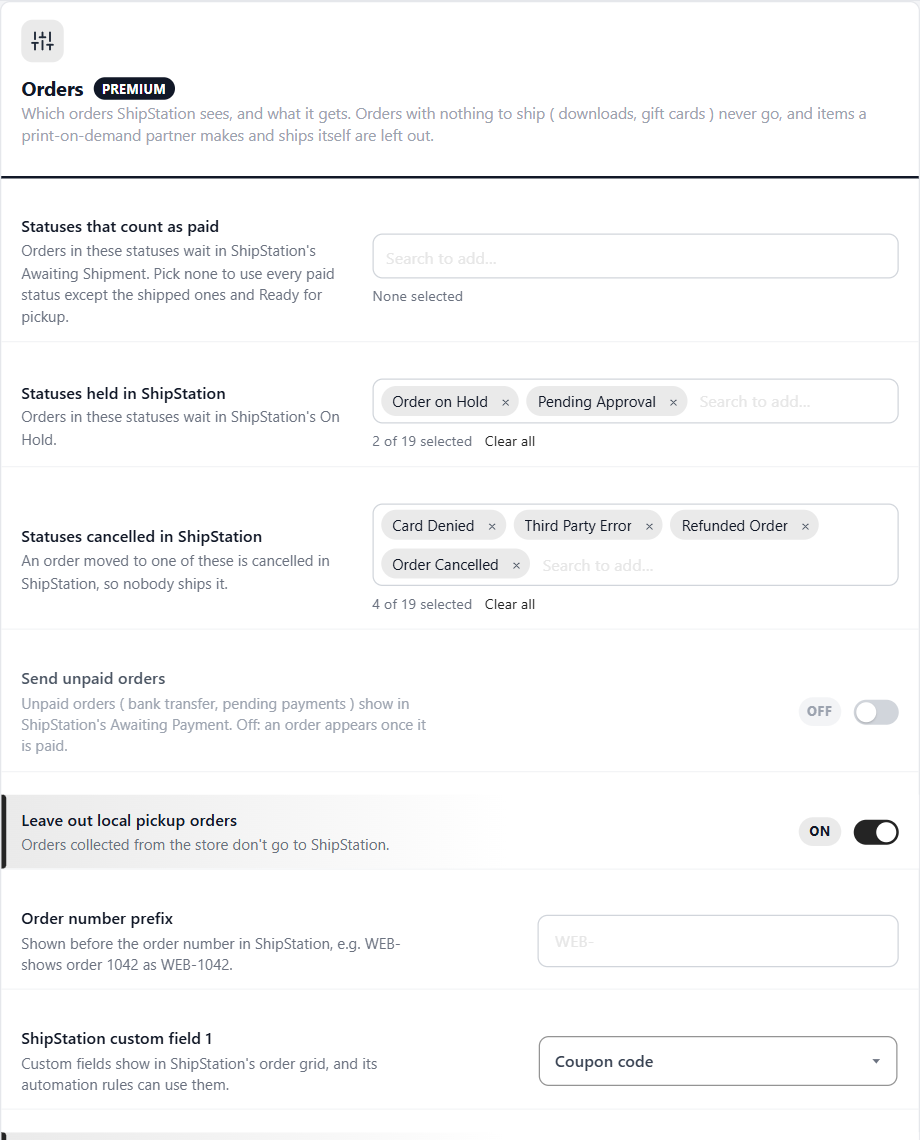
Which orders ShipStation sees, and what it gets. Orders with nothing to ship ( downloads, gift cards ) never go, and items a print-on-demand partner makes and ships itself are left out.
14 settingsStatuses that count as paid
Orders in these statuses wait in ShipStation’s Awaiting Shipment. Pick none to use every paid status except the shipped ones and Ready for pickup.
Statuses held in ShipStation
Orders in these statuses wait in ShipStation’s On Hold, so nobody ships them yet. By default: Order on Hold and Pending Approval.
Statuses cancelled in ShipStation
An order moved to one of these is cancelled in ShipStation, so nobody ships it. An order deleted in EasyCart is cancelled there too. By default: Card Denied, Third Party Error, Refunded Order and Order Cancelled.
Send unpaid orders
Unpaid orders ( bank transfer, pending payments ) show in ShipStation’s Awaiting Payment. Off: an order appears once it is paid.
Leave out local pickup orders
Orders the customer collects from the store stay out of ShipStation.
Order number prefix
Shown before the order number in ShipStation. WEB- shows order 1042 as WEB-1042.
Order key prefix ( unique per store )
Keeps this store’s orders apart from other stores on the same ShipStation account. One is made for you. Changing it makes ShipStation see every order as new.
ShipStation custom field 1
What goes into ShipStation’s custom field 1: Nothing, Coupon code, PO number, Payment method, Payment terms, EasyCart order ID, Customer notes ( first 100 characters ), Gift recipient email, or Subscription and shipment number. Custom fields show in ShipStation’s order grid, and its automation rules can use them.
ShipStation custom field 2
The same choices, for custom field 2.
ShipStation custom field 3
The same choices, for custom field 3. By default it shows how the order was paid, such as visa or paypal.
Send product images
Pickers see each item’s picture in ShipStation and on packing slips.
Send discounts as a line
The order’s discount shows as its own line, so ShipStation’s totals match the order.
Send the order’s private notes
Your team’s private notes on the order go to ShipStation’s internal notes. The customer’s notes always go.
Send the last 30 days again
Send again marks every order from the last 30 days as changed. ShipStation reads them again on its next import and updates what it has. Use it after changing the settings above.
What ShipStation gets
For each order: the order number and date, its status, the shipping method the customer chose, the payment method, the order total with tax and shipping, the customer’s email and phone, the billing and shipping addresses, the customer’s notes, a gift message, the three custom fields, and each item with its SKU, name, chosen options, quantity, price, weight and picture. Weights go in the store’s own weight unit. Edits, cancellations and refunds reach ShipStation on its next import.
When ShipStation ships
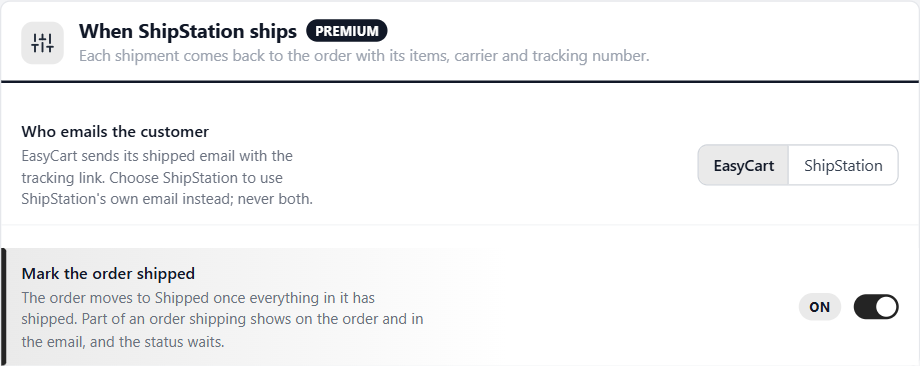
Each shipment comes back to the order with its items, carrier and tracking number.
2 settingsWho emails the customer
EasyCart sends your shipped email with the tracking link as each shipment comes back. Choose ShipStation to use ShipStation’s own shipping email instead. The extension never sends both.
Mark the order shipped
Moves the order to Shipped once everything in it has shipped. When only part of an order ships, the order screen and the email show what went, and the status waits for the rest.
How shipments come back
A label bought in ShipStation posts the shipment back to the order: carrier, service, tracking number and the items in the box. If you mark an order shipped by hand in ShipStation, keep Notify Marketplace ticked so the shipment comes back too. ShipStation packs its own way, so the items it shipped become one package on the order, and whatever is left keeps waiting.
Following an order
The ShipStation card, the orders list and Send to ShipStation again
no stored settingsThe ShipStation card
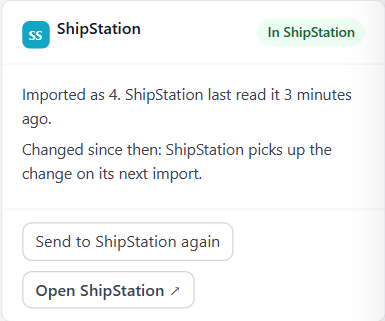
Every order screen has a ShipStation card. It says whether the order is In ShipStation and when ShipStation last read it, Waiting for the next import, or Not sent and why: local pickup, nothing to ship, a print-on-demand partner ships it, not paid yet, a draft, or placed before the store feed took over. A monthly subscription order lists each box with its date.
Send to ShipStation again
Send to ShipStation again, on the card and in the order’s More menu, marks the order changed so ShipStation reads it again on its next import, or straight away with an API v1 key. Edits, cancellations and refunds reach ShipStation on their own; use it when an order looks out of date there. Open ShipStation opens your ShipStation orders.
The orders list
The Orders list has a ShipStation column and a filter for In ShipStation, Not in ShipStation yet and Not sent. Tick orders and choose Send to ShipStation again from the bulk actions to resend several at once.
Subscriptions
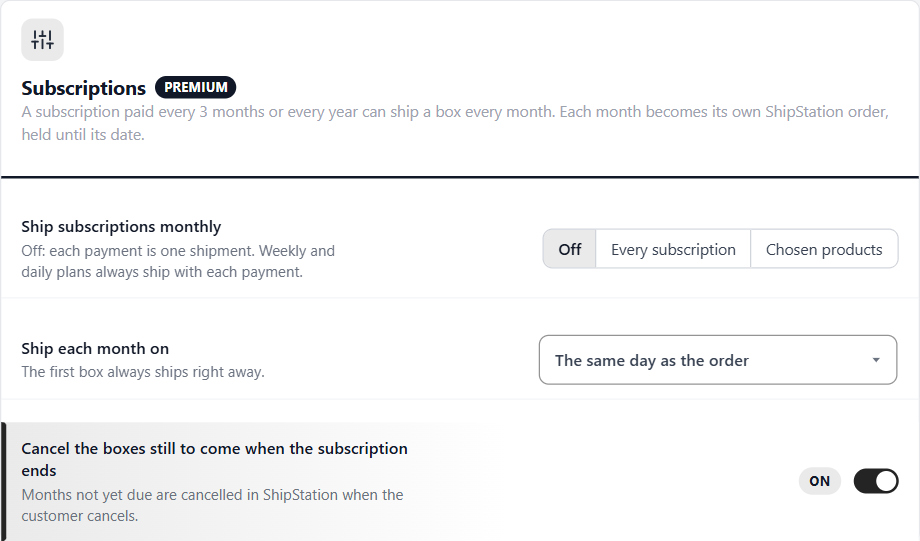
A subscription paid every 3 months or every year can ship a box every month. Each month becomes its own ShipStation order, held until its date.
4 settingsShip subscriptions monthly
Off: each payment is one shipment. Every subscription: a plan paid every 3 months ships 3 monthly boxes, a yearly plan 12. Chosen products: only the products you pick below. Weekly and daily plans always ship with each payment.
Products that ship monthly
Shown when Ship subscriptions monthly is Chosen products. Search for the subscription products whose payments cover several months.
Ship each month on
The same day of the month as the order, or a fixed day from 1 to 28. The first box always ships right away; later boxes wait in ShipStation’s On Hold until their date.
Cancel the boxes still to come when the subscription ends
When the customer cancels the subscription, the months not yet due are cancelled in ShipStation. Boxes already shipped are not touched.
Labels, rates and stock ( API v2 key )
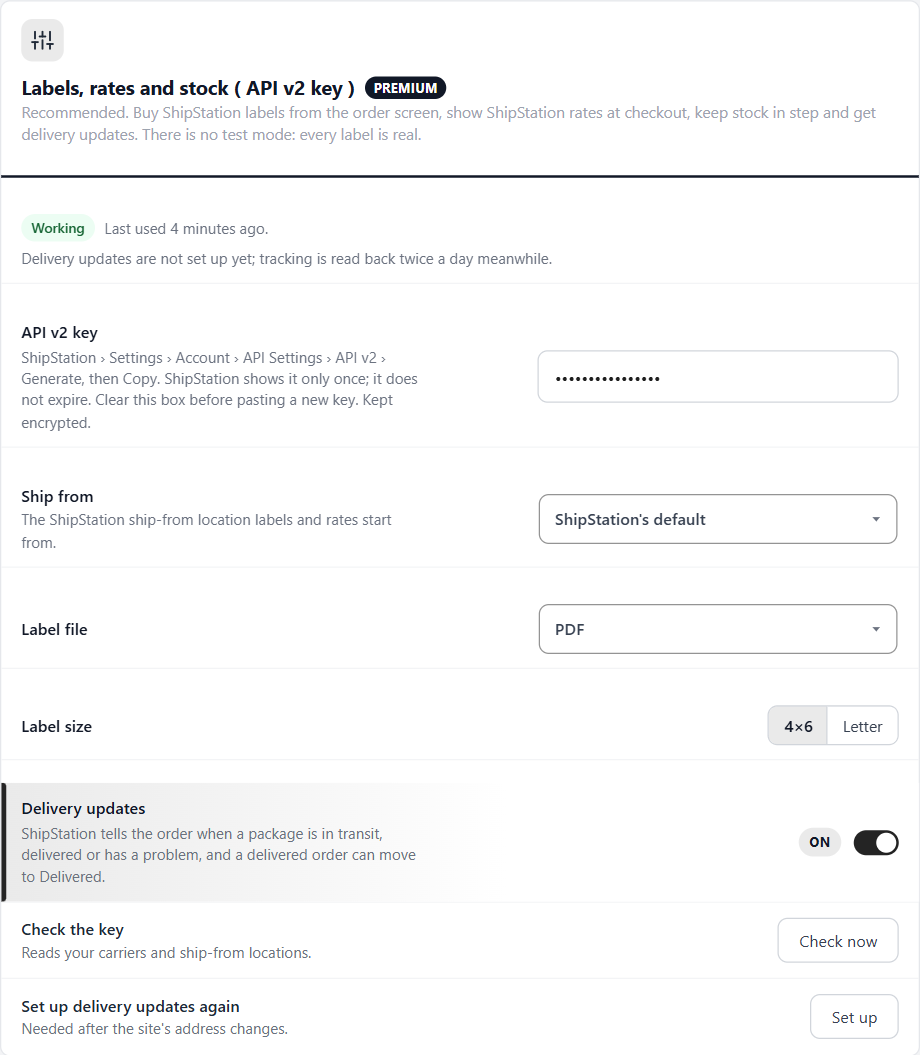
Recommended. Buy ShipStation labels from the order screen, show ShipStation rates at checkout, keep stock in step and get delivery updates. There is no test mode: every label is real.
7 settingsStatus
Working once ShipStation accepts the key, with when it was last used. Not accepted shows ShipStation’s own reason; Plan without API means your ShipStation plan does not include the API. While delivery updates are not set up, tracking is read back twice a day instead.
API v2 key
In ShipStation: Settings › Account › API Settings, choose API v2, press Generate, then copy the key. ShipStation shows it only once, and v2 keys do not expire. Saving checks it with ShipStation and keeps it encrypted; the box then shows dots. To replace the key, clear the box before pasting the new one.
Ship from
The ShipStation ship-from location labels and rates at checkout start from. Leave it on ShipStation’s default unless you ship from several. Locations are made in ShipStation under Settings › Shipping › Ship From Locations.
Label file
The file your labels come as: PDF, PNG image, or ZPL for thermal printers.
Label size
4×6 suits label printers. Letter prints on office paper.
Delivery updates
ShipStation tells the order when a package is in transit, out for delivery, delivered or has a problem, and a delivered order can move to Delivered. The updates arrive through WP EasyCart Premium, and tracking is also read back twice a day in case one goes missing.
Check the key
Check now reads your carriers and ship-from locations, and lists them.
Set up delivery updates again
Set up tells ShipStation where to send delivery updates again. You need it after the site’s address changes.
Buying a label from an order
Compare your ShipStation carriers, buy and print on the order screen
no stored settingsOpen the label window
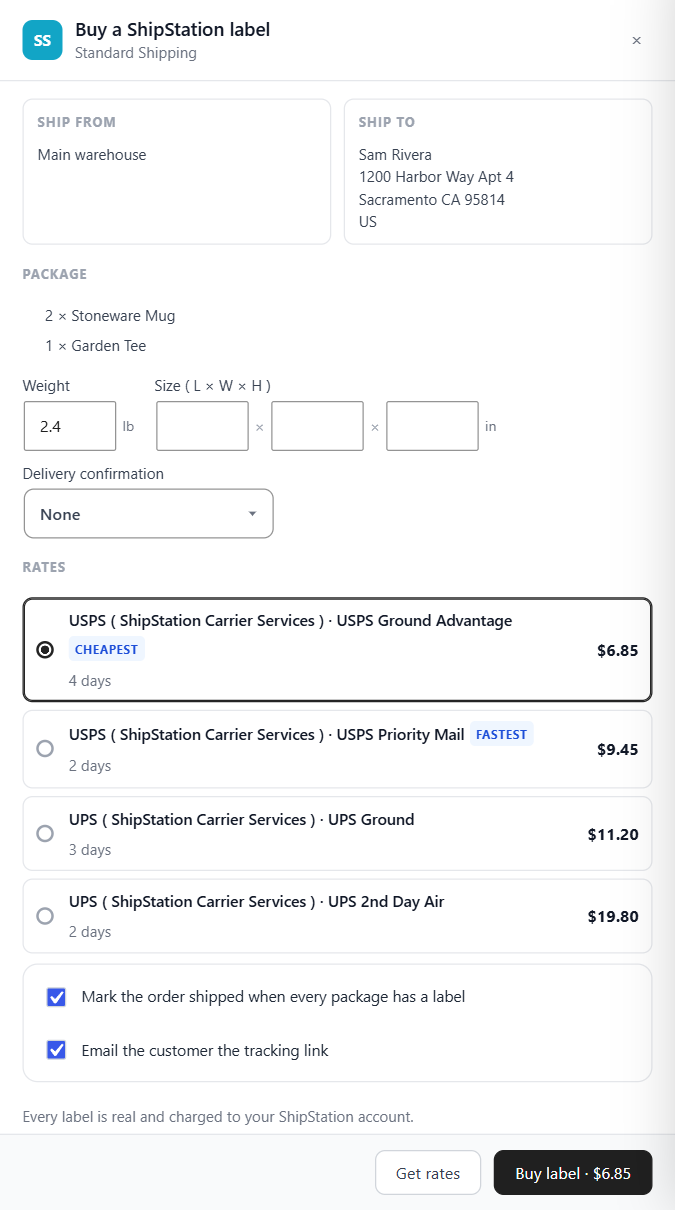
With an API v2 key, ShipStation can buy the order’s label. When it is your only label service, Buy label is the main button where you ship the order. With more than one connected, Buy a label opens the Fulfill order window, which lists each. Each package waiting to ship also has a ShipStation label button.
Choose a rate and buy
The window shows where the package ships from and to, and what is in it. Check the weight and size, pick a delivery confirmation if you want one, and press Get rates: every carrier on your ShipStation account answers, ShipStation’s own discounted ones included, with the cheapest and fastest marked. Leave Mark the order shipped when every package has a label and Email the customer the tracking link ticked or not, then press Buy label. A package leaving the country gets a customs declaration from each product’s HS code and country of origin.
After buying
The package carries the tracking number and new buttons:
- Print label: opens the label file again.
- Customs form: when the carrier made one.
- Void: cancels a label you will not use. ShipStation asks the carrier for a refund; USPS refunds can take a few weeks.
- Return label: makes a prepaid return label. The carrier charges it when it is used, or however it bills returns.
Without an API v2 key
ShipStation’s row in the Fulfill order window opens your ShipStation orders instead. Labels bought in ShipStation still come back to the order through the feed; void those in ShipStation. Packages a print-on-demand partner ships are left to the partner.
Rates at checkout
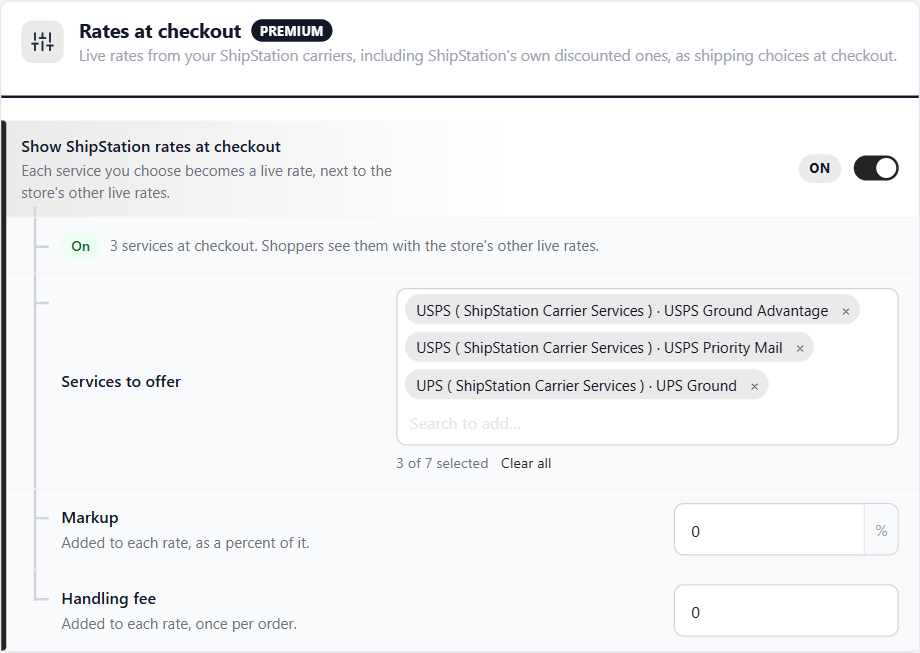
Live rates from your ShipStation carriers, including ShipStation’s own discounted ones, as shipping choices at checkout.
4 settingsShow ShipStation rates at checkout
Each service you choose becomes a live rate, next to the store’s other live rates. Needs the API v2 key, WP EasyCart PRO, and Live shipping rates as the store’s rate method under Settings › Shipping. If ShipStation does not answer within 8 seconds, checkout shows your other rates without it. Until the key is added, this section says what it needs instead.
Services to offer
The services from your ShipStation carriers to offer. Each one becomes its own live rate, and the status line counts how many are on.
Markup
Added to each rate, as a percent of it. Up to 500%.
Handling fee
A fixed amount added to each rate, once per order.
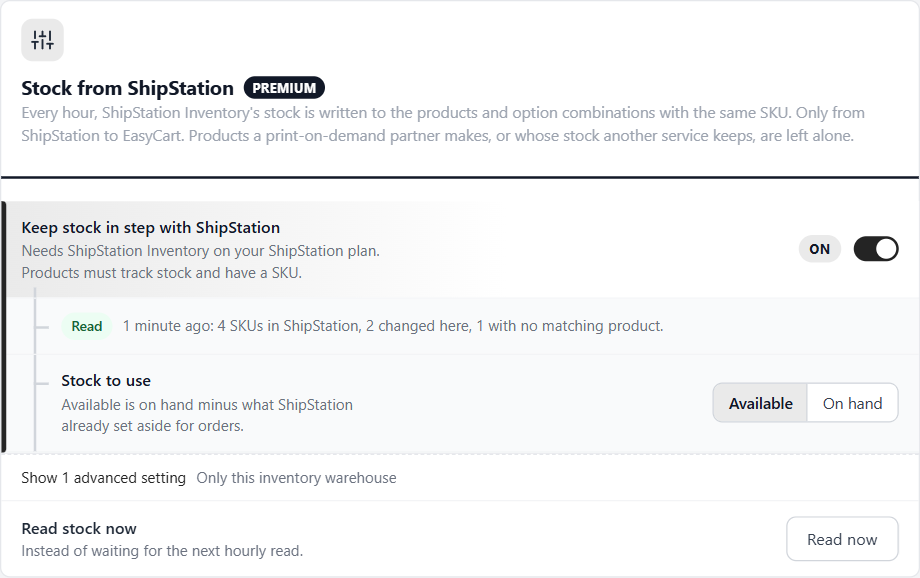
Stock from ShipStation
Every hour, ShipStation Inventory’s stock is written to the products and option combinations with the same SKU. Only from ShipStation to EasyCart.
4 settingsKeep stock in step with ShipStation
Needs the API v2 key and ShipStation Inventory on your ShipStation plan. A product must track stock and have a SKU; option combinations match by their own SKU. Nothing is written back to ShipStation, and products a print-on-demand partner makes, or whose stock another service keeps ( such as Square ), are left alone.
Stock to use
Available is on hand minus what ShipStation already set aside for orders. On hand is everything on the shelf.
Only this inventory warehouse
A ShipStation inventory warehouse ID, to read only that warehouse. Leave it empty to add up every warehouse.
Read stock now
Read now reads stock straight away instead of waiting for the hourly read. The status line then says how many SKUs ShipStation has, how many changed here, and how many match no product.
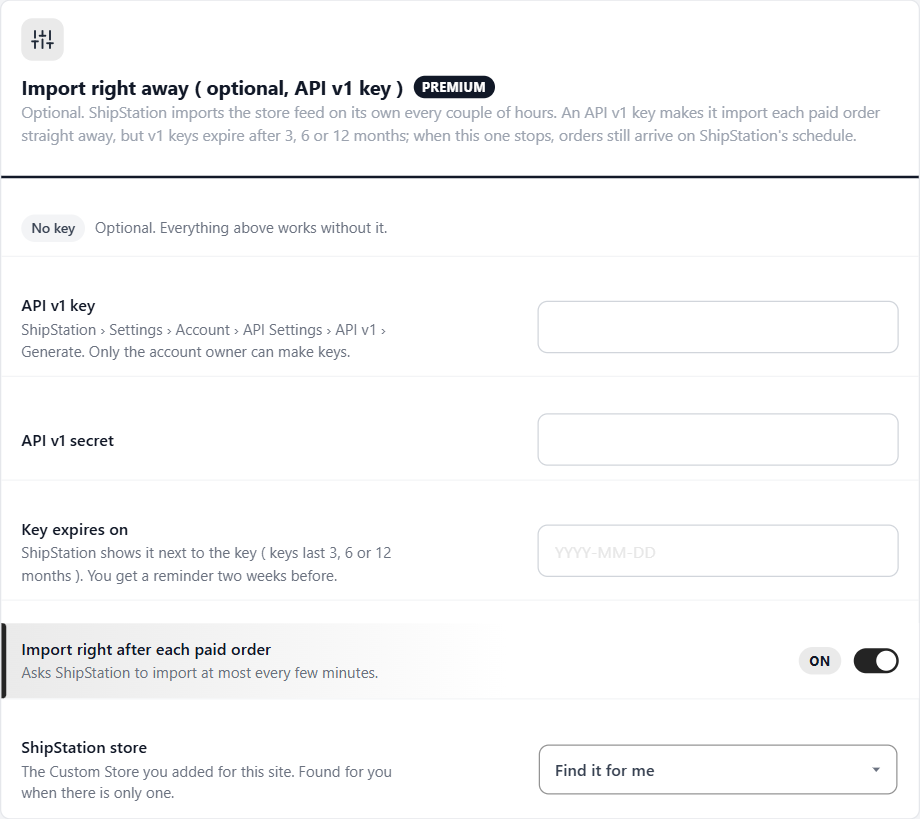
Import right away ( API v1 key )
Optional. ShipStation imports the store feed on its own every couple of hours. An API v1 key makes it import each paid order straight away.
6 settingsStatus
No key ( optional; everything else works without it ), Working, or Paused when ShipStation stops accepting the key: v1 keys expire after 3, 6 or 12 months, and orders then still arrive on ShipStation’s own schedule. On a store upgraded from version 1, this section is called Classic connection ( API v1 key ) until the store feed takes over.
API v1 key
From ShipStation › Settings › Account › API Settings › API v1 › Generate. Only the account owner can make keys. Kept encrypted; after saving the box shows dots.
API v1 secret
The secret made with the key. Saving checks both with ShipStation and says if ShipStation turns them down.
Key expires on
The date ShipStation shows next to the key. Enter it and EasyCart screens remind you two weeks before.
Import right after each paid order
After each paid or changed order, asks ShipStation to import the store feed straight away, at most every few minutes.
ShipStation store
The Custom Store you added for this site. Found for you when the account has only one.
Check the key, Remove the key
Once a key is saved, Check now asks ShipStation for your stores with it, and Remove the key stops importing right away; ShipStation keeps importing the store feed on its own schedule.
Activity
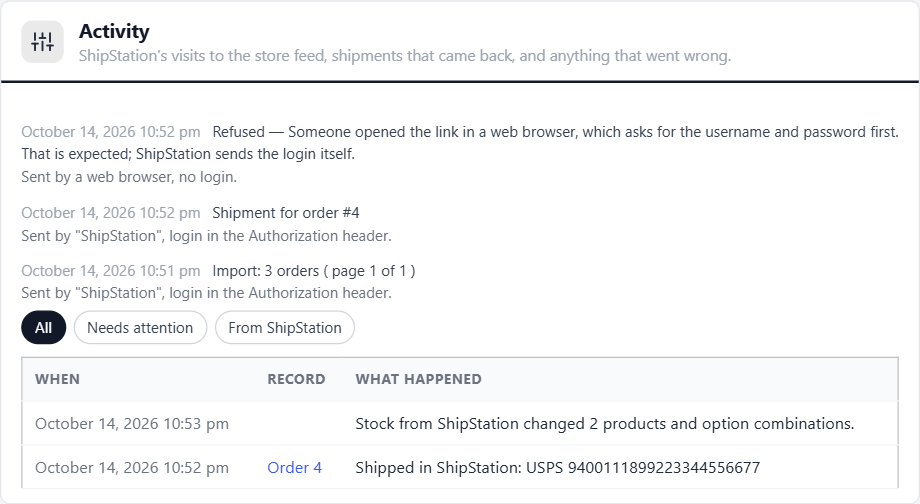
Every request ShipStation makes to the store feed, the shipments that came back, and anything that went wrong
no stored settingsWhat it lists
The last section of the ShipStation page lists each request to the store feed: imports ( with how many orders and pages ), shipments that came back ( with the order number ), and refused requests with the reason, such as a wrong username or password, too many tries, or http instead of https. Each line says which program sent it and how its login came. Filter with All, Needs attention and From ShipStation; below, a table lists what changed on your orders and products.
A browser visit is expected
Opening the feed link in a web browser asks for a username and password and is refused. That is expected: ShipStation sends the login itself. Activity shows it as sent by a web browser, not as a problem.
After a Test Connection
Reload the ShipStation page right after pressing Test Connection in ShipStation. A new line shows what happened. No new line means ShipStation’s request never reached WordPress: a firewall or your host stopped it ( see Troubleshooting ).
When ShipStation goes quiet
If ShipStation has not read the feed for six hours, the store feed turns Quiet, and EasyCart screens show a notice when orders changed in that time. Check that automatic import is on for this store in ShipStation, then press Check now. The same notices warn you when an API v1 key is about to expire or ShipStation stops accepting a key.
ShipStation comes with WP EasyCart Premium
Premium includes every WP EasyCart extension: ShipStation, Stamps.com, Shippo, QuickBooks, AvaTax and more, with updates and priority support.
