
Extensions › Zapier
Zapier Extension
Connect your store to thousands of apps through Zapier. Orders, payments, shipments, refunds, customers, newsletter sign-ups, subscriptions and abandoned carts start Zaps, and Zaps can update orders, customers, subscribers and stock. 13 parts.
Quick links
Where to find it:WP Admin › EasyCart › Extensions › Zapier
Quick start
Set up in four steps
The short version. Each step is covered in detail below.
Install
On EasyCart › Extensions, install Zapier. It comes with your Premium license and installs WP EasyCart Premium with it.
Get access
WP EasyCart is in early access on Zapier. Press Accept the Zapier invite in Get started, or email sales@wpeasycart.com for an invite.
Create a key
Under Connection keys, create a key and copy it. It is shown once.
Make a Zap
In Zapier, choose WP EasyCart, sign in with your store address and the key, and pick a trigger or an action.
What your Zaps can do
11 triggers
New Order, Order Paid, Order Status Changed, Order Shipped, Order Refunded, New Customer, New Newsletter Subscriber, New Subscription, Subscription Plan Changed, Subscription Canceled and Abandoned Cart.
5 actions
Update Order Status, Add Shipment Tracking, Create or Update Customer, Add Newsletter Subscriber and Update Product Stock.
3 searches
Find Order, Find Customer ( or create one ) and Find Product, to look something up in the middle of a Zap.
Getting started
Connect your store to Zapier
What you need, getting the app into your Zapier account, and connecting it with a key.
Before you start
What the extension needs, and where to find it
no stored settingsWhat you need
A WP EasyCart Premium license. Zapier is a Premium extension. Install it from EasyCart › Extensions › Zapier; that also installs WP EasyCart Premium, which delivers the extension’s updates.
WP EasyCart and WP EasyCart PRO 6.0.2 or newer, and WP EasyCart Premium 1.1.0 or newer. The Subscription Plan Changed trigger needs WP EasyCart 6.0.3, and a subscription’s usage level, such as 25,000 subscribers, needs 6.0.5.
A store on HTTPS, at an address on the public internet. Zapier cannot reach a site on your own computer or a private network.
A Zapier account. A Zap with one trigger and one action works on every Zapier plan. A Zap with a search needs an action after it, which makes three steps: check that your Zapier plan allows it.
Where to find it
WP Admin › EasyCart › Extensions › Zapier. The page has three sections: Get started, Connection keys and Zaps.
Coming from version 1?
Version 2 connects with a connection key instead of your WordPress password, through a new WP EasyCart app on Zapier. Zaps made with version 1 have to be made again with it.
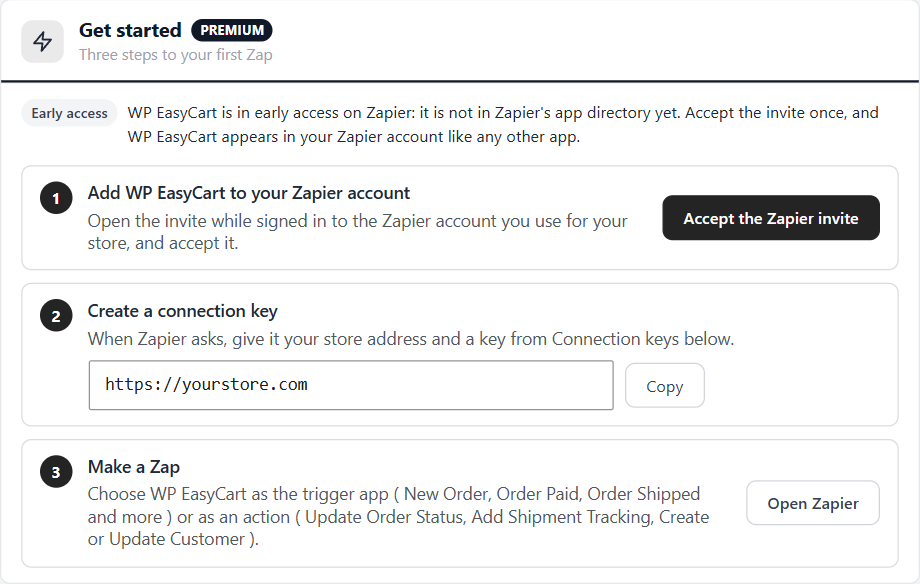
Get access to WP EasyCart on Zapier
Early access: how the app gets into your Zapier account
no stored settingsEarly access
WP EasyCart is in early access on Zapier. It is not in Zapier’s app directory yet, so searching Zapier for it finds nothing until your account has accepted the invite. Accept it once, and WP EasyCart shows in your Zapier account like any other app.
With the extension installed
- Open EasyCart › Extensions › Zapier.
- In Get started, press Accept the Zapier invite.
- Sign in to the Zapier account you use for your store, if Zapier asks, and accept the invite.
WP EasyCart is then in the list of apps when you make a Zap.
Request an invite
Email sales@wpeasycart.com with your store’s address and the email address of your Zapier account, and we invite that account. Do the same for each person on your team who makes Zaps in their own Zapier account.
When early access ends
Once Zapier lists WP EasyCart in its app directory, no invite is needed: search for WP EasyCart when you make a Zap. Zaps made during early access keep working.
💡 Note: Accept the invite while signed in to the Zapier account your Zaps will live in. An invite accepted in another account adds WP EasyCart to that account only.
Connection keys
What Zapier uses to reach your store
no stored settingsCreate a key
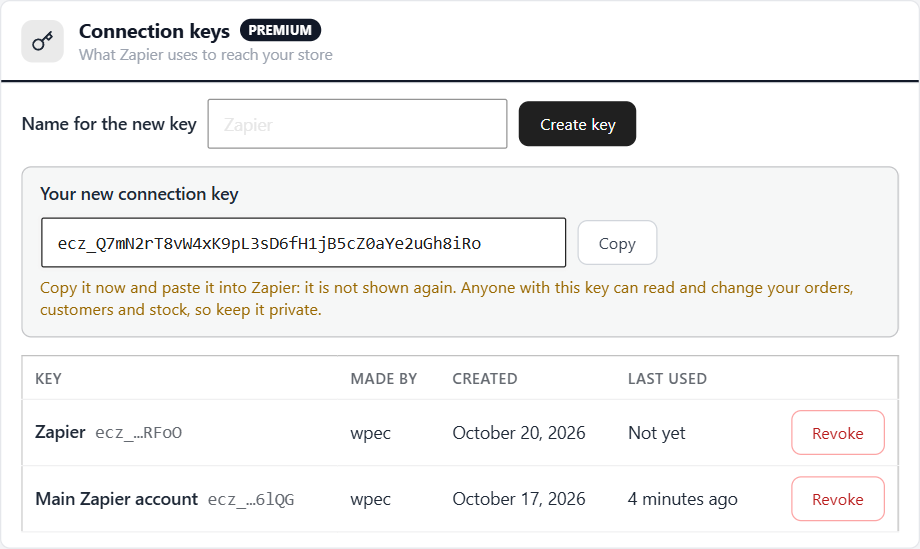
Type a name, such as the Zapier account or the person it is for, and press Create key. The key is shown once: copy it and paste it into Zapier straight away. Anyone with the key can read and change your orders, customers and stock, so keep it private.
The keys in use
Each key shows who made it, when, and when Zapier last used it. Make one key for each Zapier account or person, so you can revoke one without stopping the others. A store can have 20 keys.
Revoke
Stops every Zap connected with that key at once. Reconnect those Zaps in Zapier with another key.
Who can make keys
Store administrators. A key works as the admin who made it: if that person is no longer an administrator or store manager, the key stops working and the list says so. Make a new key and reconnect.
Connect WP EasyCart in Zapier
Sign in to your store from Zapier, once per Zapier account
no stored settingsIn Zapier
- Make a Zap, and choose WP EasyCart as the app for its trigger or one of its actions.
- When Zapier asks you to sign in, enter your Store Address, starting with https://. Get started shows it, with a Copy button.
- Enter the Connection Key you made.
- Continue. Zapier checks the key with your store, and names the connection after your store.
Store address
Your WordPress site’s address, as shoppers see it. A store in a folder, such as https://example.com/shop, works too. Zapier refuses an address that is not HTTPS, or is not on the public internet.
More than one store
Connect each store separately, each with its own key. Each connection is named after its store, so you can tell them apart in your Zaps.
Your store starts Zaps
Triggers
What starts a Zap, how your store sends it, and checking that it arrived.
Triggers
What your store does that starts a Zap
11 triggersNew Order
Every order placed, including bank transfers and other orders not paid yet. Orders your staff create count once they are placed; drafts do not.
Order Paid
Once per order, the first time it is paid: at checkout for a card payment, or when you mark a bank transfer order paid.
Order Status Changed
Every time an order moves to another status. Choose a status in the Zap to run it only for that one, such as Shipped.
Order Shipped
A shipment with a tracking number added to an order: on the order screen, by a label extension such as ShipStation or Shippo, or by the Add Shipment Tracking action. Includes the carrier and the tracking link.
Order Refunded
All or part of an order refunded, with the amount of this refund.
New Customer
A customer account created at checkout, by registering, or by your staff.
New Newsletter Subscriber
Someone joins your store’s newsletter list.
New Subscription
A customer starts a subscription.
Subscription Plan Changed
A subscriber moves to another plan or quantity, or to a new price you set, with the plan they were on before. Needs WP EasyCart 6.0.3; a change of usage level, such as 25,000 subscribers, needs 6.0.5.
Subscription Canceled
Canceled by the customer, by your staff, or at the payment gateway. Once per subscription.
Abandoned Cart
A shopper who typed their email address leaves items in the cart. A cart counts as abandoned after 60 minutes without changes, unless your abandoned cart settings say otherwise, and your store looks for them every 15 minutes. Includes a link that brings the cart back.
How your store sends to Zapier
New records only, a checkout that never waits, and retries
no stored settingsNew records only
A Zap gets records made after it was turned on. Turning on a Zap does not send your existing orders, customers or subscriptions.
Testing a trigger in Zapier
Zapier’s Test trigger shows up to three of your store’s newest records for that trigger. With none yet, it shows a sample.
Checkout never waits
Your store sends to Zapier after the page has gone to the shopper, so a slow or unreachable Zapier never slows a checkout.
Retries
If Zapier cannot be reached, your store tries again after 1 minute, 10 minutes, 1 hour, 6 hours and 1 day. When you delete a Zap, Zapier tells your store, and it stops sending to that Zap.
What leaves your store
Only the record for that trigger, sent only to Zapier’s own hook addresses ( https://hooks.zapier.com ). Records never include card numbers, passwords, admin notes or the private order links in your customers’ emails.
The Zaps section
Which triggers your Zaps use, and what was last sent
no stored settingsWhat it shows
Each trigger, how many of your Zaps use it, and when your store last sent it: Delivered, or Failed with Zapier’s answer while it retries. A Zap shows up here once it is turned on in Zapier.
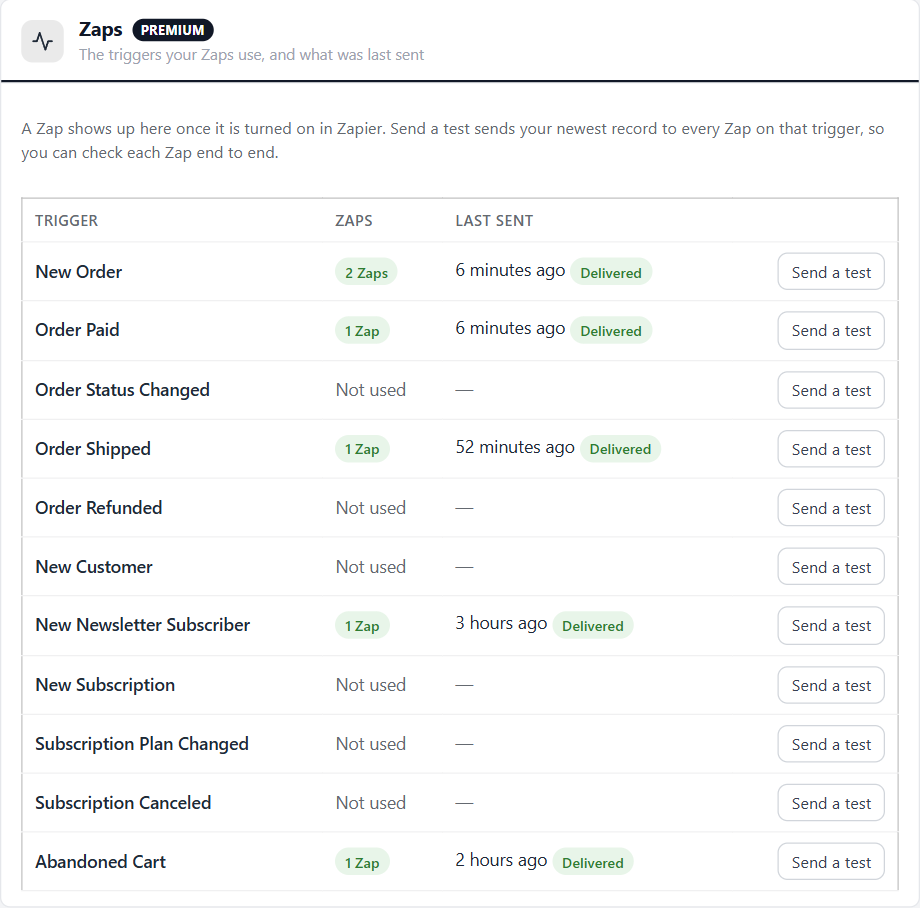
Send a test
Sends your store’s newest real record for that trigger to every Zap on it, so you can check a Zap from start to finish. The Zap really runs: its actions do whatever they do with that record.
⚠️ Careful: Send a test runs your Zaps for real. A Zap whose action emails a customer, changes an order or adds a row to a spreadsheet does so again with the record it receives.
Zaps update your store
Actions and searches
What a Zap can change in your store, and what it can look up.
Actions
What a Zap can change in your store
5 actionsUpdate Order Status
Moves an order to a status you choose from your store’s list. Moving an unpaid order to a status that counts as paid marks it paid: its stock is taken and Order Paid runs. Email the Customer sends the receipt when the order becomes paid, or your shipped email when it moves to Shipped; other statuses have no customer email. Moving an order to Refunded does not send any money back: refund the payment on the order screen or at your payment gateway.
Add Shipment Tracking
Adds a shipment to an order with its tracking number, carrier, shipping service and tracking link. Leave the link empty and the store builds it for the carriers it knows. Mark the Order Shipped ( on ) moves the order to Shipped once none of its packages is still waiting. Email the Customer ( on ) sends your shipped email with the tracking link. Sending the same tracking number again updates that shipment instead of adding another.
Create or Update Customer
Creates a customer account, or updates the one with the same email address. Fields left empty do not change an existing account. New customers set their own password with Forgot password. Choose Add to the Newsletter List only when the customer agreed to receive it.
Add Newsletter Subscriber
Adds an email address to your newsletter list, or updates the name of someone already on it. Only add people who agreed to receive your newsletter.
Update Product Stock
Sets a product’s stock, or adds to it or takes from it. For a product that keeps stock for each option combination, choose the combination in Options. The product must track stock.
Searches
Look something up in your store in the middle of a Zap
3 searchesFind Order
By order number, with or without the #. Or, with no number, a customer’s most recent order by email address.
Find Customer
A customer account by email address. Find or Create Customer creates the account when there is none.
Find Product
By SKU, the product’s own or an option combination’s, or else by title.
When a search finds nothing
Zapier stops the Zap at that step, unless you set the search to carry on when nothing is found. Zapier also needs an action after a search before it will turn the Zap on.
When something is off
Troubleshooting
What Zapier’s messages mean, and what to do about them.
Troubleshooting
When Zapier cannot connect, or a Zap does not run
no stored settings“Enter your store address, starting with https://”
The store address is missing its https://, has a typo, or your site does not use HTTPS yet. Copy the address from Get started.
“Zapier can only reach a store on the public internet”
The address is a local or private one, such as localhost or a site on your own network. Use the address shoppers use.
“The store did not accept this connection key”
The key was revoked, or the admin who made it can no longer manage the store. Make a new key and reconnect WP EasyCart in Zapier.
“WP EasyCart for Zapier did not answer at this address”
Check the address, and that WP EasyCart for Zapier is installed and active. A security plugin that turns off the WordPress REST API for visitors must let the address /wp-easycart/zapier/v2/ through.
“The store answered with a web page instead of WP EasyCart for Zapier”
Something in front of WordPress answered instead: a maintenance or coming soon page, a site-wide login, or a firewall. Let Zapier’s requests through to your site.
A Zap does not run
Check that the Zap is on, and that the Zaps section counts it. Records made before the Zap was turned on are not sent. Make a new order or customer, or press Send a test.
“Failed ( HTTP … ), retrying” or “Zapier could not be reached, retrying”
Zapier did not take the last delivery. Your store keeps retrying for a day. If the Zap was deleted in Zapier, your store stops on its own.
“Nothing could be found for the search”
A Find step found no match, so Zapier stopped the Zap there. Check what the step searched for in the Zap’s history.
“Renew Premium to make connection keys”
Your Premium license has ended. Your Zaps keep running and keys can still be revoked; making a new key needs a current license.
Good to know
Money, licenses, updates and removing the extension
no stored settingsAmounts
Prices and totals are in your store’s base currency, and each order says which.
If your Premium license ends
Your Zaps keep running, and keys can still be revoked. Making a new key needs a current license.
Updates
Come through WP EasyCart Premium, on the Plugins screen and on EasyCart › Extensions.
Removing the extension
Deleting it removes its keys and its list of Zaps, so your Zaps stop receiving from your store. Your orders, customers and products are not touched.
For developers
The API behind the app
The routes the WP EasyCart app on Zapier calls, and the records they answer with.
API reference
What the WP EasyCart app on Zapier calls
14 routesBase address
The API runs on each merchant’s own WordPress site, added by the WP EasyCart for Zapier plugin, so the base address is the store’s: https://{store}/?rest_route=/wp-easycart/zapier/v2{route}. The app uses this form because it works with any permalink setting. With pretty permalinks, https://{store}/wp-json/wp-easycart/zapier/v2{route} is the same API.
Signing in
Every request sends a connection key in the X-WPEC-Zapier-Key header. Keys start with ecz_ and are made in EasyCart › Extensions › Zapier; the store keeps only a hash of each key. A missing, revoked or orphaned key answers 401 with the code wpec_zapier_key.
Requests and answers
JSON both ways. Errors are WordPress REST errors, { "code", "message", "data": { "status" } }: wpec_zapier_key ( 401 ), wpec_zapier_invalid ( 400, something to fix in the Zap, with the reason in the message ), wpec_zapier_not_found ( 404 ), and wpec_zapier_event / wpec_zapier_url ( 400, a hook for a trigger the store does not offer, or an address that is not https://hooks.zapier.com ).
Routes
| Method | Route | What it does | Parameters |
|---|---|---|---|
GET | /me | Checks the key. Answers the store’s name and address, the key’s name, the base currency, and the WP EasyCart and extension versions. | none |
POST | /hooks | Subscribes a Zap’s hook address to one trigger ( REST hook ). Answers 201 with the hook’s id. | event, url ( https://hooks.zapier.com/… only ), filters ( { "status_id" } for order_status_changed ) |
DELETE | /hooks/{id} | Unsubscribes a hook. One already gone answers "deleted": false. | id |
GET | /events/{event} | Up to 3 of the store’s newest records for a trigger, for Zapier’s Test trigger. | status_id ( order_status_changed ) |
GET | /orders | Orders, newest first, 25 a page; one order by its number; or a customer’s 10 latest by email. | order_id, email, page |
POST | /orders/{id}/status | Moves an order to another status, marking it paid when the status counts as paid. Answers the order. | status_id ( required ), notify |
POST | /orders/{id}/shipments | Adds a shipment with tracking. Answers the order and the shipment. | tracking_number ( required ), carrier, service, tracking_url, mark_shipped ( true ), notify ( true ) |
GET | /order-statuses | The store’s order statuses, and whether each counts as paid. | none |
GET | /customers | The customer account with this email, as a list of none or one. | email ( required ) |
POST | /customers | Creates or updates a customer account. created says which. | email ( required ), first_name, last_name, billing, shipping ( each { first_name, last_name, company, phone, address_1, address_2, city, state, postcode, country } ), subscribe |
POST | /subscribers | Adds a newsletter subscriber, or updates their name. created says which. | email ( required ), first_name, last_name |
GET | /products | Products by SKU, or by a word in the title, in pages. | sku, search, page |
GET | /products/{id}/variants | A product’s option combinations that are switched on. | id |
POST | /products/{id}/stock | Sets, adds to or takes from stock. Answers the product, and the combination when one was given. | quantity ( required ), mode ( set, add or subtract ), variant_id |
Trigger deliveries
When a trigger happens, the store POSTs one JSON record to each subscribed hook address, and retries after 1 minute, 10 minutes, 1 hour, 6 hours and 1 day. An answer of 410 removes the hook. The events are new_order, order_paid, order_status_changed, order_shipped, order_refunded, new_customer, new_subscriber, new_subscription, subscription_plan_changed, subscription_canceled, abandoned_cart.
Records
The fields each trigger, action and search answers with
no stored settingsWhich record
Order: New Order, Order Paid, Order Status Changed, Order Refunded ( plus the refund ), Order Shipped ( plus the shipment ), Find Order, Update Order Status and Add Shipment Tracking. Customer: New Customer, Find Customer, Create or Update Customer. Subscriber: New Newsletter Subscriber, Add Newsletter Subscriber. Subscription: New Subscription, Subscription Canceled, Subscription Plan Changed ( plus the change ). Abandoned cart: Abandoned Cart. Product: Find Product, Update Product Stock. Dates are ISO 8601 in UTC, and a date a record does not have is null.
Order
An order with its addresses, totals, payment and lines.
| Field | In Zapier | Type |
|---|---|---|
id | Order ID | integer |
order_number | Order Number | text |
status | Status | text |
status_id | Status ID | integer |
is_paid | Paid | boolean |
date_created | Date Created | datetime |
date_updated | Date Updated | datetime |
currency | Currency | text |
email | Customer Email | text |
customer_id | Customer ID | integer |
is_guest | Guest Checkout | boolean |
subtotal | Subtotal | number |
discount_total | Discount Total | number |
shipping_total | Shipping Total | number |
tax_total | Tax Total | number |
vat_total | VAT Total | number |
gst_total | GST Total | number |
pst_total | PST Total | number |
hst_total | HST Total | number |
duty_total | Duty Total | number |
tip_total | Tip Total | number |
refund_total | Refund Total | number |
total | Order Total | number |
amount_paid | Amount Paid | number |
balance_due | Balance Due | number |
payment_state | Payment State | text |
coupon_code | Coupon Codes | text |
promotions | Promotions | text |
shipping_method | Shipping Method | text |
shipping_carrier | Shipping Carrier | text |
tracking_number | Tracking Number | text |
payment_method | Payment Method | text |
customer_note | Customer Note | text |
billing.first_name | Billing First Name | text |
billing.last_name | Billing Last Name | text |
billing.company | Billing Company | text |
billing.address_1 | Billing Address Line 1 | text |
billing.address_2 | Billing Address Line 2 | text |
billing.city | Billing City | text |
billing.state | Billing State / Province | text |
billing.postcode | Billing Postal Code | text |
billing.country | Billing Country | text |
billing.phone | Billing Phone | text |
shipping.first_name | Shipping First Name | text |
shipping.last_name | Shipping Last Name | text |
shipping.company | Shipping Company | text |
shipping.address_1 | Shipping Address Line 1 | text |
shipping.address_2 | Shipping Address Line 2 | text |
shipping.city | Shipping City | text |
shipping.state | Shipping State / Province | text |
shipping.postcode | Shipping Postal Code | text |
shipping.country | Shipping Country | text |
shipping.phone | Shipping Phone | text |
items[].id | Item Line ID | integer |
items[].product_id | Item Product ID | integer |
items[].variant_id | Item Option Stock ID | integer |
items[].sku | Item SKU | text |
items[].title | Item Title | text |
items[].options | Item Options | text |
items[].quantity | Item Quantity | integer |
items[].unit_price | Item Unit Price | number |
items[].total | Item Total | number |
item_count | Item Count | integer |
admin_url | Order Admin Link | text |
Refund
Added to the order for Order Refunded.
| Field | In Zapier | Type |
|---|---|---|
refund_amount | Refund Amount | number |
Shipment
Added to the order for Order Shipped and Add Shipment Tracking.
| Field | In Zapier | Type |
|---|---|---|
shipment.id | Shipment ID | integer |
shipment.carrier | Shipment Carrier | text |
shipment.service | Shipment Service | text |
shipment.tracking_number | Shipment Tracking Number | text |
shipment.tracking_url | Shipment Tracking Link | text |
shipment.status | Shipment Status | text |
shipment.date_shipped | Shipment Date | datetime |
Customer
A customer account.
| Field | In Zapier | Type |
|---|---|---|
id | Customer ID | integer |
email | text | |
first_name | First Name | text |
last_name | Last Name | text |
user_level | Customer Role | text |
is_subscriber | Newsletter Subscriber | boolean |
date_created | Date Created | datetime |
billing.first_name | Billing First Name | text |
billing.last_name | Billing Last Name | text |
billing.company | Billing Company | text |
billing.address_1 | Billing Address Line 1 | text |
billing.address_2 | Billing Address Line 2 | text |
billing.city | Billing City | text |
billing.state | Billing State / Province | text |
billing.postcode | Billing Postal Code | text |
billing.country | Billing Country | text |
billing.phone | Billing Phone | text |
shipping.first_name | Shipping First Name | text |
shipping.last_name | Shipping Last Name | text |
shipping.company | Shipping Company | text |
shipping.address_1 | Shipping Address Line 1 | text |
shipping.address_2 | Shipping Address Line 2 | text |
shipping.city | Shipping City | text |
shipping.state | Shipping State / Province | text |
shipping.postcode | Shipping Postal Code | text |
shipping.country | Shipping Country | text |
shipping.phone | Shipping Phone | text |
admin_url | Customer Admin Link | text |
Subscriber
Someone on the newsletter list.
| Field | In Zapier | Type |
|---|---|---|
id | Subscriber ID | integer |
email | text | |
first_name | First Name | text |
last_name | Last Name | text |
source | Signed Up Through | text |
date_added | Date Signed Up | datetime |
Subscription
A subscription and the customer it belongs to.
| Field | In Zapier | Type |
|---|---|---|
id | Subscription ID | integer |
status | Status | text |
title | Plan | text |
product_id | Product ID | integer |
sku | SKU | text |
price | Price | number |
quantity | Quantity | integer |
interval | Billing Interval | text |
interval_count | Billing Interval Count | integer |
currency | Currency | text |
email | Customer Email | text |
customer_id | Customer ID | integer |
first_name | Customer First Name | text |
last_name | Customer Last Name | text |
gateway | Payment Gateway | text |
date_started | Date Started | datetime |
next_payment_date | Next Payment Date | datetime |
date_canceled | Date Canceled | datetime |
admin_url | Subscription Admin Link | text |
usage_level | Usage Level ID | text |
usage_amount | Usage Amount | number |
usage_label | Usage | text |
Plan change
Added to the subscription for Subscription Plan Changed.
| Field | In Zapier | Type |
|---|---|---|
change.previous_product_id | Previous Product ID | integer |
change.previous_product_title | Previous Plan | text |
change.product_id | New Product ID | integer |
change.product_title | New Plan | text |
change.previous_quantity | Previous Quantity | integer |
change.quantity | New Quantity | integer |
change.interval_changed | Billing Interval Changed | boolean |
change.when | Change Timing | text |
change.source | Changed By | text |
change.change_id | Change ID | integer |
change.change_kind | Change Type | text |
change.previous_level | Previous Usage Level ID | text |
change.level | New Usage Level ID | text |
Abandoned cart
A cart left with items in it, and the link that brings it back.
| Field | In Zapier | Type |
|---|---|---|
id | Cart ID | integer |
email | Customer Email | text |
first_name | First Name | text |
last_name | Last Name | text |
customer_id | Customer ID | integer |
currency | Currency | text |
total | Cart Total | number |
item_count | Item Count | integer |
items[].product_id | Item Product ID | integer |
items[].sku | Item SKU | text |
items[].title | Item Title | text |
items[].options | Item Options | text |
items[].quantity | Item Quantity | integer |
items[].unit_price | Item Unit Price | number |
items[].total | Item Total | number |
items[].image | Item Image | text |
restore_url | Cart Link | text |
date_updated | Last Activity | datetime |
date_abandoned | Date Abandoned | datetime |
Product
A product and its stock.
| Field | In Zapier | Type |
|---|---|---|
id | Product ID | integer |
title | Title | text |
sku | SKU | text |
price | Price | number |
is_active | Shown in Store | boolean |
tracks_stock | Tracks Stock | boolean |
tracks_variant_stock | Tracks Stock by Option | boolean |
stock_quantity | Stock Quantity | integer |
url | Product Link | text |
admin_url | Product Admin Link | text |
Order status
One of the store’s order statuses ( GET /order-statuses ).
| Field | In Zapier | Type |
|---|---|---|
id | Status ID | integer |
name | Status | text |
is_paid | Counts as Paid | boolean |
Keep going
Related guides
How Premium extensions install and update.
Order statuses, shipments and refunds, which your Zaps start from and change.
Shipments from ShipStation start Order Shipped too.
Zapier comes with WP EasyCart Premium
Premium includes every WP EasyCart extension: Zapier, ShipStation, Stamps.com, Shippo, QuickBooks, AvaTax and more, with updates and priority support.
