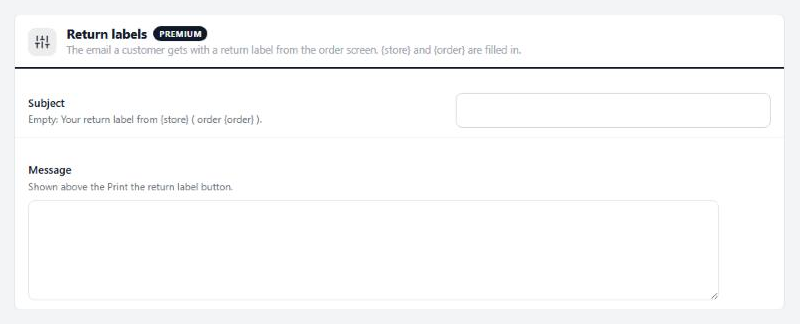
Connection
Your API tokens, from Shippo › Settings › Advanced › API. They are kept encrypted.
5 settingsLive API token
Paste the live token from Shippo › Settings › Advanced › API. Labels bought with it are real and charged to your Shippo account. WP EasyCart Premium stores it encrypted, so after saving the box only shows dots. Saving checks the token with Shippo and warns you if Shippo turns it down.
Test API token
A Shippo test token, starting shippo_test_. It is only used while Test mode is on, so you can try the label window without paying for postage.
Test mode
Uses the test token instead of the live one. Labels are samples and nothing is charged. Batches and SCAN forms need a live token, so in test mode the Ship page buys labels one at a time.
Check the connection
Check now asks Shippo which carrier accounts the token can use. The status line at the top of the section then reads Connected with the carriers listed, or Not accepted with Shippo’s reason.
Get updates from Shippo
Set up tells Shippo to report back to your store. Labels bought in Shippo’s own dashboard, voided labels and tracking updates then land on the order as they happen. Without it, labels bought in Shippo are still found within 30 minutes, but tracking and voids made in Shippo are not. If your store’s address changes, the status reads Needs setting up again; press Set up once more.
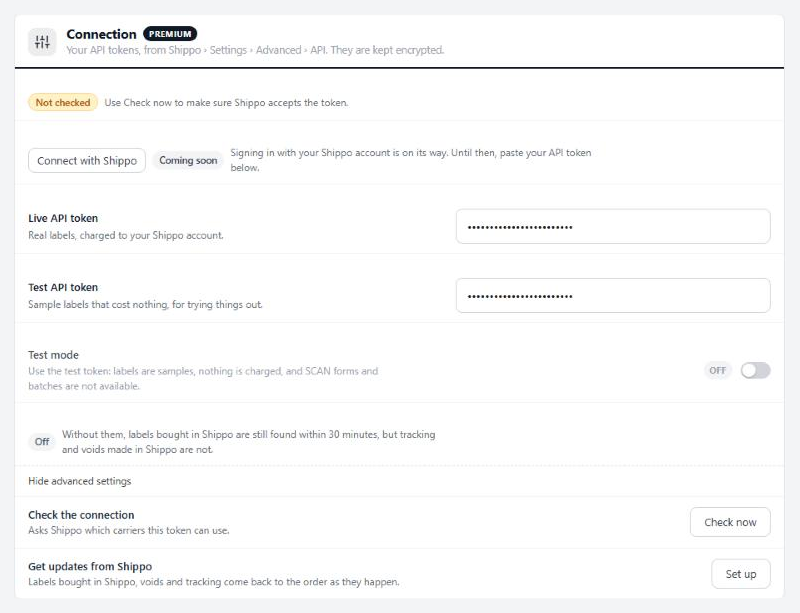
Ship from
The sender address on your labels, and where returns come back to.
11 settingsName
The sender name printed on every label.
Company
Optional. Printed with the name when filled in.
Street address
The street address labels ship from. Return labels come back here too.
Apartment, suite, unit
Optional second address line.
Address line 3
A third address line. Only UPS and USPS international labels print it.
City
Your city.
State or province
The two-letter code in the US and Canada, such as CA or ON.
ZIP or postal code
Your ZIP or postal code.
Country
The country you ship from.
Phone
USPS and FedEx will not print a label without a phone number.
USPS needs an email address to print a label. Leave it empty to use your store’s email.
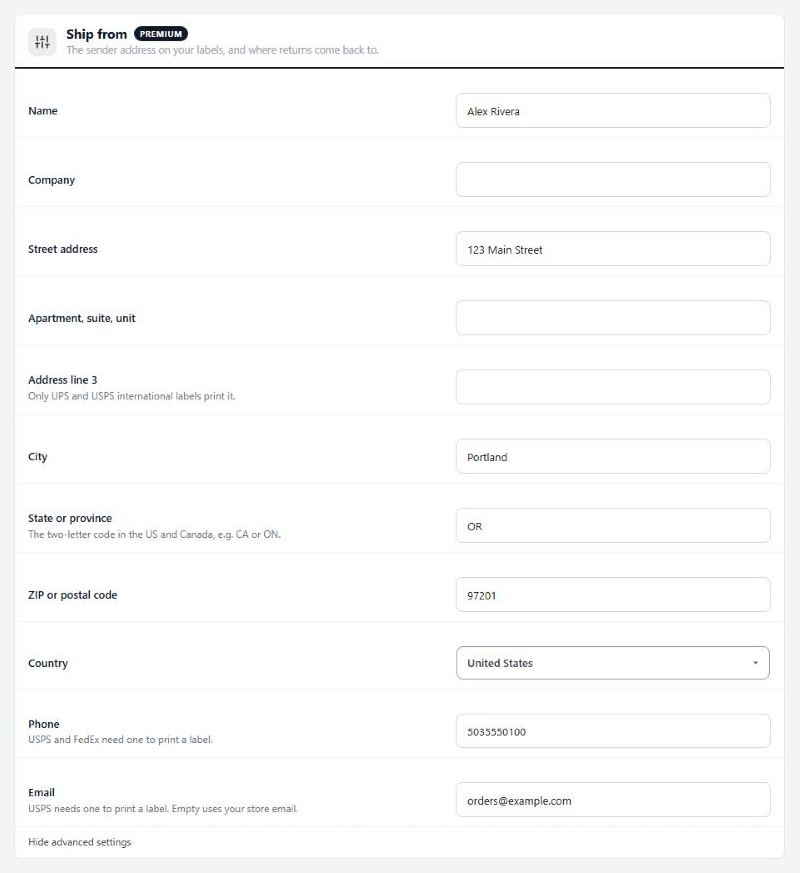
Labels
What the label window picks for you, and what happens after you buy.
9 settingsLabel format
The file your labels come as. PDF 4×6 suits label printers, PDF letter and PDF A6 print on office paper, and there are also PDF 4×8, PNG image and ZPL for thermal printers. The Ship page can pick another format for one batch.
Rate chosen for you
The rate the label window and bulk labels start on: the service the customer paid for at checkout, the cheapest, the fastest, or always one service. It only preselects. You can always pick a different rate before you buy.
Service
Shown when Rate chosen for you is Always one service. A package that cannot use this service gets the cheapest rate instead.
Check ship-to addresses
Before you buy, the label window checks the ship-to address with Shippo and offers a correction when it finds one. Shippo charges about 2¢ per check in the US.
Mark the order shipped
Moves a paid order to Shipped once every package on it has a label. On an order with print-on-demand items, the partner’s package counts once the partner ships it.
Email the customer the tracking link
Sends the customer your shipped email with the tracking link as each package’s label is bought.
Insure orders worth at least
Orders worth this much or more come with Shippo insurance for the order value already ticked in the label window. Shippo charges about 1.25% of the value. Leave it empty to never add it.
Ask for a signature on orders of at least
Orders worth this much or more ask for a signature on delivery. Leave it empty for never.
Signature
The signature to ask for: anyone at the address, or an adult aged 21 or over.
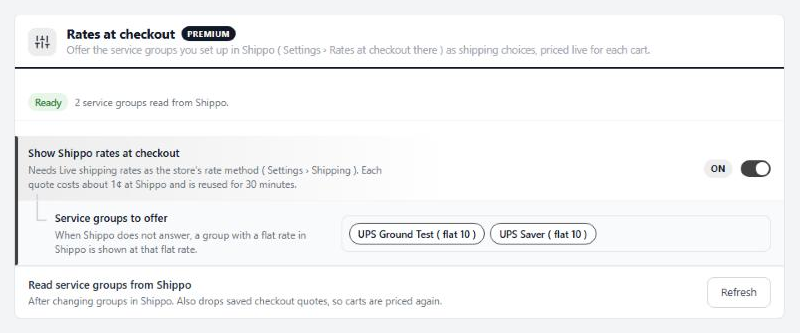
Customs
For packages that leave the country. Each product can have its own HS code and country of origin.
7 settingsWhat you ship
How the contents are declared on the customs form: merchandise, gift, sample, documents or other.
If it cannot be delivered
What the carrier does with a package it cannot deliver: return it to you, or abandon it.
Who pays duties
Who pays import duties and taxes. DDU and DAP: the customer, on delivery. DDP: you prepay them, so nothing is due at the door. Not every carrier and service offers DDP.
Export exemption ( US )
US exports only. Most shipments under $2,500 per HS code need no export filing, which is NOEEI 30.37(a). Pick another exemption only when it applies; NOEEI 30.36 covers Canada.
Signed by
The name certifying the customs form. Leave it empty to use the ship-from name.
Default HS tariff code
The tariff code for products without their own. A product sets its own in the product editor under Customs and packing.
Default country of origin
Where products without their own country of origin are made. Leave it empty to use the ship-from country.
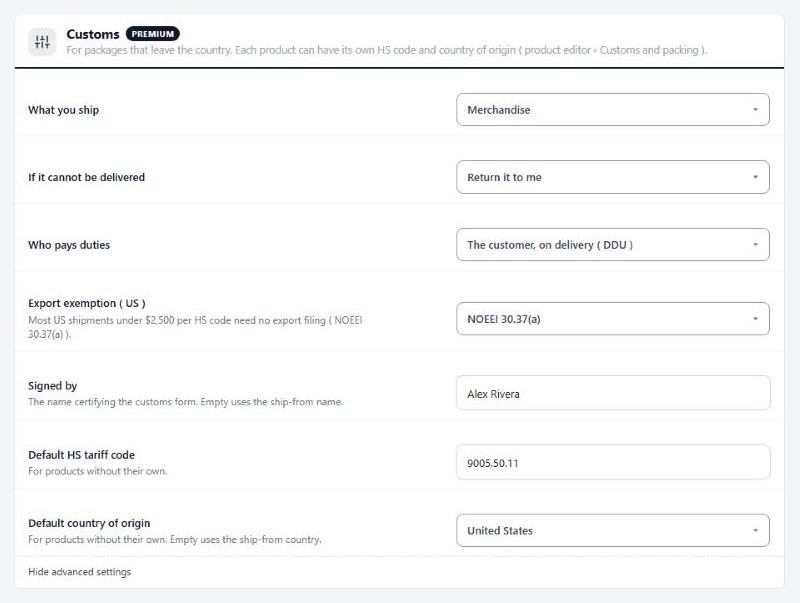
Orders in Shippo
Send paid orders to your Shippo dashboard too, for labels bought there.
5 settingsSend paid orders to Shippo
Sends each paid order to your Shippo dashboard once, shortly after payment. It happens in the background, never during checkout. Buy a label for the order in Shippo and it comes back to the order in EasyCart. Leave this off if you only buy labels from EasyCart.
Also send orders awaiting payment
Bank transfer and invoice orders go to Shippo straight away, marked Awaiting payment, instead of waiting for the money.
Order number prefix
Orders show in Shippo as #PREFIX-1042. When several stores share one Shippo account, give each store its own prefix so you can tell their orders apart. Letters, numbers and dashes, up to 20.
Weight unit
The unit your product weights are entered in. Leave it on the store’s own unit unless your weights were entered in another.
Retry failed orders
An order Shippo turns down four times is left as failed, and the Connection status counts it. Fix the cause shown in Settings › Logs, then press Retry to send those orders again.
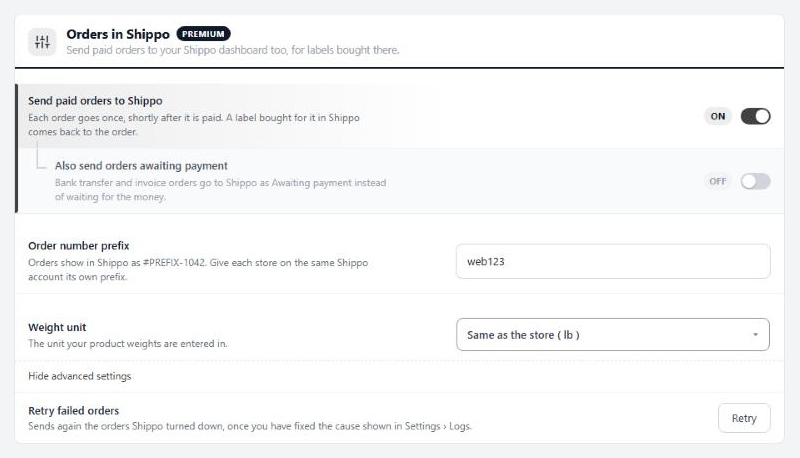
Rates at checkout
Offer the service groups you set up in Shippo as shipping choices, priced live for each cart.
3 settingsShow Shippo rates at checkout
Offers your Shippo service groups as shipping choices at checkout, priced live for each cart. Needs Live shipping rates as the store’s rate method under Settings › Shipping. Each quote costs about 1¢ at Shippo and is reused for 30 minutes.
Service groups to offer
Which of your Shippo service groups to offer. Groups are made in Shippo under Settings › Rates at checkout. If Shippo does not answer, a group with a flat rate set in Shippo still shows at that flat rate.
Read service groups from Shippo
Refresh reads your service groups from Shippo again. Use it after adding or renaming groups there.
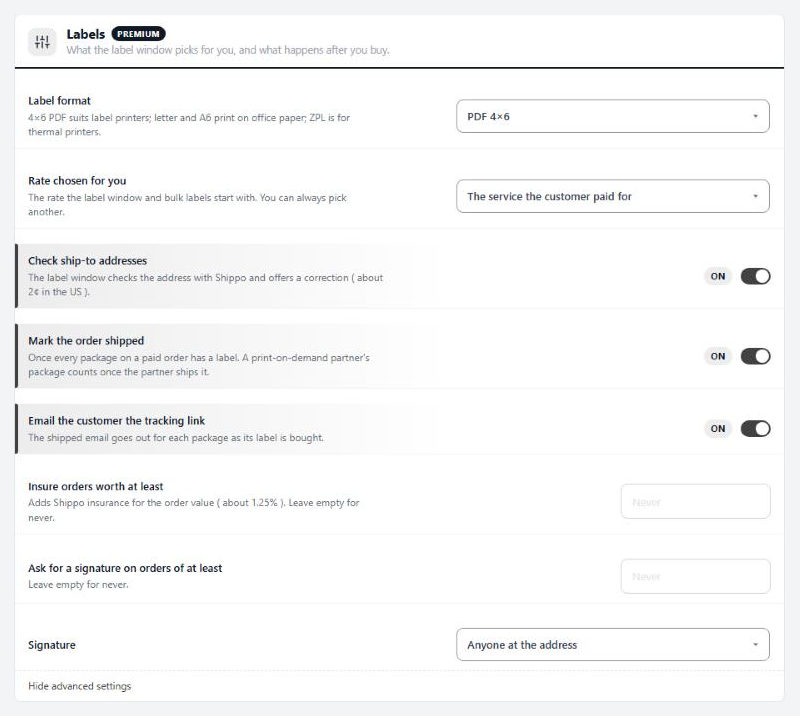
Return labels
The email a customer gets with a return label from the order screen.
2 settingsSubject
The subject of the return label email. Leave it empty for Your return label from {store} ( order {order} ).
Message
Your words above the Print the return label button in that email. {store} and {order} are filled in.