
Troubleshooting
What You Need to Know About Caching and WordPress
Caching is one of the most common — and most confusing — topics we deal with at WP EasyCart. Here’s how it works, what breaks, and exactly how to fix it.
What Is Caching?
Caching speeds up your site by storing a ready-made copy of your content — great for blogs, tricky for dynamic shopping carts.
Caching & WordPress
Where Caching Comes From
- Web Hosts: Many implement server-side caching you may or may not control. Your site may feel fast, but with eCommerce, the data can get mixed up.
- WordPress Plugins: Often installed — sometimes several at once — to minify, cache, and boost performance, but they can cause real trouble in WordPress eCommerce.
- WordPress Themes: Many now build in their own caching and speed tricks, which can also lead to caching and data trouble on dynamic sites.
Caching Methods You’ll Run Into
- File caching: Stores and serves pages and file contents to speed things up.
- Object caching: Stores and serves database results so data reaches users faster.
- File minification: Not technically caching, but often bundled in — compresses JavaScript or CSS files to make them smaller.
- Cookie caching: Stores unique identifiers to retrieve less data and speed things up — identifiers that are often critical to ecommerce sessions.
Signs You Have a Caching Problem
A handful of tell-tale symptoms show up again and again on caching-affected stores.
- Cart items won’t update: Users add items to their cart but can’t delete or update them.
- Cart shows the wrong items: Users see random other items appear in their shopping cart.
- Checkout shows someone else’s data: An obvious sign — database calls and cookies are being cached.
- Orders cross accounts: Users checkout but their data crosses with another user’s account.
- Product edits don’t show up: You update a title, description, or price, but the front end still shows the old data — that’s caching, every time.
Is Caching a Security Risk?
Yes — and understanding your own site is the best defense.
You’re the owner and developer of your WordPress site, and you control every plugin, theme, and piece of mixed data running on it — so it’s critical to understand what each one is actually doing. We control our own plugin, but WordPress is a fluid platform, and every plugin and theme injects code from sources all around the world. What plugin A does may affect what plugin B and plugin C do. What theme A does will affect what plugin B and plugin C experience.
Because of this, we can only recommend installing known, trusted plugins with reputable support and a real following. Minimize plugins, and you minimize coding conflicts.
Security & Caching Awareness

How to Solve Caching Issues
Plugin developers blame hosts, hosts blame plugins — nobody ships a 100% conflict-free system. Here’s our real-world process for WP EasyCart.
Turn On Prevent Cart Caching
Go to WP EasyCart › Settings › Checkout and switch “Prevent Cart Caching” ON. This loads the cart and account pages using our best available techniques — though it still depends on every other plugin and theme playing nice. Still stuck? Move to step two.
Deactivate Every Caching Plugin
Turn off your caching plugins — actually, deactivate every plugin except EasyCart and see if the issue disappears. If it does, re-enable them one at a time until you find the culprit. Still no luck? Move to step three.
Test With a Stock Theme
No plugin causing it? Switch to a simple, stock WordPress theme like Twenty Twenty. If the caching behavior disappears, contact your theme developer about disabling caching. Still stuck? Move to step four.
Contact Your Web Host
Server-side caching is invisible until you go looking for it. It’s great for static sites but a rough fit for eCommerce. Ask your host to turn off all caching systems entirely — or, if that’s not possible, ask them to add exclusions for your store, cart, and account pages.
Ask for a Cookie Exclusion Too
Have your host exclude the WP EasyCart cookie ec_cart_id as well. It keeps user sessions accurate and alive across the entire account and checkout process.
Caching can be hard to pin down — some days it acts up, some days it doesn’t. Cover these five bases first and you’ll eliminate the most common mistakes. Worst case? It’s time for a less cache-happy host.
Web Hosting Specific Issues
WP EasyCart runs great across all these platforms — here’s what we’ve learned about each.
- GoDaddy: Good hosting overall, but a mixed bag — some customers land on servers with minimal caching, others get hit with severe caching that causes real eCommerce issues. Some support reps will add exclusions; others won’t.
- Siteground: Also solid hosting, but with heavy server-side caching and optimizers that can trip up any eCommerce platform. Try deactivating optimizers and ask Siteground staff to add exclusions.
- WP Engine: Fast and reliable — contact them and ask for exclusions on your store, cart, and account pages. Their support has been consistently helpful on this topic.
- Bluehost & HostGator: More traditional, standard-cPanel hosting with good results right out of the box. We haven’t run into many caching issues on these platforms at all.
Getting It Right
Caching Done Right
Yes, caching and eCommerce can absolutely coexist. Here’s what we recommend.
- Pick your host wisely: Skip SiteGround or GoDaddy if you can — they tend to cache heavily. Starting fresh? BlueHost or WP Engine are our favorites.
- Ask for exclusions: Many hosts, including WP Engine, will happily exclude your store, cart, and account pages plus the
ec_cart_idcookie — some now do it automatically. - Run one caching plugin. Just one. We’ve seen sites running six caching plugins at once — don’t be that guy. WP Super Cache and WP Rocket both work great right out of the box with default settings.
Developing on WordPress? Caching can be maddening — changes that don’t show up instantly mean caching is at play somewhere. EasyCart changes should be instant, so if they’re not, you’ve got a caching issue.
Caching Solutions to Avoid
Server-side caching suits static sites — not a dynamic shopping cart.
Steer Clear of These Setups
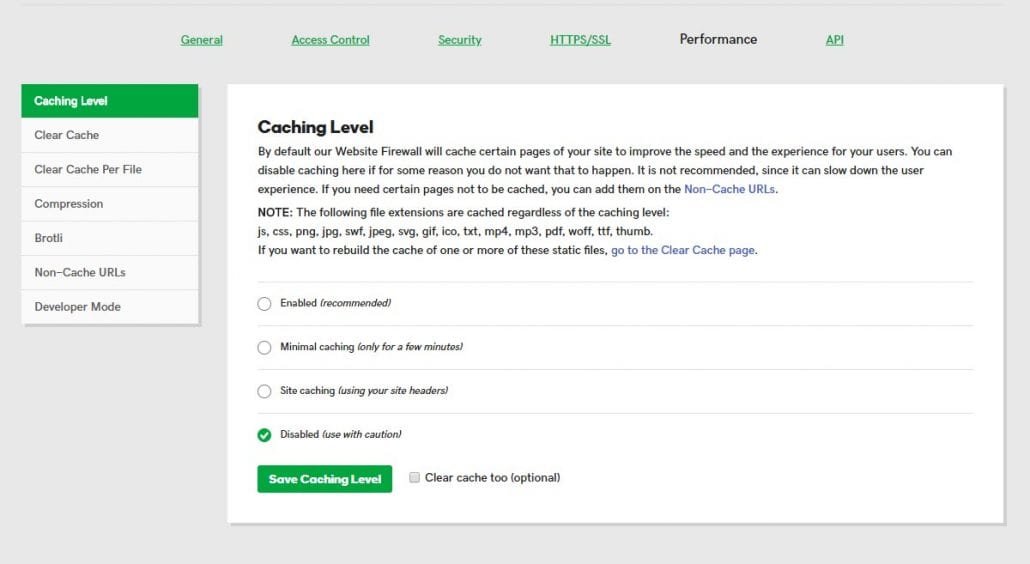
Try to avoid CloudFlare or other server/hosting-based caching solutions on a dynamic shopping cart. Firewall and security software can cause issues too — GoDaddy is notorious for running caching systems on their servers and often refuses to turn them off, plus a hard-to-find firewall caching option. You may have to hunt through your products and settings to disable it.
GoDaddy — Firewall Caching
WP Compress Payment Issues
One specific setting in WP Compress can break checkout outright.
Turn Off External URLs
Most payment providers require their JavaScript files to load directly from their own site. If you offload files to a CDN with WP Compress, checkout can throw errors for those payment providers. To fix it, turn the External URLs setting OFF — yes, OFF. See WP Compress’s own doc on the setting: Using External URLs, S3, Spaces, etc.
WP Compress — External URLs Setting

Still Fighting a Caching Ghost?
Caching bugs can be maddeningly inconsistent. If these steps didn’t solve it, our support team can help you track down the real source.