
Troubleshooting
Troubleshooting 404 Errors in Your Cart
Custom post types and WordPress don’t always play nice together — but a handful of tried-and-true checks fix nearly every 404 in your store, cart, or account pages.
Fix Broken Links & 404s
Start here — these three checks resolve most 404 issues in minutes.
Check Your Slug Format
Link slugs should use only letters, numbers, and dashes — nothing else. It matters for SEO too, so match your product title as closely as you can, e.g. title-of-widget or company-shoe-brand.
Reload the WordPress Permalinks Page
Go to WordPress Admin › Settings › Permalinks and just let the page load. This refreshes your internal linking and often fixes broken links caused by other plugins, themes, or random conflicts.
Rebuild Your Links in WP EasyCart
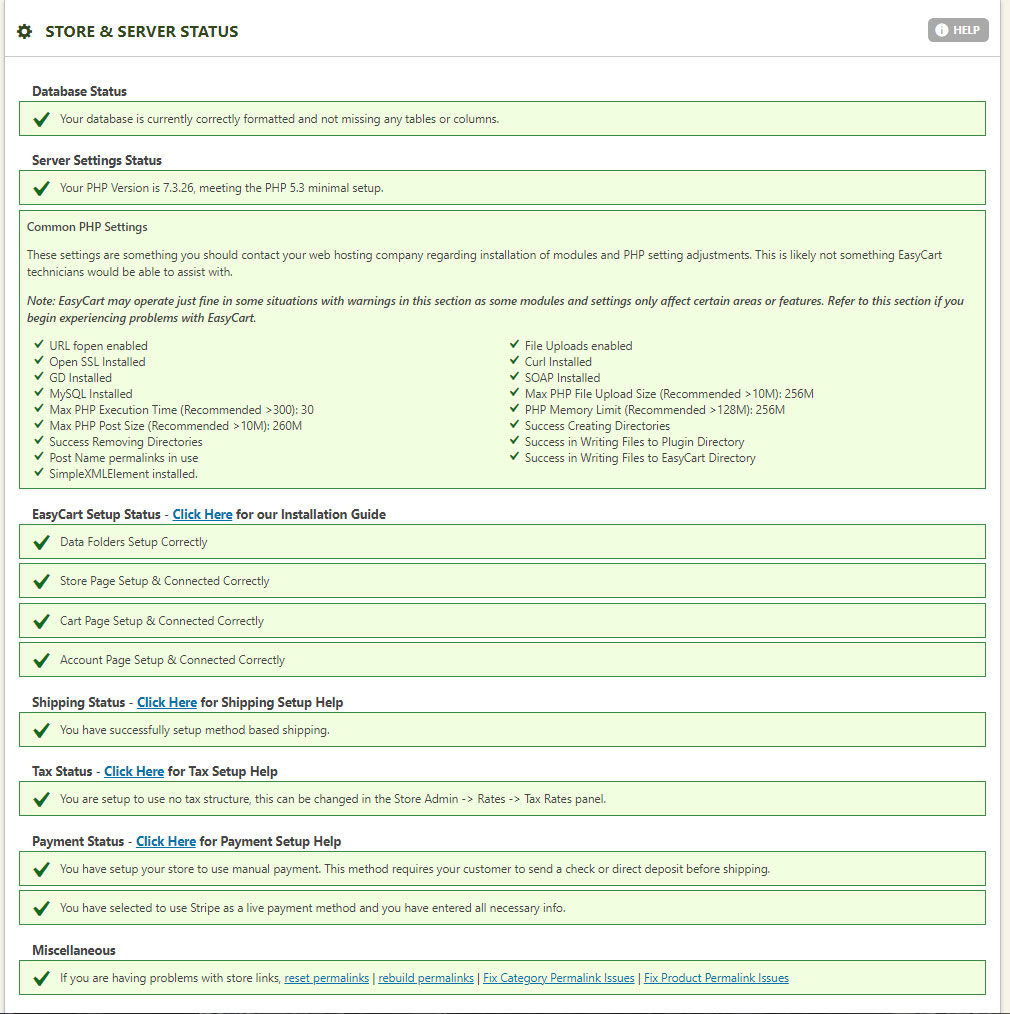
Head to WP EasyCart › Store Status and click “Reset Permalinks.” This deletes every custom post the cart created internally, then recreates and relinks them for you. Hit a white screen or a timeout? Click back and hit “Rebuild Permalinks” instead — it picks up right where it left off. Repeat until the screen returns to your site; that means it’s done.
WP EasyCart — Store Status (Reset & Rebuild Permalinks)
Still Seeing 404s? Check These Too
Three more common culprits — and exactly how to rule each one out.
Watch for Folder Conflicts
Make sure there’s no actual folder sitting at your store, cart, or account URL. If your site is www.example.com/store but the store won’t load, a real folder at that address on your server takes precedence over WordPress’s virtual links. Delete the folder, or change the page’s slug, to fix it.
Rule Out .htaccess Issues
Sometimes your .htaccess file isn’t writable, or something else is conflicting with it. It’s unlikely to affect only your store, but it’s worth confirming it’s working properly.
Deactivate Yoast SEO — Temporarily
Yoast SEO is a great plugin, but it tightly controls post slugs and linking — tight enough that WP EasyCart’s rebuild or reset permalinks tools sometimes can’t run. Still stuck? Deactivate Yoast SEO completely, then retry Store Status › Reset Permalinks or Rebuild Permalinks. Test it, then reactivate Yoast.
Still Seeing 404s?
If none of these fixes solve it, just reach out — our support team is ready to dig in with you.