
WP EasyCart — Google Analytics Third Party Settings
Google Analytics — Ecommerce Settings
Google Analytics — Enable Ecommerce & Enhanced Ecommerce
Google Analytics — Ecommerce Overview
Tracking & Data
Connect WP EasyCart to Google Analytics and start tracking real eCommerce data — conversions, purchases, and per-product performance — not just page views. A few settings is all it takes.
Before you connect anything, know the difference — they track completely different things.
WP EasyCart sends your eCommerce data to Google after every confirmed order. Enter a few settings below and start collecting.
Get your Google account ready to receive data before touching any EasyCart settings.
Start with an actual Google account for analytics — sign up here. This gets you page viewing and basic web analytics running. Then install the free Google Site Kit plugin — it’s free and easy to use.
With page tracking working, it’s time to link your Google code to EasyCart’s order data.
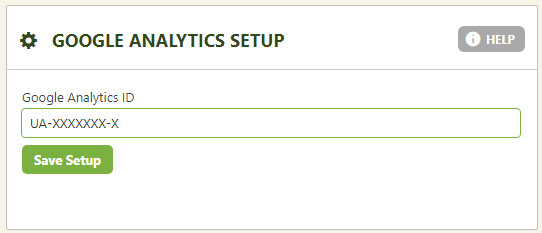
Visit WP EasyCart › Settings › Third Party in your WordPress admin and add your Google code there. From that point on, every confirmed order sends its eCommerce transaction data straight to Google.
WP EasyCart — Google Analytics Third Party Settings
One last flip of a switch on Google’s side and eCommerce data starts flowing in.
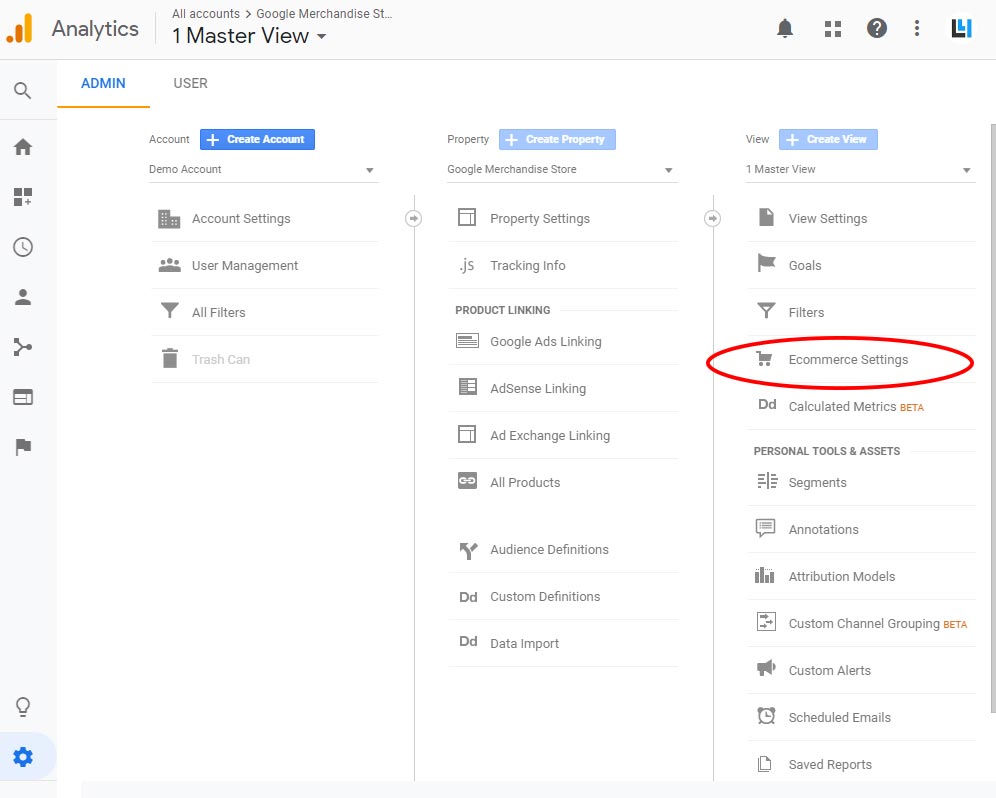
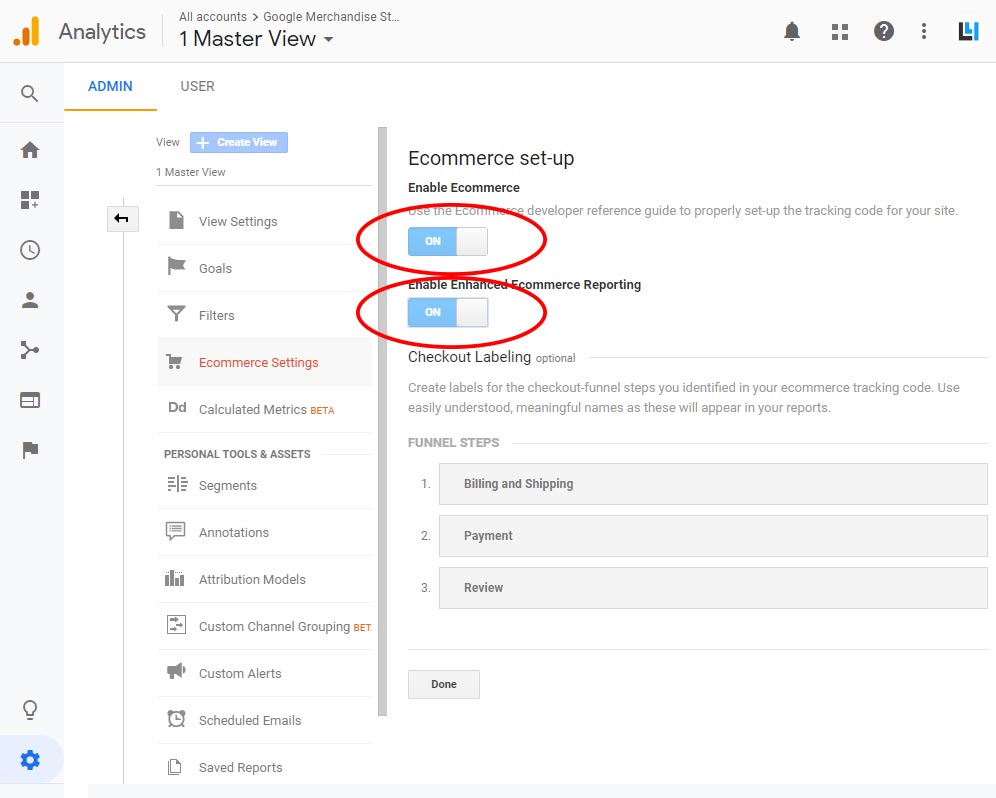
In your Google Analytics admin account, open the ‘Ecommerce Settings’ section and enable both eCommerce and Enhanced eCommerce reporting. That’s it — you’re ready to start collecting eCommerce transactions into your regular analytics account.
Google Analytics — Ecommerce Settings
Google Analytics — Enable Ecommerce & Enhanced Ecommerce
Once orders start coming in, here’s exactly where to look.
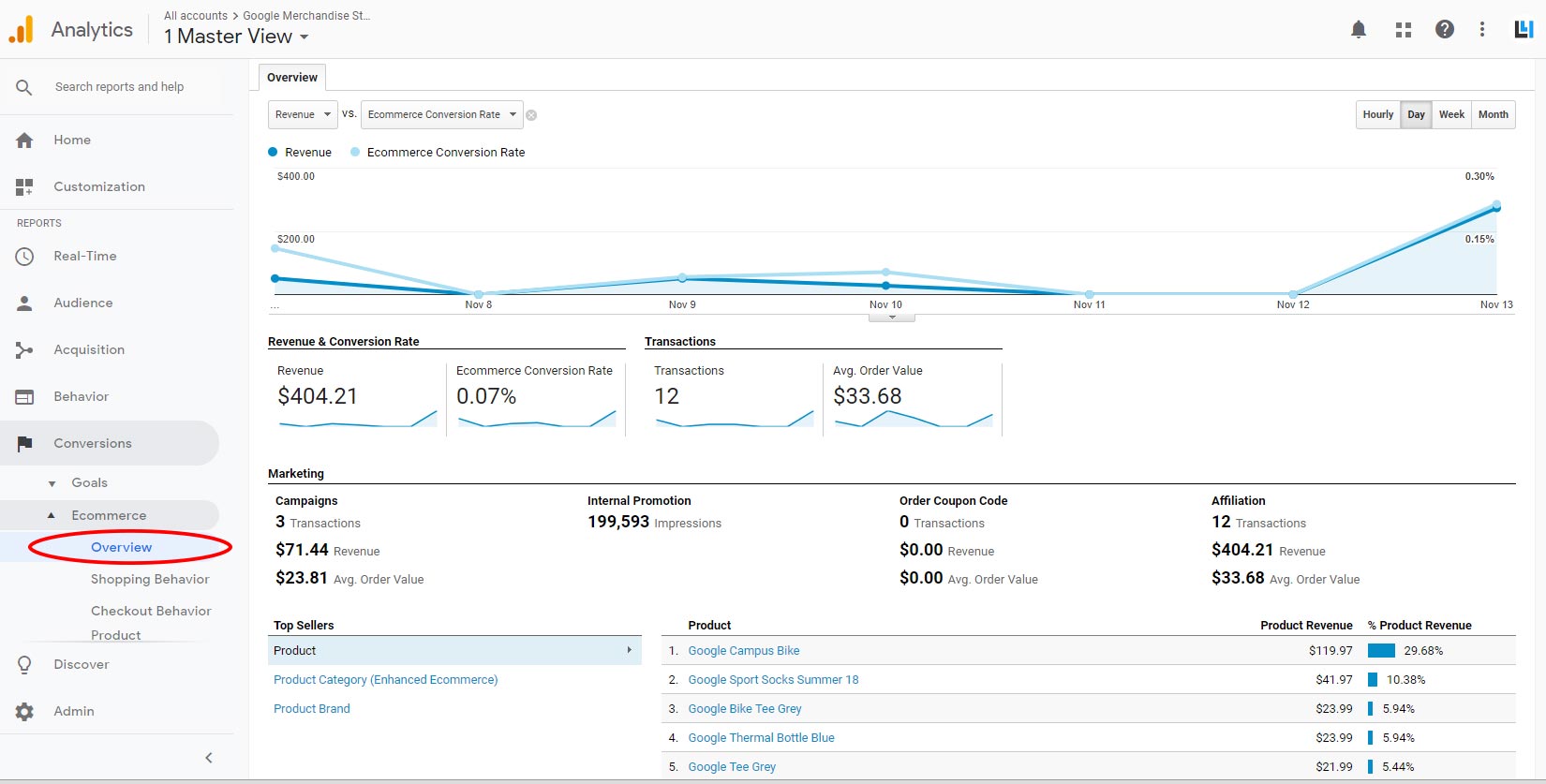
In Google’s analytics interface, go to ‘Conversions’ › ‘Ecommerce’ › ‘Overview’ to watch your data start rolling in.
Google Analytics — Ecommerce Overview
Stop guessing which products convert. Connect Google Analytics today and watch every order feed straight into your reports.