Easy Product Navigation in WordPress

2 min read

Products

Easy Product Navigation

Give shoppers a clean path through your catalog. WP EasyCart lets you build navigation two ways — through WordPress’s own built-in menu system, or with drag-and-drop widgets — so menus, manufacturers, product groups, and individual products all land right in your site’s navigation.

Two Ways to Build Your Menu

As of version 1.2.15, the fastest route is combining WordPress’s built-in menu system with EasyCart’s menu items. Prefer something faster to set up? Our provided widgets drag and drop into place without any fuss.

💡 Note: Either method’s menus can be restyled to match your theme using standard CSS or our built-in colorizer — so the look is always in your hands.

Method 1 — WordPress Built-in Menu Structure

The latest and easiest way to build store navigation, using the menu system already inside WordPress.

1

Open the WordPress Menu Screen

Go to Appearance › Menus in WordPress.

WordPress — Appearance › Menus
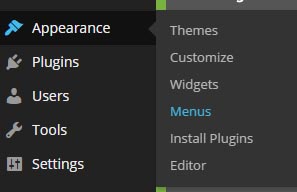
WordPress Appearance menu showing the Menus screen
2

Open Screen Options

When the Menus page loads, go to the top right of the WordPress admin and open the Screen Options drop-down.

WordPress — Screen Options

WordPress Screen Options drop-down on the Menus page
3

Enable Store Items

Check the Store Items box. This unlocks the ability to add store items — menus, manufacturers, product groups, or products — to your menu system.

WordPress — Store Items Screen Option

WordPress Screen Options with the Store Items checkbox enabled
4

Add Store Items to Your Menu

Open the new Store Items accordion tab to start adding to your menu. Just like pages, posts, links, or categories in WordPress, store items add in exactly the same way.

WordPress — Store Items Accordion Tab
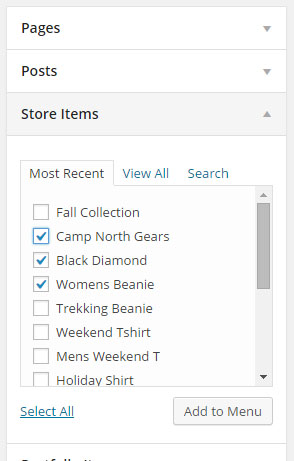
WordPress Store Items accordion tab listing menus, manufacturers, product groups, and products

Method 2 — WordPress Widgets

The second way to show the store menus you build in the EasyCart admin console — no menu editor required.

Go to Appearance then Widgets to access them. The vertical menu widget is a great choice for the sidebar of most blog-style themes.

Vertical Menu or Horizontal Menu

Two layouts, same menu data underneath — pick whichever fits your theme.

The vertical menu makes a great sidebar widget and can accommodate a lot of menu items — it expands and contracts based on whether sub-items exist underneath, with plus and minus icons for opening and closing choices.

The horizontal menu makes for a popular layout across the top of a website. Its drop-down system supports up to 3 layers of menus — keep the first layer to 7 or 8 items max, or it gets too wide to fit across the page.

💡 Note: Menus only go 3 levels deep, no matter which layout you choose.

Example — Vertical Menu in a Sidebar Widget
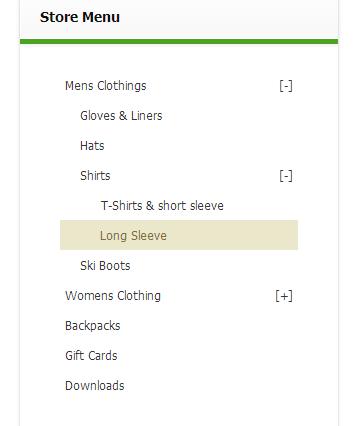
WP EasyCart vertical menu widget shown in a sidebar

Get Your Catalog Navigable

Whichever method you choose, shoppers will find their way to your products faster — and if you get stuck along the way, we’re here to help.

Updated on July 20, 2026
