How to Use WordPress Product Widgets

3 min read

Products

WordPress Product Widgets

WP EasyCart ships with a full set of widgets that plug straight into your theme — search, filtering, newsletter sign-up, and product display widgets that let you shape exactly what shoppers see, wherever you want it, with zero custom coding.

Where to Find Widgets

Every EasyCart widget lives in one place: your WordPress admin’s native widget manager. Head to Appearance then Widgets and they’re all right there, ready to drag into place.

💡 Note: Widgets can be applied to different areas of your website depending on your theme. Most themes place widgets into sidebars, but some don’t offer sidebars at all — well-built themes let you add widget areas to pages, headers, footers, or nearly anywhere else. Can’t find where to add widgets? Ask your theme developer.

WordPress — Appearance › Widgets
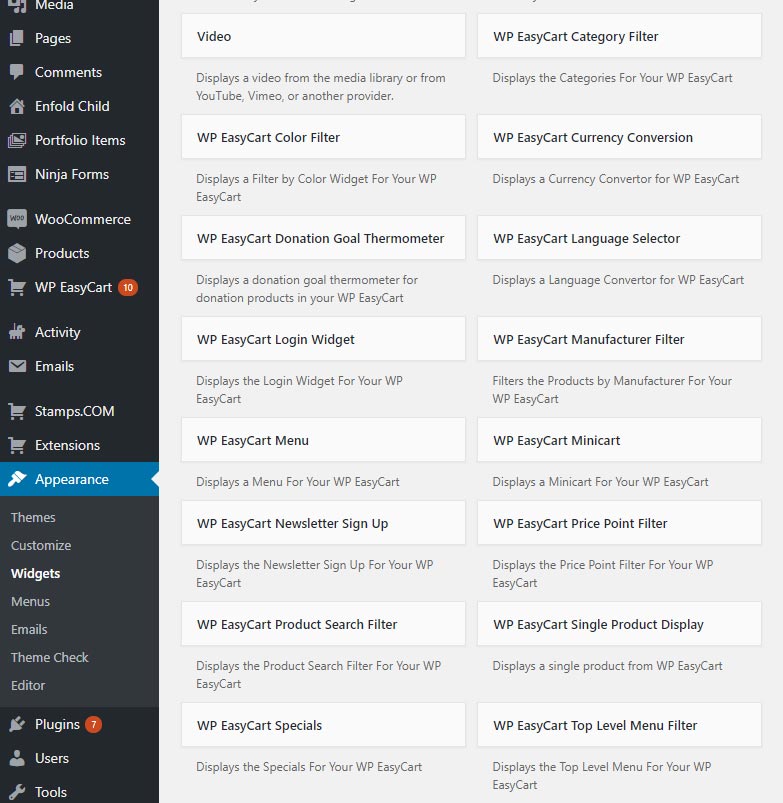
WordPress Appearance Widgets screen listing WP EasyCart widgets

Product Menu & Category Widgets

Two widgets, two ways to group your products — pick the one that fits your store.

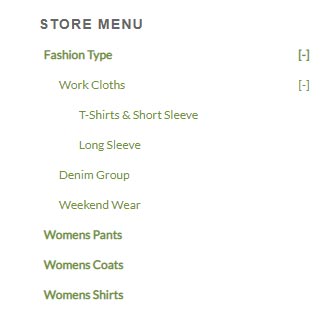
To use the menu widget, build your structure first in EasyCart › Products › Menus. To use the category widget, build your structure in EasyCart › Products › Categories. Choosing between the two? We highly recommend categories. And if neither widget fits your theme well, you can always build your own navigation in WordPress › Appearance › Menus instead — the EasyCart widgets are there to explore, not required.

WP EasyCart — Store Menu Widget

WP EasyCart store menu widget shown in a sidebar

Product Filtering Widgets

High-end filtering, standard in EasyCart. Let shoppers narrow results by price, manufacturer, or category — the kind of filtering you usually only see on the big eCommerce platforms.

Use just one, mix two, or run all three together — simply drag the widgets you want into your sidebar widget area in WordPress.

WP EasyCart — Product Filtering Widgets

WP EasyCart product filtering widgets for price, manufacturer, and category

Product Search Widget

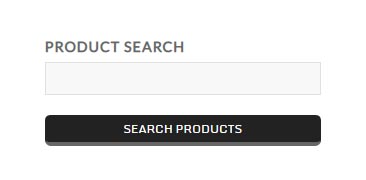
Customers search by name or manufacturer — just drag and drop the search widget into any sidebar or widget area.

WP EasyCart — Product Search Widget

WP EasyCart product search widget in a sidebar

Newsletter Sign-up Widget

One email address, one click, and a customer joins your list — no account required.

Every sign-up lands right alongside customers who created accounts and opted in — all in one easy-to-find spot in the EasyCart admin console. From there, send email blasts yourself or export the list to your favorite third-party email platform.

WP EasyCart — Newsletter Sign-up Widget
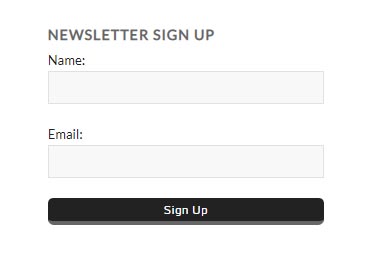
WP EasyCart newsletter sign-up widget in a sidebar

Product Specials & Single Item Widgets
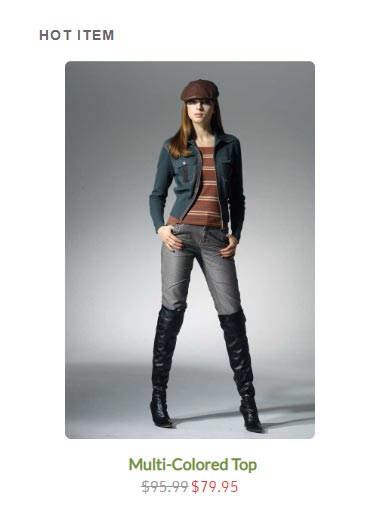
Two marketing widgets, built to put your best products front and center anywhere on your site.

The multiple product display widget shows several items at once — perfect for store specials or featured collections. Prefer to spotlight just one thing? The single product widget does exactly that. Both are great ways to market your most important items around your website.

WP EasyCart — Product Specials & Single Item Widgets

WP EasyCart product specials and single item display widgets

Mini Cart Widget

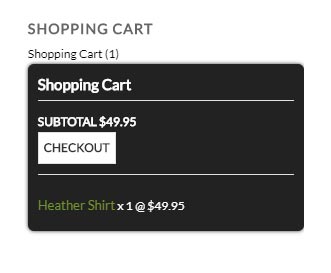
A quick-glance cart for sidebars or top menus — open on rollover so shoppers see what’s inside without leaving the page.

The mini cart widget works in most themes and gives shoppers quick access to everything in their cart, plus a link straight to checkout. It opens automatically when a customer rolls over it — no click required.

WP EasyCart — Mini Cart Widget

WP EasyCart mini cart widget open on rollover

Ready to Style Your Store?

Drag, drop, done. Mix and match EasyCart’s widgets until your store looks and works exactly the way you want.

Updated on July 20, 2026