Third Party
WP EasyCart Apps
Premium edition unlocks external apps for desktop, tablet, and phone — manage your store without ever logging into WordPress. Tablet and desktop apps carry the full feature set; phone apps keep it simple with quick order lookups. The WordPress admin console is already mobile friendly, but if you’d rather work from an app than a browser, this is for you.
Where to Download the Apps
Every app links back to the same members area — find them from your WP EasyCart members area page.
- Android: Tablet and phone apps are available on the Google Play network.
- iPad & iPhone: Available on iTunes.
- Desktop (PC & Mac): Available via direct links on our members area page.
Installing the Apps
Two different install paths, depending on your device.
Phone & Tablet
Whether Apple or Android, just search “EasyCart” and install like any other app on your device.
Desktop (PC & Mac)
Requires Adobe AIR — a free platform that lets our application run. Click here to download Adobe AIR for free, then double-click to install our app.
Logging In to External Apps
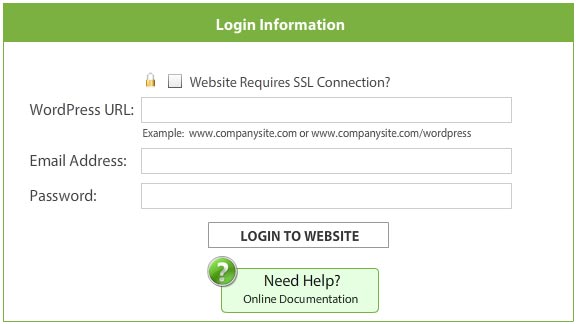
Every app asks for the same three things when it opens: your Site URL, an Email, and a Password.
These are not WordPress accounts
The external apps require you to set up an ‘Administrator’ user account inside EasyCart. This account is completely separate from your WordPress login.
- Website Requires SSL Connection?: Apple apps already force SSL, so your site must have one. On desktop or Android, check this box if your site has an SSL certificate — and for ecommerce, it probably should.
- WordPress URL: Your website address — not your admin area. If your site is www.myfavoritewebsite.com, that’s what you type here.
- Email Address: Any EasyCart ‘Administrator’ account with remote access enabled — not a WordPress account. Learn more about user accounts.
- Password: The password you created when you set up that ‘Administrator’ account with remote access.
WP EasyCart App — Admin Login Screen

Troubleshooting Login
The apps talk to your WordPress through a single URL. Block that URL and login stops working — here’s how to unblock it.
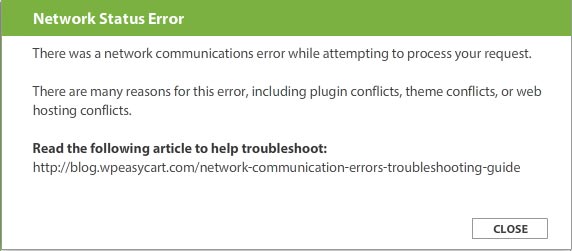
Network Status Error
This means the app is having trouble talking to your website. Here are the most common causes and fixes:
- Server Mod Security rules: A common culprit — your host may be blocking AMF traffic. Ask them about Mod Security rules blocking AMF PHP traffic, and whether they can allow it via an htaccess command.
- Firewall or security plugins: These often block URLs that aren’t directly tied to WordPress. Deactivate security or firewall plugins and test — if that fixes it, add an exception rule for these apps.
- Caching plugins: Can cause non-WordPress pages to error out too. Deactivate and test to narrow down the culprit.
- Themes: A few poorly built themes interfere with any incoming URL. Switch themes and test to rule this out.
WP EasyCart App — Network Status Error
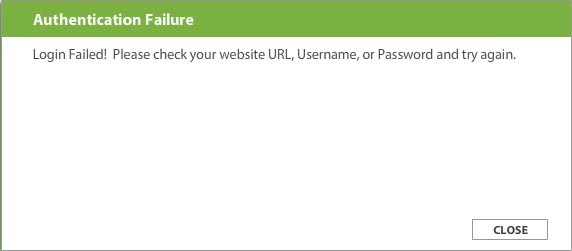
Login Failed Message
This is actually a good sign — the app is talking to your WordPress site fine, but your email or password is incorrect.
Set Up the Correct Account
Remember, these aren’t WordPress accounts. They’re EasyCart accounts — you must set up an ‘Administrator’ account with remote access from your user area. Learn more here.
WP EasyCart App — Login Failed Message
Premium Feature
See Your Whole Store From One Dashboard
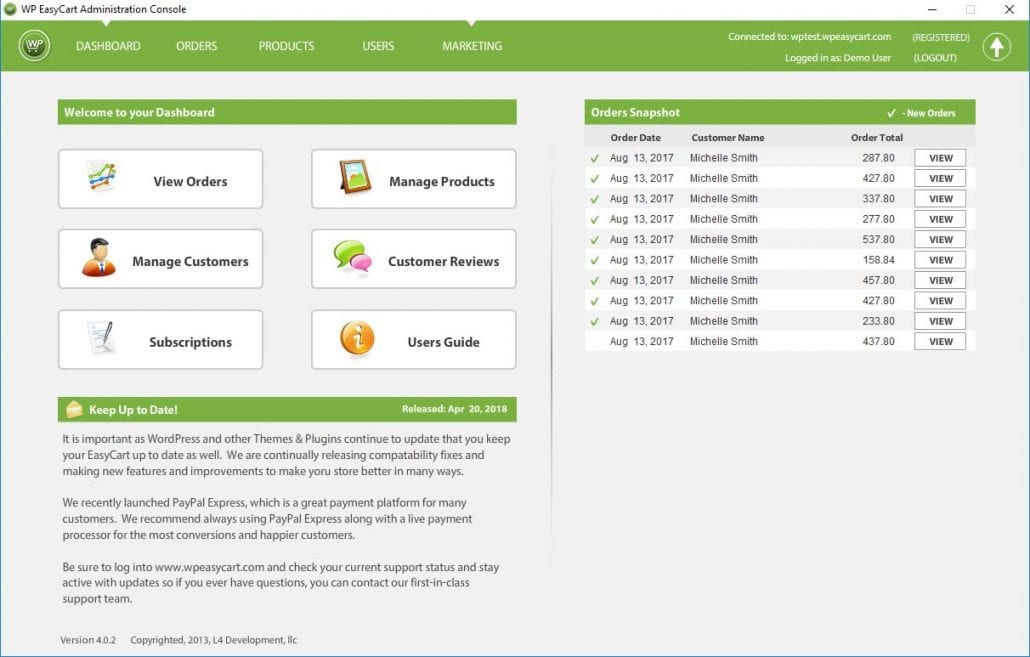
Once you’re logged in and connected, you get a full set of administrative tasks without ever opening WordPress. Most customers use it to view orders quickly, print receipts, and update order status on the go. Phone apps stick to orders; tablet and desktop apps add product, user, and review management on top.
💡 Note: More functionality lives in the WordPress admin area — not every feature has made it into the apps yet.
WP EasyCart App — Dashboard Overview

Want Your Store in Your Pocket?
Premium unlocks the full app lineup — desktop, tablet, and phone. If login or setup is giving you trouble, our support team is ready to help.