
Page Building
Gutenberg Blocks
WordPress 5.0+ replaced the classic editor with Gutenberg — a block-based page builder built directly into WordPress. WP EasyCart offers dedicated Gutenberg blocks that let you drop store grids, cart pages, add-to-cart buttons, and more into any page without writing a single shortcode.
Watch the Setup Walkthrough
See how to create pages with EasyCart’s Gutenberg blocks — from adding your first block to filtering products by category.
Using Gutenberg Blocks
Learn how to use Gutenberg blocks to create custom product pages, add-to-cart buttons, and filtered store grids.
Quick Start
Add EasyCart blocks in three steps
Create a new page
Add a new page in WordPress and give it a title. The title is used as a page title and does not display as an actual heading.
Add an EasyCart block
Click the block inserter and look for the WP EasyCart section. Choose from store grids, cart, account, and more.
Configure & publish
Set your block options — filter by category, choose a display type, or pick a product — then publish.
Step-by-Step
Using EasyCart blocks in Gutenberg
Gutenberg’s block system lets you add columns, headings, paragraphs, images, and video in modular blocks — then rearrange them however you like. Here’s how to add EasyCart content.
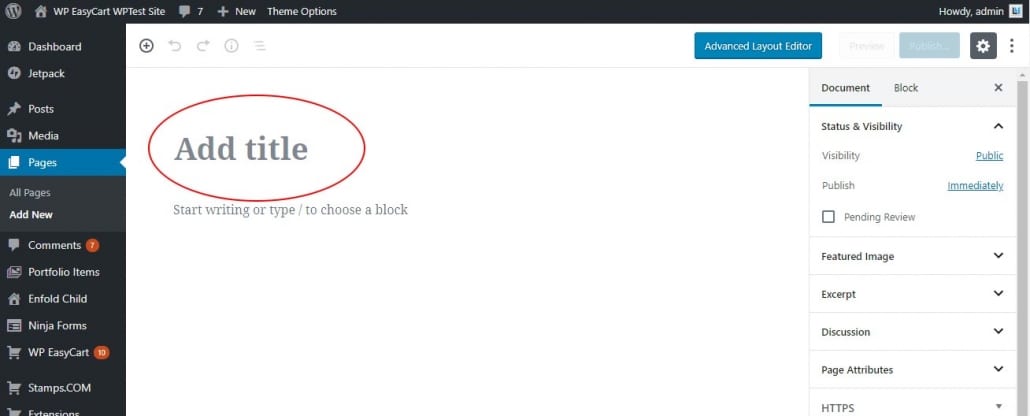
Step 1 — Create a new page and add a title
Start by adding a new page in WordPress. Click on the title area and type a simple page title. This is used as the page’s title attribute and does not display as a visible heading on the front end.
Adding a page title in Gutenberg
Step 2 — Create a new block and choose WP EasyCart
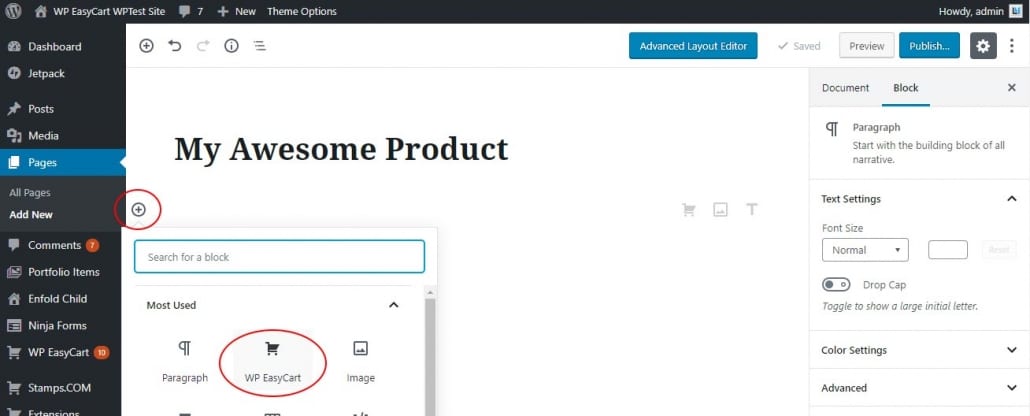
Click the block inserter and browse the available blocks. You’ll see layout elements like columns alongside content blocks like paragraphs, headings, and images. Scroll to the WP EasyCart section to find the store-specific blocks.
Selecting a WP EasyCart block
Step 3 — Choose what your EasyCart block does
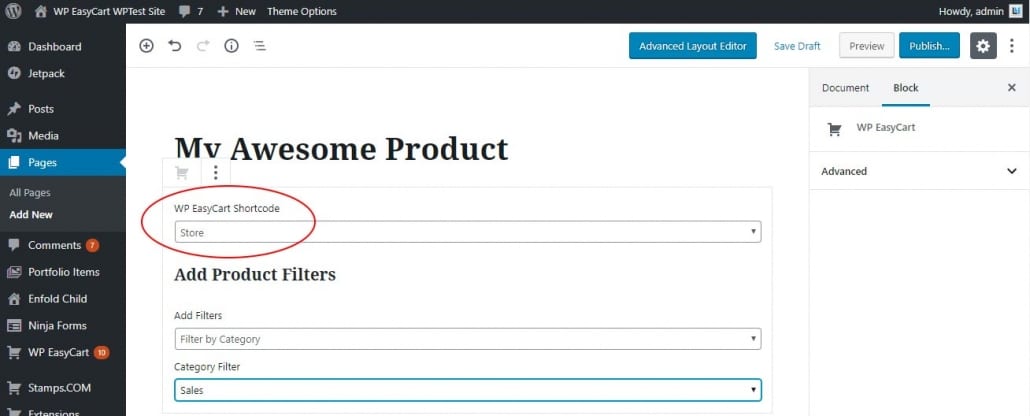
Pick the type of EasyCart block you want — a store grid filtered by category, a single product display, an add-to-cart button, or any of the other options below. In this example we’re adding a store grid filtered to show only “Sales” items, so only sale products appear on this page.
Configuring an EasyCart block
Reference
Available EasyCart blocks
Every block below is available in the Gutenberg block inserter under the WP EasyCart section. Pick the one that fits your page layout.
Store Block
Displays a grid of products just as your store page would show. Filter it to display specific groups of products:
- Filter by Category
- Filter by Menu
- Filter by Sub Menu
- Filter by Sub Sub Menu
- Filter by Manufacturer
- Filter by Product
Cart Block
Displays the standard shopping cart with all the user’s products, subtotals, checkout buttons, coupons, and gift cards — everything you configure in Settings → Checkout.
Account Block
Shows the standard login or create-account screen. You can set a redirect URL if this is part of a membership system where users go directly to a specific page after logging in.
Category Standard Display Block
Displays all of your categories in a grid layout instead of products. For example, categories for t-shirts, pants, and shoes would each appear as a clickable tile.
Store Table Display Block
A five-column table layout of products that works like a spreadsheet. Add specific products and categories, then control what the five column labels and content contain — product ID, title, price, available quantity, and a link to view more details.
Product Display Block
Shows a single product from the normal store grid (not the full product details page). Choose to display it as the default store design, a sidebar widget design, or custom display type 1.
Add to Cart Button Block
Drops a product’s add-to-cart button onto any page or block location — great for designing your own product page and linking it to a product for easy purchasing. The block automatically shows option sets if the product has them, along with the product’s price. Use custom CSS to hide parts of the button if you want to customize further.
Cart Display Block
The same as the Cart Block, but without checkout and subtotal information. Displays only the list of products currently in the user’s cart.
Membership Content Block
Lets you wrap content in a membership gate. Select the product the user must have purchased — if they own it, the membership content area displays. You can also use the sidebar panel to block the entire page based on product, subscription, or membership level.
Start building with EasyCart blocks
Drop store grids, cart pages, and add-to-cart buttons onto any WordPress page using the Gutenberg block editor — no shortcodes required.