
Step 2. Install WP EasyCart
Free from the WordPress plugin directory
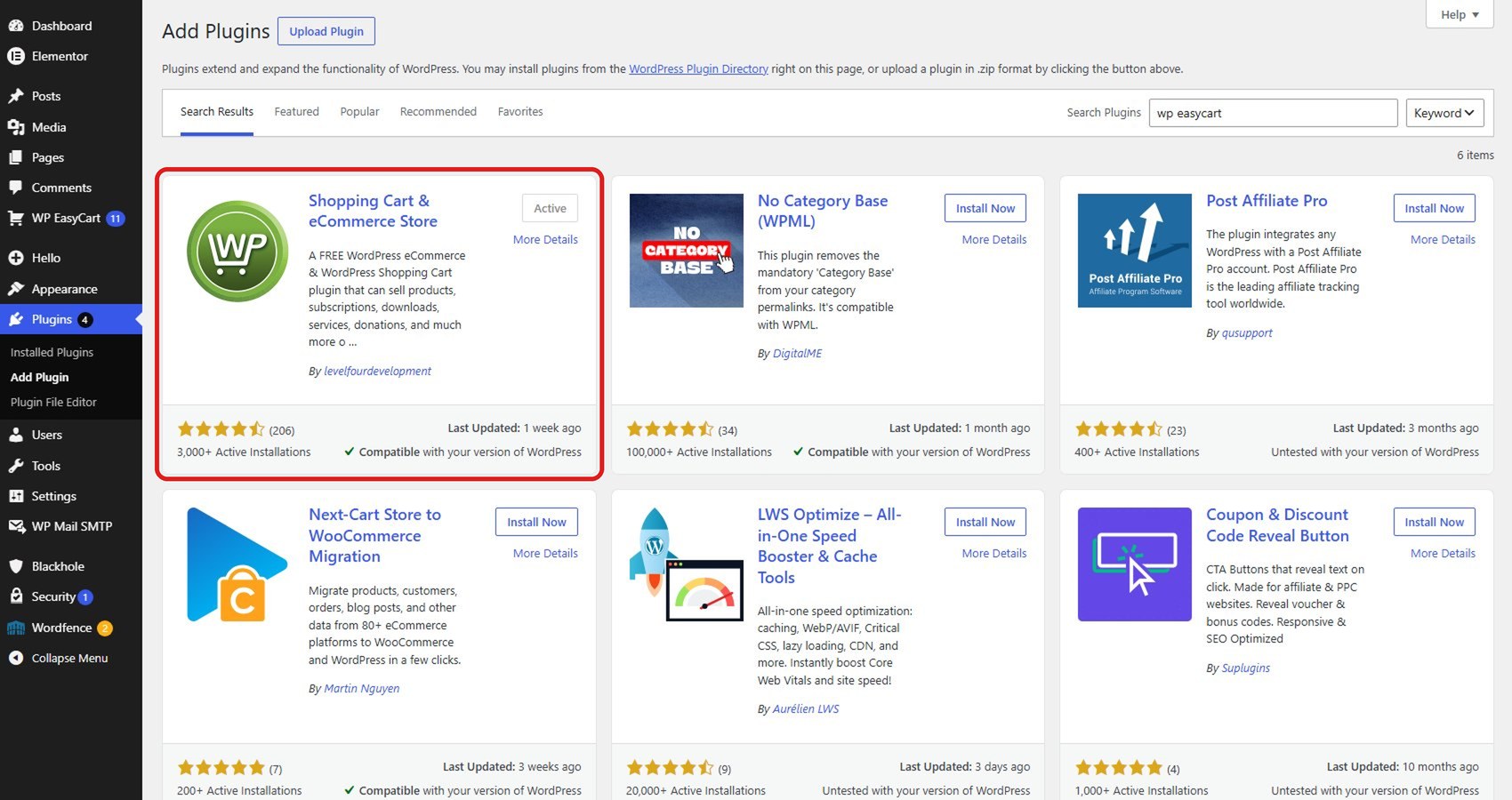
In WordPress open Plugins › Add New, search for WP EasyCart, click Install Now, then Activate.
Full install guide →
Step 3. Run the setup wizard
Location, payments, shipping, done
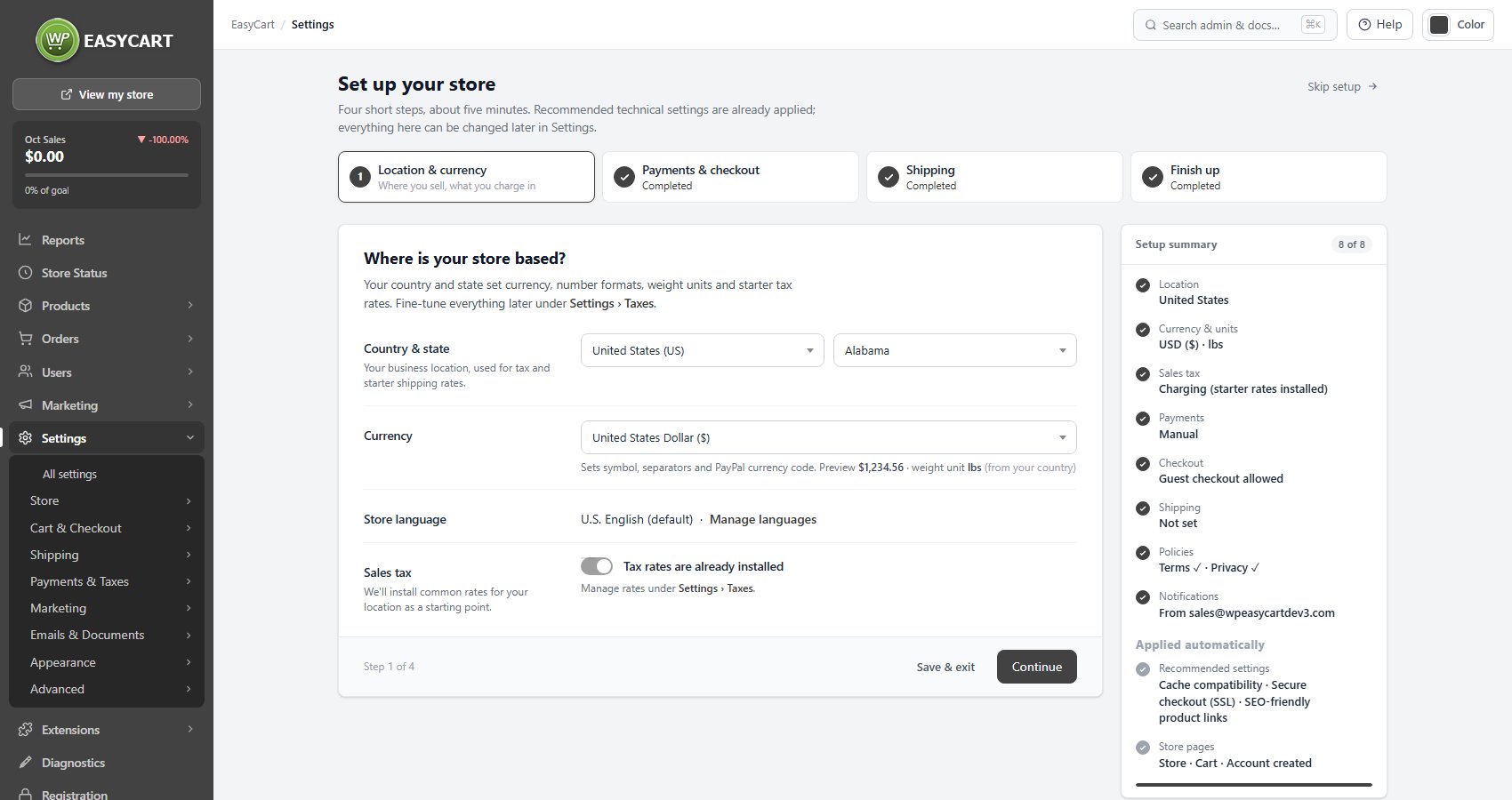
Open EasyCart › Settings. Until it is finished, the setup wizard opens first: Location & currency, Payments & checkout, Shipping and Finish up. It creates your Store, Cart and Account pages and applies the recommended settings. Everything can be changed later.
Every wizard step explained →
Step 4. Add your first product
Name, price and a photo is enough
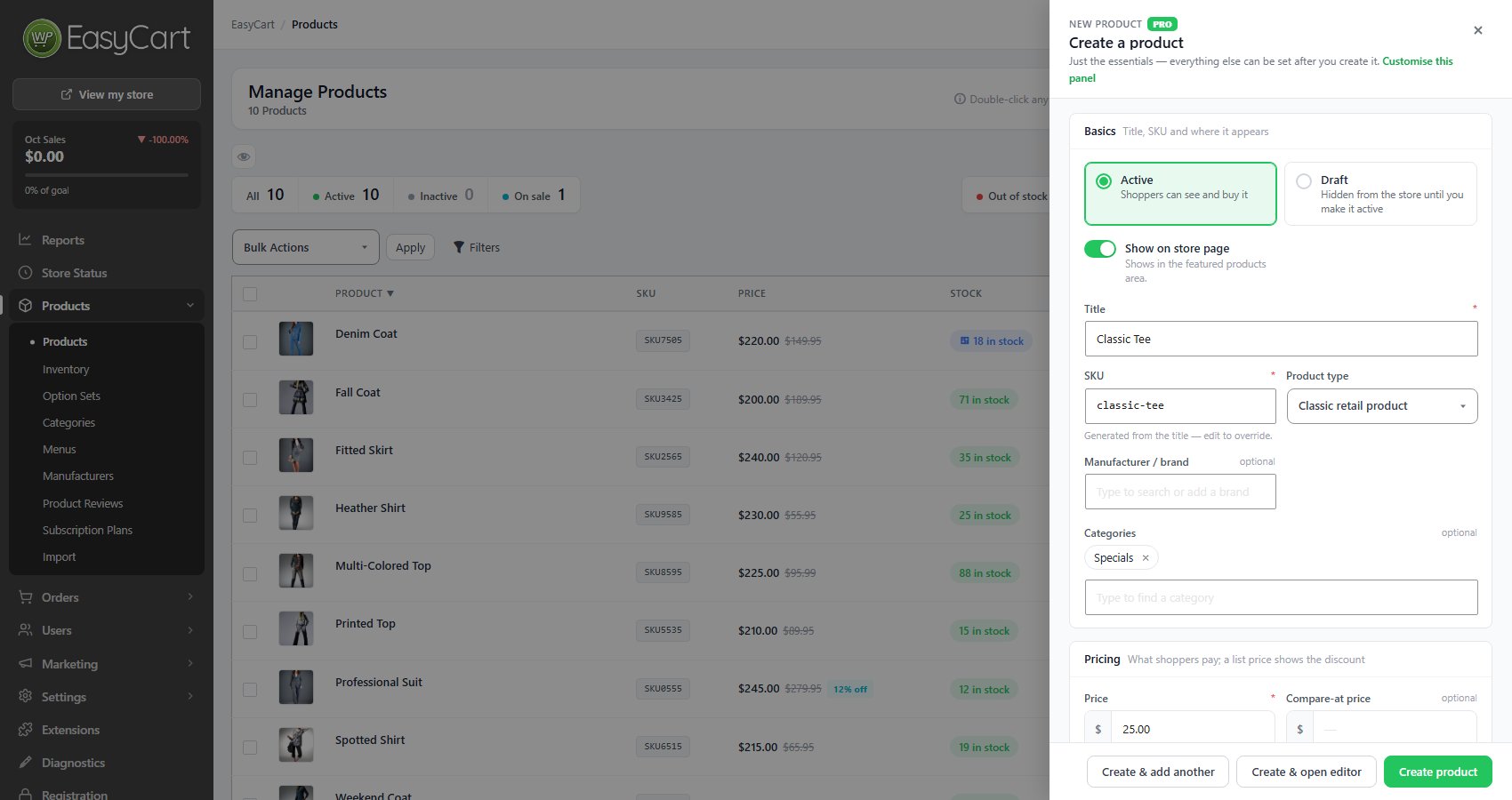
Open EasyCart › Products and click Add product. In the Create a product panel, leave it Active, give it a title, a price and a photo, and press Create product. You can fill in the rest later.
Adding a product, step by step →
Step 5. Place a test order
See the store the way a customer does
Open your store, add the product to the cart and check out with your gateway in test mode. Then confirm the order shows under EasyCart › Orders and the order email arrived.
How to take your first payment →

Step 6. Go live
Tick off the launch checklist
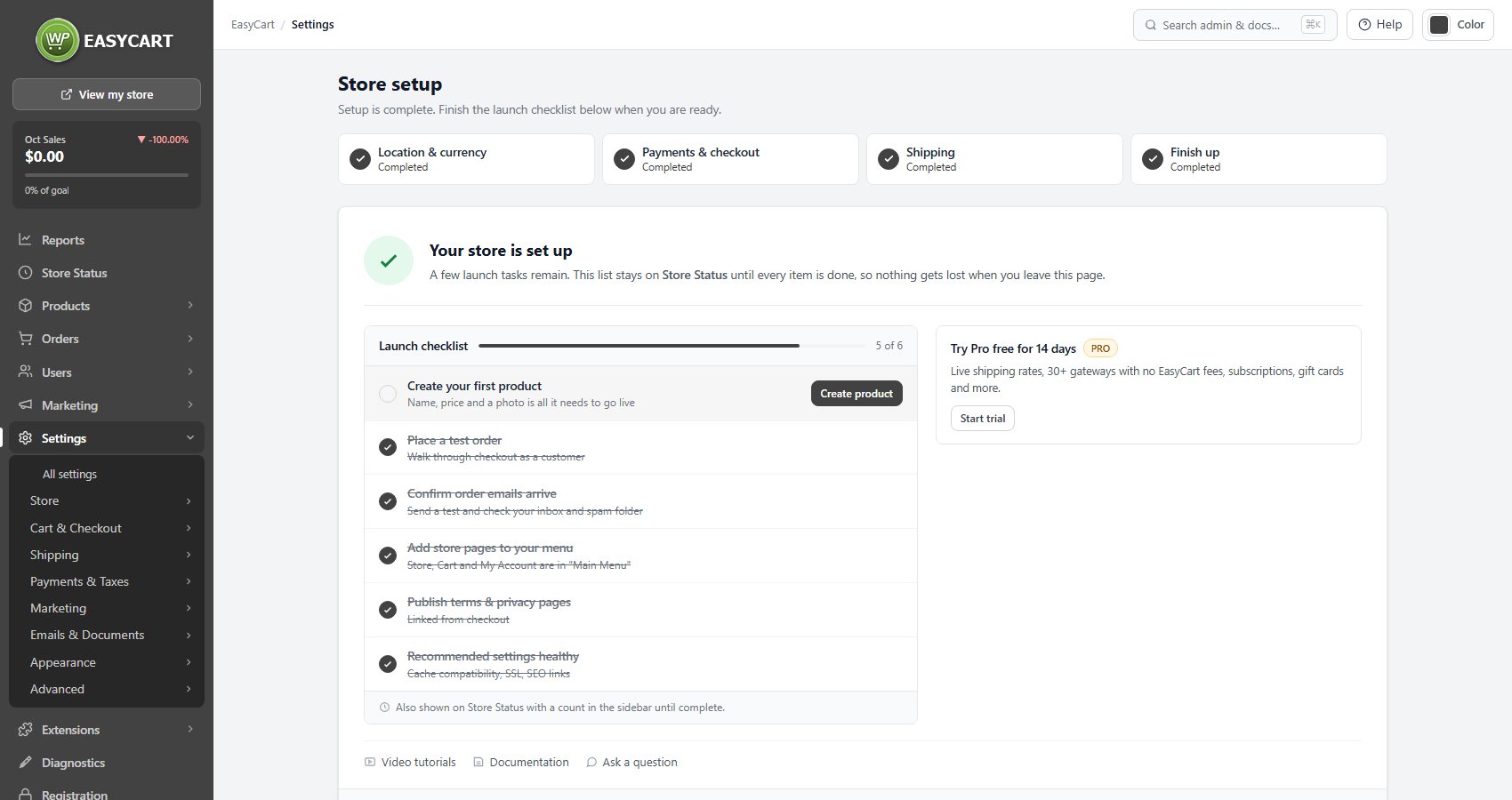
The wizard ends on a Launch checklist: create a product, place a test order, confirm order emails arrive, add the store pages to your menu, publish terms and privacy pages. Finish it, turn off test mode on your gateway, and you are open.
The full first-store walkthrough →
Ready to run your store on WP EasyCart?
Everything in this guide works with the free plugin. PRO and Premium add subscriptions, memberships, wholesale pricing and more. Try every PRO feature free for 14 days.
