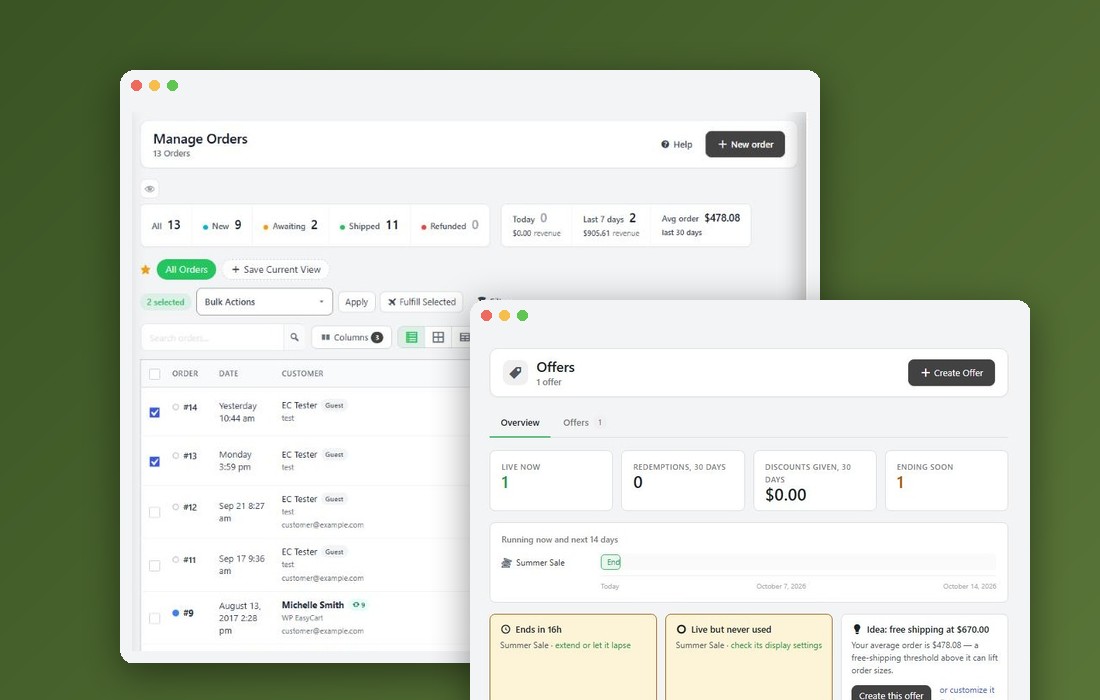
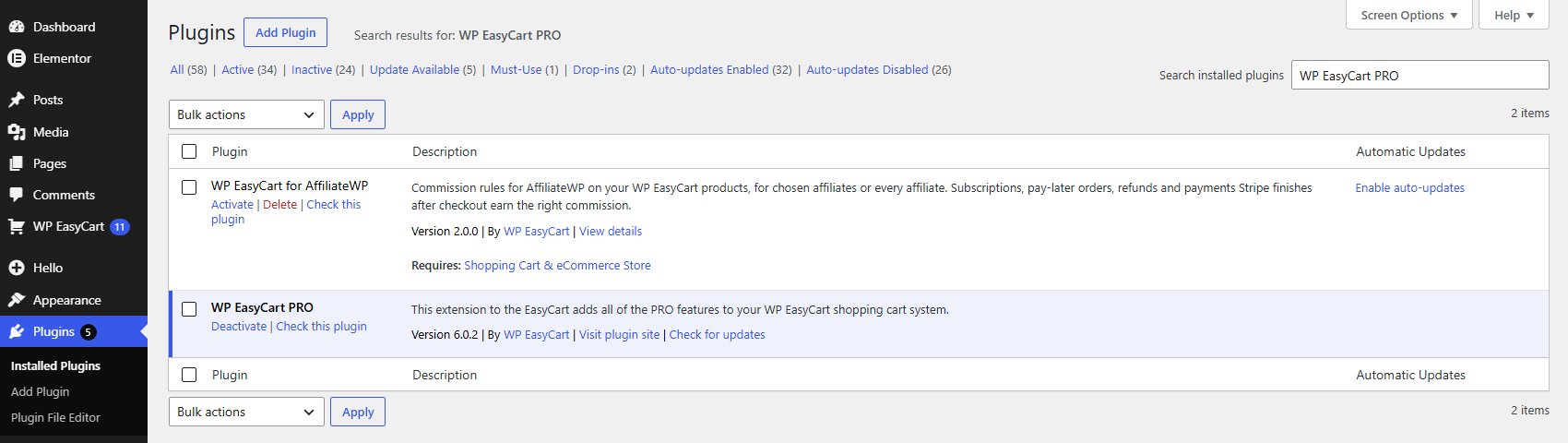
Step 1. Install and activate WP EasyCart PRO
The license form only appears once PRO is active
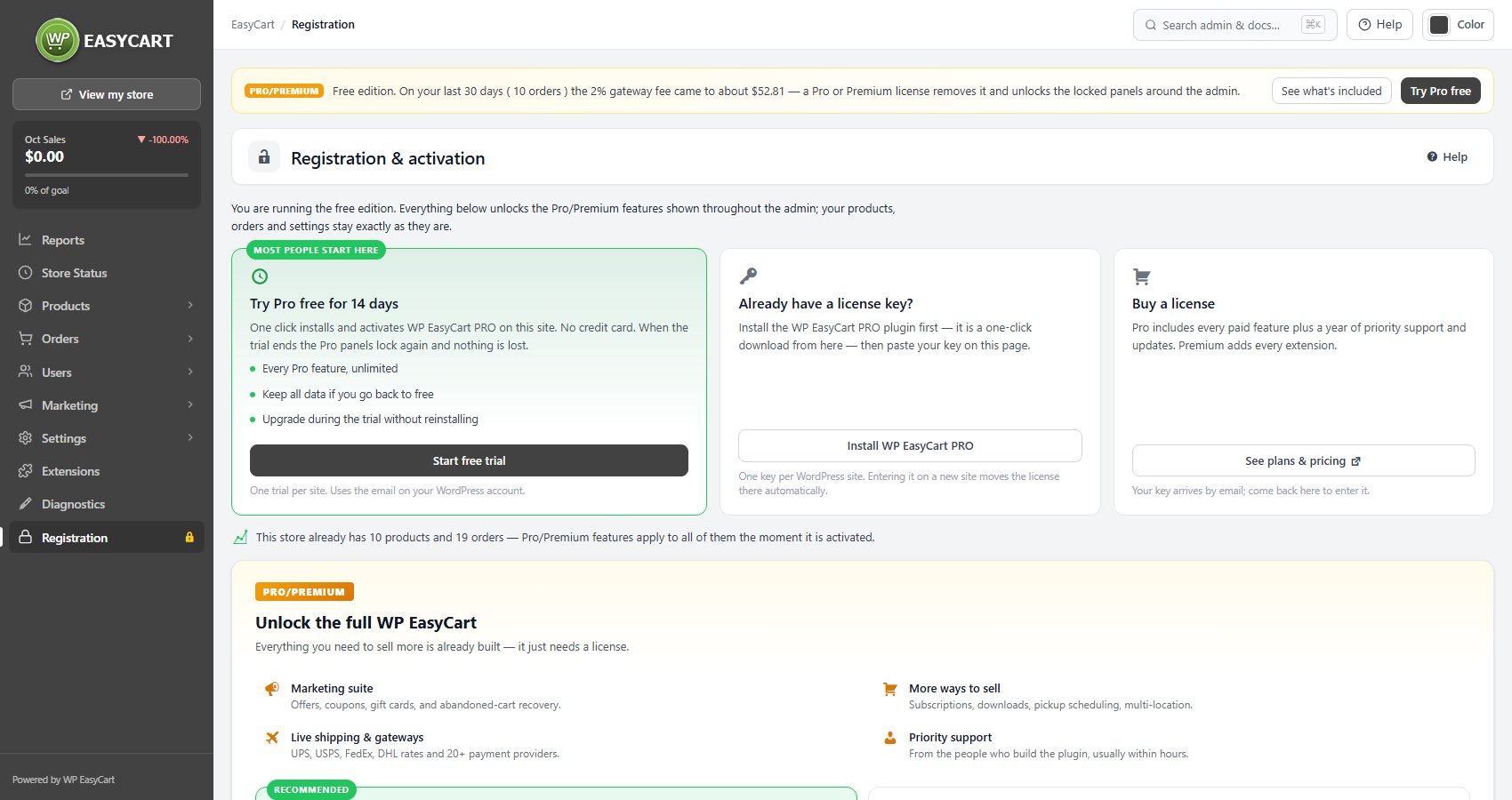
On the free edition, EasyCart › Registration shows three routes: Try Pro free for 14 days, Already have a license key? and Buy a license. If PRO is not installed yet, the key route offers Install WP EasyCart PRO. If PRO is installed but switched off, it offers Activate WP EasyCart PRO instead.
Either way, the result is the same: PRO is listed and active on Plugins › Installed Plugins. The full walkthrough, including uploading the zip by hand, is in Installing EasyCart PRO.
Step 2. Open Registration
EasyCart › Registration
Go to EasyCart › Registration. The page heading is Registration & activation in every state, but the page below it changes with your license.
With PRO active and no license on this site, it says WP EasyCart PRO is installed but no license is attached to this site and shows three cards: the trial, Already have a license key? with the form, and Forgot your key?, which opens your account.
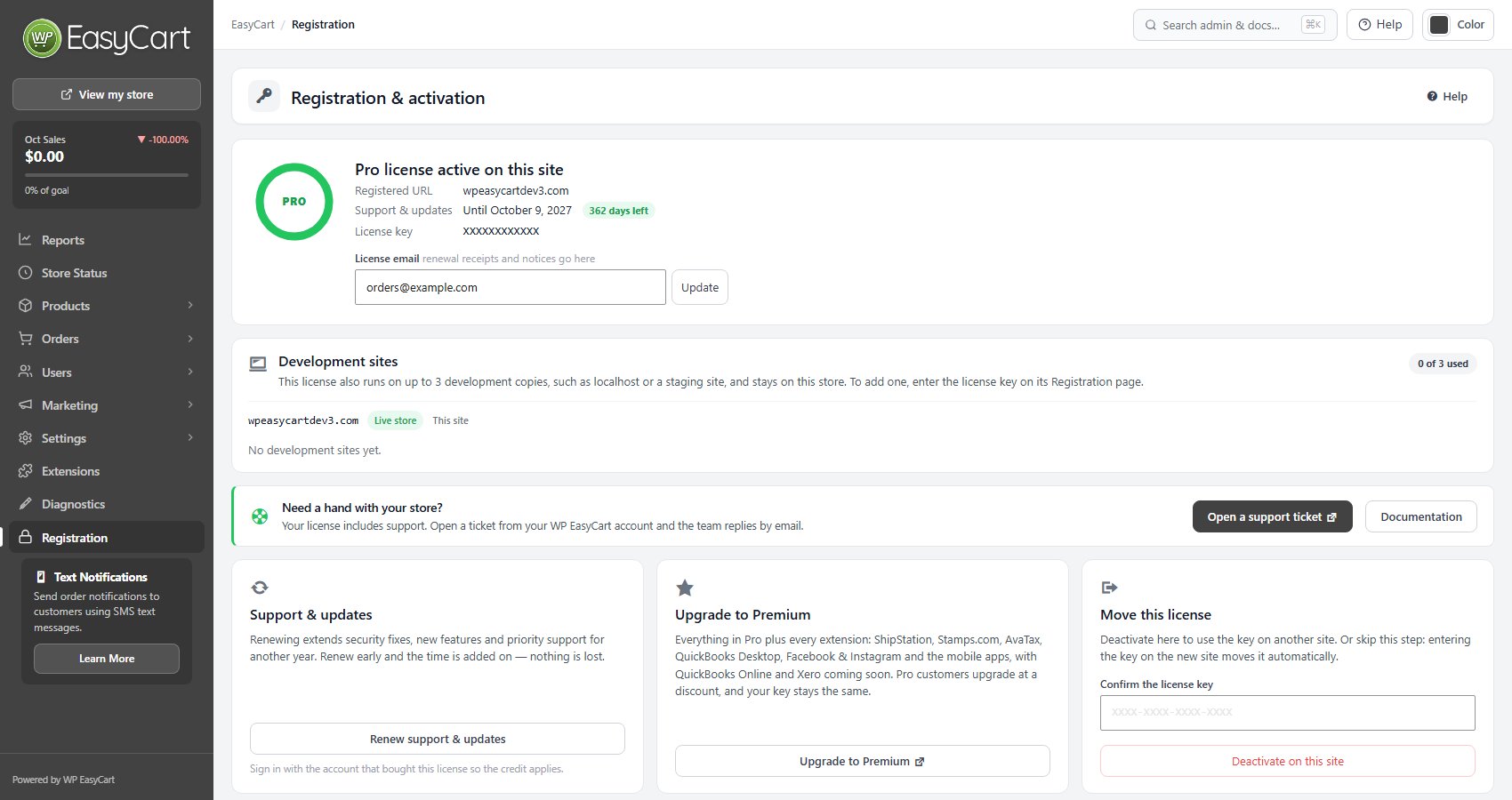
On a trial, the page shows the trial details and Already bought a license?. With an active license it shows the license card instead, with the Development sites card under it. That is the screen in the picture.
Step 4. Check the license card
Edition, registered address, support end date
The card at the top confirms Pro license active on this site or Premium license active on this site, then lists:
Registered URL: the site the key is attached to.
Support & updates: the end date and how many days are left.
License key: the key in use.
License email: change it here and press Update.
The registered address is your WordPress site address without https:// and www.. Switching to https or adding www does not affect the license. A new domain, a subdomain or a folder does. That is a move, covered in Transferring Your License.


What registration unlocks
Pro panels, updates, support and, on Premium, extensions
Every Pro panel. Features marked PRO across the admin open, on the products and orders you already have. Nothing is reinstalled.
No free-edition gateway fee. Stripe, Square and PayPal payments through EasyCart Connect carry an extra fee on the free edition. An active license removes it.
PRO updates. WP EasyCart PRO updates from your dashboard only with a current license. Without one, the PRO row on Plugins says why updates are paused and links to Registration or to your account, where AutoPay brings it back.
Support. The Registration page shows Open a support ticket, which opens your WP EasyCart account.
Premium extensions. On a Premium license the Premium extensions card sends you to EasyCart › Extensions, or offers Install WP EasyCart Premium, the plugin that installs and updates every extension. On a Pro license the same spot offers Upgrade to Premium, and your key stays the same. The steps are in Installing Extensions.
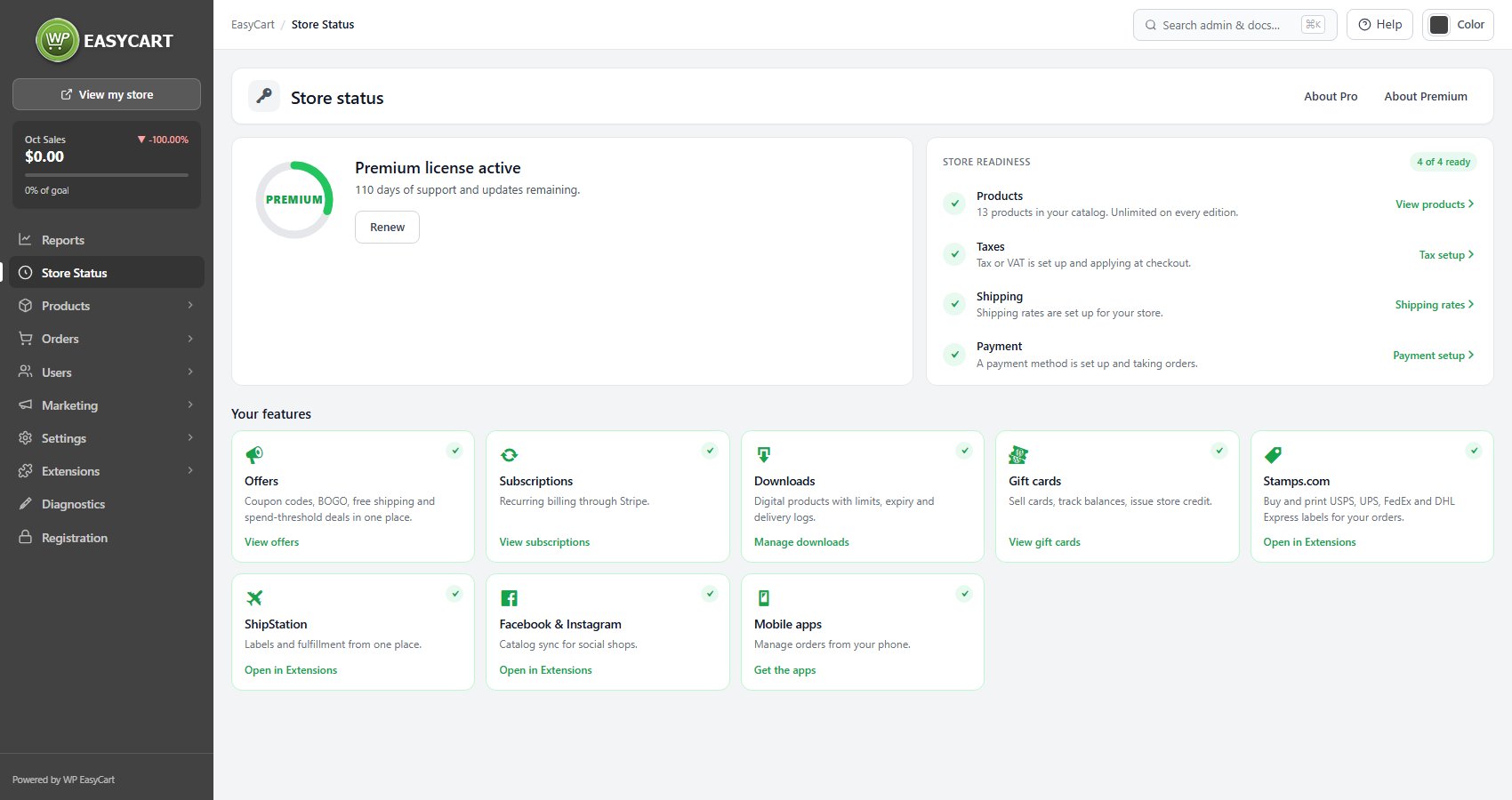
EasyCart › Store Status sums it up: the edition, days of support left, a store readiness check and the features you now have.
Ready to run your store on WP EasyCart?
Everything in this guide works with the free plugin. PRO and Premium add subscriptions, memberships, wholesale pricing and more. Try every PRO feature free for 14 days.