Step 2. Update WP EasyCart
From Dashboard › Updates or Plugins
The free plugin updates like any plugin from wordpress.org. Either:
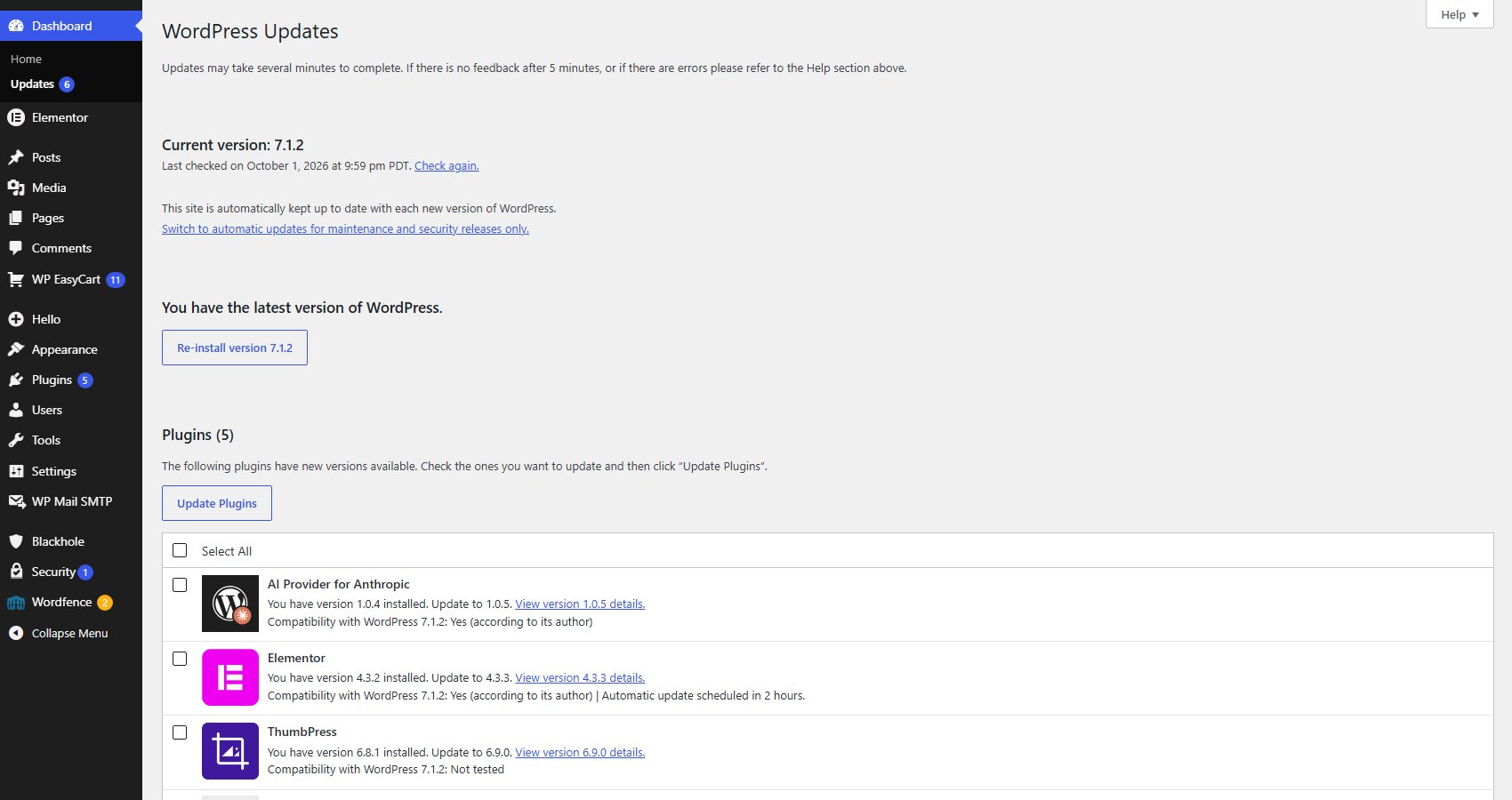
Go to Dashboard › Updates, tick WP EasyCart and press Update Plugins. Or:
Go to Plugins › Installed Plugins and press update now in the WP EasyCart row.
Update WP EasyCart before PRO and the extensions. PRO and the extensions run on top of it, and PRO switches its features off when the free plugin is older than it needs, with a notice that says Please update WP EasyCart first.
WordPress auto-updates work too. The row’s Enable auto-updates link turns them on.

Step 3. Update WP EasyCart PRO
Same screens, needs a current license
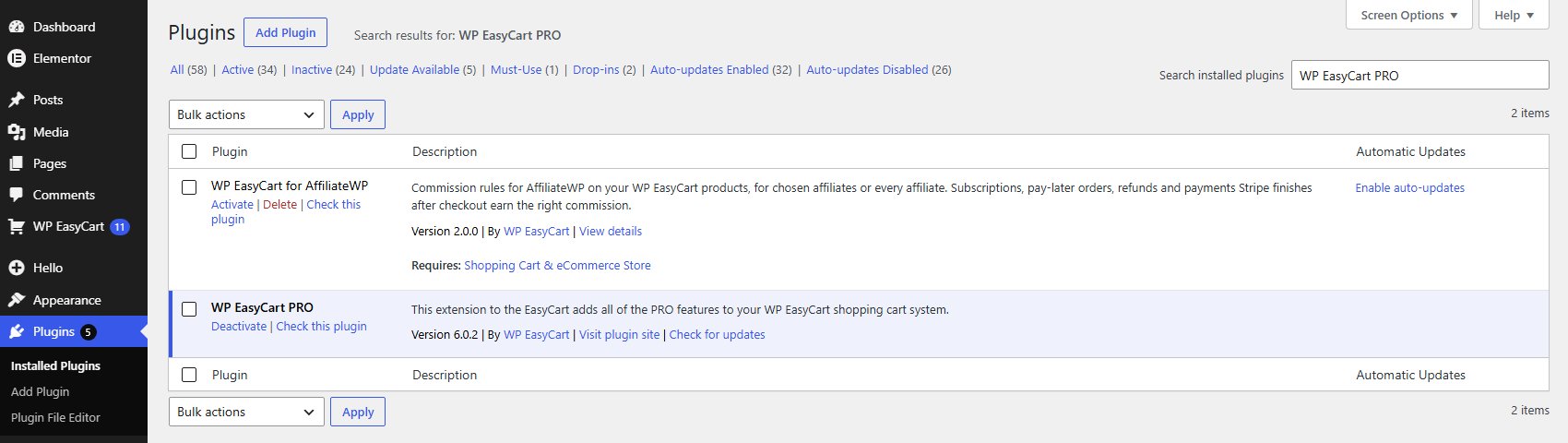
PRO’s updates come from WP EasyCart, not wordpress.org, but they show in the same places: Dashboard › Updates and the PRO row on Plugins. Its row also has a Check for updates link if you know a release is out and it has not appeared.
Updates need a current license. Without one, the PRO row explains instead:
Updates for WP EasyCart PRO need a Pro license, and none was found: register your key (see Registering Your License).
Updates for WP EasyCart PRO are paused because your Pro license expired: renew, and updates come back.
Updates for WP EasyCart PRO are paused because your Pro trial ended: upgrade the trial.
PRO keeps working with your current version while updates are paused.
Step 4. Update your extensions
EasyCart › Extensions, or Plugins
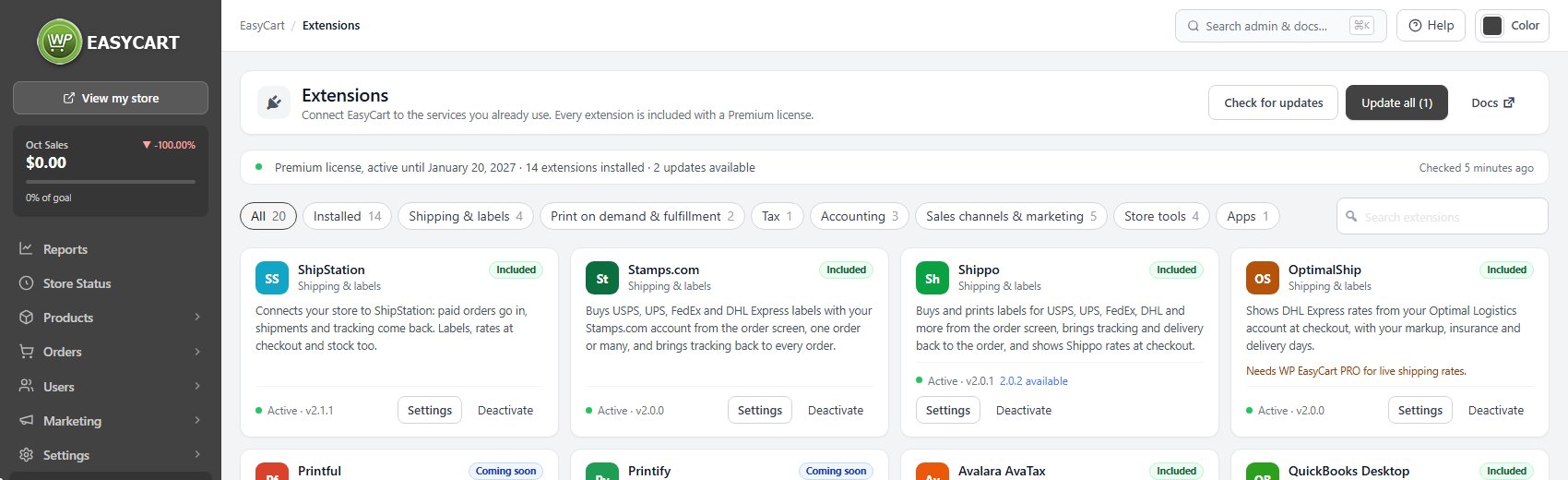
With WP EasyCart Premium installed (Premium licenses), open EasyCart › Extensions. The line under the header shows how many updates are available. Check for updates asks again, Update all updates every extension that has one. A card with a newer version shows it next to the installed version, and an Update to button once the download is ready.
The same updates also show on Dashboard › Updates and Plugins, and work with WordPress auto-updates.
Without WP EasyCart Premium, extensions update from the Plugins screen like any other plugin.
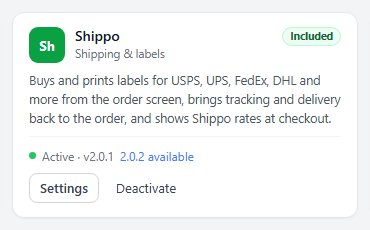
When an extension is too old for your WP EasyCart, every EasyCart screen shows a notice such as Update ShipStation: version … is out of date, … is ready with an Update button and Remind me in a week. The extension keeps running until you update, but update it soon: the notice says what the new version fixes.
Step 5. Let the database update finish
Automatic, in the background, after each update
Many updates change the WP EasyCart tables. That runs on its own: the next pages anyone loads, in the admin or the store, carry it out in short batches until it is done. You do not press anything.
While it runs, EasyCart › Diagnostics says Database upgrade in progress with the step it is on, and the menu shows a 1 next to Diagnostics. A few new features also say they are waiting for the database update. On a large store, open a couple of admin pages and give it a minute.
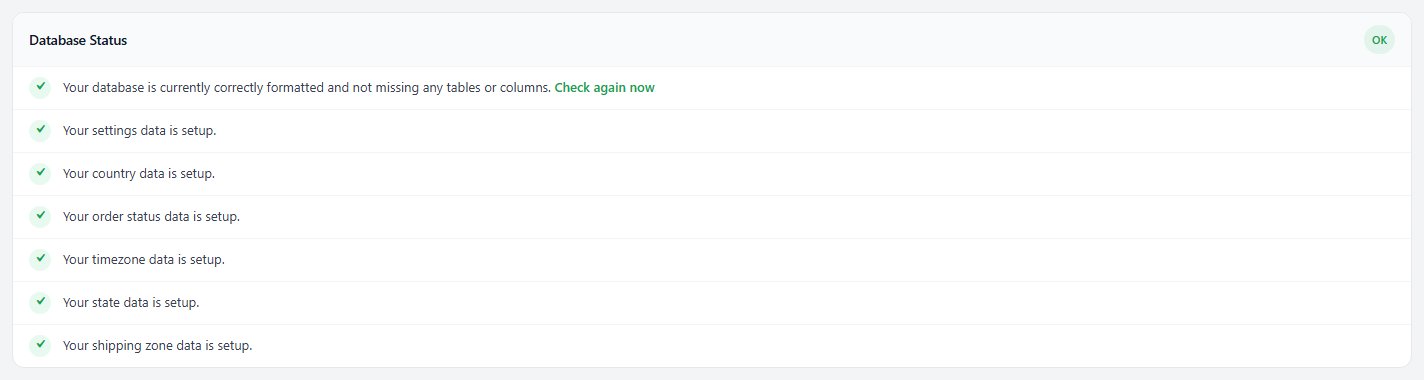
When it is finished, the Database Status card reads Your database is currently correctly formatted and not missing any tables or columns.
Ready to run your store on WP EasyCart?
Everything in this guide works with the free plugin. PRO and Premium add subscriptions, memberships, wholesale pricing and more. Try every PRO feature free for 14 days.