
Extensions › QuickBooks Online
QuickBooks Online Extension
Send your orders to QuickBooks Online as they happen. Paid orders become sales receipts, unpaid orders invoices with their payments, refunds become refund receipts, and an invoice paid in QuickBooks marks the order paid in your store. 15 parts.
Quick links
Where to find it:WP Admin › EasyCart › Extensions › QuickBooks Online
Quick start
Set up in four steps
The short version. Each step is covered in detail below.
Install
On EasyCart › Extensions, install QuickBooks Online. It comes with your Premium license and installs WP EasyCart Premium with it.
Connect
Press Connect to QuickBooks, sign in to Intuit and choose your company.
Check the suggestions
Look over the suggested accounts, items and tax settings, which come from your own company.
Switch on sending
Switch on Send orders to QuickBooks. Orders from that day on go as they happen; Tools sends earlier ones.
What goes to QuickBooks
Sales
Paid orders as sales receipts, unpaid ones as invoices, with your products as items and the exact tax each order charged.
Payments and refunds
Payments deposited to the account you choose for each payment service, and refunds as refund receipts or credit memos.
Back from QuickBooks
An invoice paid in QuickBooks marks the order paid in your store, and Check everything compares your sales with QuickBooks.
Getting started
Connect your store to QuickBooks
What you need, connecting your company, and connecting with an Intuit app of your own.
Before you start
What the extension needs, and where to find it
no stored settingsWhat you need
A WP EasyCart Premium license. QuickBooks Online is a Premium extension. Install it from EasyCart › Extensions › QuickBooks Online; that also installs WP EasyCart Premium, which runs the sending in the background, keeps the connection’s keys encrypted and delivers the extension’s updates.
WP EasyCart and WP EasyCart PRO 6.0.2 or newer, and WP EasyCart Premium 1.1.0 or newer. Your server’s PHP needs the OpenSSL or Sodium extension, which almost every host has turned on.
A QuickBooks Online company on any QuickBooks Online plan, and a QuickBooks user who can connect apps to it ( the primary admin or a company admin ). QuickBooks Desktop has an extension of its own.
The same currency. Your store’s currency must be the QuickBooks company’s home currency. An order in another currency is not sent, and its card says why.
Where to find it
WP Admin › EasyCart › Extensions › QuickBooks Online. The page has a Connection card at the top, then Sending, Products, Shipping, fees and gift cards, Sales tax, Payments, Tools and Activity.
What it sends
Orders, with their customers, payments and refunds. A paid order becomes a sales receipt, an unpaid one an invoice. Nothing is sent until you switch on Send orders to QuickBooks, and then only orders from that day on: earlier orders go only when you send them.
Connect QuickBooks
Sign in to Intuit and choose the company this store sends to
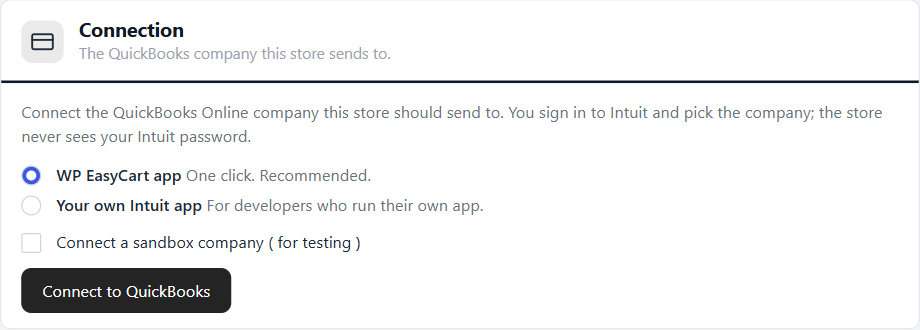
2 choicesConnect with the WP EasyCart app ( recommended )
- Open EasyCart › Extensions › QuickBooks Online.
- In Connection, leave WP EasyCart app chosen and press Connect to QuickBooks.
- Sign in to Intuit, choose the QuickBooks company, and press Connect. Intuit sends you back to the settings page.
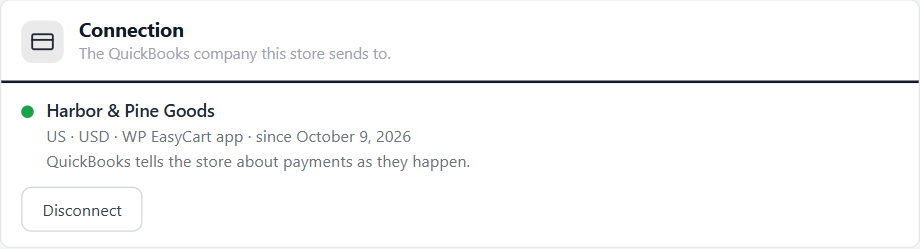
- Connection shows the company’s name, country and currency. The accounts, items and tax codes below now come from your company.
You sign in on Intuit’s own page: the store never sees your Intuit password.
How to connect
WP EasyCart app needs nothing set up in Intuit. QuickBooks tells your store about payments as they happen. Your own Intuit app is for developers who run their own app in the Intuit Developer portal; see the next part.
Connect a sandbox company ( for testing )
Connects one of the sandbox companies in your Intuit Developer account instead of a real company, so you can try sending orders first. Disconnect and connect your real company when you are ready; nothing sent to the sandbox moves across.
Disconnect
Ends the connection in QuickBooks too. Nothing already in QuickBooks changes, and sending stops until you connect again. The company’s accounts, items and tax codes are forgotten on this site, as Intuit asks.
Connect again
When Intuit ends a connection ( someone disconnected WP EasyCart inside QuickBooks, or the company was connected to another store ), the card turns red and says “QuickBooks needs you to connect again”. Orders wait, and go once you connect. Intuit also ends every connection after five years: the card warns you ahead of the date, with a Connect again button.
Staging copies
A copy of your site ( a staging site or a clone ) never sends to QuickBooks: its Connection card says “This looks like a copy of your store”. Press This is my live store if the copy has become your live store, or Forget it here on a staging copy; the live store stays connected.
💡 Note: Connecting needs a current WP EasyCart Premium license. Once connected, the store sends nothing until you switch on Send orders to QuickBooks under Sending, so you can check the suggested accounts, items and tax settings first.
Your own Intuit app
For developers who connect with an app of their own
3 settingsWhen to use it
Only if you run your own app in the Intuit Developer portal and want the store to connect with it. Most stores should use the WP EasyCart app.
Set up the app
- In the Intuit Developer portal, make an app with the QuickBooks Online Accounting scope ( com.intuit.quickbooks.accounting ).
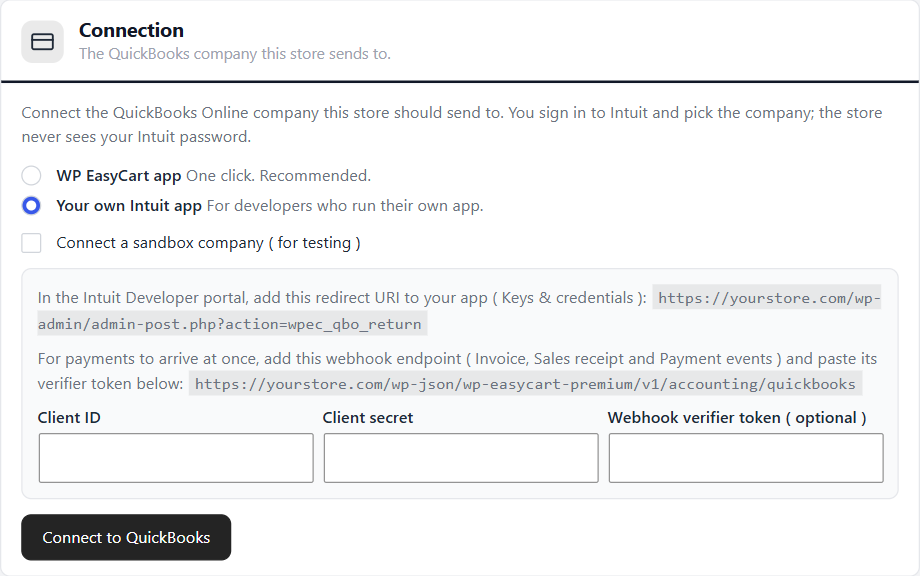
- In EasyCart › Extensions › QuickBooks Online, choose Your own Intuit app. The card shows your store’s redirect URI and webhook endpoint, each ready to copy.
- Add the redirect URI to the app ( Keys & credentials ). It ends with /wp-admin/admin-post.php?action=wpec_qbo_return.
- For payments made in QuickBooks to arrive at once, add a webhook to the app with the endpoint shown, for Invoice, Sales receipt and Payment events.
- Paste the app’s keys below ( Development keys for a sandbox company, Production keys for a real one ) and press Connect to QuickBooks.
Client ID
From the app’s Keys & credentials.
Client secret
From the app’s Keys & credentials. Kept encrypted by WP EasyCart Premium; the box shows “Saved” once it is stored.
Webhook verifier token ( optional )
The verifier token Intuit shows for the app’s webhooks. Without webhooks, the store checks QuickBooks for payments every 15 minutes instead.
What goes to QuickBooks
Orders, products, tax and payments
What each order becomes in QuickBooks, and the settings that decide how.
What each order becomes
Sales receipts, invoices, payments, refunds and voids
no stored settingsAn order paid at checkout ( card, PayPal, Square … )
A sales receipt, deposited to the account chosen for that payment service under Payments.
An order not paid yet ( bank transfer, pay by invoice )
An invoice. Once the order is paid, a payment is recorded on the invoice.
Every order, with Always an invoice chosen
An invoice, with a payment once it is paid, so every sale goes through Accounts Receivable.
A refund of a paid order
A refund receipt, paid out of the account the money went into ( Refunds paid by hand when that was Payments to deposit ).
A refund of an order whose invoice is still unpaid
A credit memo, set against the invoice.
An order changed after it was sent ( lines, totals )
The sales receipt or invoice is updated to match.
An order cancelled, failed or deleted
Its sale is voided in QuickBooks.
An invoice paid in QuickBooks
The order is marked paid in your store; see Paid in QuickBooks below.
The lines on a sale
Each product sells as its own item, or every sale uses one item ( see Products ). Shipping, fees, tips and duty are lines on items of their own. A gift card redeemed is a line that takes its amount off the sale, so the total matches what the customer paid. US companies with discounts turned on in QuickBooks get one discount line; elsewhere each line carries its own discount. When the store and QuickBooks round a few cents differently, a Rounding line keeps the totals the same.
The tax
Always the figure the order charged, never QuickBooks’ own calculation. See Sales tax.
Customers
An order from a customer account goes to their QuickBooks customer, found by email or made the first time. Guest orders go to a customer of their own each, or all to one shared customer ( Guest orders, under Sending ). When a customer changes their details in your store, their QuickBooks customer is updated, but never renamed: a name you changed in QuickBooks stays.
Numbers
Each sale carries the order number, with WEB- before it by default ( WEB-1042 ), or your WP EasyCart PRO invoice number when the order has one. The order number is always in the memo. Refund receipts take the sale’s number with -R1, -R2 and so on after it ( WEB-1042-R1 ).
In the background
Sending runs in the background, usually within a minute, so it never slows a checkout. When QuickBooks is busy, the store waits and tries again. When a setting or QuickBooks needs you, the order is held with the reason: on the order’s card and in Activity.
⚠️ Careful: A sale already in a bank deposit in QuickBooks, or an invoice that has payments or credits there, is not changed when the order’s total changes afterwards. The order is held with the reason: change the sale in QuickBooks, or send the difference as a refund.
Sending
Which orders go to QuickBooks, and as what
10 settingsSend orders to QuickBooks
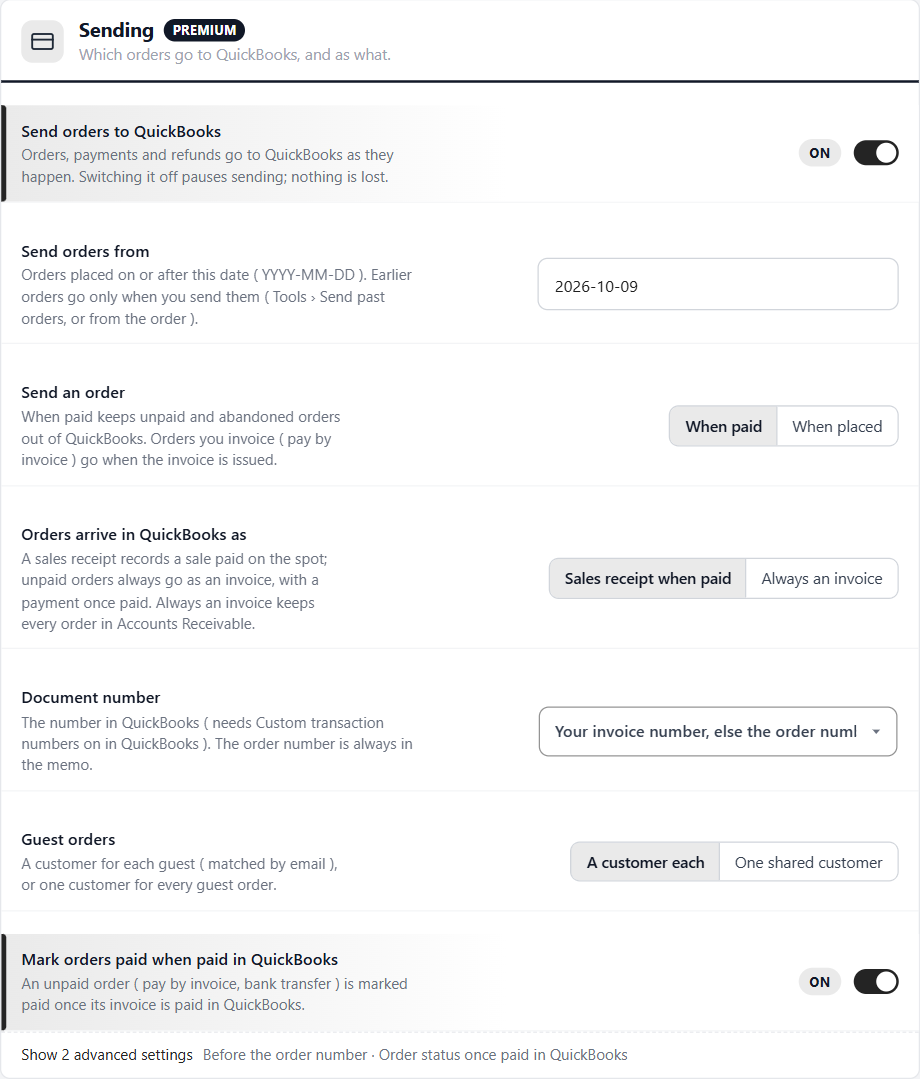
Orders, payments and refunds go to QuickBooks as they happen. Switching it off pauses sending; nothing is lost. Switching it on for the first time, with no date in Send orders from, starts from today, so earlier orders are not sent by surprise.
Send orders from
Orders placed on or after this date ( YYYY-MM-DD ). Earlier orders go only when you send them: Tools › Send past orders, or Send to QuickBooks Online on the order.
Send an order
When paid keeps unpaid and abandoned orders out of QuickBooks. Orders you invoice ( pay by invoice ) go when the invoice is issued. When placed sends every order as it is placed, as an invoice until it is paid.
Orders arrive in QuickBooks as
Sales receipt when paid records a sale paid on the spot; unpaid orders always go as an invoice, with a payment once paid. Always an invoice keeps every order in Accounts Receivable.
Document number
The number in QuickBooks: Your invoice number, else the order number, The order number, or QuickBooks’ next number. Setting the number needs Custom transaction numbers turned on in QuickBooks ( Settings › Account and settings › Sales ); without it, QuickBooks numbers the sale. The order number is always in the memo.
Before the order number
Keeps store sales apart from the ones you enter in QuickBooks ( WEB-1234 ). 21 characters at most with the number.
Guest orders
A customer each makes a QuickBooks customer for each guest, matched by email. One shared customer sends every guest order to one customer.
Shared customer’s name
With One shared customer: the QuickBooks customer guest orders go to.
Mark orders paid when paid in QuickBooks
An unpaid order ( pay by invoice, bank transfer ) is marked paid once its invoice is paid in QuickBooks.
Order status once paid in QuickBooks
Which paid status the order moves to. Left as WP EasyCart’s usual paid status, it is Bank Transfer Received ( Direct Deposit Received on older stores ).
Products
The QuickBooks items your products sell as
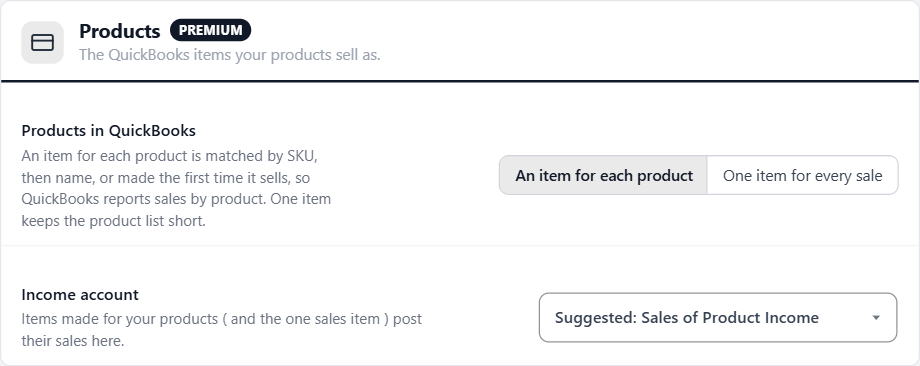
2 settingsProducts in QuickBooks
An item for each product is matched by SKU, then by name, or made the first time it sells, so QuickBooks reports sales by product. Each option combination with its own SKU gets its own item. One item for every sale keeps the product list short: every product line uses one item, Web store sales, with the product’s name in the line’s description.
Income account
Items made for your products ( and the one sales item ) post their sales here. Items you already have in QuickBooks keep their own account.
Items made for you
Products are made as non-inventory items ( downloads as service items ), named with the product’s title and options, with its SKU, description and price. When you save a product that already has an item, the item’s name and price follow. Stock is not sent: QuickBooks Online keeps its own quantities.
The product’s card
With An item for each product, the product editor shows a QuickBooks Online card: the item it sells as, and Send to QuickBooks Online to make or match the item before the first sale. A product you delete keeps its item, which past sales still use.
Shipping, fees and gift cards
The item each other part of a sale uses
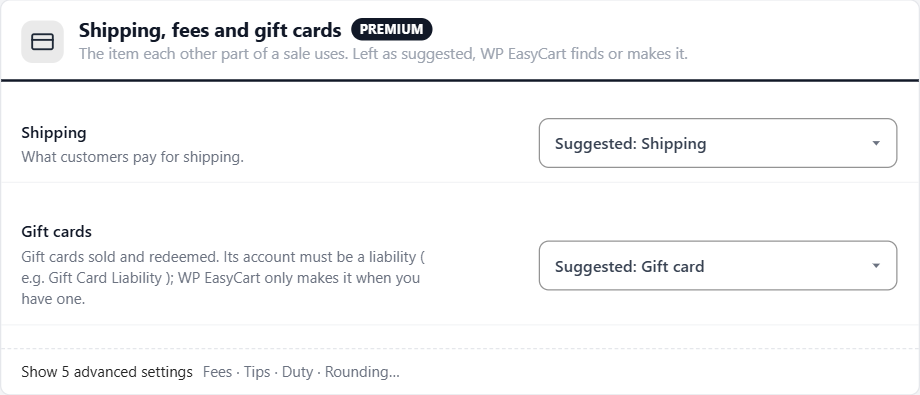
7 settingsHow the items are chosen
Left as Suggested, WP EasyCart uses the item of that name in QuickBooks ( Shipping, Store fees, Tips, Duty, Gift card, Rounding ), or makes it the first time an order needs it. Choose another item to use your own.
Shipping
What customers pay for shipping.
Gift cards
Gift cards sold and redeemed. Its account must be a liability ( e.g. Gift Card Liability ); WP EasyCart only makes it when you have one. Without one, an order with a gift card is held until you make the account and item in QuickBooks and choose the item here.
Fees
Checkout fees ( Flex-Fees ).
Tips
Tips added at checkout.
Duty
Import duty charged at checkout.
Rounding
Pennies of difference between how the store and QuickBooks round.
Discounts
US companies with discounts turned on in QuickBooks: the account the discount line posts to. Elsewhere each line carries its own discount.
Sales tax
How the tax an order charged is recorded in QuickBooks. It is always the store’s figure.
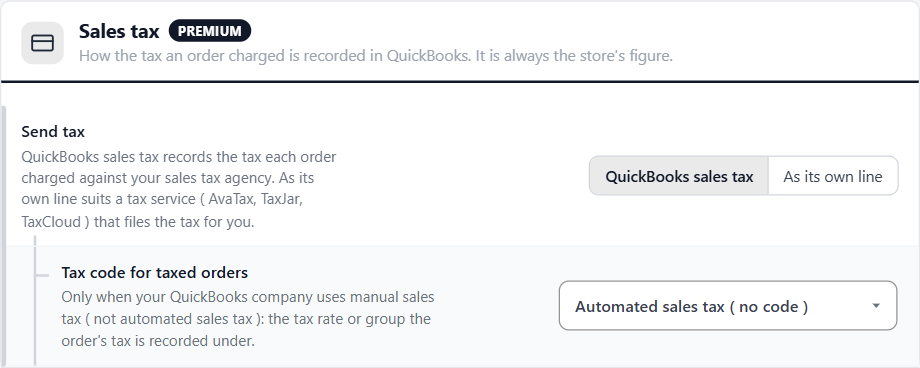
3 settings in the US, 8 elsewhereSend tax
QuickBooks sales tax ( US companies ) records the tax each order charged against your sales tax agency, as the order’s figure, even when QuickBooks works out tax automatically. QuickBooks tax codes ( everywhere else ) puts a VAT or GST code on each line and records each rate’s tax. As its own line sends the tax as a line to a liability account instead: it suits a tax service ( AvaTax, TaxJar, TaxCloud ) that files the tax for you, so QuickBooks does not report it a second time.
Tax code for taxed orders
US companies, only when your QuickBooks company uses manual sales tax ( not automated sales tax ): the tax rate or group the order’s tax is recorded under.
VAT
Outside the US: the QuickBooks tax code for items with VAT. Left as Match the order’s rate, each order uses the code whose rate matches what it charged.
GST, PST, GST and PST, HST
Canada and Australia: the codes for each kind of tax, matched to the order’s rate unless you choose one.
Items without tax
Outside the US: the zero or exempt code for untaxed items, shipping and gift cards.
Tax line item
With As its own line: the item the tax line uses. It must post to a liability account ( e.g. Sales Tax Payable ).
Suggested for your company
A US company is suggested QuickBooks sales tax, or As its own line when AvaTax, TaxJar or TaxCloud works out your store’s tax. Companies elsewhere are suggested QuickBooks tax codes.
Prices that include VAT
Use QuickBooks tax codes: the tax cannot go on a line of its own when it is inside the prices.
💡 Note: In QuickBooks, sales tax must be turned on for QuickBooks sales tax to record anything. If it is off, orders with tax are held with the reason: turn sales tax on in QuickBooks, or choose As its own line.
Payments
The account each payment goes into
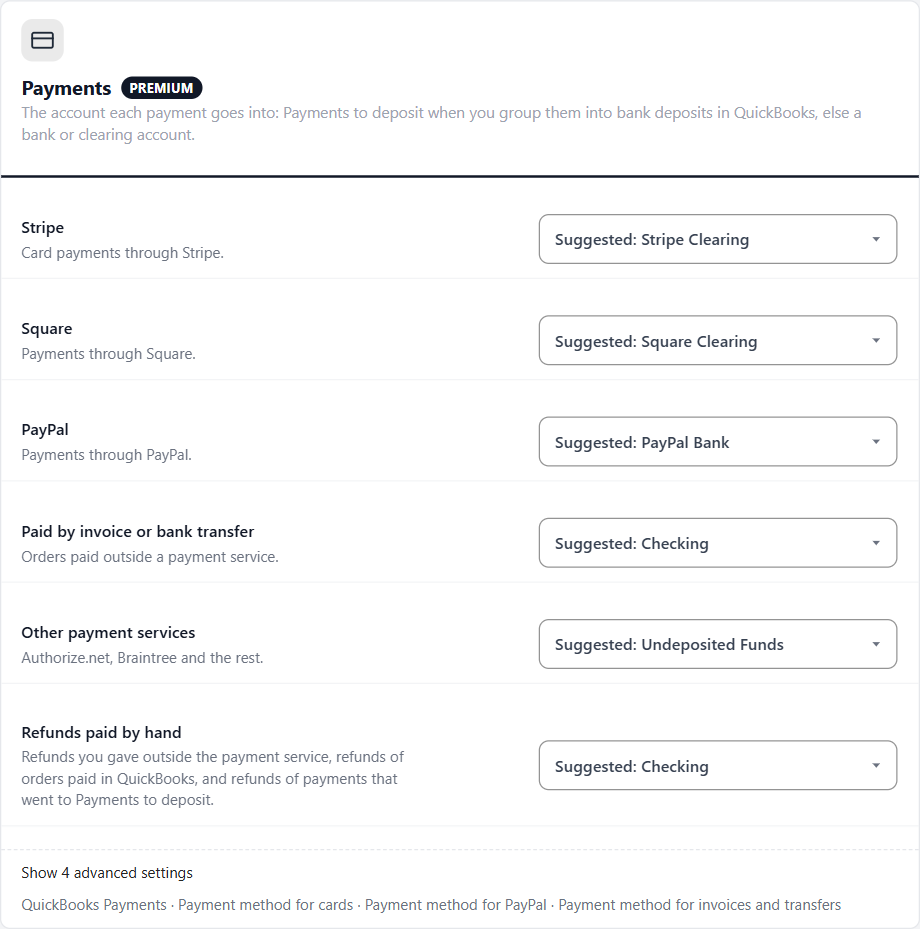
10 settingsWhich account
Choose Payments to deposit ( Undeposited Funds ) when you group payments into bank deposits in QuickBooks, so each payout from Stripe, Square or PayPal matches your bank statement. Otherwise choose a bank or clearing account. Left as Suggested, an account with the payment service’s name ( Stripe Clearing, PayPal Bank ) is used when you have one, else Payments to deposit.
Stripe
Card payments through Stripe.
Square
Payments through Square.
PayPal
Payments through PayPal.
QuickBooks Payments
Card payments through Intuit ( QuickBooks Payments ).
Paid by invoice or bank transfer
Orders paid outside a payment service.
Other payment services
Authorize.net, Braintree and the rest.
Refunds paid by hand
Refunds you gave outside the payment service, refunds of orders paid in QuickBooks, and refunds of payments that went to Payments to deposit. Must be a bank account.
Payment method for cards
Shown on sales receipts and payments.
Payment method for PayPal
Shown on sales receipts and payments.
Payment method for invoices and transfers
Shown on sales receipts and payments.
Changing an account later
A sale already in QuickBooks keeps the account its money went into, and its refunds come back out of that account, even after you change the setting.
Day to day
Payments, records and tools
What comes back from QuickBooks, where you see what was sent, and the tools for past orders and checks.
Paid in QuickBooks
Invoices paid in QuickBooks mark the order paid in your store
no stored settingsWhat happens
When an invoice the store sent is paid in QuickBooks ( a payment received there, or through QuickBooks Payments ), the order is marked paid: it moves to the status chosen under Sending, its stock is taken, the customer gets their receipt, and its timeline says it was paid in QuickBooks. Activity lists it under From QuickBooks Online.
How quickly
With the WP EasyCart app, QuickBooks tells your store as it happens; the Connection card says so. With your own Intuit app, the same with its webhook and verifier token, else your store checks QuickBooks every 15 minutes. Either way, the store also checks once a day in case a notice went missing.
Switching it off
Switch off Mark orders paid when paid in QuickBooks under Sending, and mark the orders paid yourself.
Sales voided or deleted in QuickBooks
The order is not changed: Activity says what happened, and the store does not send that sale again. To send the order afresh, press Send again on its card; the new sale gets its own number ( WEB-1042-2 ).
Orders, customers and products
The QuickBooks Online card on each record, and the orders list
no stored settingsThe order’s card
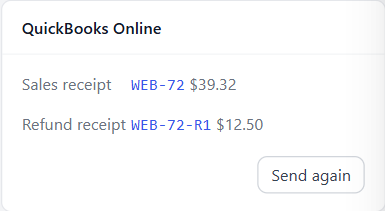
Each order screen has a QuickBooks Online card: the sales receipt or invoice, its payments and refunds, each linked to QuickBooks with its amount. Send again sends the order again, to bring its sale up to date.
An order that is held
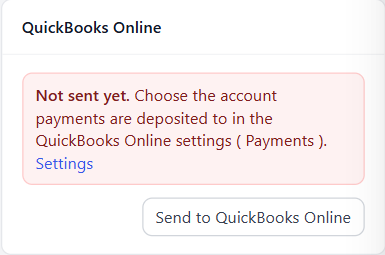
The card says Not sent yet with the reason and a link to the setting. Once you fix it, saving the setting sends every order that waited on it; Send to QuickBooks Online sends this one now.
Orders from before Send orders from
An order placed before the start date shows “Not sent to QuickBooks Online.” with a Send to QuickBooks Online button.
Customers
The customer screen has a card too: their QuickBooks customer, or Send to QuickBooks Online to add them before their first order.
The orders list
Choose the QuickBooks Online column with Columns to see each order’s state ( it starts hidden ). The filters show orders that Need attention, are Not sent or Sent, and the bulk action Send to QuickBooks Online sends the orders you tick.
Activity
What was sent, what came back from QuickBooks, and what needs you
no stored settingsWhat it shows
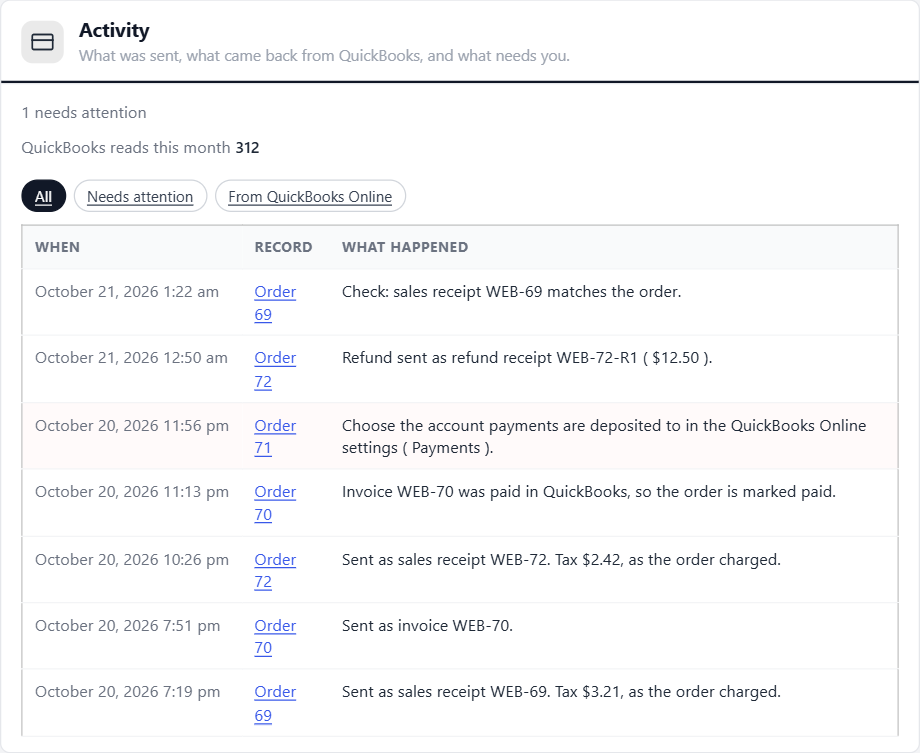
Every sale, payment, refund, void and check, newest first, each linked to its order. Needs attention shows only what is held; From QuickBooks Online shows what came back, such as invoices paid in QuickBooks. Above the list: how many records wait to send, how many need attention, and a pause when QuickBooks asks the store to slow down. Activity keeps 90 days.
QuickBooks reads this month
With the WP EasyCart app, how many times this store read from QuickBooks this month. Intuit counts reads across every store on the app; sending never counts. It is there for information: there is nothing to do about it.
Tools
Past orders, checks, held orders and QuickBooks’ lists
1 setting, 5 toolsPreview past orders
Counts the orders Send past orders would send and shows the first three. Nothing is sent and QuickBooks is not asked.
Send past orders
Queues orders since the start date ( Send orders from ) that are not in QuickBooks yet, up to 500 at a time. Orders dated in a period closed in QuickBooks are left out. Set an earlier start date first to send older orders.
Check everything
Reads back up to 500 recent sales from QuickBooks and compares them with the orders: their totals and tax. Nothing changes; differences show in Activity.
Try held orders again
Orders held for a setting or a problem in QuickBooks go back in the queue.
Refresh accounts, items and tax codes
Reads the chart of accounts, items, tax codes and payment methods from QuickBooks again ( it also happens once a day ). Use it after adding an account or item in QuickBooks.
Log every call to QuickBooks
Writes each request’s type and result ( never its content ) to Settings › Logs for troubleshooting. Errors are always logged. Each line carries Intuit’s reference ( intuit_tid ), which Intuit’s support can look up.
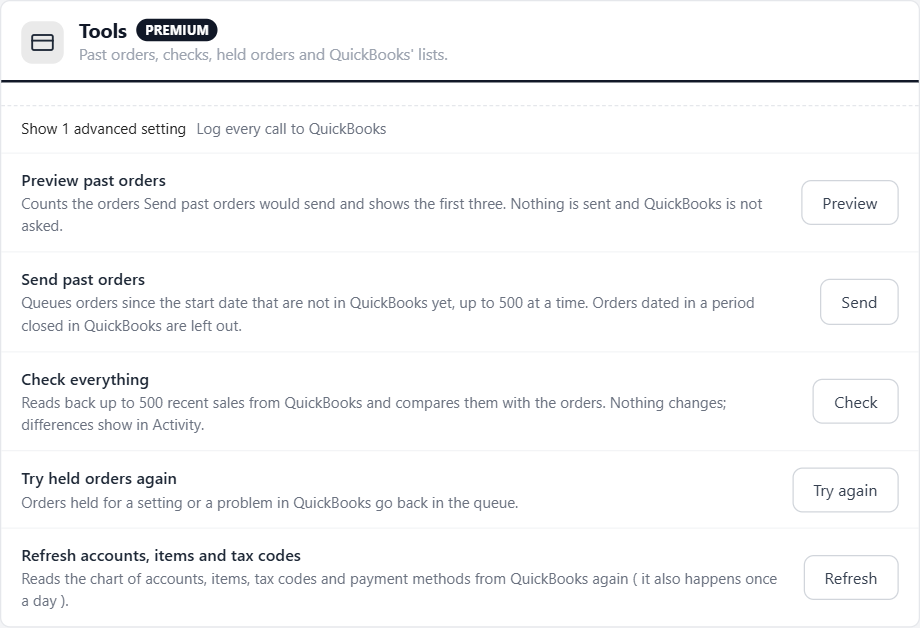
⚠️ Careful: Send past orders sends every order since the start date that is not in QuickBooks yet. If you entered those sales in QuickBooks yourself, they would be there twice: press Preview first, and set Send orders from to the day after the last sale you entered by hand.
When something is off
Troubleshooting
What the messages on an order’s card and in Activity mean, and what to do about them.
Troubleshooting
What the messages mean, and what to do about them
no stored settingsConnecting
“This server cannot store the connection safely”
PHP on your server has neither the OpenSSL nor the Sodium extension. Ask your host to turn one on.
“Connecting needs a current WP EasyCart Premium license”
Renew your Premium license, then connect.
“Could not reach the WP EasyCart connection service”
Your server could not reach connect.wpeasycart.com. Try again in a few minutes; if it keeps happening, ask your host whether outgoing connections are blocked.
“WP EasyCart was disconnected inside QuickBooks”
Someone removed WP EasyCart under the company’s connected apps in QuickBooks. Press Connect again; orders that waited go once you do.
“This QuickBooks company was connected to another store”
A QuickBooks company connects to one store at a time, and connecting it to another store ended this connection. Connect again here if this store should send to it.
“This looks like a copy of your store”
The connection was made on another address. See Staging copies under Connect QuickBooks.
An order is held ( Not sent yet )
“Choose the account payments are deposited to”, “Choose the account refunds are paid from” or “Choose … in the QuickBooks Online settings”
A setting has no suggestion in your company. Choose it on the settings page; saving it sends the orders that waited.
“Sales tax is off in this QuickBooks company”
Turn sales tax on in QuickBooks, or choose As its own line under Sales tax.
“Your prices include VAT, so the tax cannot go on a line of its own”
Choose QuickBooks tax codes under Sales tax.
“No QuickBooks tax code matches the …% this order charged” or “QuickBooks did not accept a tax code”
Add the rate in QuickBooks, then press Refresh accounts, items and tax codes; or choose the code under Sales tax. Check that the codes you chose are still active.
“QuickBooks would total this at …, but the order came to …”
QuickBooks worked the lines out differently from the order, almost always because of a tax code. Check the codes under Sales tax.
“Your store sells in … but the QuickBooks company’s home currency is …”
The store’s currency and the company’s home currency must be the same. The order is not sent; enter it in QuickBooks by hand.
“The order is dated on or before …, when the books are closed in QuickBooks”
QuickBooks takes nothing dated in a closed period. Enter the order in QuickBooks by hand, or move the closing date ( Settings › Account and settings › Advanced ).
“That document number is already used in QuickBooks”
Another document has the number. Change Before the order number under Sending ( Advanced ), then press Send again.
“QuickBooks already has a customer, supplier or employee named …”
Rename that record in QuickBooks, or add the customer’s email address to it, then press Send again.
“QuickBooks has an inactive item or a category named …”
Rename it or make it active in QuickBooks, then press Send again.
“Gift cards need an item on a liability account”
Make a Gift card liability account and a Gift card service item on it in QuickBooks, press Refresh accounts, items and tax codes, then choose the item under Shipping, fees and gift cards.
“The sales tax line needs an item on a liability account”
Make an item on a liability account, such as Sales Tax Payable, then choose it as the Tax line item.
“An account chosen in the QuickBooks Online settings is inactive”, or an item or customer is inactive or deleted
Make it active again in QuickBooks, or choose another, then press Send again.
“The order’s total changed, but its sales receipt is already in a bank deposit” or “… its invoice has payments or credits”
QuickBooks has built on the sale. Change it in QuickBooks, or send the difference as a refund.
“This order’s sale was voided or deleted in QuickBooks, so it is not sent again”
Press Send again on the order to send it afresh.
“QuickBooks did not accept the discount line”
Turn on discounts in QuickBooks ( Settings › Account and settings › Sales ), then press Send again.
“Paid in QuickBooks, but the order status chosen for it does not count as paid”
Choose another status under Sending › Order status once paid in QuickBooks.
“The QuickBooks company’s subscription has lapsed”
QuickBooks takes nothing new until the company’s QuickBooks subscription is renewed. Renew it, then press Try held orders again.
“QuickBooks refused: the connection does not have permission for this”
The company’s QuickBooks plan does not include what the order needs, or the connection was made without the accounting permission. Connect again, and check the company’s plan.
Other messages
“paused by QuickBooks’ limits until …”
QuickBooks asked the store to slow down. Sending carries on by itself at that time.
“Check: … differs”
A sale in QuickBooks no longer matches its order: its total or tax was changed in QuickBooks. Change it back there, or press Send again on the order to bring it up to date.
Good to know
Companies, licenses, privacy, updates and removing the extension
no stored settingsOne company per store
A store sends to one QuickBooks company, and a company connects to one store at a time. To send to another company, Disconnect and connect it. Orders since Send orders from that the new company does not have go to it, so set that date first.
What is sent
Each order’s lines, totals, tax, payments and refunds, and the customer’s name, company, email, phone and addresses. Card numbers, passwords and admin notes are never sent. The store never writes QuickBooks data or your keys to its logs.
Where the keys are kept
With the WP EasyCart app, QuickBooks’ long-lived key stays encrypted on WP EasyCart’s connection service, and your store gets a key that lasts an hour at a time. With your own Intuit app, WP EasyCart Premium keeps the keys encrypted on your site.
If your Premium license ends
Orders keep going to QuickBooks. The settings are locked, and connecting again needs a current license.
Updates
Come through WP EasyCart Premium, on the Plugins screen and on EasyCart › Extensions.
Removing the extension
Deleting it removes its settings and the connection on this site. The record of what was sent stays with WP EasyCart Premium, so installing it again never sends an order twice. Press Disconnect first to end the connection in QuickBooks as well, or remove WP EasyCart later under the company’s connected apps in QuickBooks.
Keep going
Related guides
How Premium extensions install and update.
Order statuses, payments and refunds, which decide what goes to QuickBooks.
Send your store’s orders and customers to thousands of other apps.
QuickBooks Online comes with WP EasyCart Premium
Premium includes every WP EasyCart extension: QuickBooks Online, QuickBooks Desktop, ShipStation, Stamps.com, Zapier, AvaTax and more, with updates and priority support.



