
Step 1. Open Diagnostics
EasyCart › Diagnostics
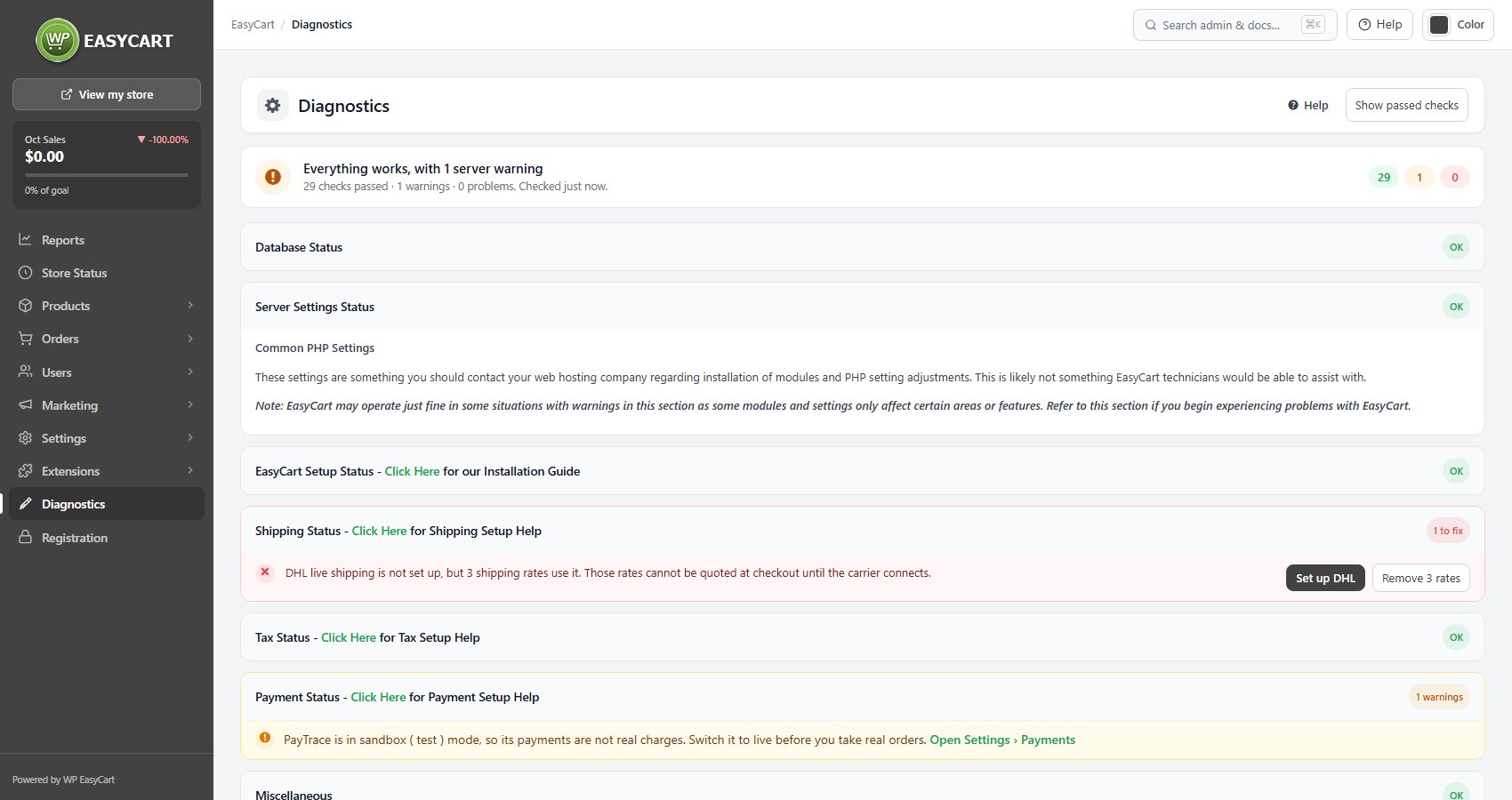
Go to EasyCart › Diagnostics. The checks run every time the page opens, so what you see is the state of the store right now.
A 1 next to Diagnostics in the menu means the WP EasyCart database update has not been confirmed yet. Open the page to see why.
Step 3. Fix database problems
Missing tables, columns or starter data
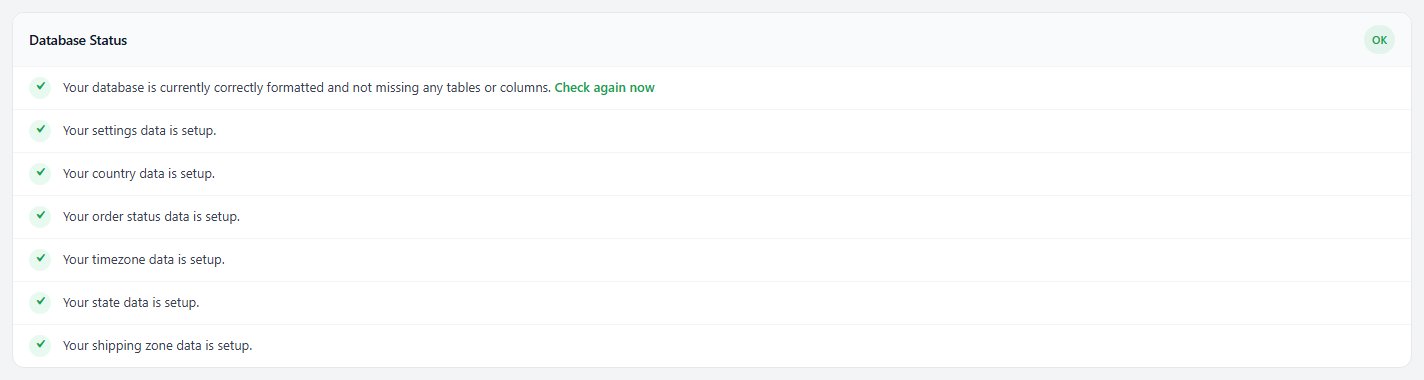
The Database Status card checks the EasyCart tables and the data the store needs to run: settings, countries, order statuses, timezones, states and shipping zones.
We have found problems with your WP EasyCart database structure. Press Click to Repair!. It adds missing tables and columns and does not delete data. Click Here beside it lists every difference.
Your country data is missing! and the other missing-data lines each have their own Click to Repair!. Missing country or state data is why an address form comes up empty.
Straight after an update, the card may say Database upgrade in progress. The update runs in short batches as pages load. Reload in a minute instead of repairing over it.
If repair keeps failing, the usual cause is a database user without permission to create or alter tables. That is a question for your host.
Step 4. Fix setup problems
Data folders, store pages and private files
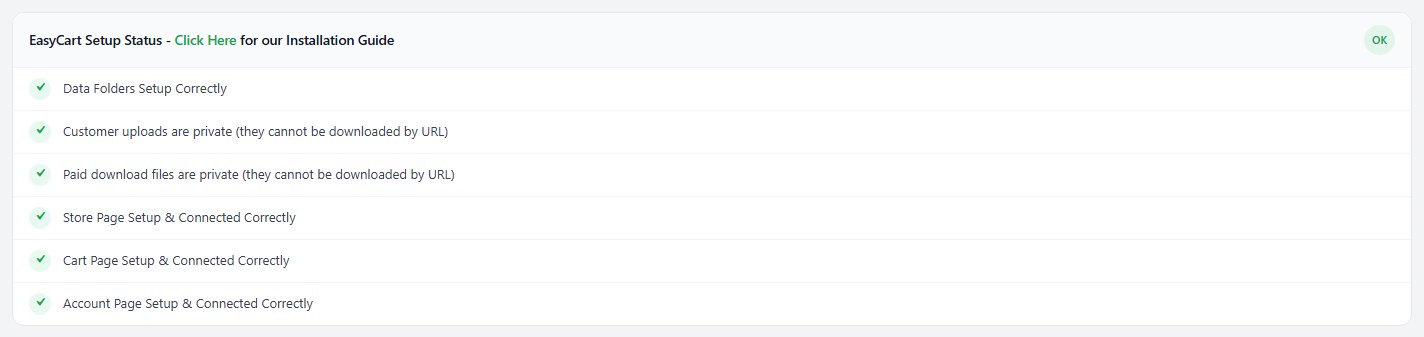
The EasyCart Setup Status card is where a new install most often needs a hand.
Missing data folders. WP EasyCart keeps its files in a wp-easycart-data folder next to the plugin. If any are missing, press Fix Errors. If that fails, the plugins folder is not writable: ask your host.
Store, cart or account page not set up. The message says what is missing. Add the shortcode, block or Elementor element to a published page, then choose that page on Settings › Store details. Installing the Plugin and Basic Setup cover creating them.
Store page is also the front page. Product links then end on page not found. Create Store page makes a separate store page and leaves your home page alone.
Customer uploads or paid download files can be downloaded by URL. Your web server is ignoring the protection files. Press Rewrite protection files and check again. On nginx, the card prints the exact rule to give your host. Do not sell downloads until this passes.
A product is not linked to its own product page. A products CSV import in an earlier version could link new products to a menu item, a page or an image. Press Link products to their own pages. Your other pages, menu items and images are not changed.
Step 5. Hand server warnings to your host
PHP extensions, limits and permalinks
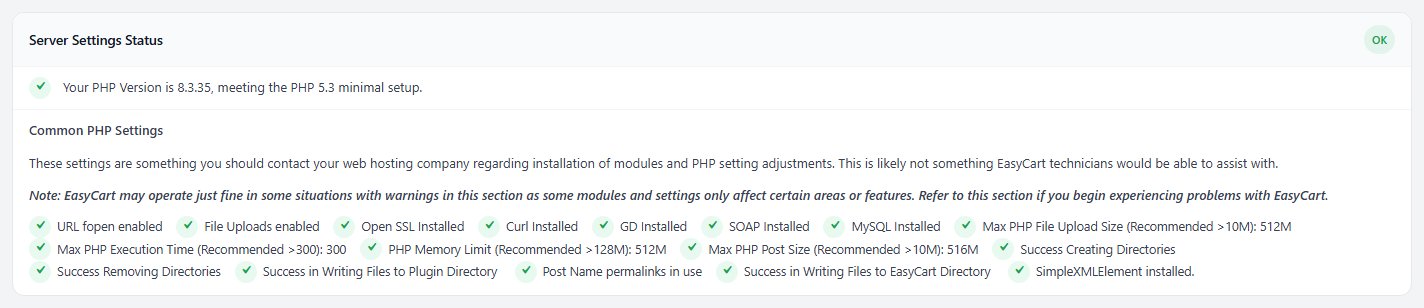
The Server Settings Status card lists what your host provides. The screen itself says these are for your hosting company, not EasyCart support, and that some only matter for certain features.
It checks URL fopen, file uploads, OpenSSL, cURL, GD, SOAP, MySQL, OAuth and SimpleXML, and four limits with recommended values: upload size above 10M, execution time above 300, memory limit above 128M and post size above 10M. It also writes and removes a test file to prove the store can create its files.
Copy the warning lines into a message to your host. Two you can fix yourself:
Not using Post Name permalinks: go to Settings › Permalinks in WordPress, choose Post name and save.
SimpleXMLElement: only needed if you add a live shipping carrier that uses it. Until then the line is a note, not a fault.
The minimum WordPress and PHP versions are on System Requirements.
Step 6. Finish shipping, tax and payment
Chosen but not finished is the common gap
Three cards check that what you chose is actually configured.
Shipping Status flags a method with no rates behind it, or a live carrier your rates use but that is not connected. Where it can, the line carries the fix as buttons, as in the picture.
Tax Status confirms which tax setup is in use and calls out VAT with no rate.
Payment Status is the one that stops sales. With no payment method it says customers cannot complete checkout. A gateway in sandbox or test mode is a warning: it works, but no real money moves. With Stripe live, it also says how many accounts are Stripe test-mode customers, and warns when they have no test keys to use.
Each card heading has a Click Here link to the matching help.


Then check Store Status
Four readiness checks in plain words
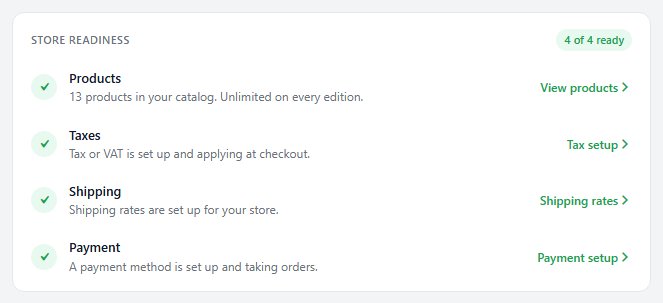
EasyCart › Store Status has a short Store readiness list: Products, Taxes, Shipping and Payment, each with a link to fix it. If you really charge no tax or ship nothing, say so there and the check counts as ready.
When Diagnostics shows no problems and Store Status shows every check ready, place a test order. For a step by step walkthrough, see How to Build Your First Store with WP EasyCart.
Ready to run your store on WP EasyCart?
Everything in this guide works with the free plugin. PRO and Premium add subscriptions, memberships, wholesale pricing and more. Try every PRO feature free for 14 days.
