Installation Guide › Steps to Install
Installing WordPress
From a domain name to your first WordPress dashboard, with the hosts we recommend. 9 parts.
Quick links
Where to find it:Your web host › Install WordPress › yourdomain.com/wp-admin
Before you start
What you need, and where to host
The three things a WordPress site needs, and three hosts we recommend.
What you need
A domain name, a web host and WordPress
New to WordPress? This guide takes you from buying a domain name to logging in to your first WordPress dashboard. Once WordPress is running, you are ready to install WP EasyCart.
A domain name, such as www.mystore.com, bought from a domain registrar or from your web host.
A web host, which stores your WordPress files, database, images and content.
WordPress, which most hosts install for you in a few clicks.
WP EasyCart needs WordPress 6.5 or newer on PHP 7.3 or newer. Every host below meets that. The full list is in System Requirements.
What is WordPress?
And is it secure?
WordPress is a content management system, and one of the most widely used ways to build and run a website. It gives you an admin area where you create pages, pick a theme for the design, and add plugins such as WP EasyCart for eCommerce and other features.
Is WordPress secure? Yes, as secure as any web software, as long as you look after it. Keep WordPress, your theme and your plugins up to date (updates can be automatic), run your site on a reliable host, and only install reputable, well-supported plugins.
Recommended hosting
Three hosts we trust with WordPress and WP EasyCart
We have worked with many web hosts over the years. These three have been reliable for WordPress and WP EasyCart, and each can install WordPress for you.

WP Engine
Premium managed WordPress hosting. Secure, very reliable, and support that knows WordPress.

Bluehost
Low-cost hosting that is still professionally managed, with the standard cPanel control panel.

HostGator
Low-cost shared hosting with cPanel, and WordPress installs in one click from the dashboard.
On any host that caches pages at the server, such as WP Engine, ask them to exclude your store, cart and account pages from the cache.
Set it up
Five steps to a running WordPress site
Domain, host, WordPress, your first login and the one setting WP EasyCart cares about.
Step 1. Buy a domain name
The address customers type to find your store
Choose a short, unique name and buy it from a domain registrar, or add it when you sign up with your web host.
If you buy the domain somewhere else, your host tells you which name servers or DNS records to point it at.
Step 2. Choose a web host
Where your site and its database live
A web host keeps your WordPress files and database online. Pick a plan that offers the PHP version and limits in the System Requirements, and an SSL certificate, which you need before you can take cards with Stripe or Square. Ask your host whether one is included.
Not sure? Start with one of the hosts in Recommended hosting above.
Step 3. Install WordPress
Most hosts do it for you in minutes
Most hosts come with WordPress already installed or offer a one-click installer in their control panel. Your host can also connect your domain and turn on the SSL certificate.
When WordPress is installed you get an admin username and password. Keep them safe: they open every part of your site.
💡 Note: Ask your host to turn on https before you open the store. Stripe and Square need it to take cards on your checkout page.
Step 4. Log in to WordPress
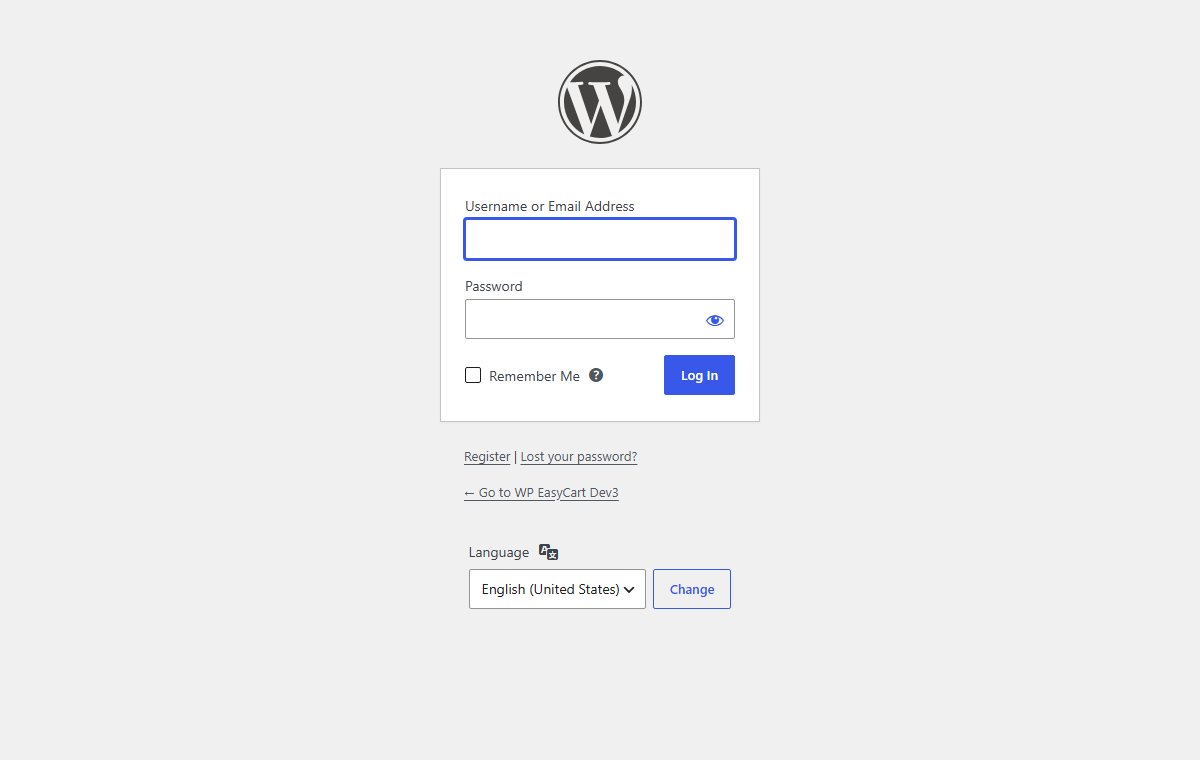
Your dashboard lives at yourdomain.com/wp-admin
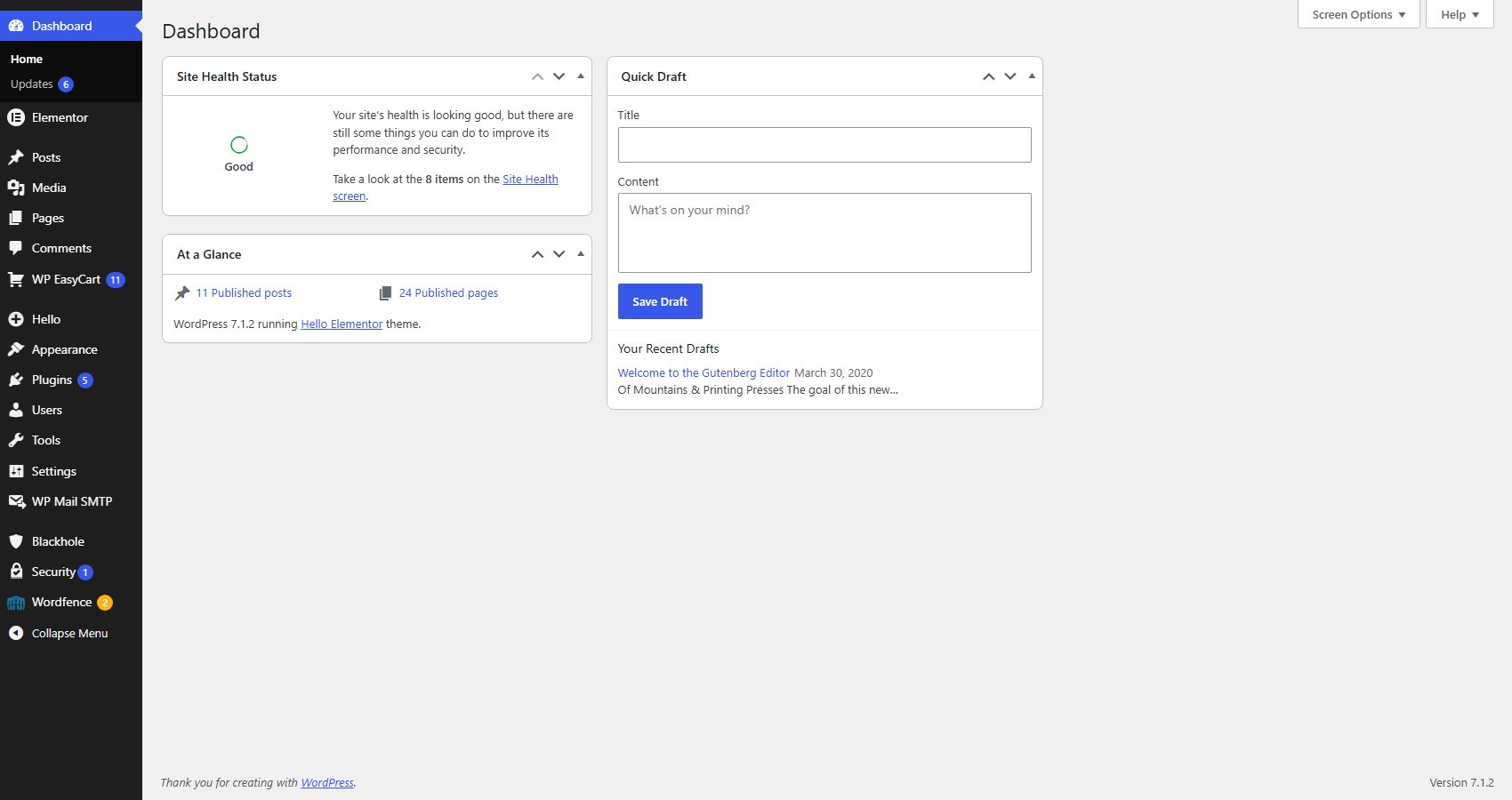
Open yourdomain.com/wp-admin and sign in with your admin username and password. You land on the WordPress Dashboard, where you control every part of your site.
From the left menu you can:
Appearance › Themes: choose a theme for a professional design.
Plugins: add features, including WP EasyCart.
Pages: create your about, contact and other pages.
Step 5. Set permalinks to Post name
Clean addresses for your pages and products
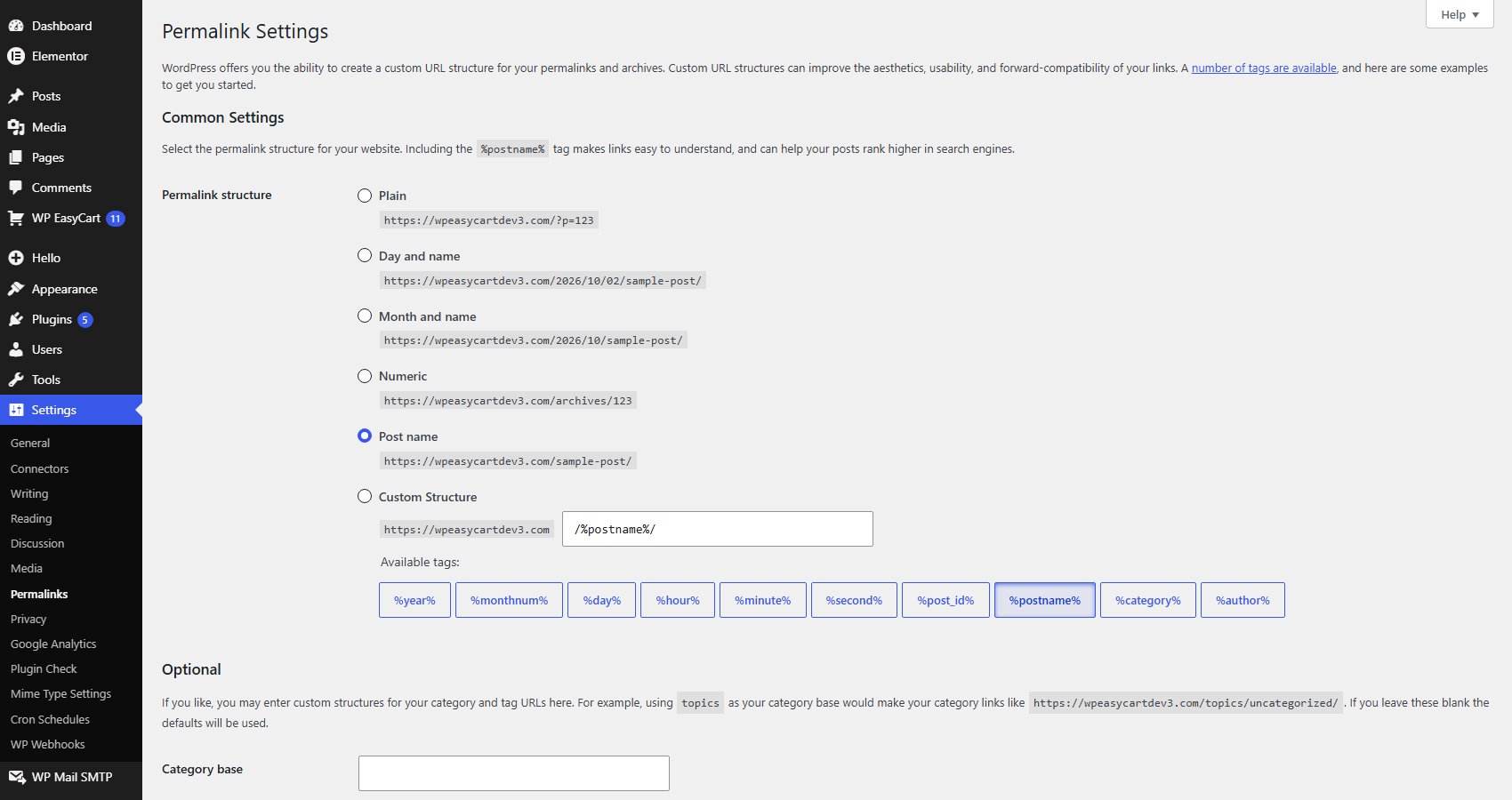
Open Settings › Permalinks, choose Post name and press Save Changes. Your pages get clean addresses such as yourdomain.com/about/.
WP EasyCart builds product links the same way, such as /store/my-widget/. On Plain permalinks it has to fall back to /store/?model_number=XYZ. Change permalinks at any time and WP EasyCart switches to the clean links by itself.
Next
Ready for your store
Choose a theme and install WP EasyCart.
What’s next
Pick a theme, then install WP EasyCart
WordPress is running. Now choose a theme: it has the biggest effect on how your site looks. WP EasyCart works with any WordPress theme, and you can design your store pages with the block editor or Elementor later.
Be choosy about plugins. Every plugin adds code from a different developer. Stick to reputable plugins with a strong track record, and your site stays fast, stable and secure.
Next step: Installing the EasyCart Plugin.
💡 Note: Moving from WooCommerce? See How to Move to WP EasyCart from WooCommerce.
Keep going
Related panels
The Store, Cart and Account pages WP EasyCart creates.
Checks your server and permalinks once the plugin is in.
Stripe, Square and PayPal, and which need https.
Ready to run your store on WP EasyCart?
Everything in this guide works with the free plugin. PRO and Premium add subscriptions, memberships, wholesale pricing and more. Try every PRO feature free for 14 days.