
What’s newFind any order, customer, product or setting with one admin search. See all features

Installation Guide › Steps to install

Registering Your License

Activate WP EasyCart PRO, enter your license key on Registration and check what it unlocks. 8 parts.

Quick links

Where to find it:WP Admin › EasyCart › Registration

Before you start

What you need

Both plugins active, your key, and an administrator login.

What you need

Both plugins active, and your key

Both plugins. WP EasyCart PRO adds to the free WP EasyCart plugin, it does not replace it. Keep WP EasyCart installed and active. Without it, PRO shows a notice asking you to install it first.

Your license key. It arrives in your purchase email. Lost it? Every key on your account is listed at wpeasycart.com/my-account, with its plan, its renewal or end date and the site it is on.

An administrator login. Sign in as a WordPress administrator to register.

No key yet? You can also start a 14-day Pro trial from the same screen, with no card needed.

⚠️ Careful: Do not uninstall the free WP EasyCart plugin when you add PRO. PRO runs on top of it, and both must stay installed and active.

Register

Four steps to an active license

Install PRO, open Registration, enter the key and check the card.

Step 1. Install and activate WP EasyCart PRO

The license form only appears once PRO is active

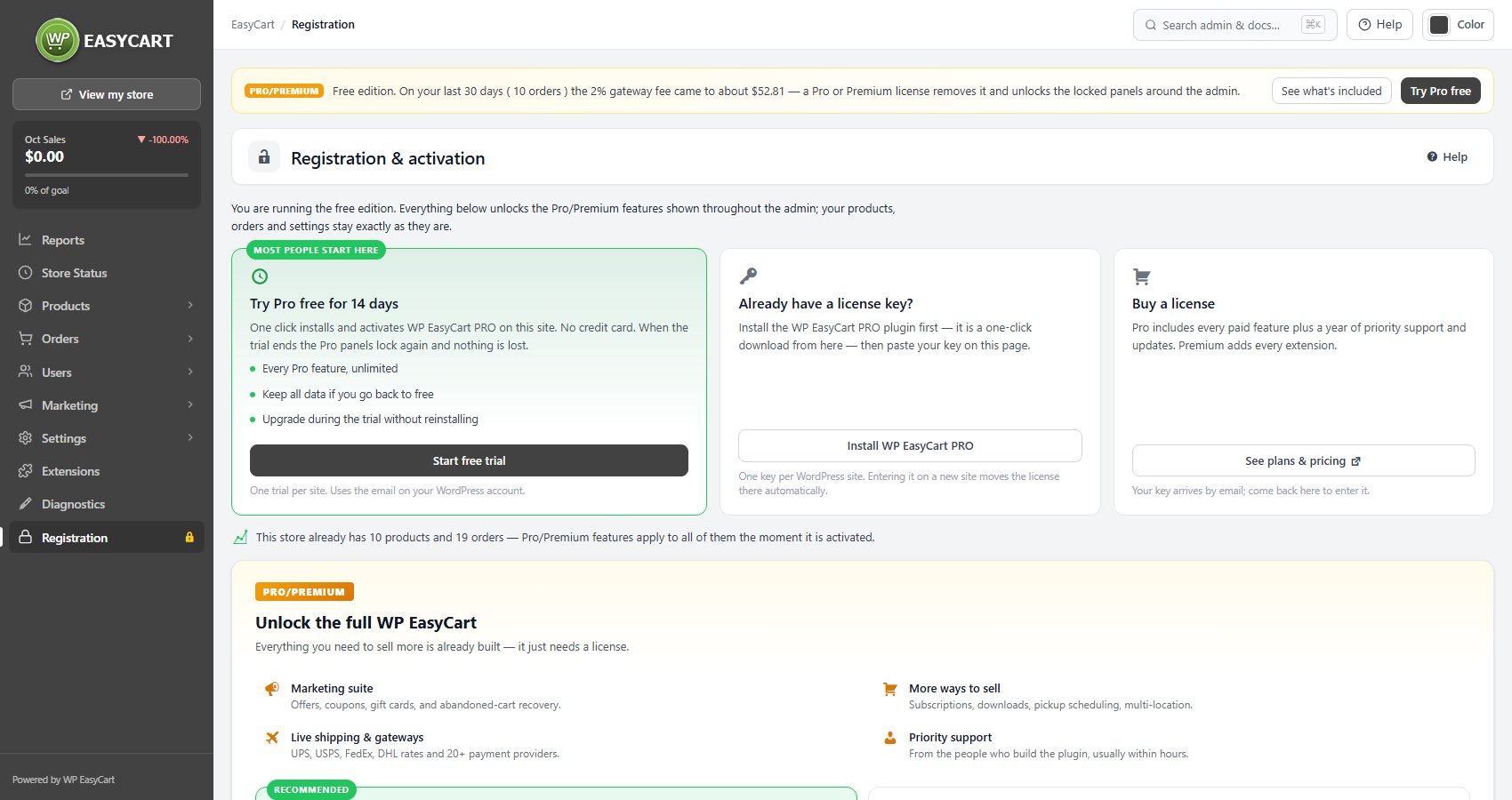
On the free edition, EasyCart › Registration shows three routes: Try Pro free for 14 days, Already have a license key? and Buy a license. If PRO is not installed yet, the key route offers Install WP EasyCart PRO. If PRO is installed but switched off, it offers Activate WP EasyCart PRO instead.

Either way, the result is the same: PRO is listed and active on Plugins › Installed Plugins. The full walkthrough, including uploading the zip by hand, is in Installing EasyCart PRO.
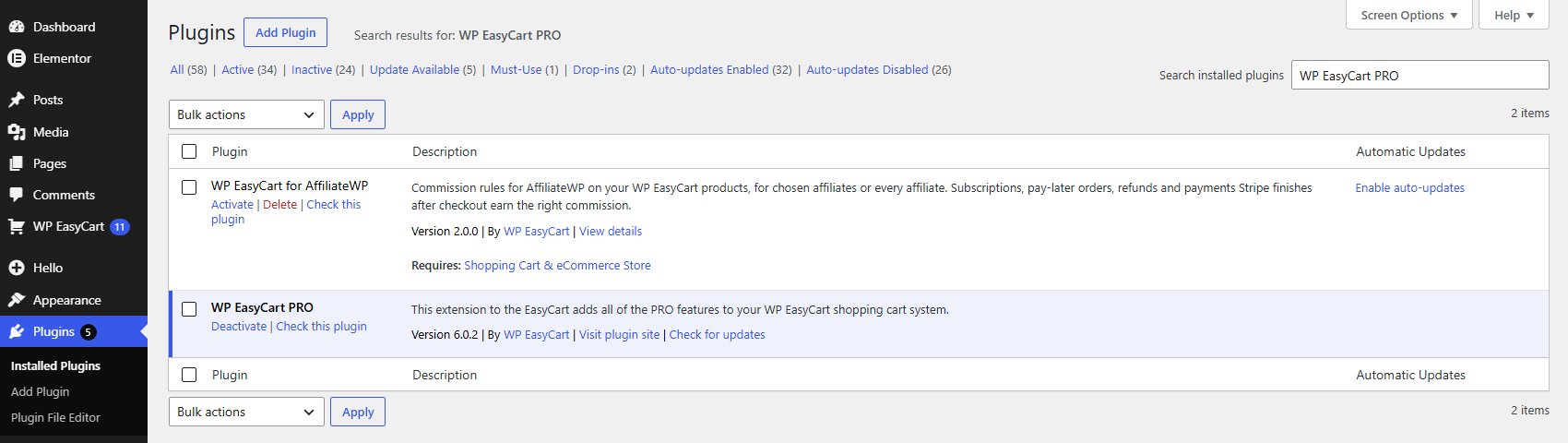
Plugins, with WP EasyCart PRO installed and active.

Step 2. Open Registration

EasyCart › Registration

Go to EasyCart › Registration. The page heading is Registration & activation in every state, but the page below it changes with your license.

With PRO active and no license on this site, it says WP EasyCart PRO is installed but no license is attached to this site and shows three cards: the trial, Already have a license key? with the form, and Forgot your key?, which opens your account.

On a trial, the page shows the trial details and Already bought a license?. With an active license it shows the license card instead, with the Development sites card under it. That is the screen in the picture.
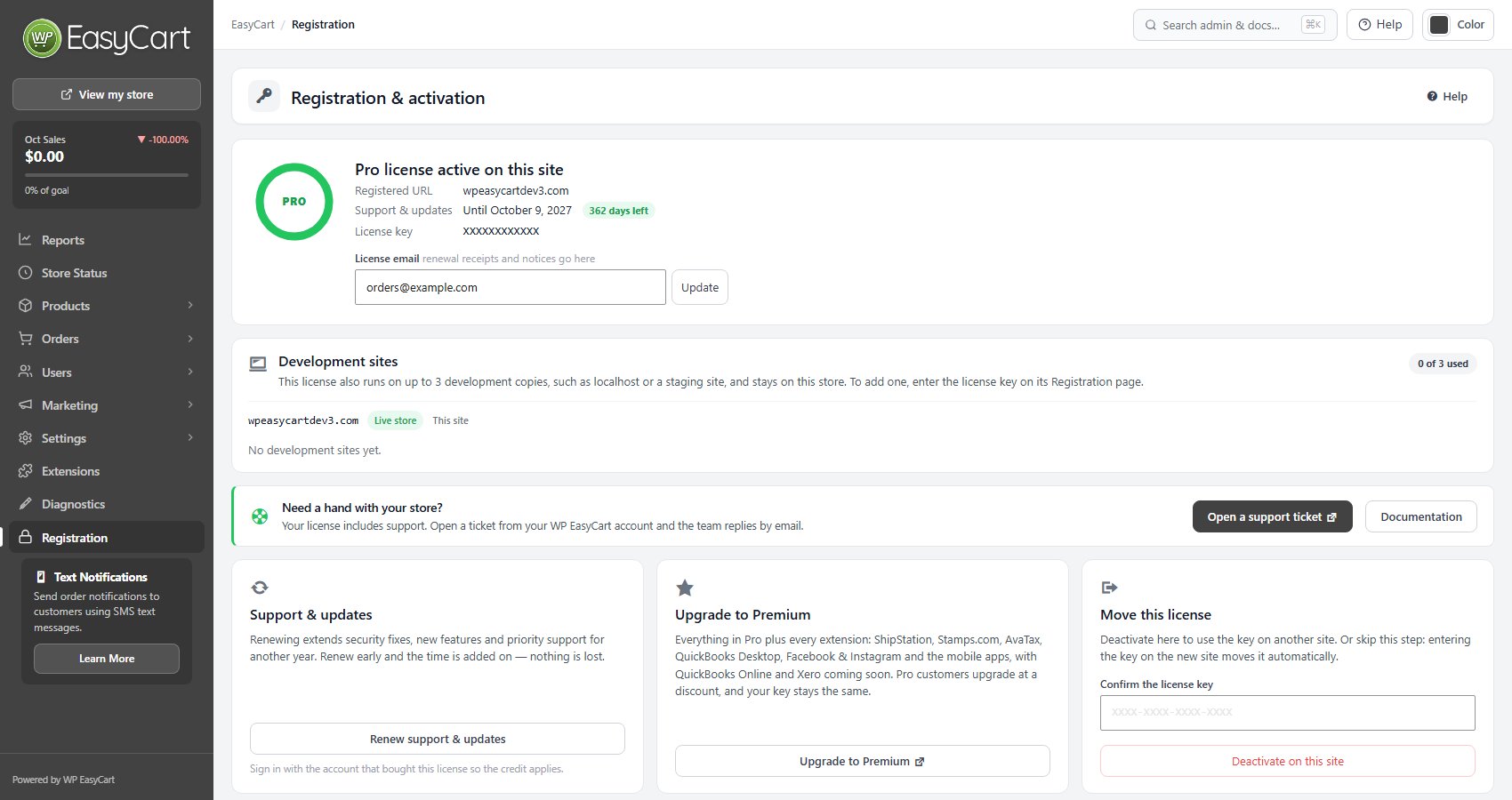
EasyCart › Registration on a store with an active Pro license, with Development sites below the license card.
The same screen before PRO is installed: Try Pro free, Install WP EasyCart PRO and Buy a license.

Step 3. Enter your key

Full name, email address, license key

Fill in the three fields and press Activate license:

Full name: the license holder.
Email address: AutoPay receipts and notices go here, so use an inbox someone reads.
License key: paste it exactly as it appears in your email.

Your store contacts the WP EasyCart licensing server, attaches the key to this site and comes back with License activated. and the paid sections open.

If the key is already active on another site, it moves here. There is nothing to release first. The old site’s paid panels lock the next time it checks its license.

A development copy is the exception. On a localhost or staging copy of your store the key does not move: the copy joins the key’s development sites, up to three, and the page says This copy is now one of your license’s development sites. Your live store keeps its license. Which addresses count is explained in Transferring Your License.

💡 Note: One key covers one live site plus up to three development copies. A localhost or staging copy joins the development sites, so your live store keeps its license.

Step 4. Check the license card

Edition, registered address, support end date

The card at the top confirms Pro license active on this site or Premium license active on this site, then lists:

Registered URL: the site the key is attached to.
Support & updates: the end date and how many days are left.
License key: the key in use.
License email: change it here and press Update.

The registered address is your WordPress site address without https:// and www.. Switching to https or adding www does not affect the license. A new domain, a subdomain or a folder does. That is a move, covered in Transferring Your License.


The license card: registered address, support end date, key and license email.
Below the card: Support & updates, Premium extensions and Move this license.

Good to know

What it unlocks, trials and troubleshooting

What changes once the key is in, how a trial becomes a license, and what the error messages mean.

What registration unlocks

Pro panels, updates, support and, on Premium, extensions

Every Pro panel. Features marked PRO across the admin open, on the products and orders you already have. Nothing is reinstalled.

No free-edition gateway fee. Stripe, Square and PayPal payments through EasyCart Connect carry an extra fee on the free edition. An active license removes it.

PRO updates. WP EasyCart PRO updates from your dashboard only with a current license. Without one, the PRO row on Plugins says why updates are paused and links to Registration or to your account, where AutoPay brings it back.

Support. The Registration page shows Open a support ticket, which opens your WP EasyCart account.

Premium extensions. On a Premium license the Premium extensions card sends you to EasyCart › Extensions, or offers Install WP EasyCart Premium, the plugin that installs and updates every extension. On a Pro license the same spot offers Upgrade to Premium, and your key stays the same. The steps are in Installing Extensions.

EasyCart › Store Status sums it up: the edition, days of support left, a store readiness check and the features you now have.
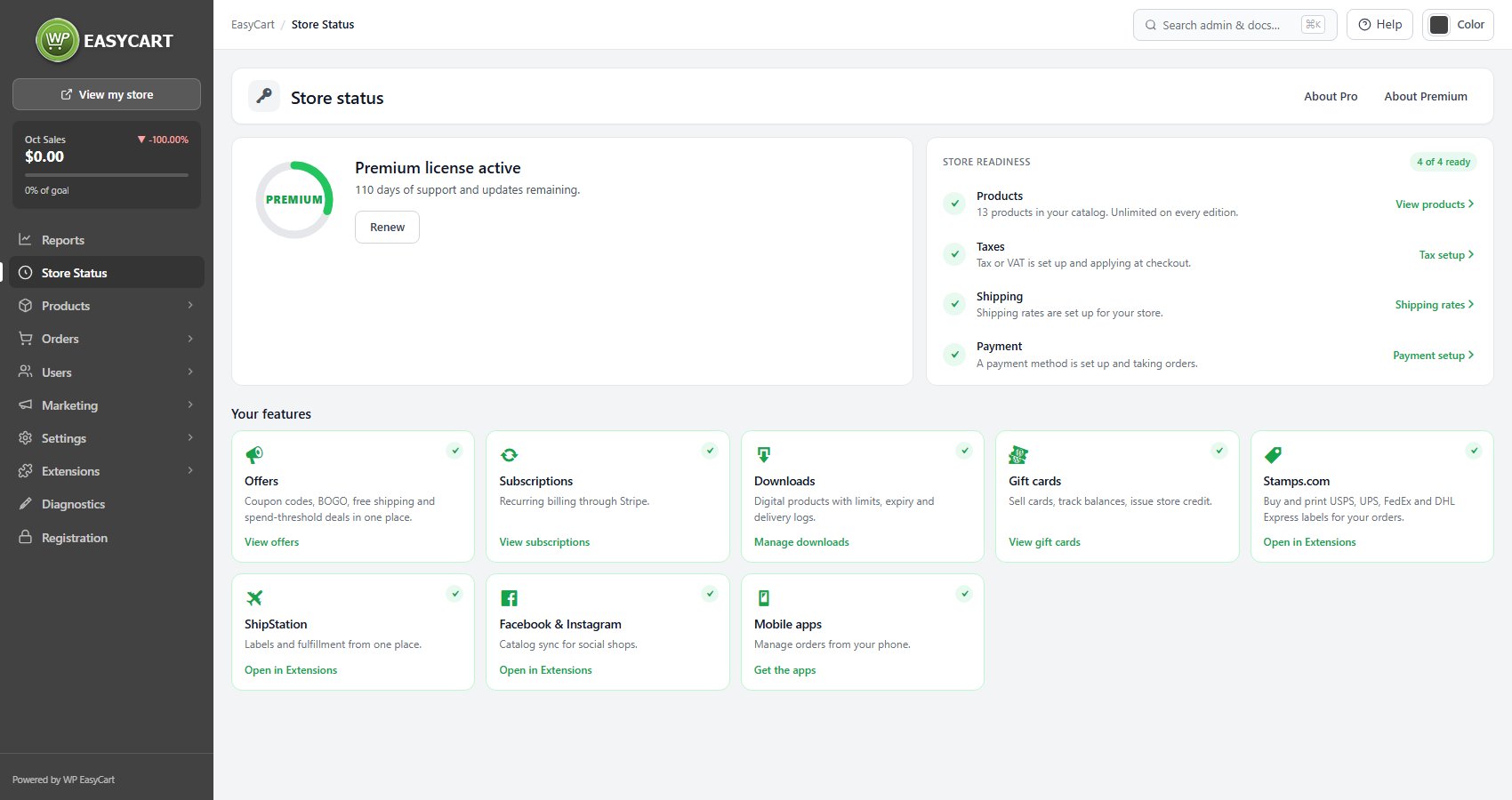
EasyCart › Store Status, with the license, store readiness and your features.

💡 Note: Every license state, renewal and the details panel are covered in Registration, and the readiness checks in Store Status.

Upgrading from a trial

The trial key can become the license

On a trial, Registration shows when it ends and two ways forward.

Upgrade this trial: your trial key becomes the license. No reinstall, nothing to re-enter, and the store stays exactly as you set it up.
Already bought a license?: enter the key from your purchase email in the same three fields. It replaces the trial on this site straight away.

If the trial ends first, the Pro panels lock and your products, orders and settings stay as they are. Upgrading opens them again.

If it does not work

The messages Registration can show, and what to do

There is nowhere to paste the key. WP EasyCart PRO is not active. Activate it on Plugins, then reload Registration.

Activation failed. Please try again in a few minutes. Check the key first: copy it again from your email or account, with no spaces either side. A wrong key can give this message too. If the key is right, wait a few minutes and try again.

No license was found for that key. The licensing server does not know that key. Check it against your account.

That form had expired. The page was open too long. Reload it and submit again.

Your license already has all its development sites. A copy can only join while a place is free. Remove one in the list the page shows, or on your live store’s Registration page, then activate the key again.

This address does not count as a development site. The licensing service checked the copy’s address and did not accept it as a local address, a hosting company’s staging address, or a staging., dev. or test. address of your live store. Nothing was activated, and your live store keeps its license.

The licensing server could not be reached. Your store keeps working; only activation and license checks are affected. Press Retry in a few minutes. If it keeps happening, ask your host whether outgoing connections from your server are blocked.

Features stay locked after activating. Check the Registered URL on the license card matches the site you are on.

Still stuck? Open a ticket at wpeasycart.com/my-account.

Keep going

Related panels

Registration

Every license state, renewal and moving a key.

Store Status

Your edition, support days and store readiness.

Installing Extensions

Installing the Premium extensions.

Diagnostics

Server and setup checks for your store.

Ready to run your store on WP EasyCart?

Everything in this guide works with the free plugin. PRO and Premium add subscriptions, memberships, wholesale pricing and more. Try every PRO feature free for 14 days.

The WP EasyCart admin: orders and offers
Updated on October 19, 2026