
Extension Guides
Groupon Importer Extension
Take the Groupon CSV file that contains your coupon codes and create the coupons in EasyCart with a few clicks. Selling subscriptions through Groupon? The system also works with Stripe subscription products.
Download & Install the Extension
Every EasyCart extension installs as a new WordPress plugin — a very easy task, and we have a short guide to get you started. Learn how to install a WordPress plugin and EasyCart Premium extensions.
Groupon Import Options
Set these options before you run the import — they control exactly how each Groupon code behaves in your cart.
- Coupon Expiration: Choose the expiration date for the coupon to match your Groupon sales.
- How to Apply the Coupon:
- Apply to All Products — Discount applies to all products in the cart.
- Apply to Specific Product — Discount only applies to one product type (applies to all of this product in the cart).
- Apply to Specific Manufacturer — Discount only applies to products of a specific manufacturer in the cart.
- Discount Type:
- Percent Off Coupon — Get a percent off discount, e.g. 25%.
- Amount Off Coupon — Get a price amount off the applicable products, e.g. $25.00.
- Applies to Subscription: If yes, the coupon will be added to Stripe (if using Stripe). Subscription-only options include Duration — the number of subscription payments/renewals the coupon will apply to:
- Once — Only applies to the first payment.
- Multi-Month — Select the number of times the coupon will apply. If renewals are in weeks, consider this a multi-week option. Enter the number of months to apply the coupon, e.g. 3 months (3 payments).
- Forever — Every payment for the length of the subscription.
- Max Redemptions: The number of customers or uses the coupon applies to. For example, 2 means the customer can make 2 different purchases with the same coupon before it becomes invalid. Most Groupon codes are 1-use coupons, so this should stay set at 1.
- Customer Message: The message the customer sees when they enter the code in the cart, e.g. “You will get $10 off your cart. Thank you for using Groupon.”
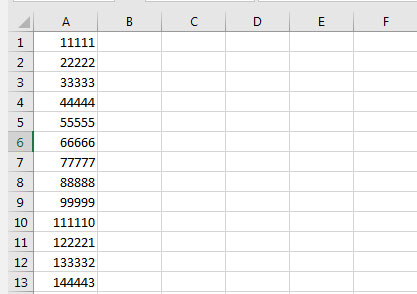
- Groupon Coupon Codes (CSV File): The file from Groupon — see the example below.
💡 Note: Duplicate codes will update the coupon on both your system and Stripe. New codes will be imported to both.
Groupon — Example Coupon Codes CSV File
Groupon Mass Delete Options
Need to clear out a batch of codes? Remove them in bulk using the same CSV file format.
Select Your Coupon Code File
Select your coupon code file — it uses the same format as the importer (see the CSV example below).
Click to Delete & Confirm
Click to delete and confirm deletion when prompted.
This delete is permanent — everywhere
Confirming the deletion removes all codes in the file from your system and from Stripe. Double-check the file before you confirm.
Groupon — CSV File Format for Mass Delete
Turn Groupon Buyers into Store Customers
Import your Groupon codes in minutes and let every redemption pull a new customer into your store. Questions on the import? We’re here to help.