
Admin panels › Products
Option Set Manager
The reusable groups of choices that turn one product into many, and the inputs that collect personalisation from shoppers. 3 parts.
Quick links
Where to find it:WP Admin › EasyCart › Products › Option Sets
Variants
Sets and their choices
Reusable groups of choices, and how they multiply into the combinations you stock.
Option sets
Reusable groups of choices, shared across products
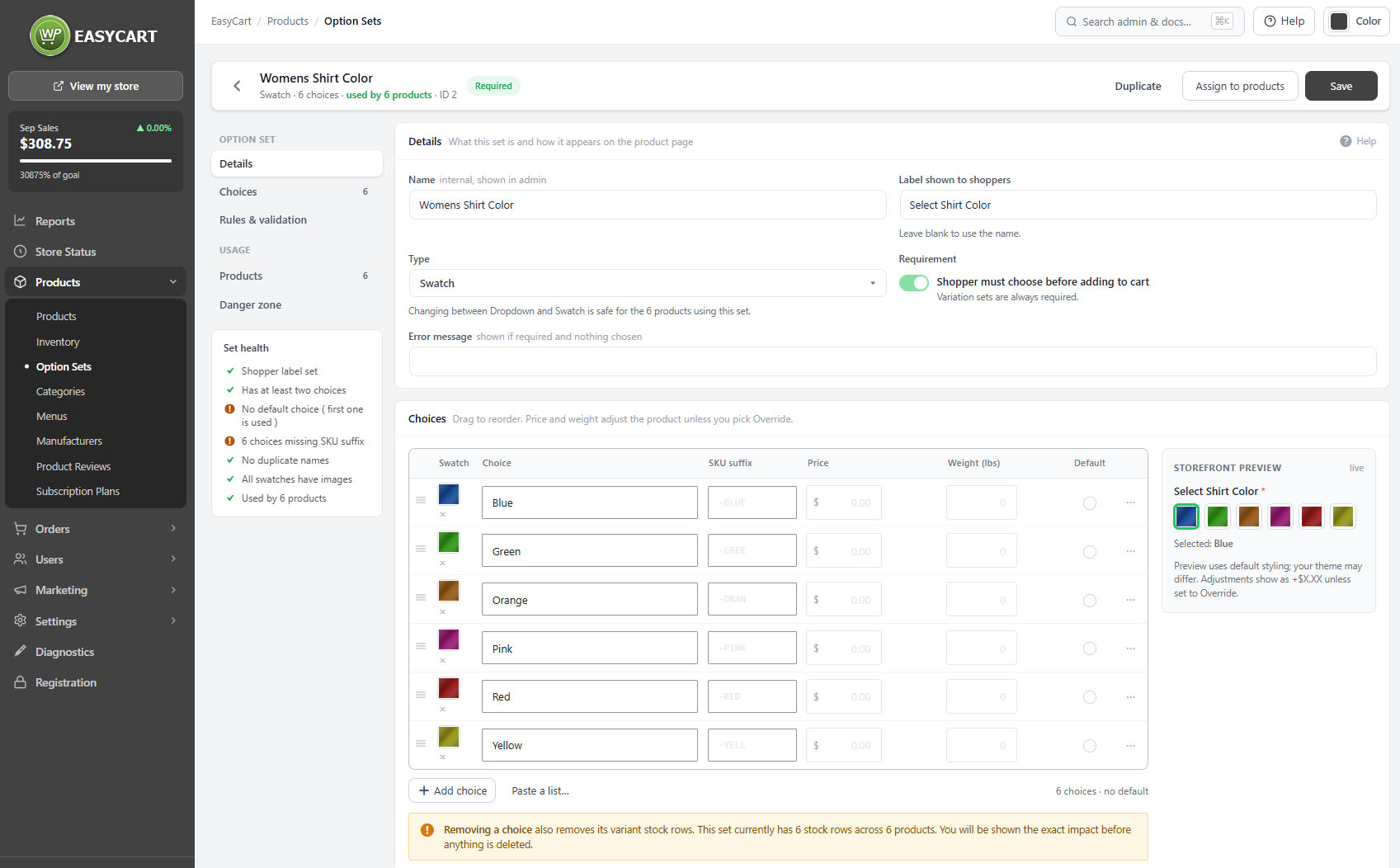
no stored settingsAn option set is a named group of choices, such as Size with small, medium and large. It is defined once and attached to as many products as need it, which is the point: twenty shirts share one Size set rather than each carrying its own copy.
The manager lists every set with how many choices it holds and how many products use it, and a set can be assigned to more products from here. That is the quickest way to apply a newly created set across an existing range.
Sets can also be created from inside the product editor without coming here, which suits the case where you are building a product and realise you need a new set. This screen is where you manage them once you have more than a handful.
💡 Note: Which option sets appear as storefront filters is chosen under Settings › Products, in the store sidebar section. Pick the two or three shoppers actually shop by.
Choices and variants
How selections multiply into the combinations you stock
no stored settingsEach set holds its choices, and choices can carry their own price adjustment, so a large costs more than a medium without needing a separate product.
Where a product has more than one set attached, the choices multiply. Three sizes and three colours make nine combinations, and the editor tells you the count as you build. That number matters, because each combination can carry its own stock and its own SKU, and a product with sixty combinations is sixty things to count.
Choices can present as a drop-down or as swatches, and swatches can carry images, which is what lets a shopper pick a colour by looking at it rather than reading its name.
Out-of-stock combinations are visible from the set, so you can see at a glance which sizes have gone.
⚠️ Careful: Combinations multiply quickly. Three sets of four choices is sixty-four variants, each potentially with its own stock and SKU. Check the combination count the editor shows before committing to a structure you will have to maintain.
Collecting from shoppers
Advanced option types
Inputs that capture personalisation rather than picking a variant.
Advanced option types
Inputs that collect information rather than picking a variant
no stored settingsBeyond picking a variant, options can collect something from the shopper. These do not create combinations; they capture information that travels with the order.
Text and text areas take engraving, personalisation or instructions. They can force upper case, lower case or title case, restrict input to letters, letters and spaces, numbers or letters and numbers, and show placeholder text. The rules apply as the shopper types and again when the item is added to the cart, so pasted text cannot slip past them.
File uploads take artwork or photographs, and can be limited to particular file types, with the accepted types shown beside the field. Dates take a pickup or event date. Numbers take a quantity with a minimum, maximum and step. Checkboxes and radios offer priced add-ons.
💡 Note: Uploaded files are delivered to you through the order emails, and who can open those links is controlled under Settings › Email.
Keep going
Related panels
Attaching option sets to an individual product.
Stock held against each combination.
Option filters in the store sidebar.
The catalogue these sets are used across.
Who can open files shoppers upload.
Pricing, which choice adjustments modify.
Try the PRO features free for 14 days
Anything marked PRO comes with WP EasyCart PRO or Premium. Take the whole thing for a run on your own store before you decide.
