Stamps.com Labels Extension

3 min read

Extension Guides

Stamps.com Labels Extension

Stamps.com enables you to print shipping labels with pre-paid USPS postage. WP EasyCart’s extension connects directly to the Stamps.com API — upgrade to Premium and begin buying and printing postage right from WordPress. Create real pre-paid USPS shipping labels directly from the orders placed on your eCommerce plugin.

Before You Begin

To connect WP EasyCart with Stamps.com, you need a Stamps.com account — the extension links your cart directly to it. Click here to get started with Stamps.com. You’ll also need the extension itself installed: all EasyCart extensions install as new plugins — a very easy task with WordPress. Click here to learn how to install a WordPress plugin and EasyCart Premium extensions.

Connect to the Stamps.com API

With your Stamps.com account ready and the extension installed, three quick steps make the connection.

1

Open the New Settings Menu

Once installed, click the new menu on your WordPress website. To create the connection, start by clicking on the settings menu.

WordPress — Stamps.com Menu Selection
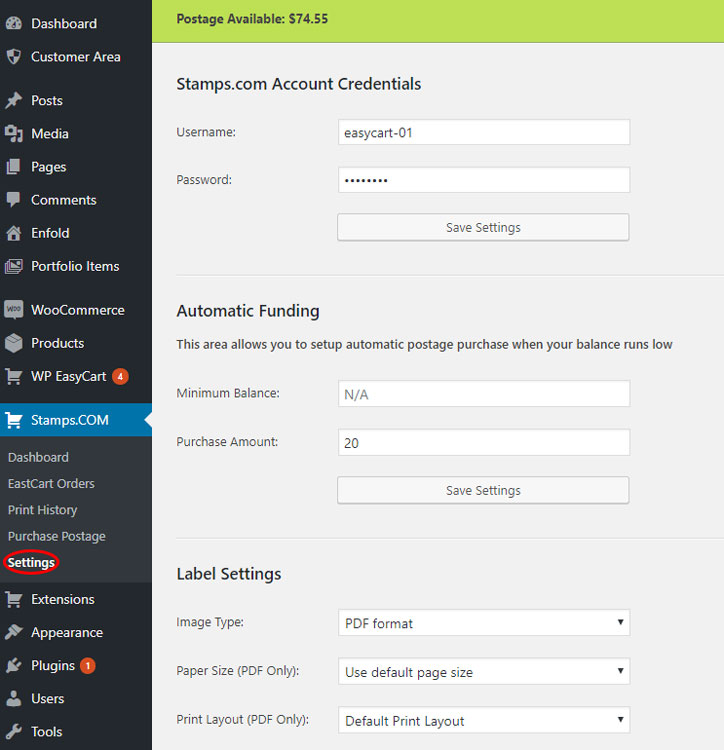
Stamps.com extension menu in WordPress with settings selected
2

Add Your Login Credentials

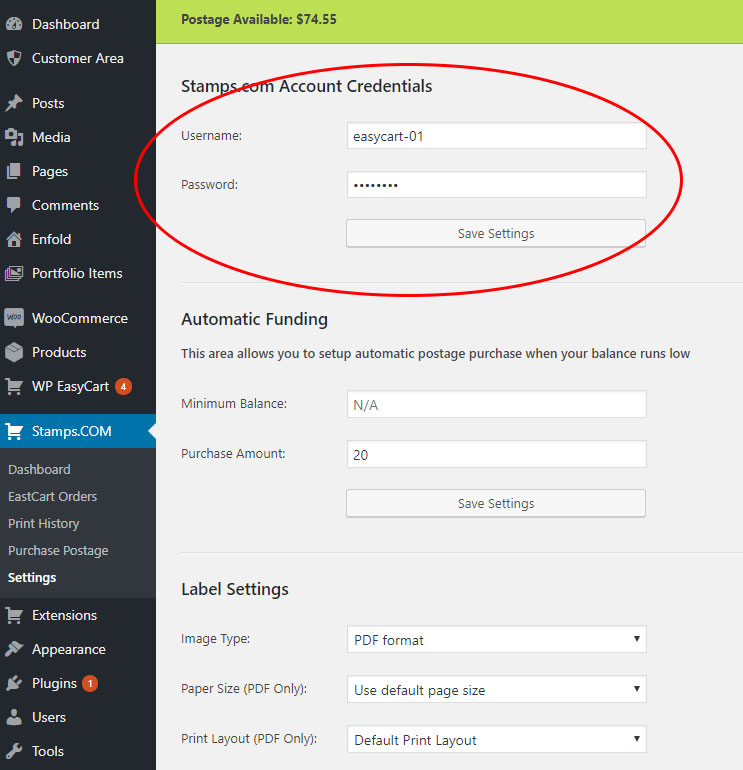
On the settings page, enter your Stamps.com account credentials for the API access.

Stamps.com — API Login Credentials

Stamps.com settings page where account credentials are entered for API access
3

Set Your Shipping Return Address

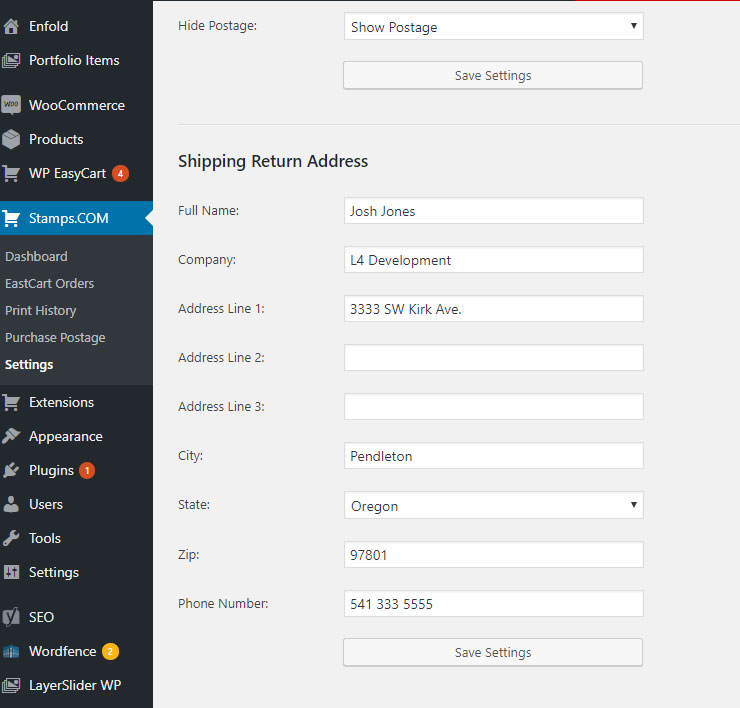
Scroll down and enter your ‘Ship From’ address — Stamps.com uses it to calculate shipping.

Stamps.com — Ship From Address

Return address fields for Stamps.com shipping label calculation

Purchase Postage

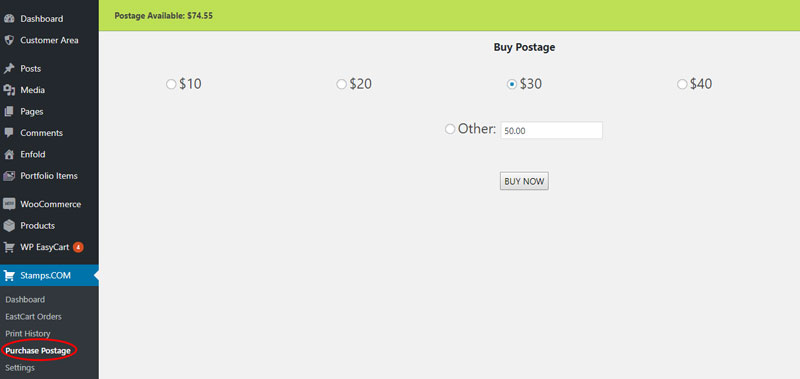
Configured and connected? Time to start processing labels. If you’re low on postage, buy it in your Stamps.com account or by using the “Purchase Postage” menu. We display your account balance near the top for your convenience.

💡 Good to know: This page requests on your behalf to have Stamps.com add postage to your account — no purchase is made by the WP EasyCart system.

Stamps.com — Purchase Postage

Purchase postage panel showing account balance and postage amounts

Create Shipping Labels from Your Orders

Connected and stocked with postage, you can begin printing and generating labels for orders — here’s the full workflow.

1

View Your Current Orders

Click on the EasyCart Orders menu button to view the current orders.

Stamps.com Extension — View Orders
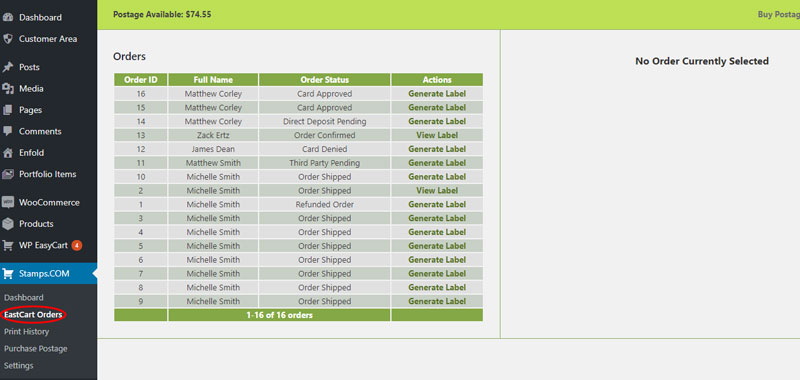
EasyCart orders menu for creating shipping labels from orders
2

Generate a Label

In the list of orders, names, and order statuses, start the label generation process by clicking ‘Generate Label’. If you have past labels already generated, simply choose ‘View Label’.

Stamps.com Extension — Generate Label
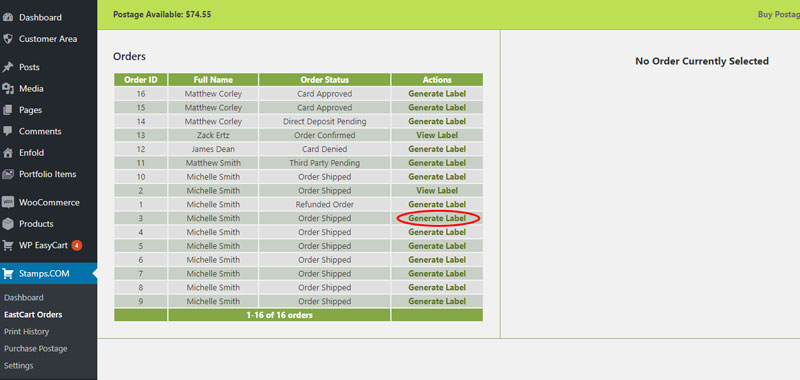
Order list with the Generate Label button for each order
3

Confirm the Shipping Address

With an order selected, first choose to accept the address the user entered. You can manually update that address if you need to as well.

Stamps.com Extension — Confirm Address
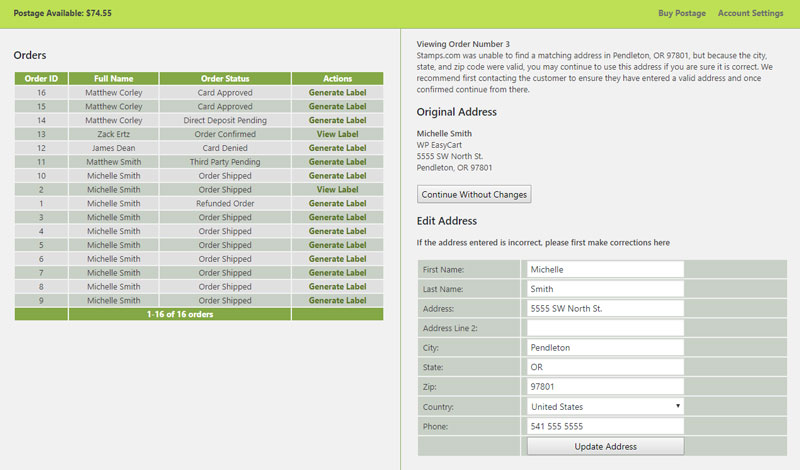
Address confirmation screen to make corrections and approve changes
4

Set Up the Package

Once the address is set, configure the package type. There’s a variety of package types to choose from, plus weight and dimensional units to send to Stamps for accurate shipping costs.

Stamps.com Extension — Package Setup
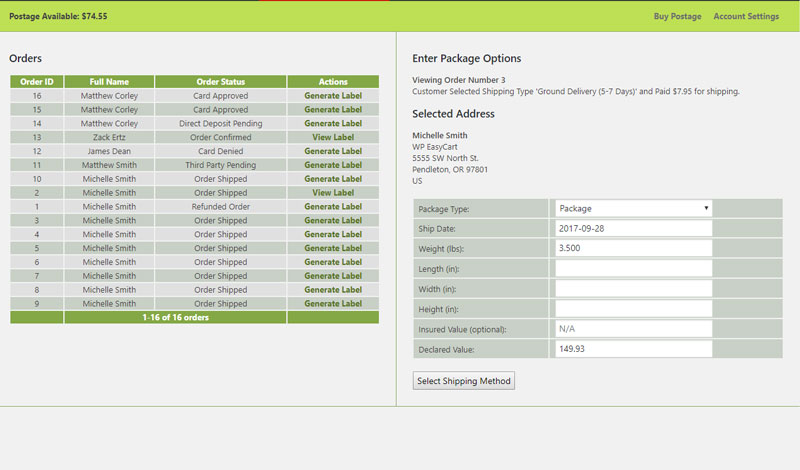
Package type, weight, and dimension setup screen for the shipping label
5

Select a Shipping Method

Choose from the shipping methods returned by Stamps.com. We also show the cost the customer paid and their selected shipping method at the top of this screen — ensuring you choose a shipping option as accurate as possible to the customer’s selected rate and method.

Stamps.com Extension — Select Shipping Method
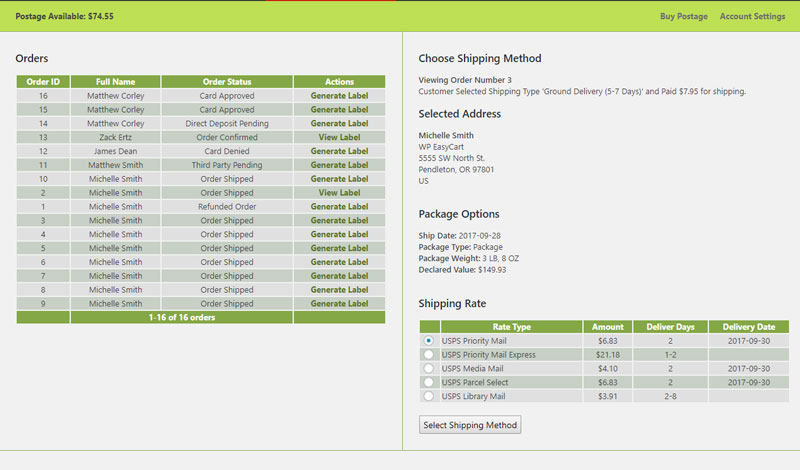
Shipping method selection with customer paid rate shown at the top
6

Print, Track & Notify

Once you select a shipping method, you’re presented with a variety of choices: print the label, track, email the customer, set the order as shipped, or refund/delete. You can also review a label later via ‘Print Label’ from the dashboard or the order history section.

Stamps.com Extension — Print & Track
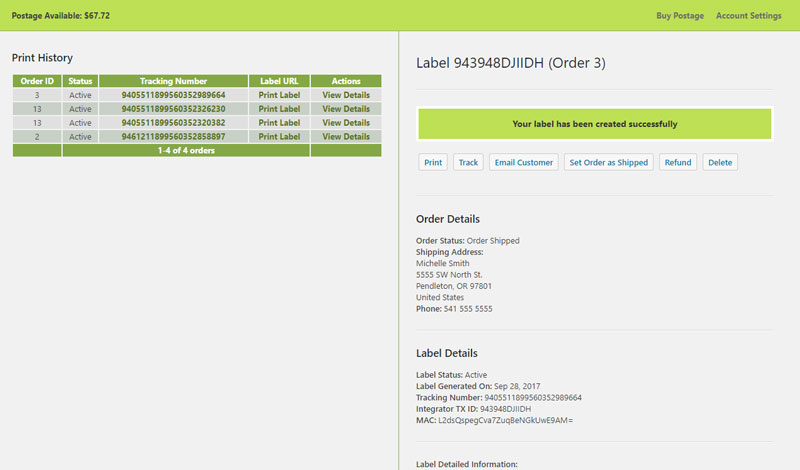
Print label, tracking, and customer email options for the new Stamps.com label

Ship Faster. Right from WordPress.

Pre-paid USPS labels without leaving your dashboard — that’s the Stamps.com extension. Need a hand with the connection? We’ve got you.

Updated on July 20, 2026