
Customization
Intermediate Design
Need more control than the sidebar settings offer but don’t want to create child layout files? EasyCart’s custom CSS panel lets you override any store style with your own code — and your changes survive every plugin update.
Overview
Three levels of customization
Basic
Change button colors, product column counts, layout designs, and rollover effects — all from the admin sidebar. No code needed.
Intermediate
Add custom CSS to adjust any EasyCart element. Paste it into the built-in custom CSS panel for quick, targeted changes.
Advanced
Create child layout and theme files to fully override EasyCart templates — just like WordPress child themes. Your changes survive plugin updates.
Watch the Customization Walkthrough
See how to change fonts, colors, and add custom CSS to your EasyCart store in just a few minutes.
Customizing EasyCart
Change basic design with fonts, colors, and custom CSS easily with WP EasyCart.
Custom CSS
Intermediate design with the Custom CSS panel
For those wanting more flexibility, EasyCart offers a dedicated Custom CSS panel. Any styles you enter here automatically override the default EasyCart styles — making it easy to target a specific element and adjust it without touching any plugin files.
Where to find it
Navigate to WordPress Admin → WP EasyCart → Settings → Design → Custom CSS. Paste your CSS rules into the panel and save. Your changes take effect immediately and persist through every plugin update — the custom CSS panel is stored separately from the core plugin files.
Tip: Use your browser’s developer tools (right-click → Inspect) to find the exact CSS selector for the element you want to change. Copy the selector, write your override rule in the Custom CSS panel, and save.
EasyCart — Custom CSS panel
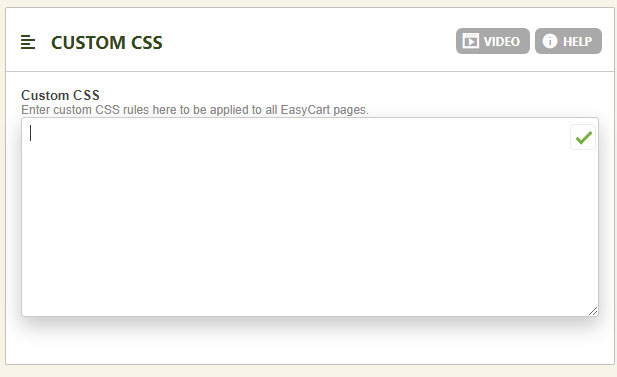
Fine-tune your store with custom CSS
Target any element, override any style, and keep your changes safe through every update — all from one panel in the EasyCart admin.