
Installation Guide
Installing WordPress
New to WordPress? This guide walks you through everything you need — from buying a domain name to logging into your first WordPress dashboard. Once WordPress is running, you’re ready to install WP EasyCart and start building your store.
Quick Start
What you need to get started
Buy a domain name
Purchase a unique domain (e.g. www.mystore.com) from a registrar like GoDaddy. Typically around $10/year.
Choose a web host
A web host stores your WordPress files, database, images, and content. Most modern hosts include one-click WordPress installation.
Install WordPress
Your host can install WordPress in minutes. Once it’s running, log in and you’re ready for themes, plugins, and EasyCart.
The Basics
What is WordPress?
WordPress is a Content Management System (CMS) that powers over 50% of websites on the Internet — by far the most popular platform for building and running a website. It gives you an admin area to create pages, upload themes for professional designs, and install plugins like WP EasyCart to add eCommerce and other features.
Is WordPress secure?
Yes. WordPress is as secure as any other web software on the market. Keep your installation up to date (updates can be automated), run your site on a reliable hosting platform, and use reputable, well-trusted plugins. Security on the web is only as strong as the practices you follow.
Hosting
Recommended hosting providers
We’ve worked with many web hosts over the years. These two have consistently delivered reliable, compatible hosting for WordPress and EasyCart. WordPress comes included with their hosting accounts.
WP Engine
We’ve worked with WP Engine for many years. They offer top-notch secure web hosting that is extremely reliable. They’re slightly more expensive, but you get what you pay for with excellent support and managed WordPress infrastructure. Learn more about WP Engine →
Bluehost
One of our favorites for low-cost hosting that’s still professionally managed and fully compatible. Bluehost offers a standard cPanel control panel and has always worked well with WordPress, EasyCart, and virtually every theme and plugin we’ve tested. Learn more about Bluehost →
Setup
Installing WordPress
You have a domain and a web host — now what? Most modern hosts come with WordPress already installed or offer a one-click installer. Your hosting provider can help connect your domain and get WordPress running in minutes.
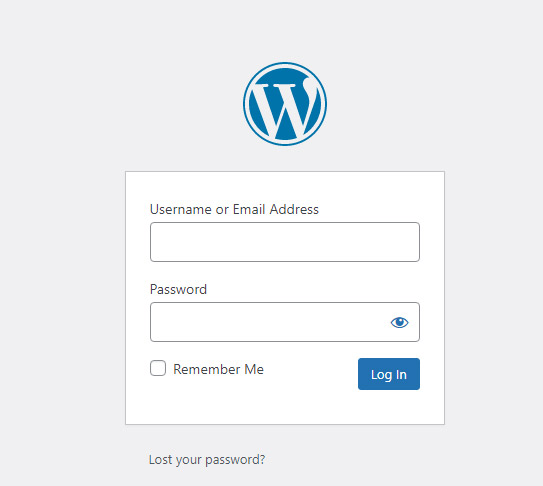
Once WordPress is installed, you’ll receive an admin username and password. Log in at your site’s admin URL (typically yourdomain.com/wp-admin) to access the WordPress dashboard where you can control all aspects of your website.
WordPress login screen
Once logged in, you can:
- Install themes to get started with professional designs
- Install plugins (like WP EasyCart) to add eCommerce and extra features
- Create pages — about us, contact us, services, and anything else your site needs
Next Steps
What’s next?
WordPress is installed and running. Now pick a theme — it has the biggest influence on your site’s look and compatibility. Since WordPress is a do-it-yourself environment, be cautious about what you install. Using reputable, well-trusted plugins like WP EasyCart goes a long way toward a safe, secure, and fast experience.
Tip: Every plugin you install mixes code from different developers. Stick to reputable plugins with strong track records to keep your site stable and secure.
Ready to install WP EasyCart?
WordPress is running — now add your store. Jump to the next step and install the WP EasyCart plugin.