
Integration Guide
WP EasyCart × ActiveCampaign
ActiveCampaign is a powerful email marketing and automation platform. Connect it to WP EasyCart and your checkout opt-ins flow directly into your ActiveCampaign list — ready for newsletters, drip campaigns, and automated follow-ups.
Watch the Setup Walkthrough
Prefer to watch? This short video walks you through the entire ActiveCampaign integration setup in just a few minutes.
ActiveCampaign Setup
We walk you through the quick setup of getting your EasyCart and ActiveCampaign accounts connected with this simple video.
Before You Begin
An active ActiveCampaign account is required to use this integration. If you don’t have one yet, sign up at activecampaign.com. You can also pair this integration with ActiveCampaign’s own WordPress plugins or popup tools — EasyCart focuses on the checkout-opt-in flow, but the two approaches combine for a complete solution.
Step 1 — Enable Newsletter Sign-up in EasyCart
Turn on the opt-in checkbox so shoppers can subscribe during checkout and account creation.
Turn on Subscribe to Newsletter
In WordPress, go to EasyCart › Settings › Accounts and toggle “Subscribe to Newsletter” to ON. This adds the opt-in checkbox to the checkout flow and the customer account creation form — every shopper now gets a chance to join your list without leaving the checkout.
Step 2 — Get Your API Credentials
Pull your API URL and Key from ActiveCampaign so EasyCart can talk to your account.
Open the Developer Panel
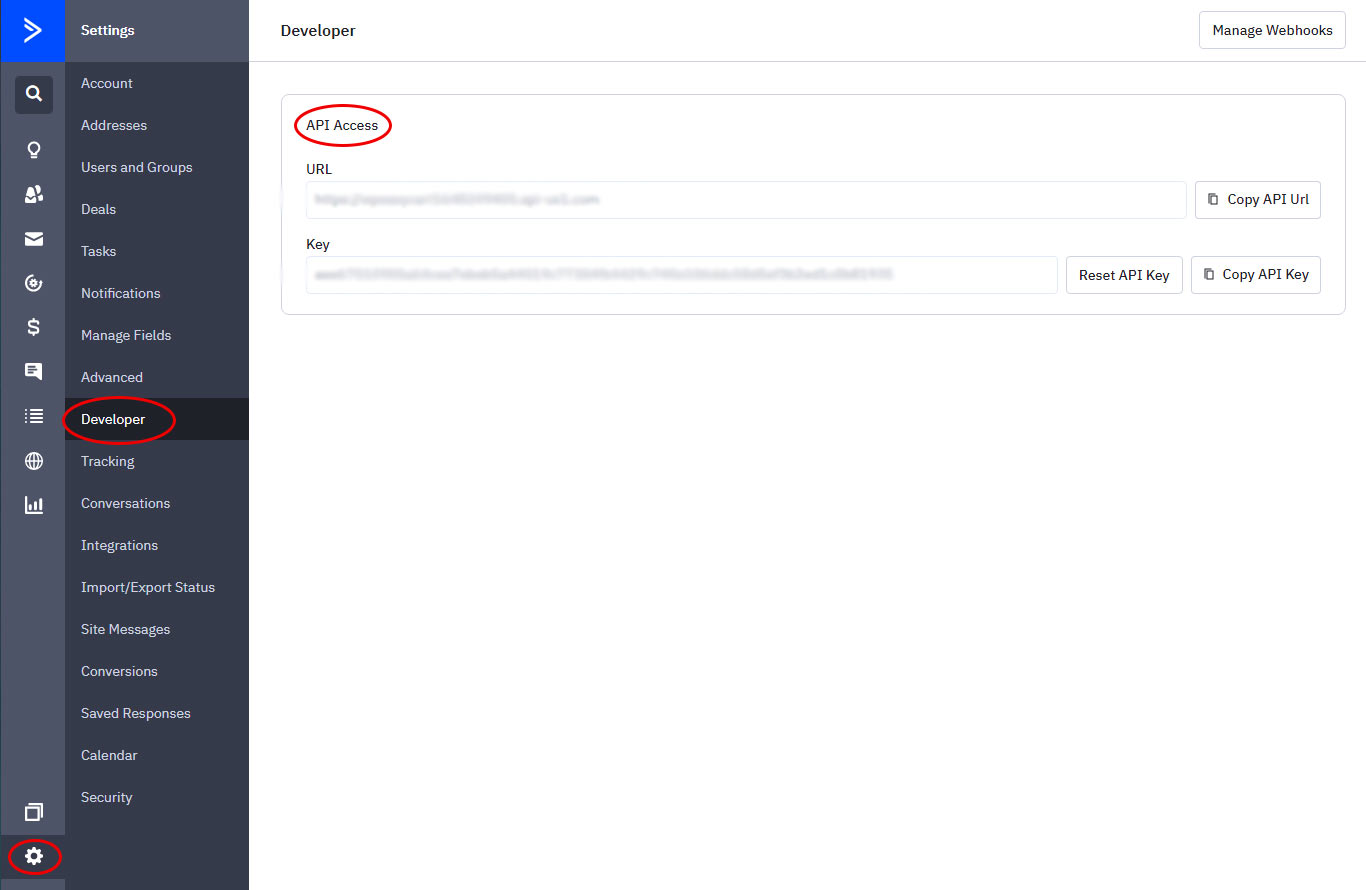
Log into your ActiveCampaign account and navigate to Settings › Developers from the bottom-left menu. You’ll see your API URL and API Key displayed here. Copy both — you’ll paste them into EasyCart in a moment.
ActiveCampaign — Developer Settings (API URL & Key)
Step 3 — Create a Subscriber List
ActiveCampaign needs a destination list before it can receive new subscribers.
Add a New List in ActiveCampaign
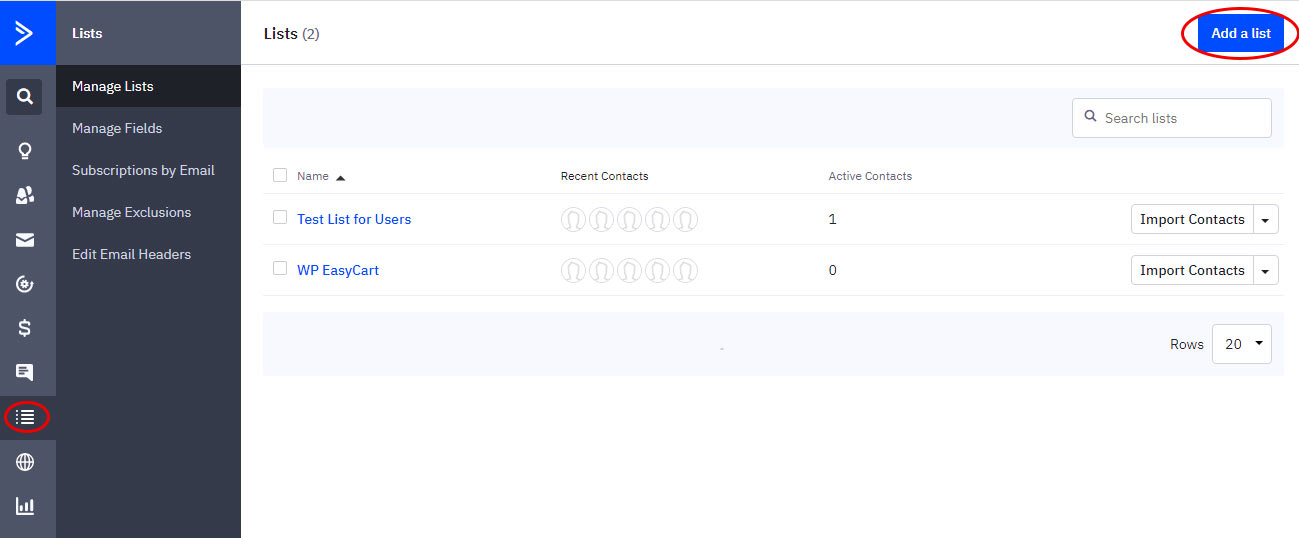
From your ActiveCampaign dashboard, select Lists in the left menu and click Add a List. Give it a clear, descriptive name (e.g. “Store Newsletter Subscribers”). This is where EasyCart will store every opt-in shopper.
ActiveCampaign — Creating a Subscriber List
Step 4 — Finish the Connection in EasyCart
Paste your credentials, pick your list, and you’re live.
Paste Credentials & Select Your List
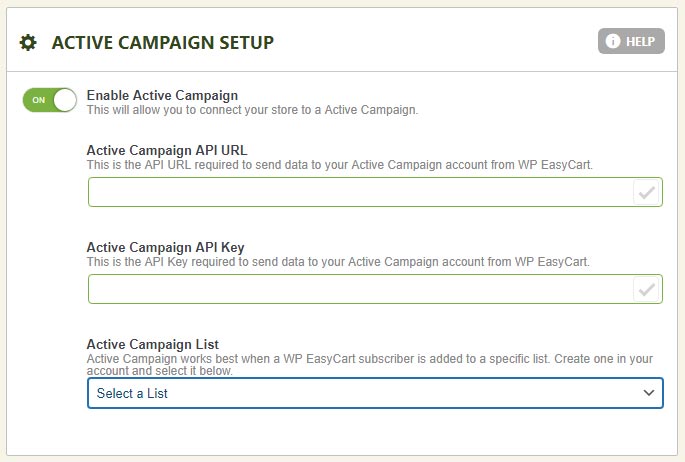
Return to your EasyCart Settings and refresh the page. Paste your API URL and API Key into the matching fields, then choose your new ActiveCampaign list from the dropdown at the bottom. Save your settings — from here on, every checkout opt-in flows straight into ActiveCampaign, ready for your next campaign.
EasyCart — ActiveCampaign Integration Settings
Start Building Your Subscriber List Today
Combine WP EasyCart with ActiveCampaign to grow your audience automatically, send beautifully designed emails, and turn one-time buyers into repeat customers.