Settings › Payments & Taxes
Tax Setup and Features
Where you collect tax and how much: a flat rate, tables by state or country, VAT, Canadian provincial tax, duty on international orders, or one live service that works it out for you. 7 sections.
Quick links
Where to find it:WP Admin › EasyCart › Settings › Payments & Taxes › Taxes
Your own rates
Flat, state and country
The base rules, and the tables behind charging by destination.
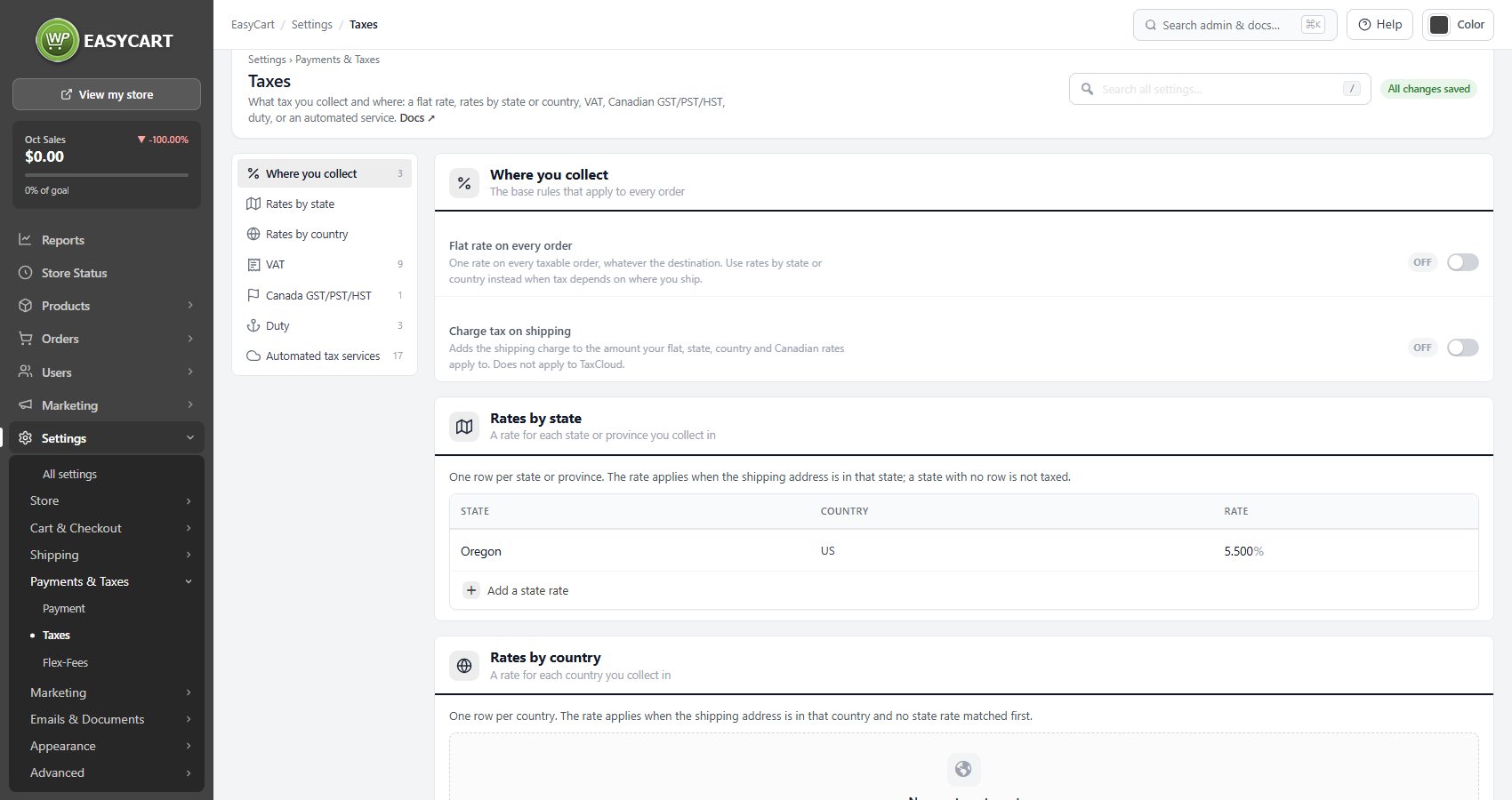
Where you collect
The base rules that apply to every order
2 settingsFlat rate on every order
Applies one rate to every taxable order regardless of where it is going. That is the right answer only when you genuinely charge the same everywhere, which usually means selling within a single jurisdiction. If tax depends on the destination, use rates by state or by country instead, because a flat rate will be wrong for most of your orders and wrong in a way nobody notices until filing.
Charge tax on shipping
Includes the shipping charge in the amount your flat, state, country and Canadian rates are calculated on. Whether shipping is taxable varies by jurisdiction and is not a matter of preference, so check rather than guess. It does not apply to TaxCloud, which makes that decision itself from the destination.
⚠️ Careful: A flat rate on every order is only correct if you genuinely charge the same everywhere. If tax depends on where you ship, use the state or country tables, or an automated service. A flat rate applied to varied destinations is wrong quietly and for a long time. For a step by step walkthrough, see Set Up Sales Tax and VAT.
Rates by state
A rate for each state or province you collect in
no stored settingsNo stored settings here, just the rate table. Add a row for each state or province you collect in, with its rate. This is the right approach when you have a tax obligation in specific states rather than everywhere, which for most sellers is where they have physical presence or have crossed an economic threshold. Where the list would run to hundreds of local rates, an automated service is the more sustainable answer than maintaining this table by hand.
Rates by country
A rate for each country you collect in
no stored settingsNo stored settings here either, just the rate table: one row per country you collect in, with its rate. Use it where tax depends on the destination country but not on the region within it. Countries have to exist and be enabled in your country list before they can be given a rate here.
Regional systems
VAT, Canada and duty
Tax systems that work differently enough to need their own handling.
VAT
Value added tax, one rate or a rate per country
6 settingsCharge VAT
Turns on value added tax. VAT is not simply another tax rate: it changes how prices are quoted, how business customers are treated and what has to appear on an invoice. Switch it on only if you are actually VAT registered, and set the country rates below before taking orders.
Exempt shipping from VAT
Leaves the shipping charge out of the VAT calculation. Off charges VAT on shipping as well. In most VAT jurisdictions shipping follows the goods and is taxable, so leaving this off is usually correct, but the rule is national rather than universal.
Rate for VAT-registered businesses
The rate charged instead of the country rate when a shopper enters a VAT registration number at checkout and their country is not marked to apply VAT to businesses. This is the mechanism behind zero-rating business-to-business sales across borders. It needs the VAT number field turned on under Checkout, and it does nothing without it.
Verify VAT numbers with Vatlayer
Checks the VAT number a shopper types against the Vatlayer service before the business rate is applied. Worth having: an unverified number is an invitation to claim a zero rate that is not owed, and the liability for getting that wrong sits with you rather than the customer.
Vatlayer API key
From your Vatlayer account. Verification and the business rate both depend on it, so an empty key means numbers are accepted on trust. Once it is saved, Test Vatlayer at the foot of this section checks a VAT number with the key and shows the answer; leave its box empty to try a sample number.
Rounding increment
The increment VAT totals round to. Most countries use 0.01, some require 0.05. This is a legal requirement rather than a display preference in the places that specify it, so check your own jurisdiction rather than leaving the default in place.
💡 Note: The business rate needs the VAT registration field turned on under Settings › Cart & Checkout › Checkout, and which countries charge VAT is set per country under Settings › Store › Countries & Regions.
Canada GST/PST/HST
Provincial rates for orders shipped to Canada
1 settingCanadian provincial tax
Charges GST, PST or HST by province on orders shipped to Canada, with separate rates per customer role. Canadian tax is genuinely per-province and mixes federal and provincial components, which is why it gets its own system rather than being squeezed into the state rate table. Turning it on ticks every province, so review the list and the rates rather than assuming the defaults are current.
Duty
A percentage on orders shipped abroad
1 settingCharge duty on international orders
Adds a duty percentage to orders shipped to any country other than the exempt one. This is a blunt instrument, and deliberately so: real duty depends on the goods, their value and the destination. Use it where you want to collect an approximate amount up front rather than leaving customers with an unexpected bill from the courier, and be clear on your shipping page about what it covers.
💡 Note: Duty here is a flat percentage rather than a real customs calculation. If you collect it, say on your shipping page what it covers so customers are not surprised twice.
Letting a service do it
Automated tax
Live rates from TaxCloud, TaxJar or Avalara AvaTax instead of maintaining tables, with one service in use at a time.
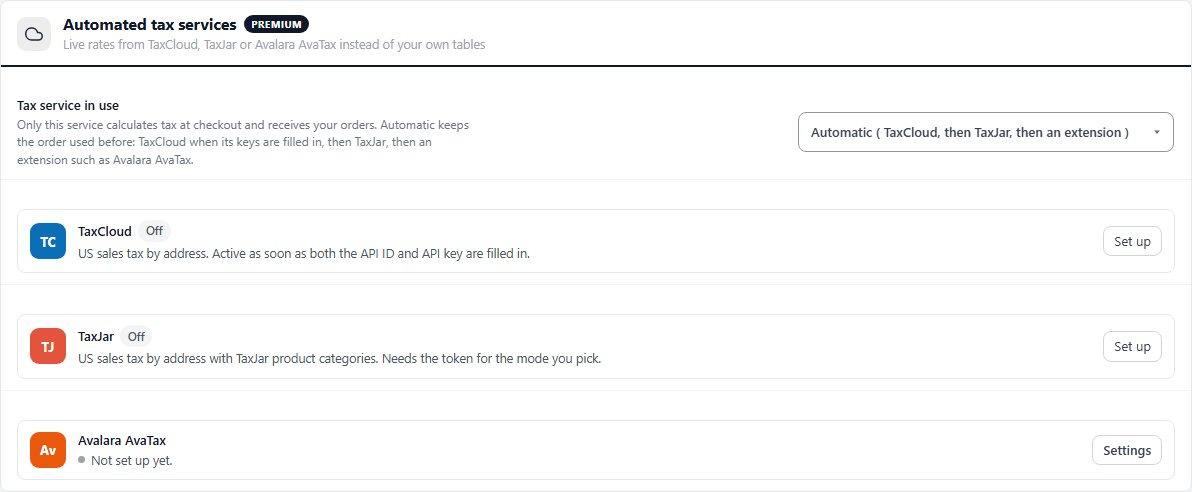
Automated tax services
Live rates from TaxCloud, TaxJar or Avalara AvaTax instead of your own tables
17 settingsTax service in use
Picks the one service that calculates tax at checkout and receives your orders: TaxCloud, TaxJar, an extension such as Avalara AvaTax, or None, which uses the rates on this page. Automatic keeps the order used before: TaxCloud when its keys are filled in, then TaxJar, then an extension. Naming the service is the safer choice once you have one, because a service that is set up but not chosen shows Not in use on its row and calculates nothing. Below the picker each service has its own row with its state, and Set up or Edit opens its settings in a drawer. AvaTax is an extension: its row opens its own settings under EasyCart › Extensions.
TaxCloud API ID
From your TaxCloud account. TaxCloud calculates United States sales tax live, by destination, which removes the job of maintaining thousands of local rates by hand. It is active as soon as both the API ID and the API key are filled in.
TaxCloud API key
The private half of the TaxCloud credentials. Only ever sent from your server, never to a shopper’s browser.
TaxCloud origin address
The street address you ship from. United States sales tax depends on origin as well as destination, so this is part of the calculation rather than a formality.
TaxCloud origin city
The city you ship from, used in the same origin calculation.
TaxCloud origin state
The state you ship from. Getting this wrong produces rates that look plausible and are wrong, which is the worst kind of error in tax.
TaxCloud origin ZIP
The ZIP code you ship from. United States rates vary within a state, so the ZIP matters.
TaxJar
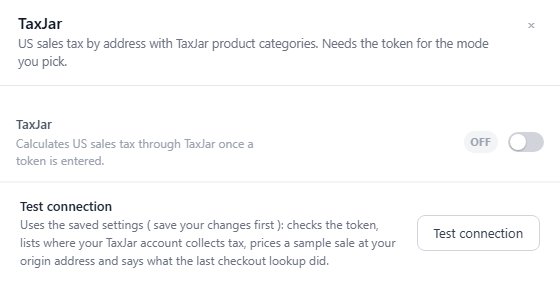
Calculates United States sales tax through TaxJar once a token is entered, as long as TaxJar is the tax service in use. The TaxJar drawer also carries Test connection: using the saved settings, it checks the token, lists where your TaxJar account collects tax, prices a sample sale at your origin address and says what the last checkout lookup did. Save your changes before running it.
Sandbox mode
Talks to the TaxJar sandbox using the sandbox token rather than the live service. Nothing calculated in sandbox mode is real. Turn it off before you sell, and check that you have, because a store quietly running on sandbox tax is collecting figures it cannot file.
TaxJar live token
From your TaxJar account, used while sandbox mode is off. This is the token that produces real rates.
TaxJar sandbox token
From your TaxJar account, used only while sandbox mode is on.
Verify US addresses with TaxJar
Verifies United States addresses through TaxJar before calculating, which improves accuracy because the rate depends on the precise address. It needs a TaxJar Professional plan and applies to United States addresses only.
TaxJar origin address
The street address you ship from, used as the origin for TaxJar calculations.
TaxJar origin city
The city you ship from.
TaxJar origin state
The two-letter state or province code you ship from.
TaxJar origin ZIP
The ZIP or postal code you ship from.
TaxJar origin country
The country you ship from. Only countries TaxJar supports are listed, so an absent country means TaxJar cannot serve that origin rather than that the field is broken.
⚠️ Careful: Only the tax service in use calculates. If a service you set up shows Not in use, pick it in Tax service in use. And TaxJar sandbox mode calculates nothing real: turn it off before you sell, and run Test connection with the live token in place.
Keep going
Related panels
Which countries charge VAT, and their rates.
The VAT registration field business zero-rating depends on.
Whether a product is taxable and its tax class.
The gateways charging the totals tax is added to.
The tax report, for filing.
Per-customer tax exemptions.
Ready to run your store on WP EasyCart?
Everything in this guide works with the free plugin. PRO and Premium add subscriptions, memberships, wholesale pricing and more. Try every PRO feature free for 14 days.